SENSYS MagDrone R3 data post processing - ugcs/UgCS-Geotagger GitHub Wiki
Injection of precise coordinates into SENSYS MagDrone R3 data consists of few steps:
-
Export of R3 data into CSV (raw data output) format
-
Inject precise coordinates from POS (position solution) file or using UgCS SkyHub position log
-
Import processed CSV file back into MagDrone DataTool
-
Export mag data in the required format
Below are all steps with screenshots
Test data set which can be used to reproduce steps described below - https://files.ugcs.com/s/YrrTiBspE77rzBi
- Open MagDrone MDD file in SENSYS MagDrone DataTool
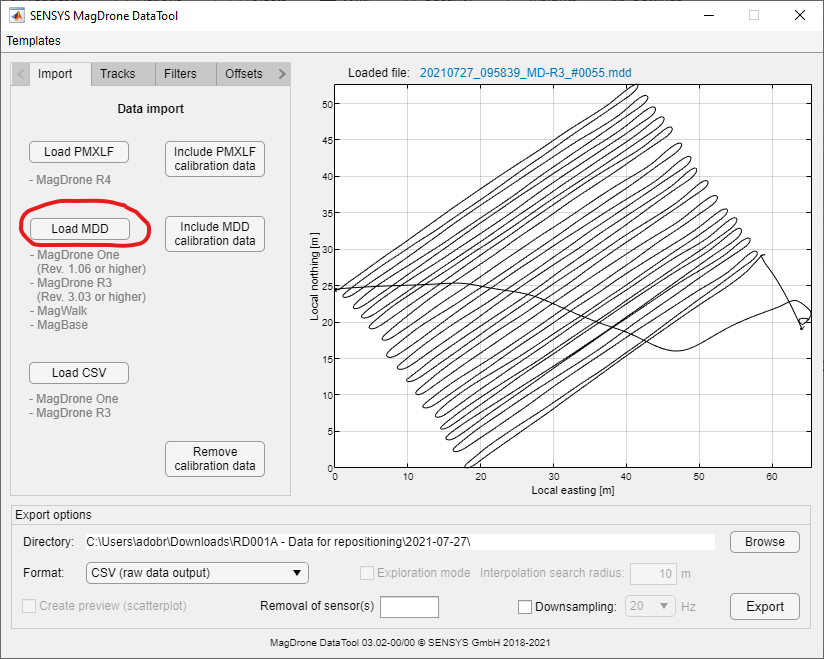
- Export data into CSV (raw data output)

- Start UgCS Geotagger
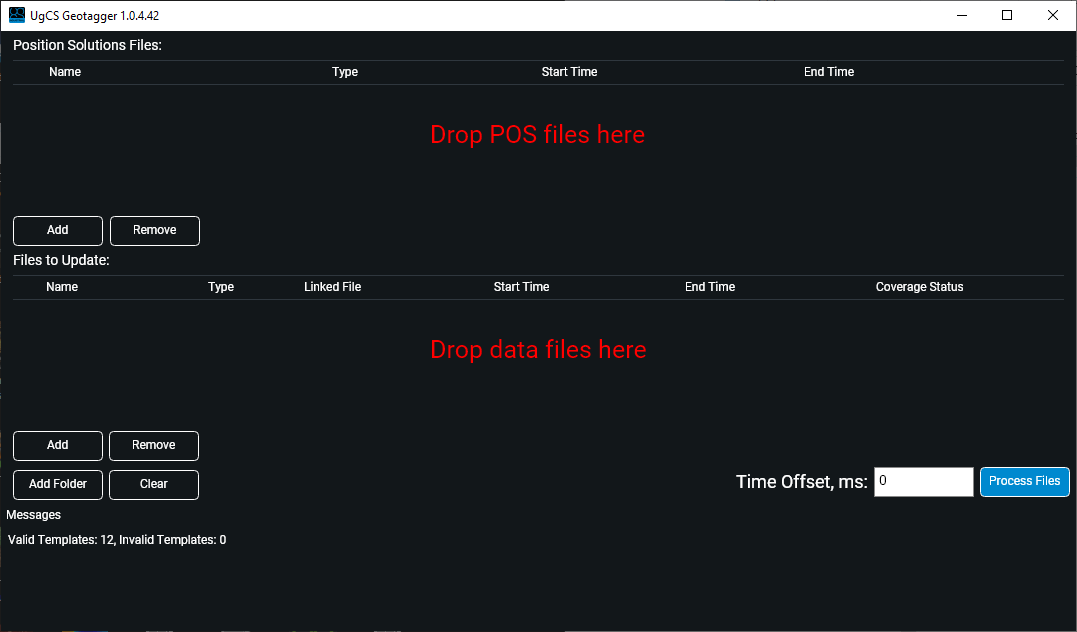
- Drag & drop your POS or SkyHub position log files into the uppermost area, MagDrone R3 CSV file into "Drop data files here" label.
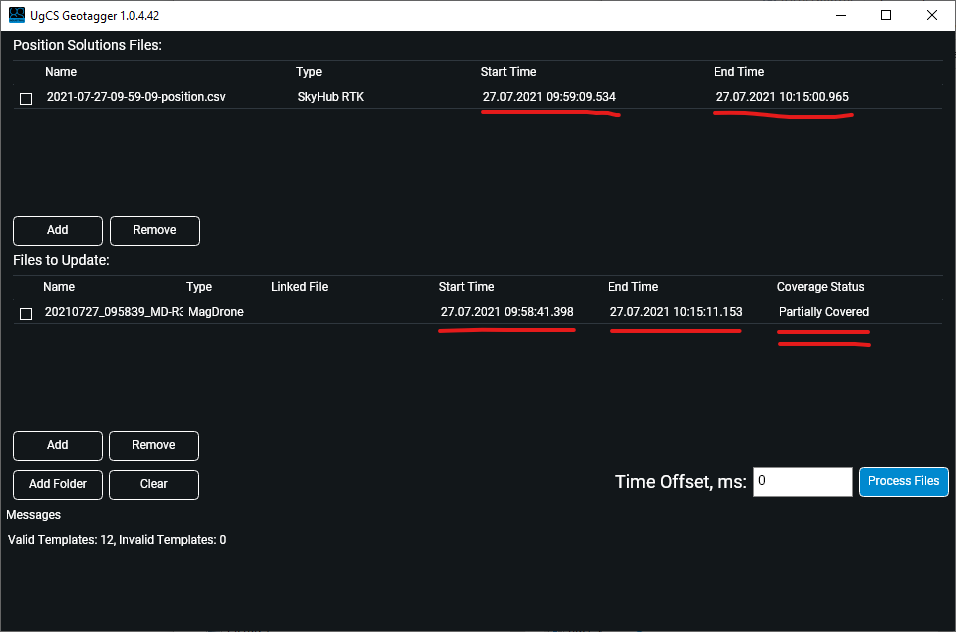
Note that you don't need to know what file with precise coordinates corresponds to the particular mag data file. You can drag&drop multiple files into each section and let UgCS Geotagger find a mapping between files.
Hint: MagDrone DataTool uses MDD file modification date to populate GPSDate column in CSV file. If the MDD file was copied/moved multiple times on its way from the magnetometer to the data processing computer, the modification date can be any. That will cause the wrong date in the CSV file, and Geotagger will not find a mapping between files with coordinates and mag data files. If that happens, you may open exported CSV file in notepad and using "search and replace" function replace the wrong date to right one.
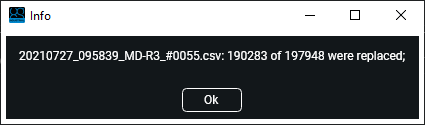
- Click "Process files". After successful processing, you will get a message with a number of replaced records:
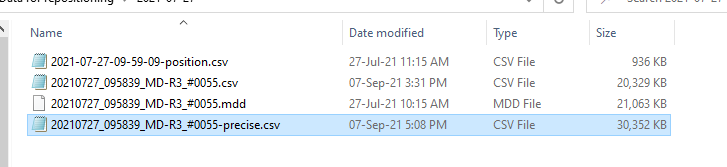
Geotagger will generate output file in the same folder as folder of processed files:
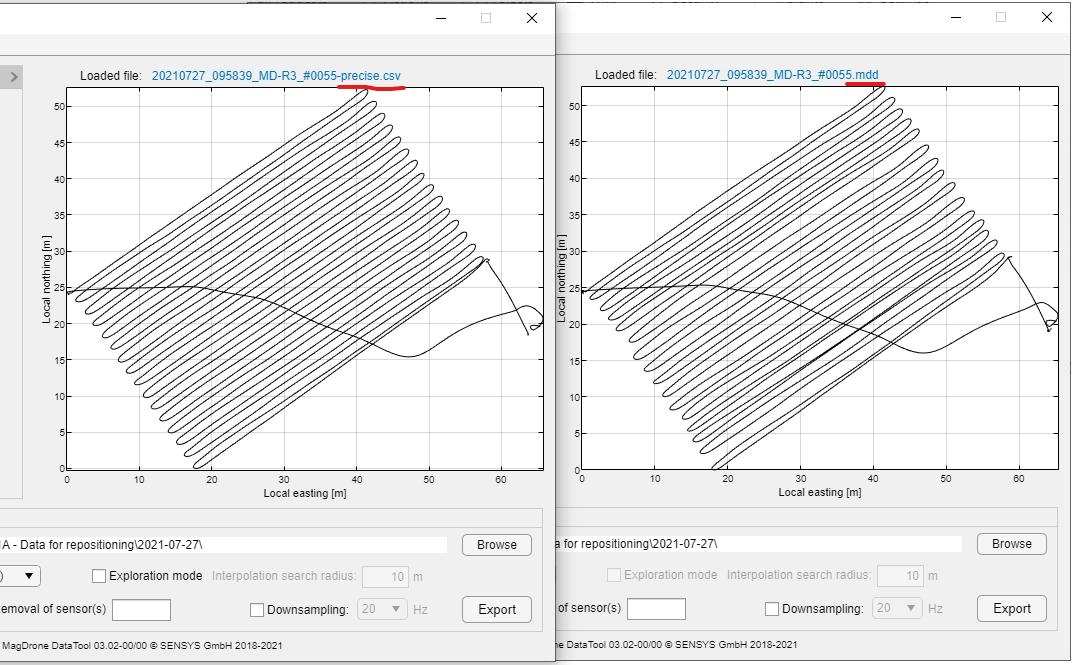
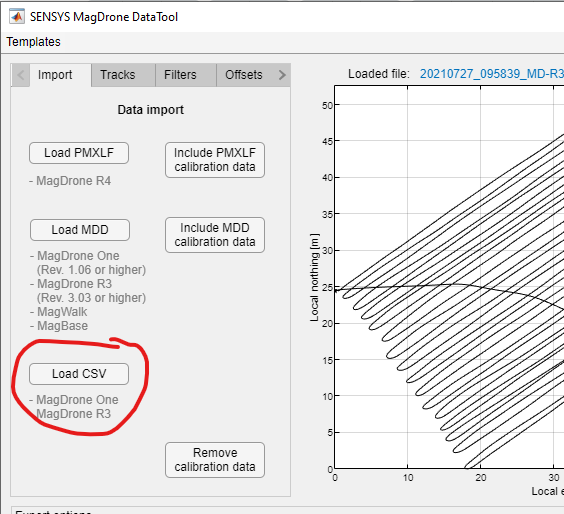
- Return to MagDrone DataTool and import generated CSV file:
- Enjoy the difference