Installing Timekeeper 2.0 - turesheim/eclipse-timekeeper GitHub Wiki
Timekeeper 2.0 targets Eclipse 2026-09 (4.41) and Java 21. Mylyn is optional; the integration feature requires Mylyn Tasks 4.12.
Publication status, October 12, 2026: 2.0 is still in development; no release candidate has been published. The URLs below become installable when a release with p2 assets is published. Before that, use a candidate build from GitHub Actions.
-
Open Help > Install New Software... > Add....
-
Name the site Timekeeper and enter the stable update URL:
https://turesheim.github.io/eclipse-timekeeper/updates/ -
Select Timekeeper for Eclipse for native projects, tasks and tracking. Add Timekeeper Mylyn integration if you also want Mylyn activation and Task List synchronization. Keep the Eclipse 2026-09 software site enabled so Eclipse can resolve dependencies.
-
Complete the installation and restart Eclipse.
-
Open Window > Show View > Other... > Timekeeper > Workweek.
Prereleases have a separate opt-in update site:
https://turesheim.github.io/eclipse-timekeeper/updates/preview/
A specific published release has its own retained repository at
https://turesheim.github.io/eclipse-timekeeper/updates/releases/<tag>/,
where <tag> is the release's actual tag. A v2.0.0-rc.1 repository, for
example, is available only after that release is published.
Each newly published release also provides timekeeper-p2.zip and a SHA-256 checksum on GitHub Releases. Download the ZIP, then select Add... > Archive... in Eclipse. Alternatively, extract it and choose Add... > Local.... Public release assets require no GitHub login. The archive has its p2 metadata at the root.
Open a successful Build workflow
run for the branch you intend to test and download its p2-repository artifact.
GitHub requires sign-in for Actions artifact downloads. Extract the artifact,
then choose Add... > Local... and select the repository directory containing
content.jar and artifacts.jar. Install the desired features and restart.
Check the run's branch and commit: a main artifact does not include changes
that are still in an open pull request.
Use Preferences > Timekeeper > Database to choose storage. The default is
shared storage under .timekeeper in your home directory. Workspace-relative
storage and an explicit H2 JDBC URL are also supported. Restart after changing
the database location.
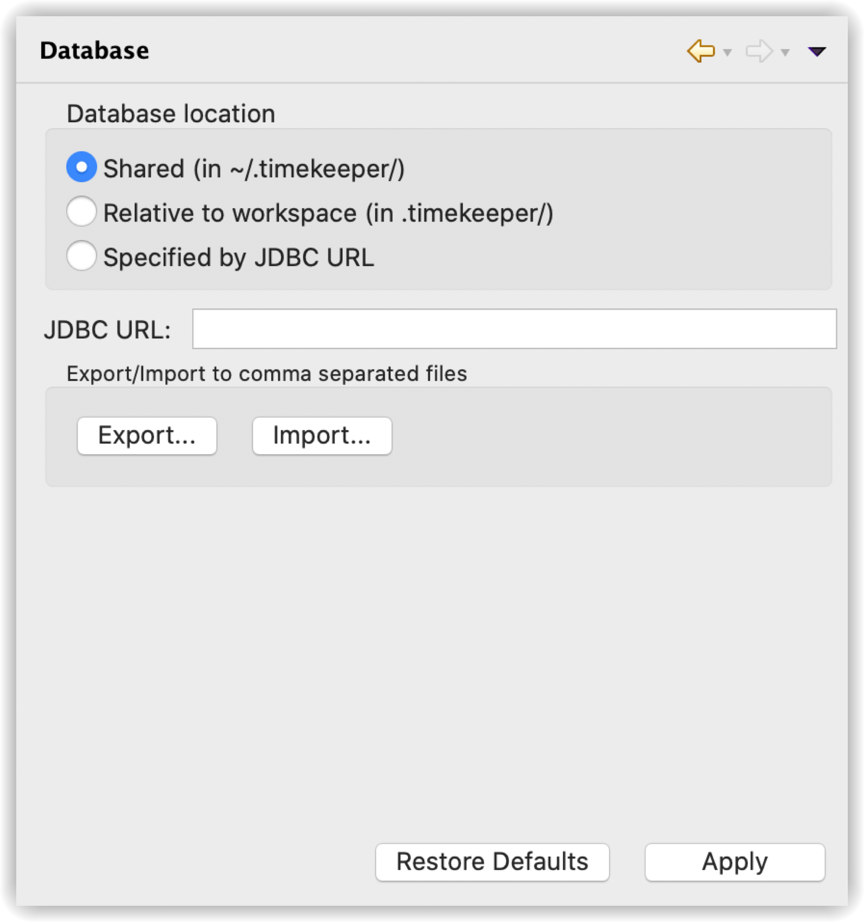
2.0 uses H2 2.5.250, schema version 2. It initializes empty storage; it does not import old H2 files, unversioned databases or Mylyn attribute storage. Before upgrading, stop open activities and all Eclipse/H2 clients, preserve the previous database and workspace, and select a separate empty location for 2.0. If a database is refused, keep it intact and choose new storage.
For a current-schema backup, stop all clients and copy the closed .mv.db
file. Keep its location, JDBC URL and matching Timekeeper/H2 versions with the
backup. Never copy an open file. Test a backup in a separate location using the
same versions; do not overwrite the original. See the
versioned backup and restore procedure.
CSV interchange and report exports are not database backups.
To return to an earlier Timekeeper release, stop Eclipse, uninstall 2.0, reinstall that release, and restore its original workspace, database and location setting. An older Timekeeper/H2 installation must not open the 2.0 schema. There is no automatic conversion in either direction.