Audio routing and changing output devices for TTS - techygrrrl/multilang-twitch-tts GitHub Wiki
By default, all of your desktop audio is broadcast to OBS through "Desktop Audio."
One way to work around this so that you don't stream text-to-speech is to use Realtek StereoMix, an audio utility built into Windows. StereoMix allows you to route audio to different channels.
Note: StereoMix is a bit cumbersome and confusing to use, but it is possible!
Instructions
Read both setup and teardown instructions before streaming.
Setup
Assuming you want to listen to TTS via your headphones, here are some instructions:
- Plug in your headphones.
- In Sound settings, make headphones your default audio output device
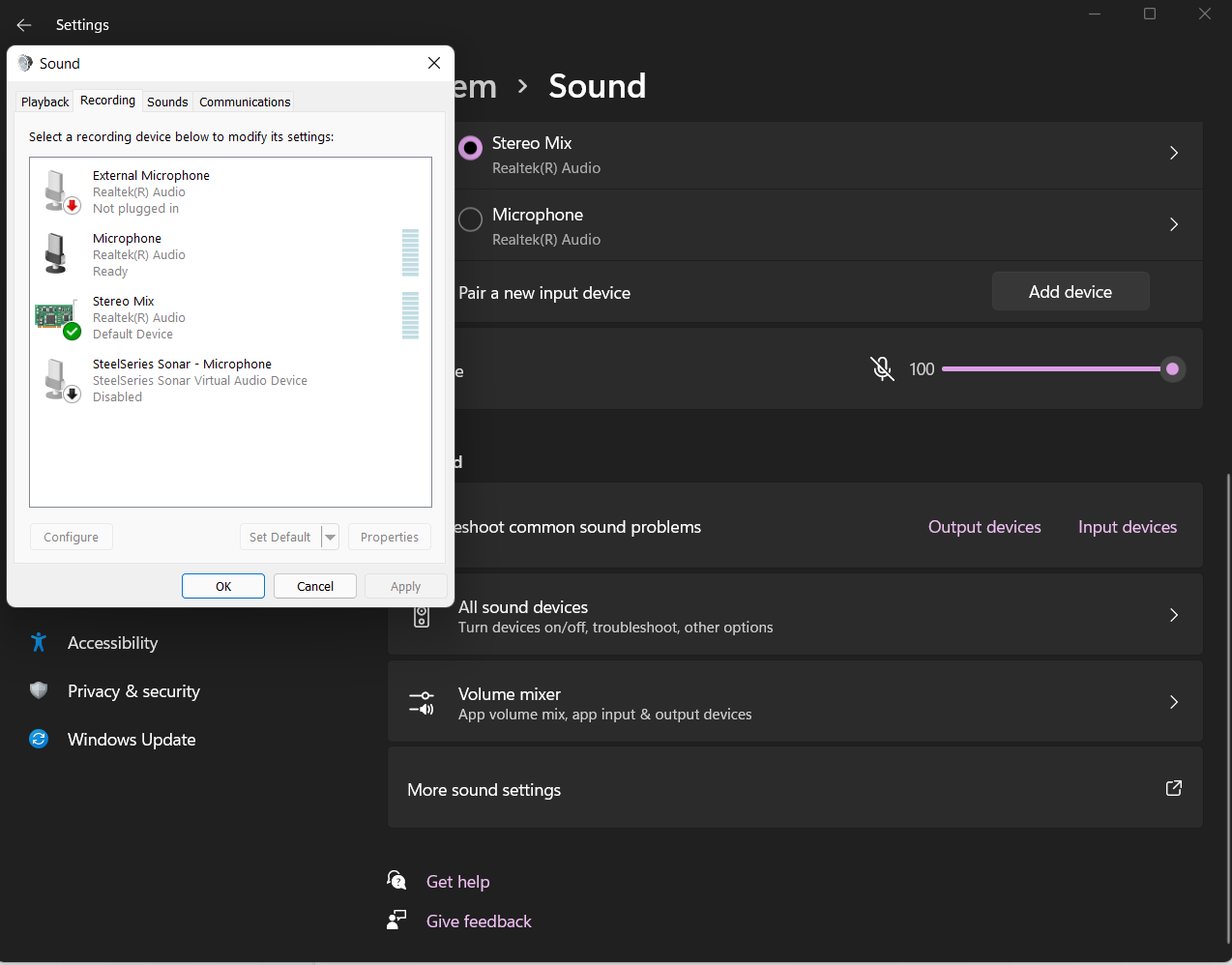
- In Sound settings, under Recording, find and enable StereoMix as a recording device.
- In the Playback tab, click the checkbox to listen to this device.
- Choose "playback through this device" to your Realtek device (e.g. laptop speakers)
- OBS should now detect it once it's added.
- Add a new audio source in OBS and pick the StereoMix device from the list. You may need to quit and restart OBS to see it in the list.
- Disable desktop audio in OBS. You shouldn't use this audio channel anymore, only broadcast StereoMix.
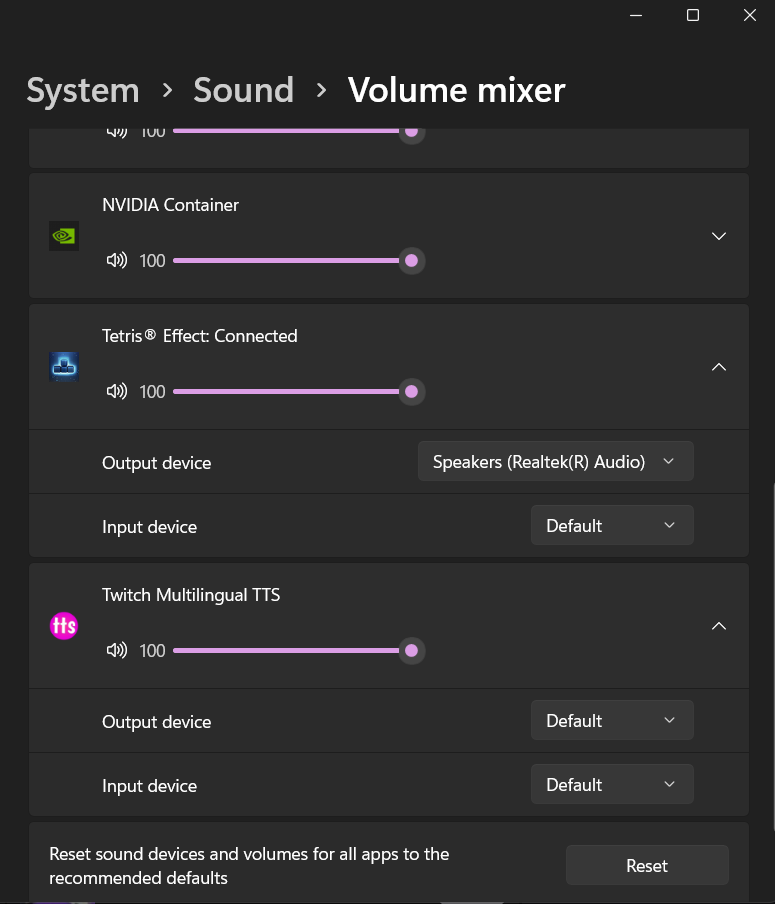
- In the per-app settings for audio:
- Game audio to desktop audio: Output your game audio to your Realtek device
- TTS audio to headphones: Output the audio for the Multilingual TTS app to your headphones
- Other apps to desktop audio: If for some reason you want to use Discord and TTS at the same, or you have other apps you want to share audio for (e.g. your browser), make sure to output these apps' audio to your Realtek device as well (like you did with your game audio)
- Do a test recording and play it back. Ensure you have everything set up properly. Only once you've confirmed this is working should you start streaming. This is highly recommended since debugging audio problems on stream can be a stressful experience. This also assumes your recording audio tracks are configured the same as your streaming audio tracks.
This should generally be the process to allow you to not stream the TTS. If you think I'm missing any instructions, feel free to suggest an edit.
Tear-down
You will want to reverse some of these settings so you can use your computer as normal. This will prevent an annoying feedback sound from happening.
- Disable StereoMix
- You can safely unplug your headphones
Troubleshooting
Cannot find StereoMix
Apparently some versions of Windows don't have the Realtek StereoMix utility installed. You'll have to look it up and install it. If you are in this boat, you may want to look into alternatives to StereoMix because it isn't the most user-friendly thing to use.
I'm not able to use StereoMix due to my setup
If your current setup doesn't allow you to use StereoMix, maybe one of the below issues could help:
- This issue #8 that uses Voicemeeter Potato
I don't see StereoMix in OBS as an audio option
Did you restart OBS after enabling StereoMix? This may be required.
Game audio not coming through to OBS recording
Did you route your game audio specifically to your Realtek device? e.g. your desktop audio? Audio you'd like to broadcast should be on the Realtek/desktop device, not your default devices (which is likely headphones).
I can still hear text-to-speech in my OBS recording
Did you mute Desktop Audio? The Desktop Audio track captures all desktop audio. Ensure you are only broadcasting the StereoMix track and that you are no longer broadcasting Desktop Audio.
The sound setup worked great for the sample recording but on stream it wasn't working right
Are your recording audio tracks configured the same as your streaming audio tracks?
Screenshots
Screenshot of the popup you see after clicking "More sound settings." Under the 2nd tab called Recording, you can see StereoMix is enabled.
Screenshot of game audio configured to be output to the speakers (Realtek device) and TTS to the default audio device, which should be your headphones. These settings are under Volume mixer (for app input).