Home Assistant - tangentaudio/opencv_tank_gauge GitHub Wiki
Access Token
This hass.py module needs a Home Assistant "Long-Lived Access Token" in order to access the API. The token is stored in a file, clients/token.hass. The Installation guides you through installing the token during setup.
Tank Level Entity
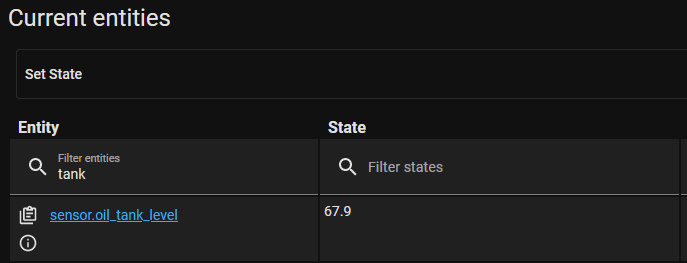
The hass.py module creates the tank level entity in Home Assistant when it connects successfully via the API. Presently the name of the entity is hard coded as sensor.oil_tank_level. It should show up in the Developer Tools->States if you search for it, once the gauge reader software is up and running.
Creating Notifications
Threshold Sensors
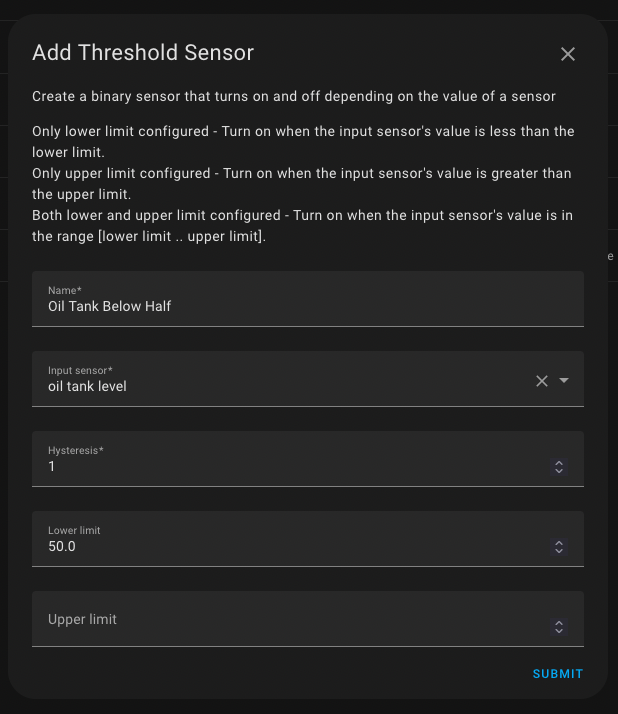
The Threshold integration is a helpful component for creating a binary sensor based on the value of an analog sensor. A Threshold Sensor can be set up to be TRUE if another sensor's value is above or below a value, or within a certain range. Additionally, Threshold Sensors have a configurable Hysteresis value, which will help prevent the output from changing rapidly when readings are noisy and near the threshold values configured. In my Home Assistant installation, I have threshold sensors configured for below 50% and below 25%.
To create a Threshold Helper, go to Settings->Devices & Services->Helpers and click CREATE HELPER. Choose Threshold from the list and set it up similar to the following:
Automation for Notification
Once you have configured a Threshold Sensor, it's easy to build an automation based on the Threshold Sensor entering a certain state. For example, I choose to send a notification when my tank level dips below 50%.
Navigate to Settings->Automations & Scenes and click CREATE AUTOMATION. Start with an empty automation.
Add a State Trigger and choose one of your threshold sensors as the Entity. Configure it to trigger when the state changes from off to on.
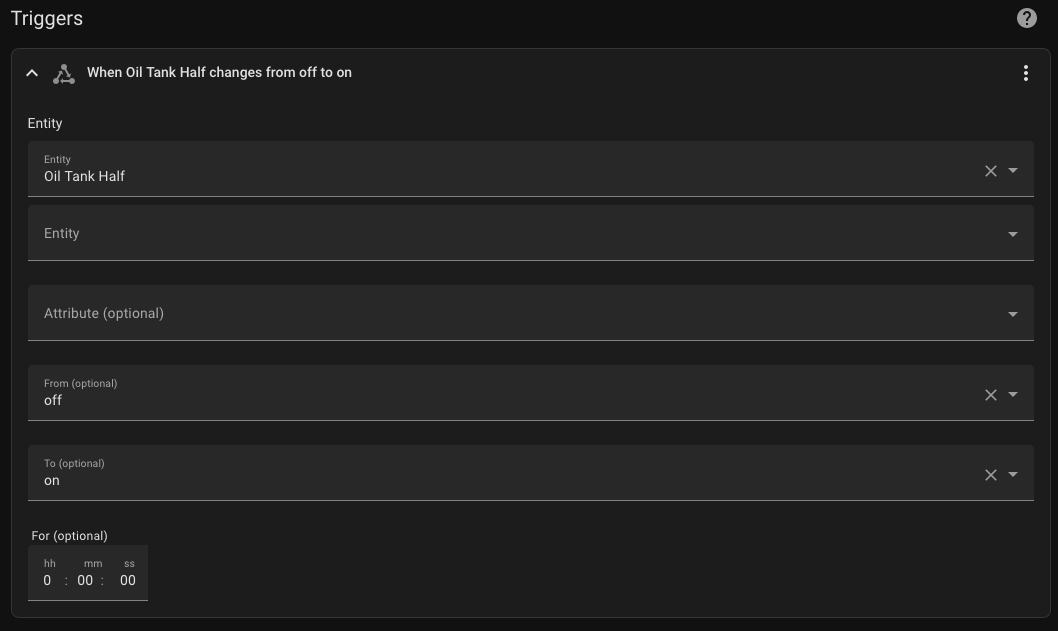
Next, add Call Service action, and configure it for Notifications: Send a persistent notification. Enter a message that you'd like to send along with the notification.
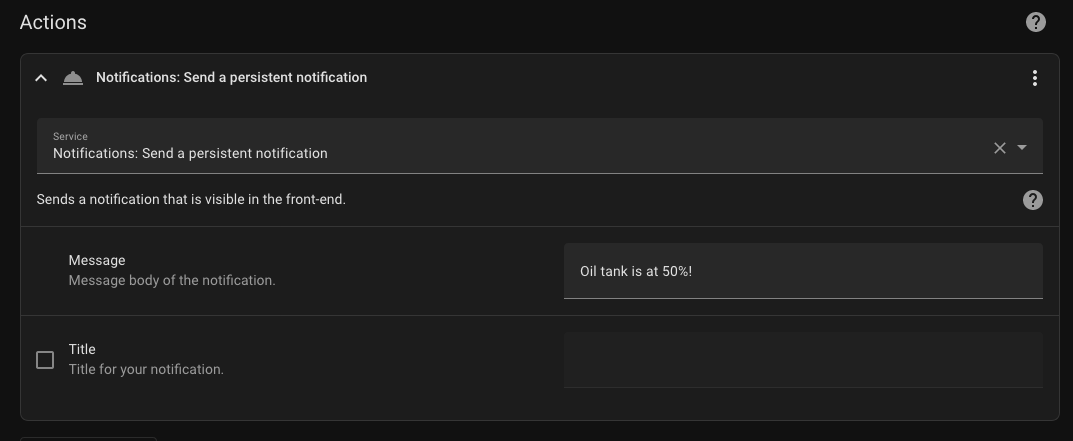
Click SAVE, and that's it. Your automation should be in place!
Obviously, you can get a lot more complex and fancy with threshold sensors and automations. You might consider trying the following:
- Send yourself a notification when your tank gets filled
- Instead of sending a single notification when the tank level drops below a level, notify yourself every day at a certain time if the tank is below a level to remind yourself to call for a delivery.
- Use a voice assistant to play an announcement in the house at a certain time of day when the tank is low
- Email or send an SMS message directly to your oil provider when the tank is below a certain level
Dashboard
It's easy to set up a dashboard element to show the current oil tank level, a graph of recent history, and provide a means to view the preview image.
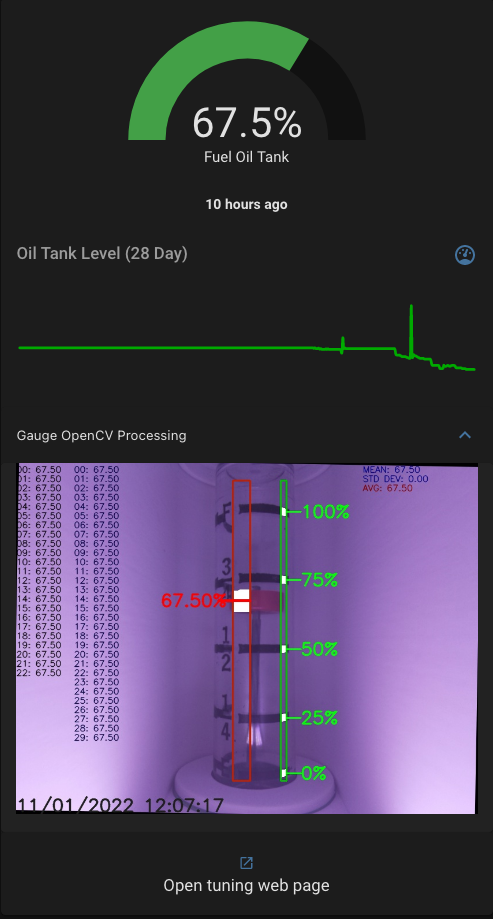
I like to use a few custom Lovelace cards, but you can adapt the example to use built-in ones if you choose. These should all be available via HACS.
Example dashboard yaml code below. Note that you may need to adjust the preview and tuning URLs for your Raspberry Pi address.
type: custom:vertical-stack-in-card
cards:
  - type: gauge
    entity: sensor.oil_tank_level
    unit: '%'
    min: 0
    max: 100
    severity:
      green: 60
      yellow: 40
      red: 1
    needle: false
    name: Fuel Oil Tank
  - type: custom:mushroom-entity-card
    entity: sensor.oil_tank_level
    primary_info: last-updated
    icon: mdi:gauge
    secondary_info: none
    icon_type: none
    layout: vertical
  - type: custom:mini-graph-card
    entities:
      - entity: sensor.oil_tank_level
    hours_to_show: 672
    points_per_hour: 1
    aggregate_func: max
    name: Oil Tank Level (28 Day)
    show:
      graph: line
      fill: false
      y_axis: primary
      legend: false
      state: false
    icon: mdi:gauge
    smoothing: true
    line_width: 3
    color_thresholds:
      - value: 0
        color: '#aa0000'
      - value: 30
        color: '#aaaa00'
      - value: 60
        color: '#00aa00'
  - type: custom:collapsable-cards
    title: Gauge OpenCV Processing
    cards:
      - type: iframe
        url: http://user:[email protected]:8080/
        aspect_ratio: 75%
      - type: button
        icon: mdi:open-in-new
        icon_height: 16px
        name: Open tuning web page
        tap_action:
          action: url
          url_path: http://gauge-reader.local:8080/tune