Web Server Troubleshooting - sudo-arshia/tips_and_tricks GitHub Wiki
1. Log Files
Log files are essential for troubleshooting web server issues. They provide specific information about errors and diagnostic details. The log files for services are usually located in sub-folders within the /var/log directory. For example, in an Ubuntu Apache server, the logs can be found in /var/log/apache2. The server error log, such as error.log, is particularly important as it contains information about server startup problems and operational errors.
For more information on Apache log files, refer to the Apache Log Files documentation.
2. Is the Server Running?
To check if the web server is running, you can use the following command:
$ sudo netstat -plnt | grep apache2
The output will display the processes that are using ports on the server. Look for the process named "apache2" to verify if the web server is running. If it is not running, you can start it using the following command:
$ sudo service apache2 start
On CentOS, the command to start the server is slightly different:
$ sudo /etc/init.d/httpd start
3. Configuration Files
If the web server fails to start, you should check the configuration files in /etc/apache2 or /etc/httpd, depending on your server. To validate the configuration syntax, use the following command:
$ apache2ctl configtest
If the syntax is correct, it will display "Syntax OK".
For Nginx, you can use the following command to check the configuration:
$ sudo nginx -t
4. Is the Port Open?
Web servers typically run on ports 80 (HTTP) or 443 (HTTPS), and these ports must be accessible. You can use the netcat or nc command to check if a specific port is open. For example, to check if port 80 is open on IP address 54.183.114.189, use the following command:
$ netcat -z 54.183.114.189 80
If the port is open, the command will return immediately. If it is not open, the command will continuously try to establish a connection without success. If the port is not accessible, you should investigate your firewall configuration.
5. DNS Settings
Check if the DNS is properly configured and investigate any potential problems. If you can access your site using the IP address but not the domain name, you may need to review your DNS settings. To query the A record for your domain, use the host command with the -t A option, providing the IP address:
$ host -t A 54.183.114.189
The output will show the domain name associated with the IP address. Remember that DNS changes may take some time to propagate.
6. Server Name, Document Root, or Index File
Ensure that the server name, document root, and index file are set correctly in the Apache virtual host or Nginx server block files. Here are examples for Apache and Nginx configurations:
Apache:
<VirtualHost *:80>

    ServerName example.com

    ServerAlias www.example.com

    ServerAdmin [email protected]

    DocumentRoot /var/www/html

    ...

</VirtualHost>
Nginx:
server {

    listen 80 default_server;

    listen [::]:80 default_server ipv6only=on;

    root /usr/share/nginx/html;

    index index

.html index.htm;

    server_name example.com www.example.com;

    ...

}
7. Is the Database Running?
To check if the database server is running, you can use the following command, replacing the placeholders with the appropriate values:
$ mysql -u DB_USER -pDB_PASSWORD DB_NAME
Replace DB_USER with the actual database username, DB_PASSWORD with the password, and DB_NAME with the name of the database you want to connect to.
Domain Name System (DNS) TTLs
The TTL (Time-to-live) value determines how long DNS settings are cached. Shorter TTLs can cause heavier loads on a name server but can be useful when changing critical services' addresses, such as web servers or MX records. DNS administrators often lower the TTL before moving a service to minimize disruptions.
TTL values are measured in seconds. In the past, a common TTL was 86400 seconds (24 hours). This means that DNS servers worldwide could continue to show the old value from their cache for up to 24 hours after a change. However, newer DNS methods used in Disaster Recovery (DR) systems often have extremely low TTLs to quickly expire key records. For example, a 300-second TTL would help ensure these records are flushed worldwide within 5 minutes, allowing administrators to update records promptly. Keep in mind that caching DNS nameservers might set their own TTLs, disregarding authoritative records, so it's not guaranteed that all downstream DNS servers will have the new records after the TTL expires.
Slow Application?
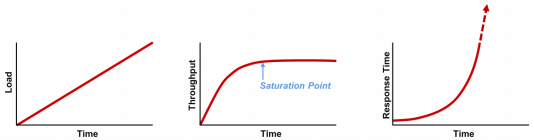
To troubleshoot performance issues effectively, it's important to understand the relationship between load, throughput, and response time.
-
Load: Load refers to the demand for work to be done by the application. Without load, there is no response time. When the demand exceeds the application's capacity, performance degrades, and bottlenecks occur.
-
Throughput: Throughput is the execution rate of the workload. It increases as load increases, up to a point where a resource becomes saturated. Beyond this point, throughput plateaus, indicating that the application no longer scales.
-
Response time: Response time is the time it takes for the application to process a request and provide a response. Initially, as load and throughput increase, response time remains low. However, when throughput plateaus, response time increases exponentially as queuing occurs.
Understanding these concepts will help in diagnosing and addressing performance issues efficiently.