HBOT Patient entered Survey - spacemedicinelab/public-wiki GitHub Wiki
The most up-to-date version of this document is located: https://github.com/spacemedicinelab/public-wiki/wiki/HBOT-Patient-entered-Survey
A few centers are exploring the possibilities of allowing patients to enter questionnaire responses directly into REDCap in the form of surveys. To achieve that, I’ve edited the project template such that the clinical data don’t appear on the surveys. This involved adding REDCap “Action Tags” to the clinical data fields in the Data Dictionary. Everything else should still work the same.
Pre and Post Treatment/Outcomes
- Bladder Questionnaire
- Bowel Symptoms Questionnaire
- Head & Neck Questionnaire
- Laryngeal Soft Tissue Radionecrosis Questionnaire
- Perianal Crohns Symptom Index
- HOOS Hip Survey (Hip dysfunction and Osteoarthritis Outcome Score)
- Anal Fissure Symptoms
- Neurobehavioral Symptom Inventory
- Long-COVID survey
- EQ5D survey
- Patient Exit Questionnaire (UK)
Pre Surgical Intervention
- Head & Neck Questionnaire
Followup Surveys
- (everything above)
- Hyperbaric Treatment Satisfaction Questionnaire
- Hyperbaric Visual Change Questionnaire
- UK-specific Measures
- Carbon Monoxide Followup Surveys
Some questionnaires contain clinical fields and are therefore hidden in the surveys. It includes but not limited to:
- DAN Scuba Epidemiology Reporting Form
- AAOS Hip Questionnaire
Go to REDCap "Online Designer" page for the registry project. Click the "Enable" button next to the instruments:
- Pre Treatment Information
- Pre Surgical Intervention
- Treatment and Outcome
Then in the "Survey Settings" to the right, you can customize the appearance of the survey and more, including survey instructions, whether or not to send a confirmation email after the survey is submitted, etc.

We HIGHLY recommend that you use the following settings for Allow 'Save & Return Later' and Allow respondents to return without a code (we think it is safe since none of the questionnaires ask for identifiable information).

This is to prevent the situation that, under the default setting, when a patient submits a partial survey response without completing all the required fields, they would see the following notice.
(Click to expand)
You have partially completed this survey.
You have not completed the entire survey, and your responses are thus considered only partially complete. For security reasons, you will not be allowed to continue taking the survey from the place where you stopped. So you have the option to 1) leave your survey responses unchanged as they are, or 2) you may start the survey over from the beginning so that you may complete it (this will delete all your previously existing responses when you begin again). To start the survey again, click the button below.
Start Over
Start Over button will clear out all data entered in the form Pre Treatment Information/Treatment and Outcome (including clinical data and selected indications), not just the survey portion.
To avoid the risk of losing data, check the box Allow respondents to return without a code such that the Start Over option never shows up. After the survey is completed, the survey link will be closed.
For the REDCap users who are responsible for entering and updating the data in REDCap, check the following boxes to allow them to "Edit survey responses" for all 3 instruments. You can find this setting by going to the User Rights page, then click the name of the user group to edit their role privileges:


After the patient submit the survey, the entire instrument (including clinical data) will be in read-only state and no longer editable. Only users with the above privilege can make further edits or add information in that page. You will find an Edit response button at the top of the record page to unlock the instrument.

Make sure important demographics and clinical fields are filled out in "Demographics" and "Pre Treatment Information" before sending the survey to the patient, especially the HBO or non-UHMS indication. This is to ensure that the branching logic of the registry works properly, so the patient gets all the questionnaires required for that indication.
Key fields to enter before sending the survey:
- Date of referral
- Date of birth (or Age at referral)
- Is HBO2 treatment indicated:
Yes (will be treated at our unit) - Confirmed indication(s) for HBO2
Scroll down to see if the indication-specific questionnaires are showing up properly. Don't forget to save the page afterwards❕

There are a few questionnaires that you need to pay special attention to. See below for example, some questionnaires only show up in the survey after you check the box for "Yes" (patient is able to complete the questionnaire).


Before sending out the survey to patients, ensure that you have saved all the information entered in the "Pre treatment information" form (or whichever form of that survey), such that all the questionnaires are displayed correctly.
You will see this drop down menu Survey Options at the top of the form that have surveys enabled:
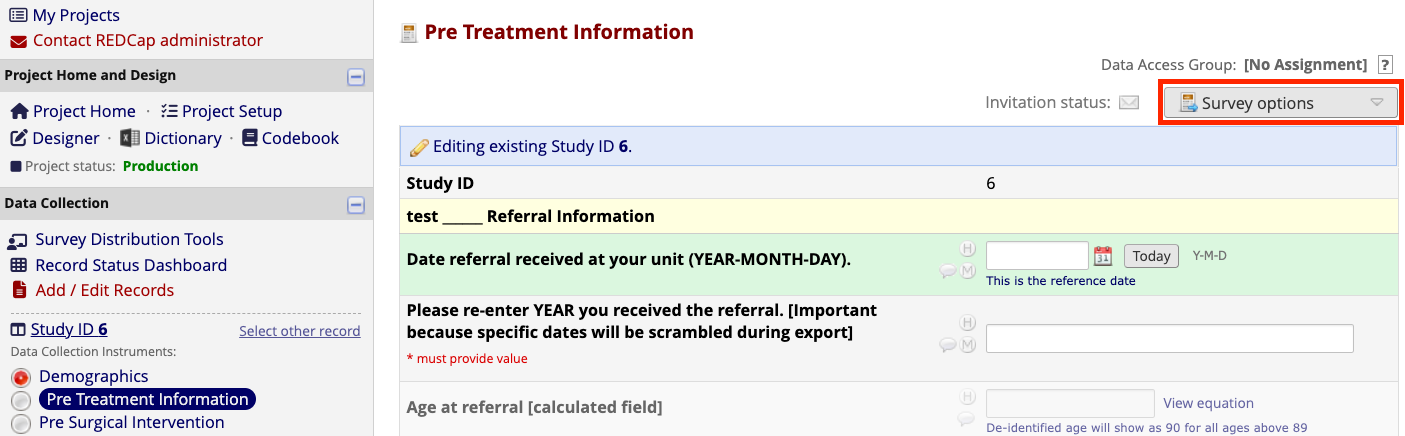
The first two Survey Options will simply open the survey page in the current web browser on your computer. This is helpful for you to preview the survey, but it should NOT be used to hand out surveys to patients.
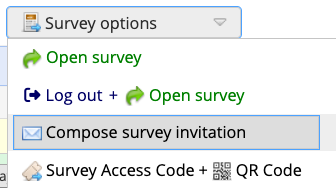
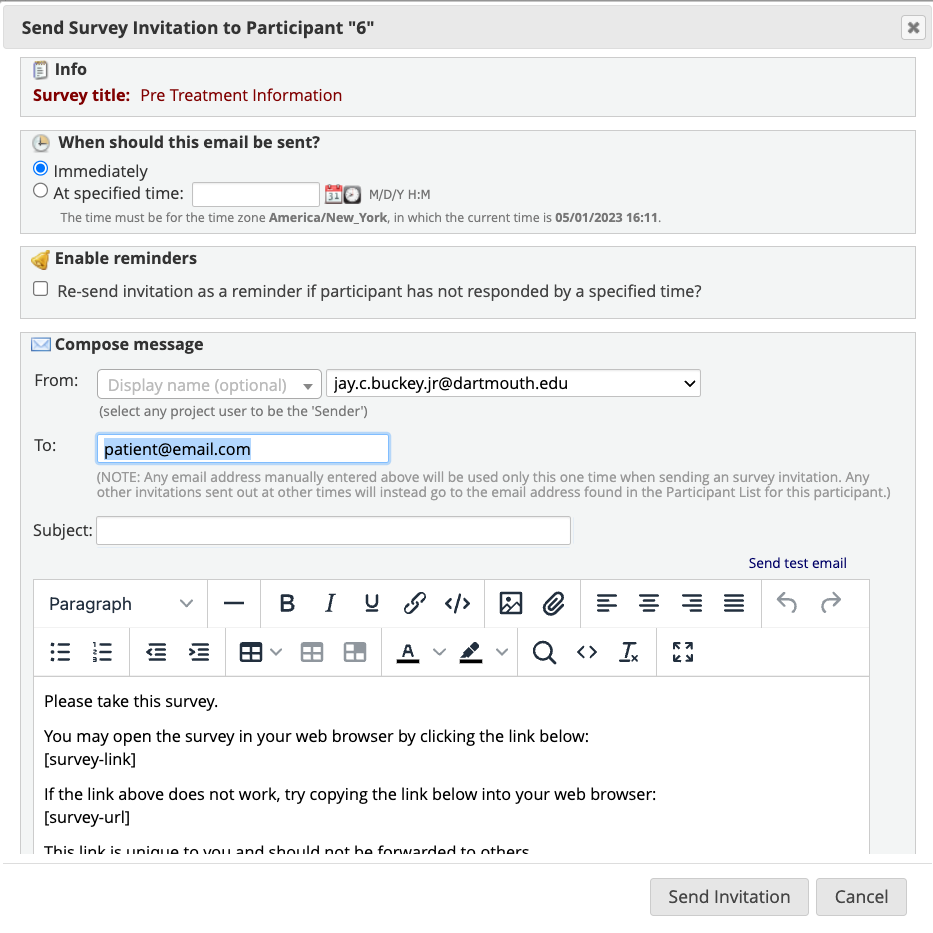
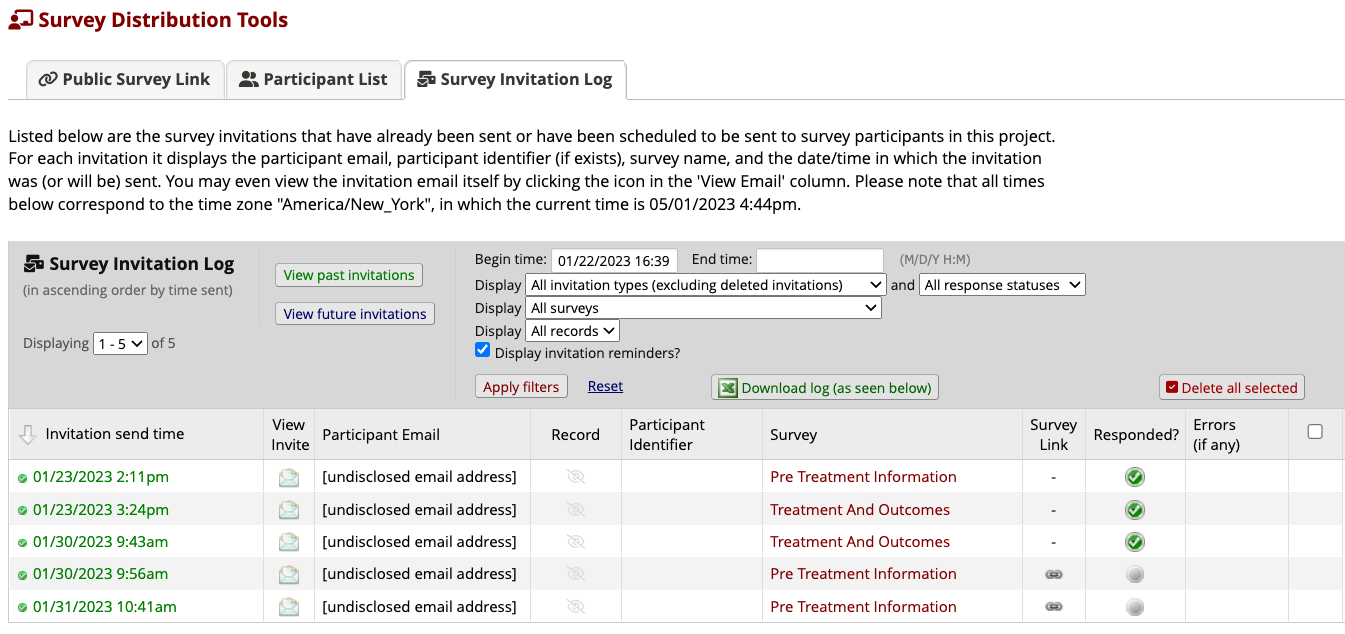
You can customize the email containing the survey link to send to patients. Note that the patient email you entered in this window will stay anonymized, which means it will not be saved into REDCap logs, or linked with the record in any way. In the page "Survey Invitation Log" you can only see the time that the survey invitation was sent, and whether it's been completed or not.
Alternatively, you can hand out a QR Code for the patient to scan using a smart device, which will open the survey link in a web browser app on their devices.