1.4. Ultrasonic Sensor Harvest tutorial (Pre registered) - soracom/handson GitHub Wiki
- RPi connected with SORACOM Air
- Ultrasonic Sensor HC-SR04
- Solderless Breadboards
- 4 x Jumper wires

Quote from User's Manual
The HC-SR04 ultrasonic sensor uses sonar to determine distance to an object like bats or dolphins do. It offers excellent non-contact range detection with high accuracy and stable readings in an easy-to-use package. From 2cm to 400 cm or 1” to 13 feet. It operation is not affected by sunlight or black material like Sharp rangefinders are (although acoustically soft materials like cloth can be difficult to detect). It comes complete with ultrasonic transmitter and receiver module.
To measure the distance between the object and the sensor, you need to perform below steps.
- Send a pulse of HIGH (5V) to "Trig" pin at least 10 us (=0.00001 seconds).
- Start measuring time when "Echo" pin becomes HIGH (5V). (=when ultrasonic waves sent)
- Stop measuring time when "Echo" pin becomes LOW(0V). (=when reflected waves received)
If the measured time was t (sec), distance to object can be obtained by following formula.
distance(m) = 340(m/sec) x t (sec) / 2 (because of round trip)
speed of sound depends on temperature, but roughly around 340 m/sec in the normal air.
DO NOT connect red wire and/or connect any wires to Red GPIO pins until you connect everything else. Failing to follow may result in burning the sensor and Raspberry Pi circuits.
-
GND (0V Ground) Connect to RPi Ground
-
TRIG (Trigger Pulse Input) Connect to RPi GPIO2 with blue cable
-
ECHO (Echo Pulse Output) Connect to RPi GPIO3 with yellow cable
-
VCC (5V Power Input) Connect to RPi 5V Power with red cable.
Raspberry Pi GPIO pin layout

If your sensor or Raspberry Pi feels hot or smoky, unplug all wires from your Raspberry Pi and raise your hand for help
This Ultrasonic sensor has 4 pins. Please refer to the image and wiring sketch to correctly wire 4 wires from Raspberry PI GPIO pins to your Ultrasonic sensor.


 # Test sensor
Once you wired up the ultrasonic sensor, please download this test script (https://soracom-files.s3.amazonaws.com/handson/hcsr04.py) written in Python. To download and test it on Raspberry Pi, enter following command in the terminal.
curl -O https://soracom-files.s3.amazonaws.com/handson/hcsr04.py
python hcsr04.py
pi@raspberrypi:~ $ curl -O https://soracom-files.s3.amazonaws.com/handson/hcsr04.py
  % Total    % Received % Xferd  Average Speed   Time    Time     Time  Current
                                 Dload  Upload   Total   Spent    Left  Speed
100  1752  100  1752    0     0   2650      0 --:--:-- --:--:-- --:--:--  2650
pi@raspberrypi:~ $ python hcsr04.py
distance: 46.0 cm
distance: 46.4 cm
distance: 46.0 cm
distance: 47.2 cm
     :
     : (Hit Ctrl+C to stop)
If you see the following error, most likely the script download was not completed. Please try downloading the script again.
pi@raspberrypi:~ $ python hcsr04.py
python: can't open file 'hcsr04.py': [Errno 2] No such file or directory
pi@raspberrypi:~ $ python hcsr04.py
  File "hcsr04.py", line 1
    <?xml version="1.0" encoding="UTF-8"?>
    ^
SyntaxError: invalid syntax
If it does not display anything just like below error output, please hit(Ctrl+C) and stop the process. Check to make sure your wiring is correct.
pi@raspberrypi:~ $ python hcsr04.py
(nothing)
SORACOM Harvest (Harvest) is a simple data visualization and storage service. To easily check if the data is properly sent from your devices in a right format, Harvest is a good service to try. Harvest holds your data for 40 days and this is suitable for proof of concept, testing of your first IoT device data ingestion and adjusting your data format for analytics.
By using Harvest, you can easily visualize the data without having to configure a backend server or storage in the beginning of your IoT project. You can send data to Harvest endpoint over HTTP, TCP, or UDP without the need for encryption.

The dashboard is integrated into your User Console. You can view your graph by selecting your SIM and click “Harvest Data”
For more information, please refer to Harvest Getting Started Guide
Type in below URL in your browser to access our User Console
https://console.soracom.io/#/sam_login
*Ctrl/Cmd+Click to open a new browser tab, so that you can keep this page open

Please enter the following information to log in:
- Operator ID:
OP0062924430 - Username:
workshop - Passworrd:
On SIM management screen, please enter the name in the “Search by any attribute” box to get to your workshop SIM.


Please make sure your SIM is in “Harvest” group. This “Group” holds the Harvest configuration. All SIM in the same group will be allowed to send data to Harvest services.

If not, please select the device and click 'Actions' to 'Change Group': If the SIM is not in “Harvest” group, please follow below screen and change the group to “Harvest”

Use with “curl” command and test the connectivity to Harvest server before sending the live data from your sensor.
curl -v -d "Hello Harvest!" harvest.soracom.io
pi@raspberrypi:~ $ curl -v -d "Hello Harvest!" harvest.soracom.io
* Rebuilt URL to: harvest.soracom.io/
* Hostname was NOT found in DNS cache
*   Trying 100.127.111.111...
* Connected to harvest.soracom.io (100.127.111.111) port 80 (#0)
> POST / HTTP/1.1
> User-Agent: curl/7.38.0
> Host: harvest.soracom.io
> Accept: */*
> Content-Length: 14
> Content-Type: application/x-www-form-urlencoded
>
* upload completely sent off: 14 out of 14 bytes
< HTTP/1.1 201 Created
< Date: Tue, 09 May 2017 15:55:55 GMT
* Server nginx/1.6.2 is not blacklisted
< Server: nginx/1.6.2
< Content-Length: 0
< Connection: Close
<
* Closing connection 0
If you do not see above, please raise your hand and ask for help. In the User Console, click “Actions” and “Harvest Data”

It will display uploaded data at the bottom. If the test upload is successful, you should see an entry with "Hello Harvest!" in “Content” column with other metadata.

Download another python data upload script(ultrasonic_harvest.py) and run it in your Raspberry Pi to upload live sensor data to Harvest. You will need to install “python-requests” software package into your Raspberry Pi to make HTTP requests to Harvest from your python code.
sudo apt-get install -y python-requests
curl -O http://soracom-files.s3.amazonaws.com/handson/ultrasonic_harvest.py
python ultrasonic_harvest.py
pi@raspberrypi:~ $ sudo apt-get install -y python-requests
 :
 :
pi@raspberrypi:~ $ curl -O http://soracom-files.s3.amazonaws.com/handson/ultrasonic_harvest.py
  % Total    % Received % Xferd  Average Speed   Time    Time     Time  Current
                                 Dload  Upload   Total   Spent    Left  Speed
100  1169  100  1169    0     0   3636      0 --:--:-- --:--:-- --:--:--  3641
pi@raspberrypi:~ $ python ultrasonic_harvest.py
- reading distance
distance: 4.6 cm
- sending data to Harvest
<Response [201]>

- reading distance
distance: 4.7 cm
- sending data to Harvest
<Response [201]>
 :
 :
If you do not see the output above, please try downloading the script again.
Please enable “Auto refresh” by clicking the slider. Place your hand in front of the sensor, move your hand away from the sensor and then move closer the sensor a few times repeatedly to see if the “distance” data changes in the graph.
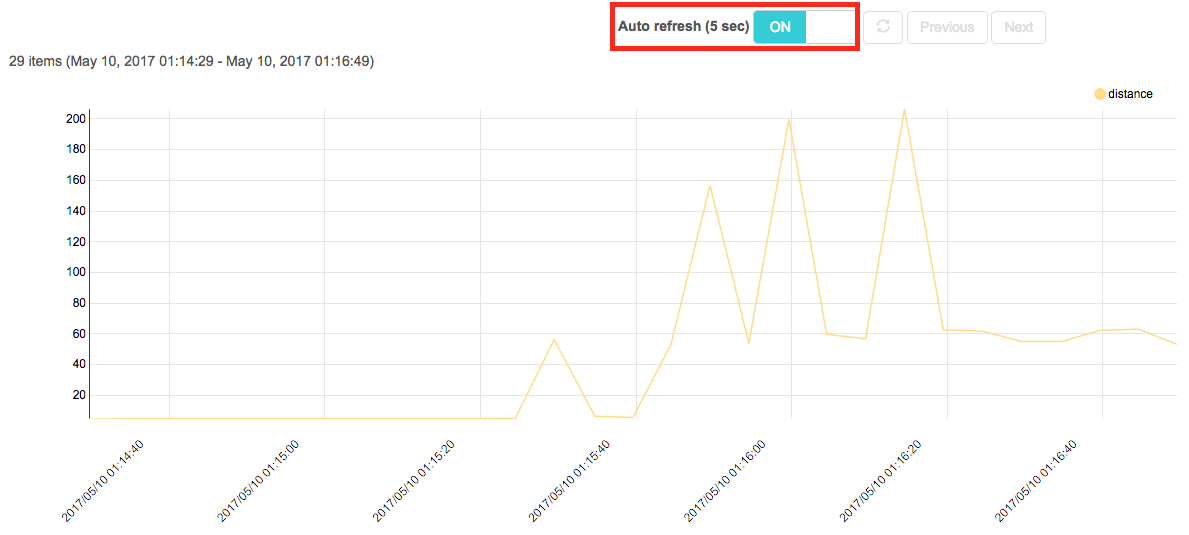
This concludes our Basic Cellular to SORACOM Harvest workshop scenario. If you have some time left, please move onto advanced scenario below.