Security: Configure Keycloak for use with the API Server - solace-cto-labs/platform-api GitHub Wiki
Configure Keycloak for use with the API Server
Steps to configure a keycloak realm to issue suitable tokens for the API Server.
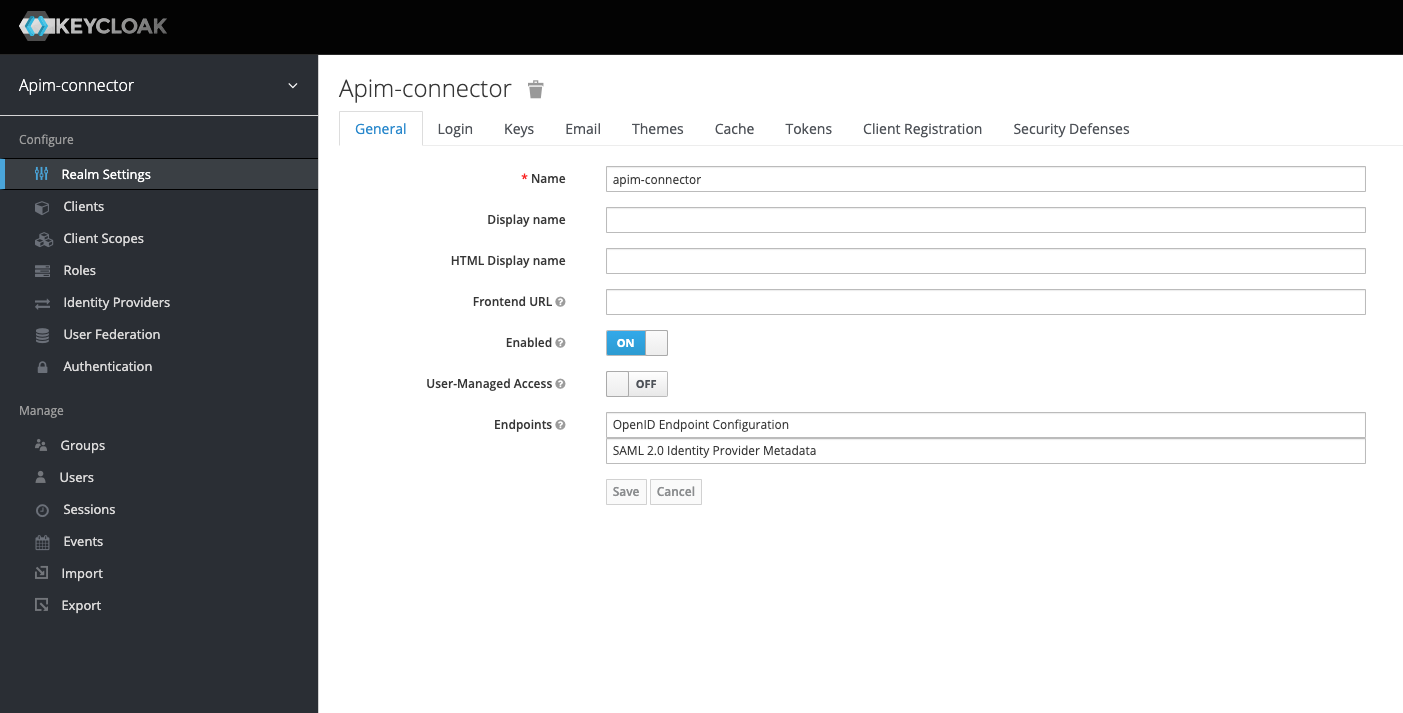
Create a new realm
Configure Organizations - Add groups
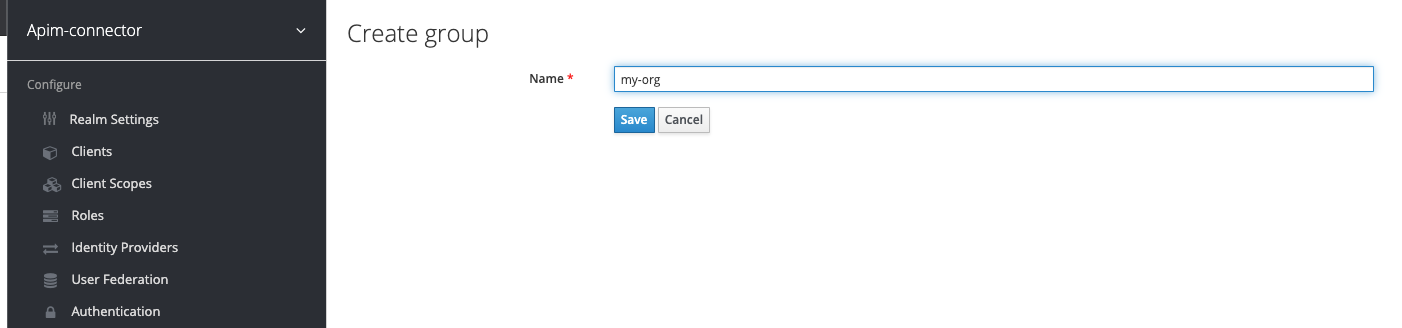
Currently organizations are not propagated to the IdP. You need to add organizations manually. In Keycloak we use the groups concept to represent an organization.
The example below adds a my-org organization:

Add a user
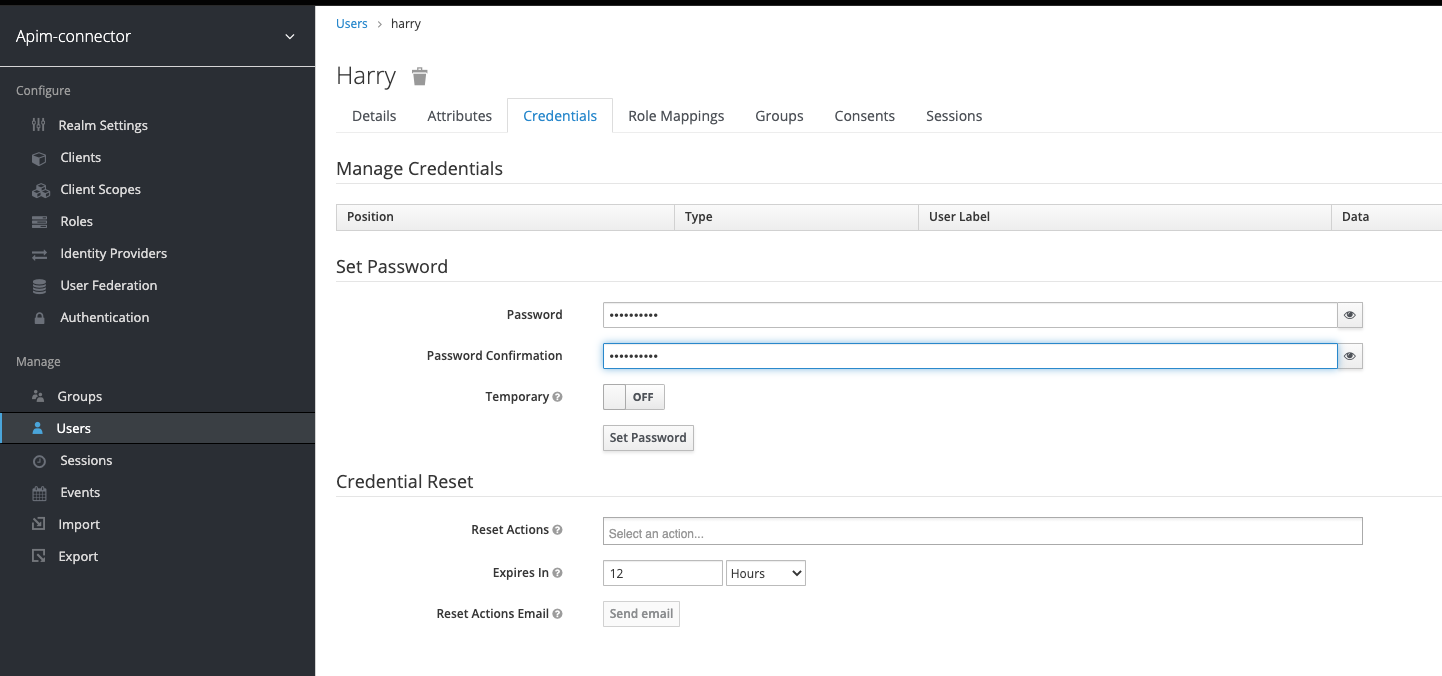
First add a user, then on the newly created user set the password -

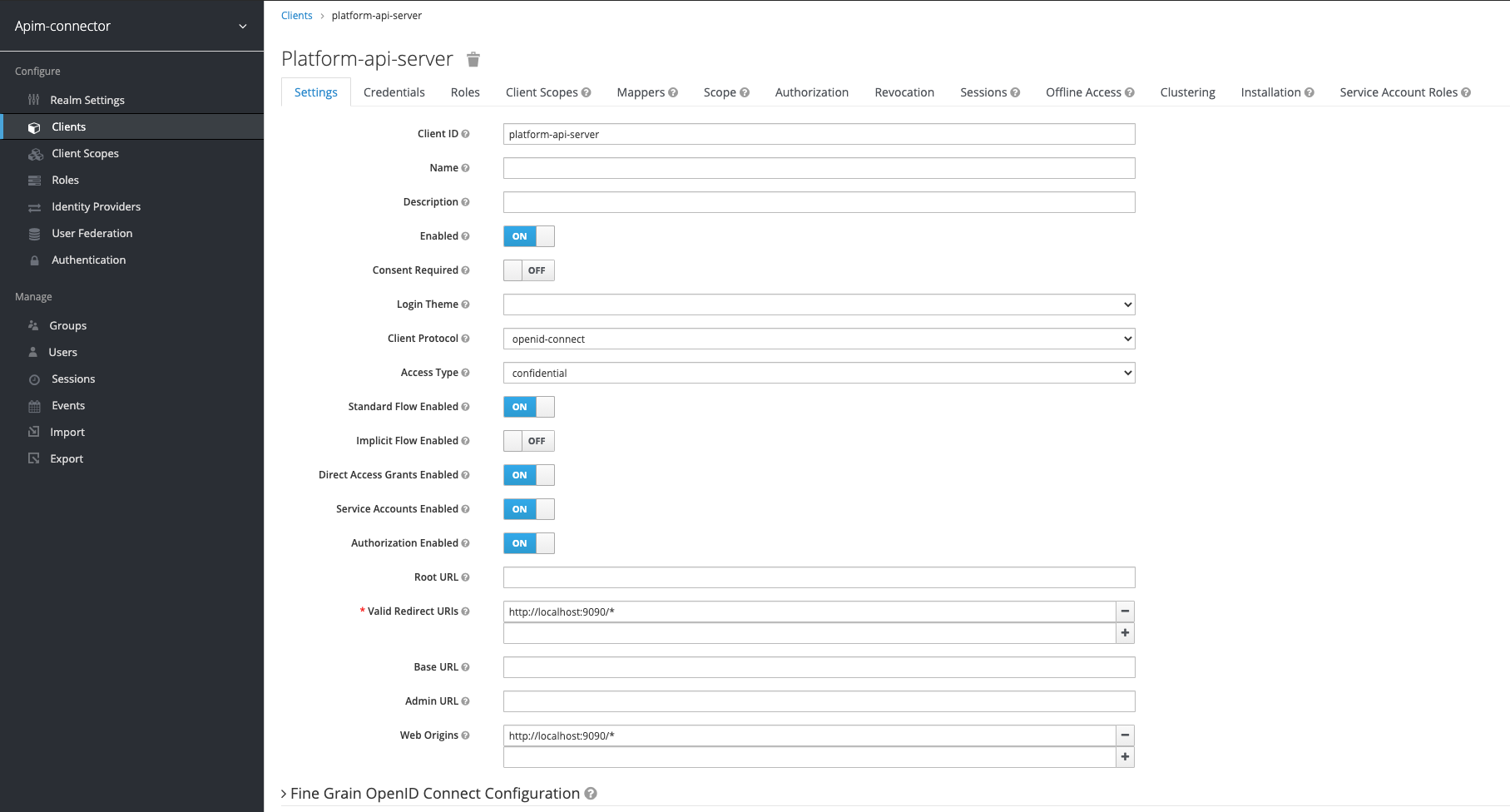
Add client configuration for the API Server
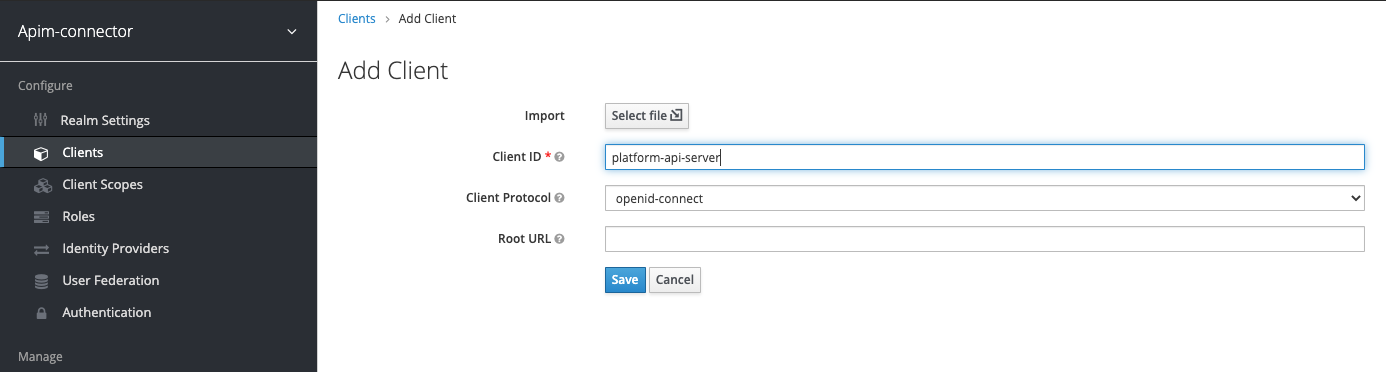
Add a new client and set the callback url and web-origin (for CORS). Use the correct host name and port according to your deployment.
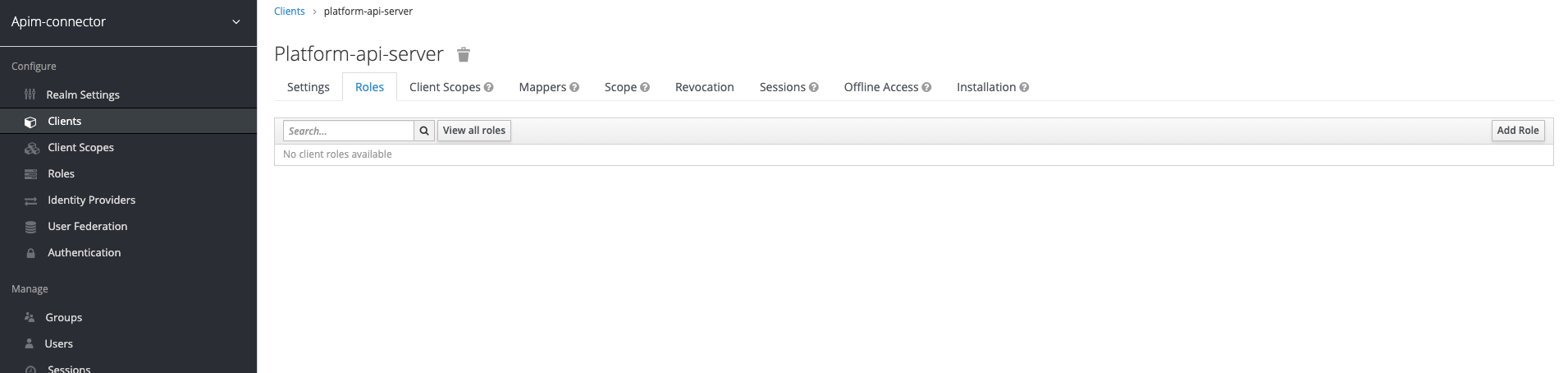
Add roles to the client
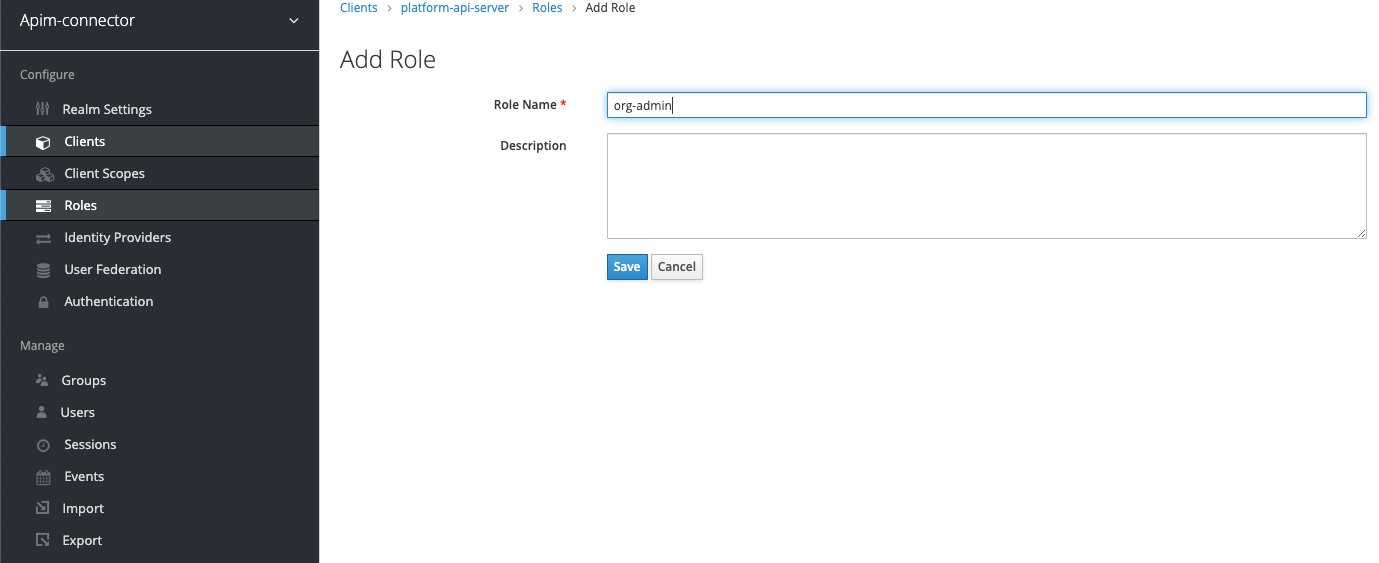
Now we need to add the roles (org-admin, platform-admin) to the client

Add roles to user
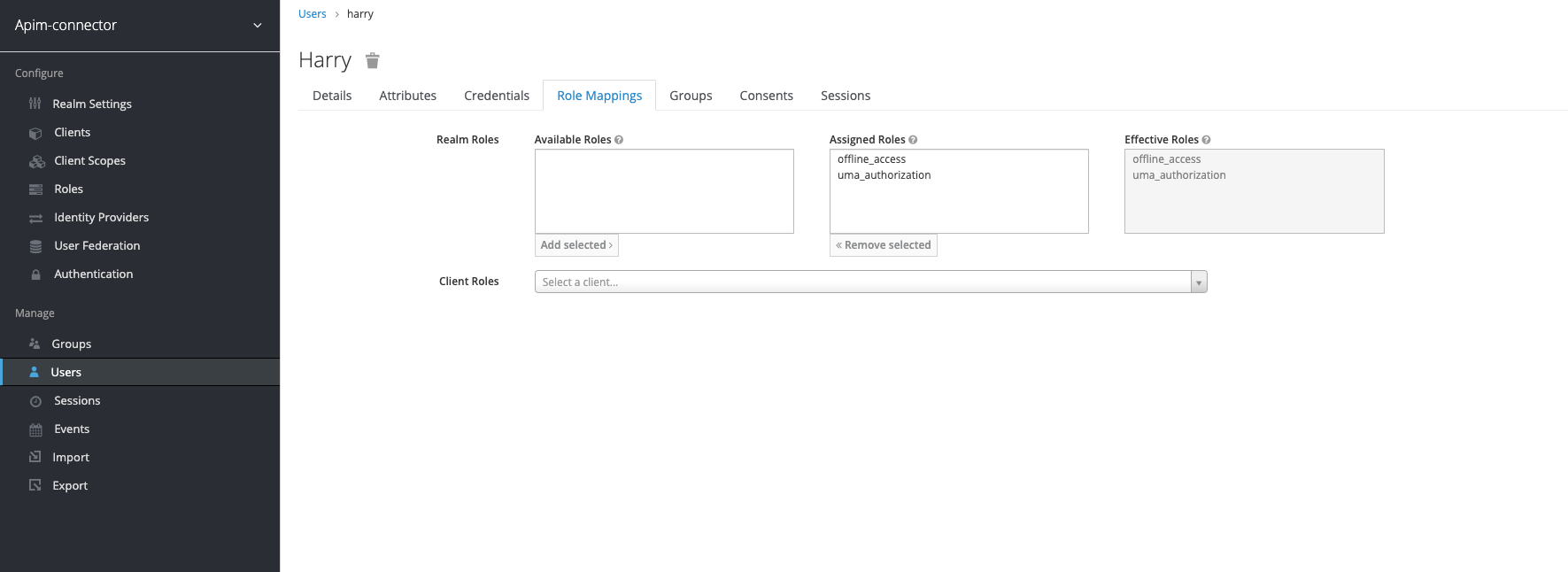
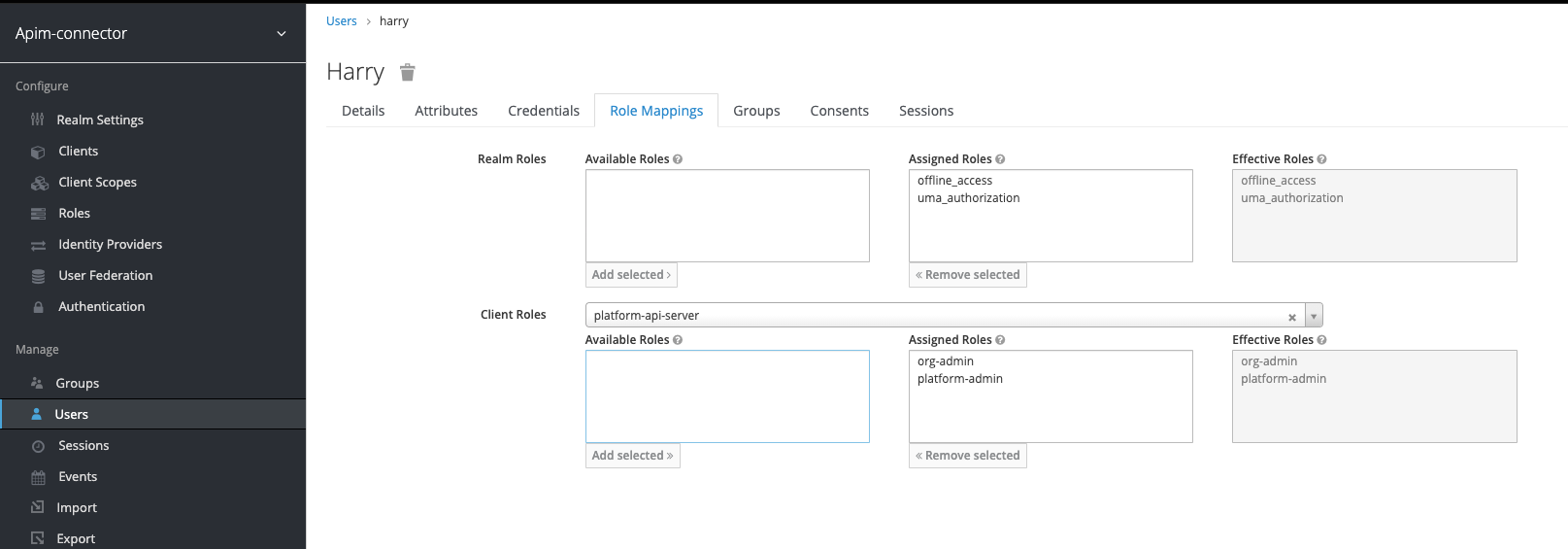
Navigate to the user you created and switch to the role mappings tab - then in the "client roles" field select the name of the client you created (in the example platform-api-server).
This will load the roles and you can assign both of the roles created previously to the user
Add groups to user
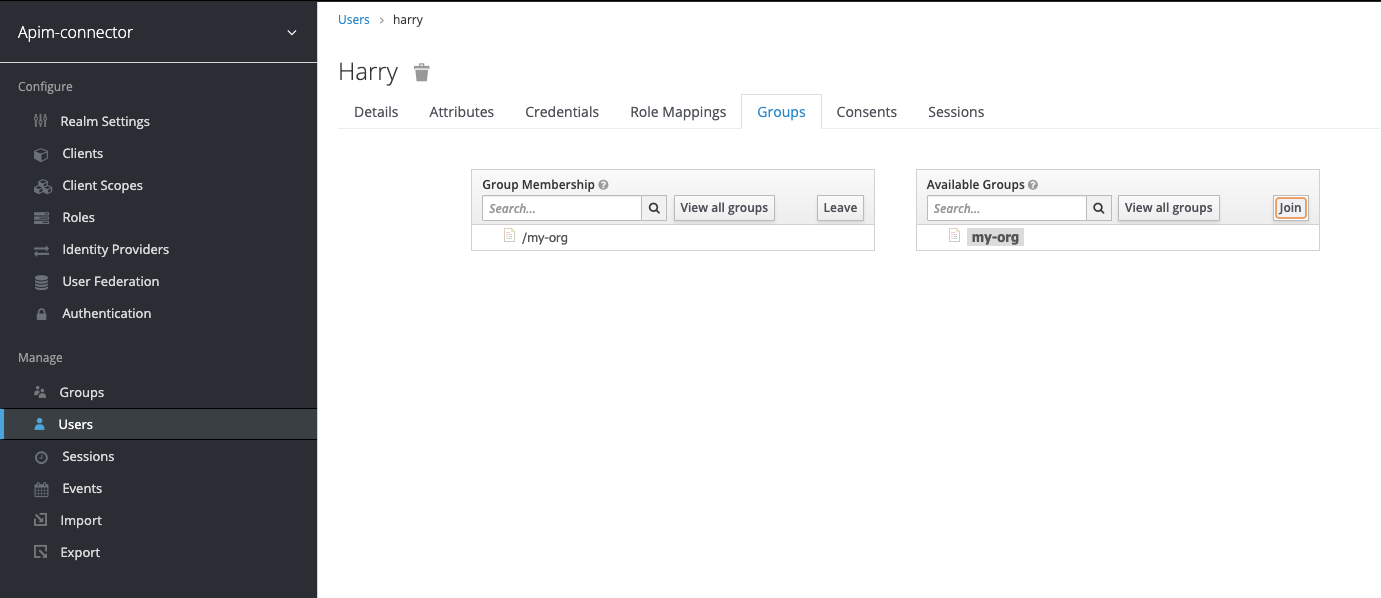
Navigate to the user you created and switch to the groups tab.
Add the my-org group to the user:
Add mappers to the client
The issued JWT token must include the roles and groups as well as the audience (aud) claim.
We need to set up mappers for these attributes.

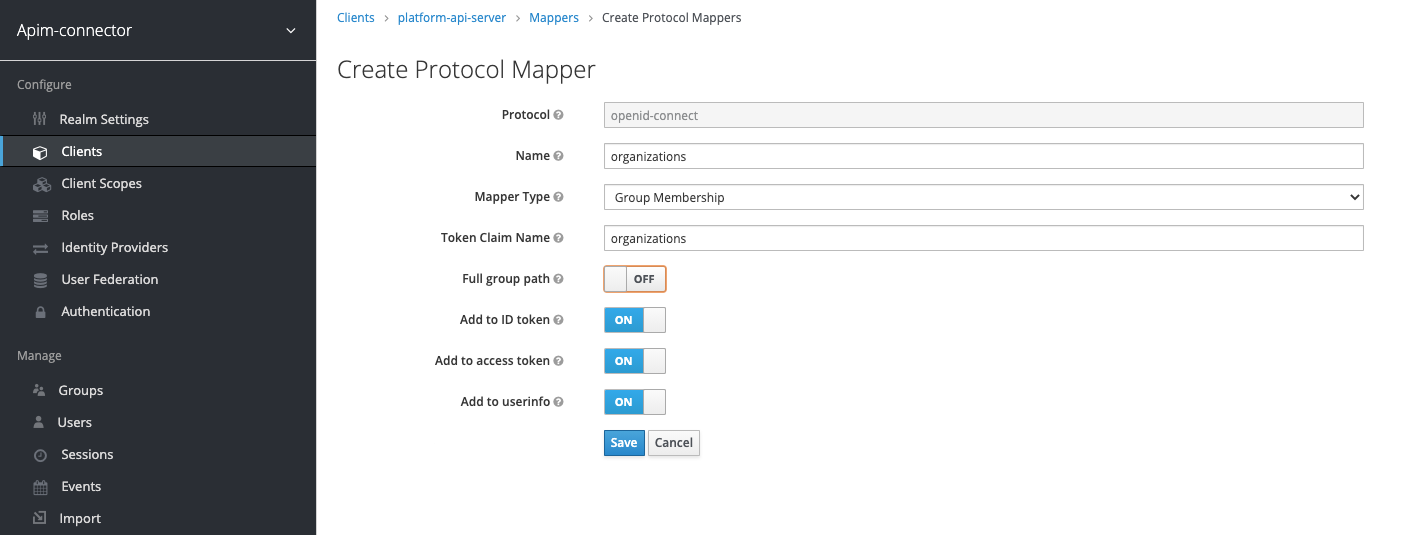
Add groups (organizations) mapper
Click "Create" to add a new mapper. Set the new mapper up as follows:
Add audience (aud) mapper
Click "Create" to add a new mapper. Set the new mapper up as follows:

Modify the Client Scope settings
Disable "Full Scope Allowed":

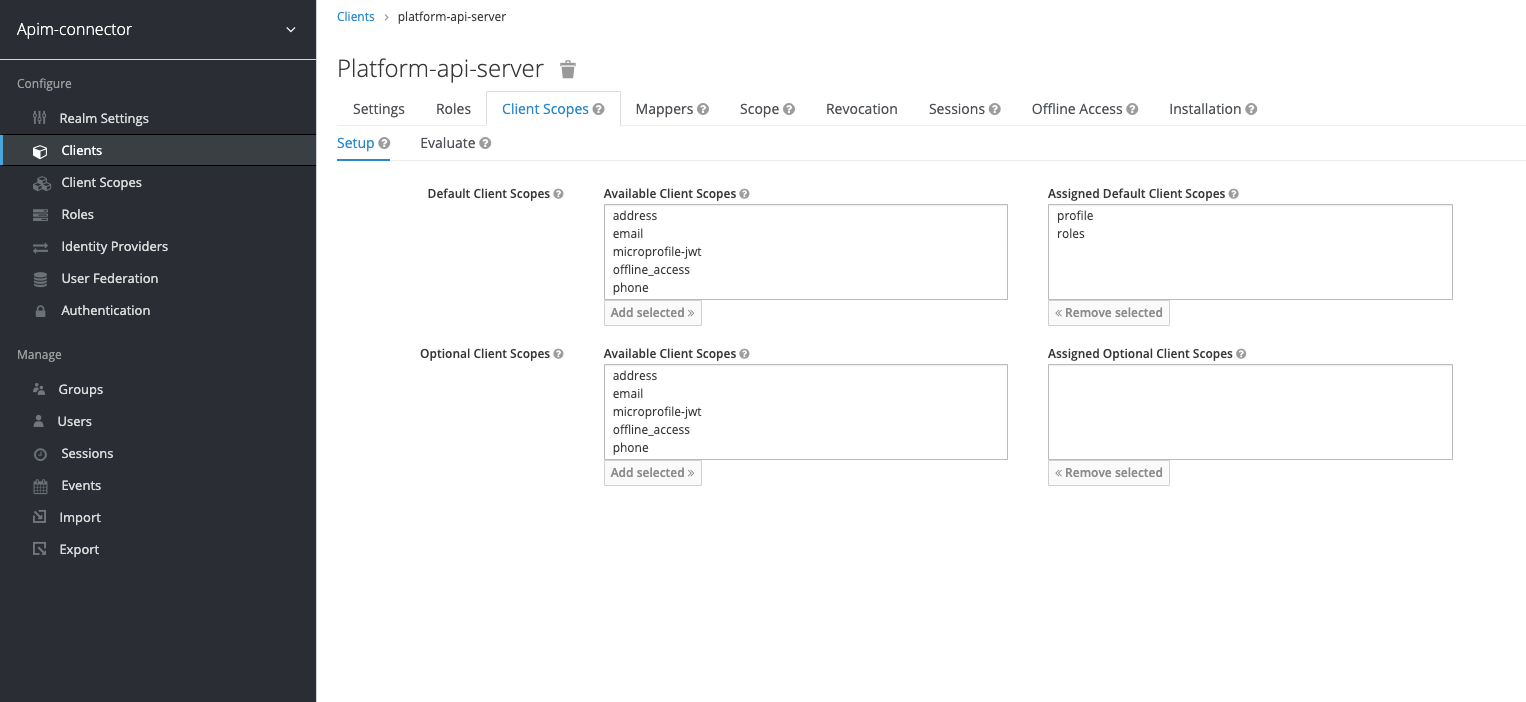
Setup the Client Scopes
Go to the "Client Scopes" tab of your client and the sub-tab "Setup". Set the default and optional client scopes as shown below:
Preview the JWT token
Go to the "Client Scopes" tab of your client and the sub-tab "Evaluate". Select the user you created previously:
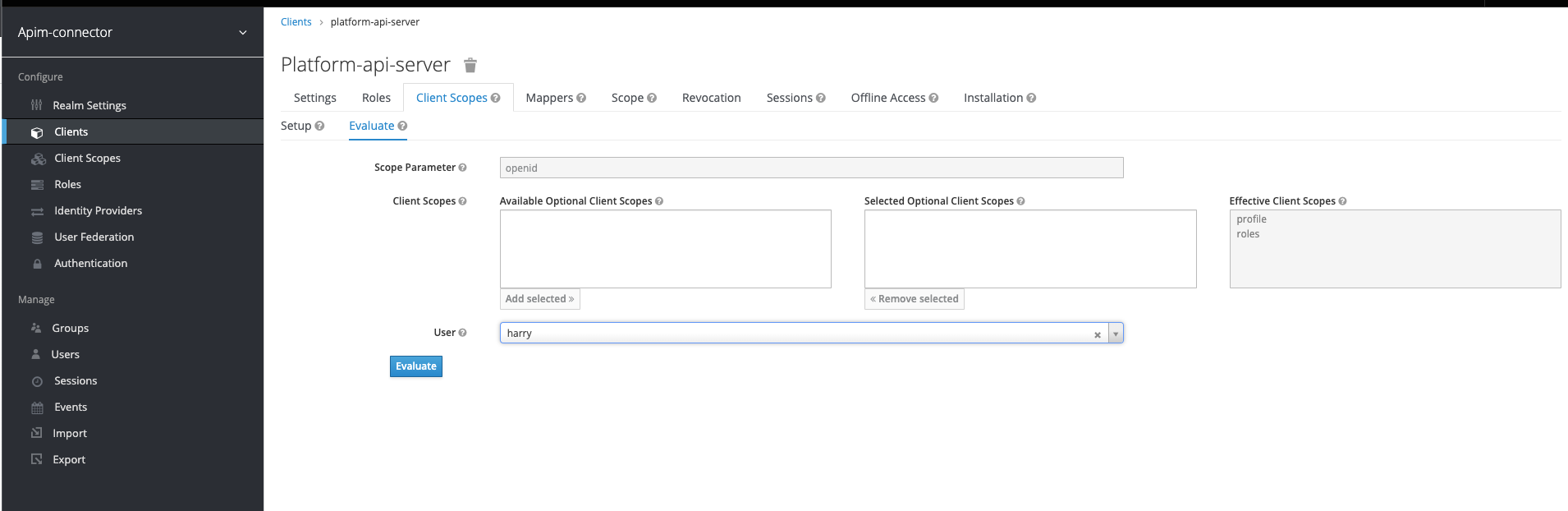
Then you can preview the token, check that it contains the right aud, resource_access / roles and organizations attributes:
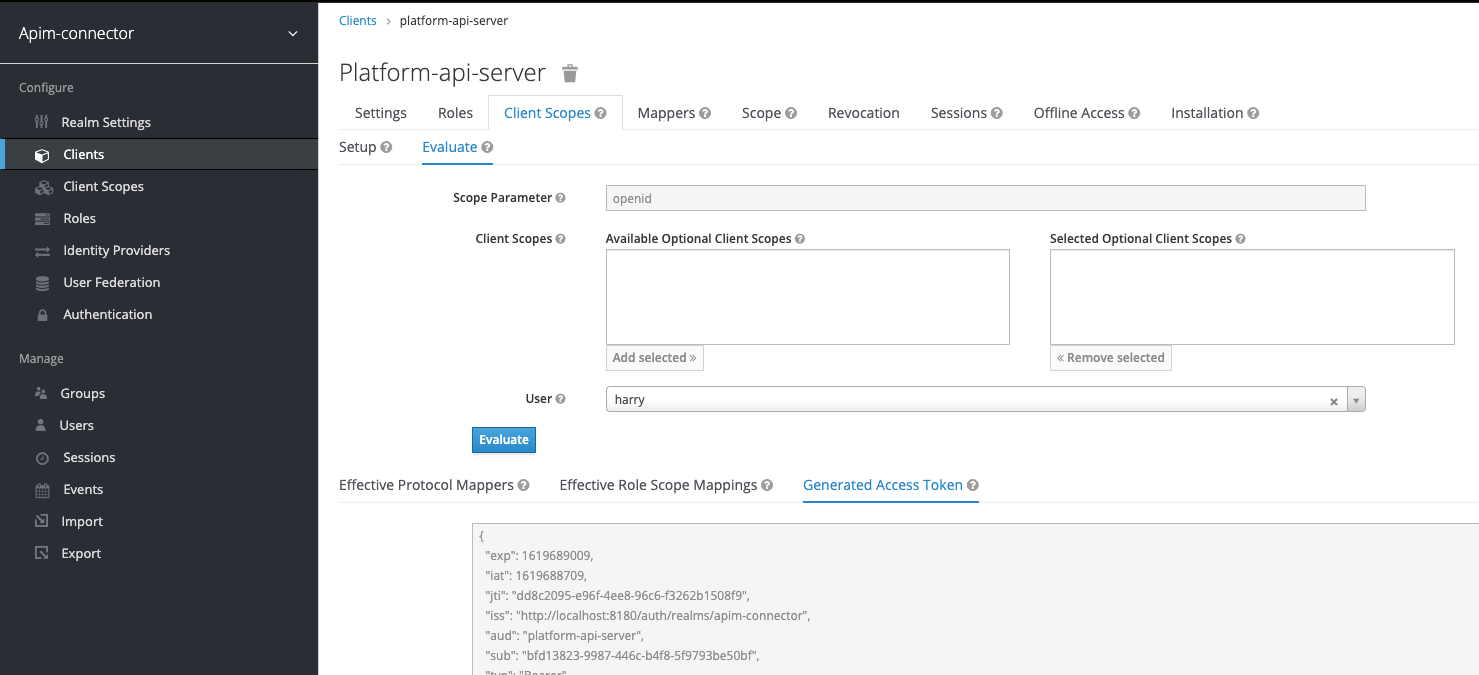
Here is an example:
{
  "exp": 1619689009,
  "iat": 1619688709,
  "jti": "dd8c2095-e96f-4ee8-96c6-f3262b1508f9",
  "iss": "http://localhost:8180/auth/realms/apim-connector",
  "aud": "platform-api-server",
  "sub": "bfd13823-9987-446c-b4f8-5f9793be50bf",
  "typ": "Bearer",
  "azp": "platform-api-server",
  "session_state": "297121ef-77d0-4d3d-85ef-64ab2c9ef208",
  "acr": "1",
  "resource_access": {
    "platform-api-server": {
      "roles": [
        "org-admin",
        "platform-admin"
      ]
    }
  },
  "scope": "openid profile",
  "organizations": [
    "my-org"
  ],
  "name": "Harry H",
  "preferred_username": "harry",
  "given_name": "Harry",
  "family_name": "H"
}
Configure the API Server
Properties for claim and username extraction:
AUTH_EXTRACTION_USER_PRINCIPAL=$.preferred_username
Will evaluate to "harry" given the JWT example above.
AUTH_EXTRACTION_ORGS=$.organizations
Will evaluate to
[
    "my-org"
  ]
AUTH_EXTRACTION_ROLES=$.resource_access['platform-api-server'].roles
Will evaluate to
[
        "org-admin",
        "platform-admin"
      ]
Properties for JWT verification
AUTH_VERIFICATION_AUD=platform-api-server
Must match the aud property in the JWT token - see example above
AUTH_VERIFICATION_ISSUER=http://localhost:8180/auth/realms/apim-connector
The URL of your keycloak realm, apim-connector is the realm name. Replace if you use another realm.
AUTH_VERIFICATION_KEY=/Users/swenhelge/platform-api-tmp/keycloak_local_key.pem
The location of public key used by keycloak - you need to download it from the "Realm Settings" in keycloak:

Set the OpenId Connect Discovery URL
Will be in the format below. Replace host, port and realm (apim-connector in the example below) with the correct values for your deployment:
AUTH_DISCOVERY_OIDC_URL=http://localhost:8180/auth/realms/apim-connector/.well-known/openid-configuration