Data Segmentation panel - shlomitya/eye-tracker-analyzer GitHub Wiki
The second section of the analysis pane allows the user to specify the trigger (i.e., events) around which the data should be segmented. Each trigger often compromises a condition, and individual segments compromise the condition trials. This panel can be further subdivided into the following components:
- Triggers panel, on the left
- Time segment panel, on the right
- Save and Load parameters buttons, below and to the left
- Extract and analyze data button, on the bottom
Triggers panel
Triggers are used to indicate an event of interest has happened and are typically sent by the experiment computer. Triggers can be messages (strings) sent through ethernet, or inputs (integers) sent as button presses, for example through a parallel port in a coregistered EEG setup.
Types of triggers
There are three types of triggers the user can specify:
- Trial onset triggers - define the beginning of an analysis segment. Minimally, the user needs to define at least one onset trigger in order to perform analysis. When used without trial offset triggers, the toolbox performs segmentation around each trigger found according to the time segment parameters (see below). When used with trial offset triggers, the toolbox creates segments between each trigger onset and offset pairs found. The toolbox interprets different onset triggers as defining the different experimental conditions. If a condition is comprised of more than a single trigger, consider using regular expression (see below). The order of the conditions in the resulting .mat struct and plots will depend on the order of the onset triggers inputted.
- Trial offset triggers (optional) - define the end of an analysis segment. When used, a segment is defined between the onset trigger and an offset trigger. The user can insert any number of offset triggers, regardless of the number of onset triggers. The order of triggers does not matter and offset triggers do not have to correspond to onset trigger pairs - the segment will be defined as the time between the onset trigger and the first offset trigger found. Offset triggers have no bearing on segment assignment to conditions, which are defined solely based on the onset triggers. It is possible to define different conditions with different segment durations according to the corresponding trigger onsets and offsets. Note: If an onset trigger is found before an offset trigger, the toolbox will treat the second onset trigger as an offset trigger and will create a segment between the first and second triggers.
- Trial rejection triggers (optional) - defines that a segment should be ignored. For example, the user can define triggers for fixation breaks or too early response, and use these triggers to ignore trials that include them. When no trial offset triggers are used, a segment will be dropped if a rejection trigger is found within the segment duration as defined by the time segment parameters (see below). When trial offset triggers are used, a segment will be dropped if a rejection trigger is found between trigger onset and offset, or during the time before/after them as defined by the time segment parameters.
Trigger interface
The interface for adding or removing triggers is identical for all three types of triggers.
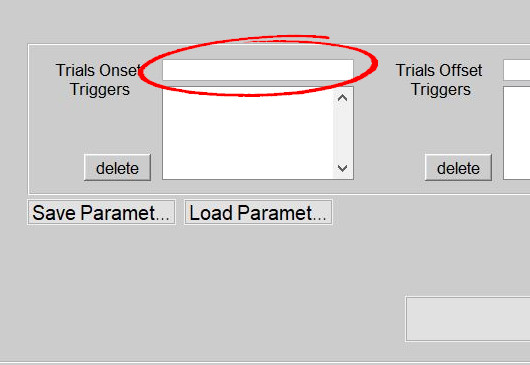
- To add a trigger, enter the trigger in the field above the corresponding list pane. Any string characters (including spaces and special characters) can be used to define the trigger.
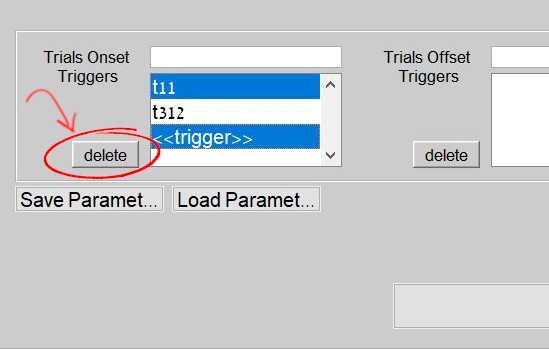
- To remove a trigger, select the trigger and press the Delete button to the left of the pane. Multiple triggers can be selected by holding the shift or ctrl buttons while clicking on triggers.
Regular expressions
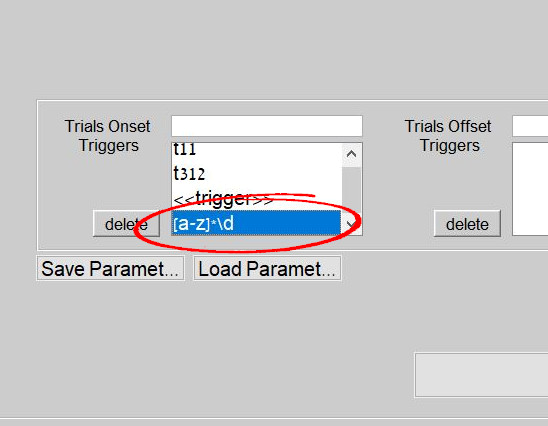
When required, the user can aggregate several triggers to define the same condition. To do so, the user can define a regular expression (regex) that captures several triggers. The segments of all triggers that fit exactly the pattern will be collapsed into a single condition. Please consult the Matlab Help page on Regular Expression for assistance in composing a suitable expression. For example, the regex in the screenshot below corresponds to triggers that consist only of small letters ([a-z]*) and end with a single digit (\d).
Time segment panel
The panel to the left of the triggers consists of three textboxes that define the duration of the segmented data. All the durations are specified in ms, and are converted to samples via the toolbox while taking into consideration the sampling rate, which is automatically detected by the toolbox.
- Pre-onset-trigger segment duration - the baseline period [ms] to add before the segment prior to the trial onset trigger. This parameter has to be specified and should be any positive number, but can be set to zero in case no baseline is required. The baseline period is common to all onset triggers used and cannot be varied for different conditions at the moment. Notice: the toolbox will try to find the sample time corresponding to the onset trigger minus the baseline period, and if no such sample is found, will discard the onset trigger. Therefore, the baseline period defined should not exceed the time between the recording onset and the trigger onset of interest.
- Post-offset-trigger segment duration - the period [ms] that should be added to the segment after the trial offset trigger. This parameter can only be specified if at least one trial offset trigger has been defined, in which case it has to be specified and should be any positive number, but can be set to zero in case no post-offset trigger duration is required. This period is common to all offset triggers used and cannot be varied for different conditions at the moment.
- Analysis segment duration - this parameter has different behaviour, according to whether trial offset triggers are used.
-
When no trial offset triggers are defined, the analysis segment duration defines the overall segment duration [ms], calculated as (onset minus baseline:segment duration). For example, if defining a baseline of 300 and an analysis segment duration of 1000, the toolbox will create 1000 ms long segments around onset triggers - from -300 relative to onset trigger to +700 relative to onset trigger.
-
When trial offset triggers are defined, the segment duration is determined according to the onset to offset triggers, plus the baseline and post-offset segment duration. Instead, in this case, the parameter is used to define the maximum segment permitted. In case a trial offset is found that results in a segment (calculated as an onset to offset + baseline + post-offset duration) that exceeds this parameter, the segment is discarded. This parameter can be used to make sure a trial is not miscreated from a missing offset trigger.
-
In both cases (with or without trial offset triggers) - this parameter has to be specified, and it accepts any positive, non-zero value.
Save and Load parameters buttons
To obviate the need to type the triggers and time duration parameters for future analyses, it is possible to save these parameters and to later load them. The parameters are saved as an analysis parameters file (.ap), which is independent of any .ETA files that are currently loaded.
- Save button - saves the current parameters into a new .ap file
- Load button - loads parameters from a previously saved .ap file
Notice: the segmentation parameters (triggers and durations) are saved in the .ap file together with any parameters specified in the eye movements analysis dialogue.
Extract and analyze data button
At the bottom of the analysis pane is the "Extract and analyze data" button that initiates the analysis. Pressing this button opens the eye movements analysis dialogue to define further parameters and analysis options. To press the button, at least one .ETA file needs to be loaded, and an output directory should be selected (see input/output panel). In addition, at least one onset trigger has to be defined, along with the pre-onset-trigger segment duration parameter and the analysis segment duration parameter. If an offset trigger is defined, the post-offset-trigger segment duration parameter must also be defined.