Gestionarea Utilizatorilor si Rolurilor Nou - sebiboga/testlink-upgraded GitHub Wiki
TestLink provides four screens for managing users, roles, and role assignments. All four are accessible from the System section of the left navigation sidebar and share a common tab bar for quick navigation between screens.
Prerequisite: You must be logged in as admin (or a user with the mgt_users and/or user_role_assignment rights).
- User Management
- Role Management
- Assign Test Project Roles
- Assign Test Plan Roles
- Role Hierarchy
- Common Workflows
Path: System > User Management
URL: gui/templates/usermanagement/usersView.html
Purpose: Create, edit, enable/disable, and delete user accounts.
| Element | Description |
|---|---|
| Create User button | Opens the create user modal |
| Data Table | Lists all active and inactive users (soft-deleted users are hidden) |
| Search box | Filters the table by any column |
| Show entries | Controls how many rows are displayed per page |
| Column | Description |
|---|---|
| # | Auto-incremented user ID |
| Login | The username used to log in |
| Name | The user's display name (first + last) |
| The user's email address | |
| Global Role | The system-wide role assigned to this user |
| Locale | The UI language preference |
| Active | Active (green badge) or Inactive (red badge) |
| Actions | Edit, Enable/Disable, Delete icons |
- Edit (pencil icon): Opens the edit modal to change user details and global role
- Enable/Disable (toggle icon): Toggles the user between Active (1) and Inactive (0) states
-
Delete (trash icon): Soft-deletes the user (sets
active = 2, hidden from UI but retained in database). Not available for the admin user
| Field | Required | Description |
|---|---|---|
| Login | Yes | Unique username (4-25 chars, alphanumeric + underscores) |
| Password | Yes (create only) | Minimum length enforced by system config |
| First Name | Yes | User's first name |
| Last Name | Yes | User's last name |
| Yes | Valid email address | |
| Global Role | Yes | Select from available roles (e.g., admin, test designer, tester, etc.) |
| Locale | No | UI language (e.g., en_GB, ro_RO) |
- Only users with
active = 1(Active) appear in the table - Deleted users (
active = 2) are hidden but preserved for audit trail - The admin user cannot be deleted or disabled
- Changes to other users are logged in the Event Viewer as AUDIT events
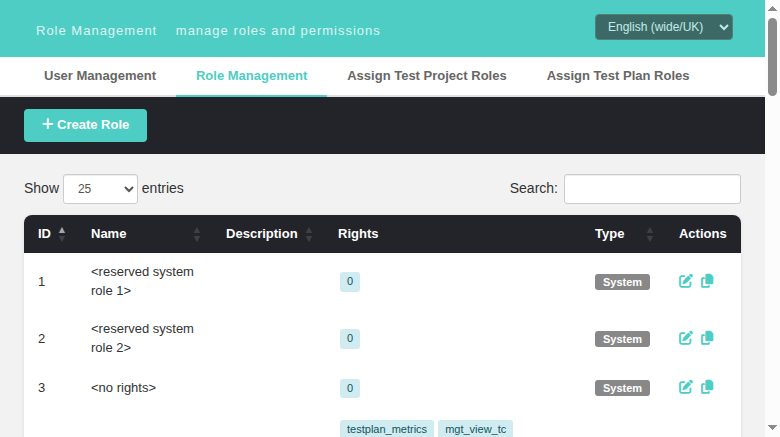
Path: System > Role Management
URL: gui/templates/usermanagement/rolesView.html
Purpose: Create custom roles and manage their permission sets (rights).
| Element | Description |
|---|---|
| + Create Role button | Opens the create role modal |
| Data Table | Lists all roles (system + custom) |
| Search box | Filters roles by name or description |
| Show entries | Rows per page (10/25/50/100) |
| Column | Description |
|---|---|
| ID | Role ID |
| Name | Role display name |
| Description | Role description text |
| Rights | Color-coded permission tags (read/write/execute) |
| Type | System (grey badge) or Custom (teal badge) |
| Actions | Edit, Delete icons |
System roles cannot be edited or deleted. They are protected by the system:
| ID | Name | Description |
|---|---|---|
| 1 | <reserved system role 1> | Reserved for internal use |
| 2 | <reserved system role 2> | Reserved for internal use |
| 3 | <no rights> | Empty role with no permissions |
These roles ship with TestLink and can be edited (but not deleted):
| ID | Name | Typical Use |
|---|---|---|
| 4 | test designer | Design and manage test cases |
| 5 | guest | Read-only access to metrics |
| 6 | senior tester | Execute tests + create builds |
| 7 | tester | Basic test execution |
| 8 | admin | Full system administration |
| 9 | leader | Project and plan management |
| Field | Description |
|---|---|
| Name | Role name (required, must be unique) |
| Description | Optional description |
| Rights | Grid of checkboxes — select permissions for this role |
| Select All link | Toggles all checkboxes on/off |
Rights are color-coded in the table:
| Tag Color | Category | Examples |
|---|---|---|
| Blue | Read |
mgt_view_tc, mgt_view_req, testplan_metrics
|
| Red | Write |
mgt_modify_tc, mgt_modify_req, mgt_modify_product
|
| Green | Execute | testplan_execute |
- Only Custom roles can be deleted (roles with IDs > 3)
- Before deletion, the system shows how many users currently have this role assigned
- If users are assigned, you must reassign them to another role before deletion
When $tlCfg->demoMode = ON; in config.inc.php the whole Role Management
screen becomes read-only, mirroring legacy rolesEdit.tpl:185-205 where on
doUpdate the Save button is replaced by the demo_update_role_disabled note
("Demo mode enabled => Update Role DISABLED").
-
BFF enforcement (
api/roles/index.php): a shareddemoModeBlockedWrite()helper (mirror ofapi/users) returns HTTP 403{status:error, code:'demo_mode'}from every write route — POST create, PUT update, DELETE, POST/duplicate, and PUT/tproject-roles//tplan-roles. The UI can never bypass it. -
UI gating (
rolesView.html): with demo mode on a read-only amber banner appears under the header, the Create Role toolbar button disappears, grid rows show only the Edit icon (no duplicate/delete), and the edit modal replaces Save with arole.demoUpdateDisablednotice and disables every field (name, description, rights checkboxes, Select All). Opening a role for view stays possible — legacy allowed viewing the edit page, only the update was blocked. Cancel/close stay usable. -
Discovery:
GET /api/roles/index.phpnow returnsdemoModeso the front-end knows the state. - New i18n key in all 11 locale bundles (value taken from legacy
strings.txt):role.demoUpdateDisabled.


- Create roles with only the permissions needed (principle of least privilege)
- Role rights apply globally — they are not project-specific
- Changes to roles immediately affect all users assigned to that role
Path: System > Assign Test Project Roles
URL: gui/templates/usermanagement/usersAssignProject.html
Purpose: Assign a role to each user at the test project level.
Test project roles control what a user can do within a specific test project. This overrides or supplements the user's global role for project-scoped activities.
| Element | Description |
|---|---|
| Test Project dropdown | Select which project to manage |
| User Table | Lists all active users with their current project role assignment |
| Save Changes button | Enabled only when changes are detected |
- Select a Test Project from the dropdown
- The table loads all active users and their current role assignment for that project
- Change the Assigned Role dropdown for any user
- Modified rows are highlighted in yellow with a modified badge
- Click Save Changes to persist
| Column | Description |
|---|---|
| # | User ID |
| Login | Username |
| Name | Display name |
| Assigned Role | Dropdown with available roles + "-- no role --" |
| Option | Meaning |
|---|---|
| -- no role -- | User has no project-specific role (inherits global role for public projects) |
| test designer | Can manage test cases within this project |
| guest | Read-only metrics access |
| senior tester | Execute + create builds |
| tester | Basic test execution |
| admin | Full project administration |
| leader | Project management |
| Test Manager | Custom role (if created) |
- Users see only projects they have access to (based on global role + project public/private settings)
- Admin users see all projects regardless of assignments
- A user with no project role on a private project will NOT have access to it
- Project roles do not override the global role — they supplement it
- For public projects, any user with a valid global role can participate unless explicitly denied
- For private projects, users must be explicitly assigned a role
Path: System > Assign Test Plan Roles
URL: gui/templates/usermanagement/usersAssignPlan.html
Purpose: Assign role overrides to users for a specific test plan.
Test plan roles allow you to narrow or change a user's permissions for a specific test plan, overriding their test project role. This is useful when a user needs different permissions for different test plans within the same project.
| Element | Description |
|---|---|
| Test Project dropdown | Select the parent project |
| Test Plan dropdown | Select the plan (loads after project is chosen) |
| User Table | Lists users with inherited role and plan override |
| Save Changes button | Enabled only when changes are detected |
- Select a Test Project from the first dropdown
- The Test Plan dropdown populates with active plans in that project
- Select a Test Plan
- The table loads all active users with:
- Their inherited role from the test project assignment
- Their current plan role override (if any)
- Change the Plan Role Override for any user
- Click Save Changes to persist
| Column | Description |
|---|---|
| # | User ID |
| Login | Username |
| Name | Display name |
| Inherited Role | The role inherited from the test project (read-only) |
| Plan Role Override | Dropdown to set a plan-specific override |
| Option | Meaning |
|---|---|
| -- no override -- | User uses their inherited project role (default) |
| test designer | Override to test designer for this plan only |
| guest | Override to read-only for this plan only |
| senior tester | Override to senior tester |
| tester | Override to tester |
| admin | Override to admin |
| leader | Override to leader |
| Test Manager | Custom role override |
When determining what a user can do in a test plan, TestLink checks (in order):
- Test plan role (highest priority) — if set, this overrides everything
- Test project role — the role assigned at the project level
- Global role (lowest priority) — the user's system-wide role
User
tester1has:
- Global role:
tester- Project role for P2:
tester- Plan role override for "smoke" plan in P2:
senior testerResult: On the "smoke" test plan,
tester1operates as asenior tester(can create builds, execute tests, view metrics). On all other plans in P2, they operate as atester.
- Use plan overrides sparingly — they add complexity to the permission model
- The Inherited Role column helps you understand what the user's effective role would be without an override
- Setting "-- no override --" removes the plan-specific override and falls back to the inherited project role
Global Role (system-wide, assigned in User Management)
  └── Test Project Role (assigned in Assign Test Project Roles)
        └── Test Plan Role Override (assigned in Assign Test Plan Roles)
- Global role applies everywhere unless overridden
- Project role applies within a specific project (supplements global)
- Plan role override applies within a specific test plan (overrides project role)
| Level | Role | Capabilities |
|---|---|---|
| Highest | admin | Full access to everything |
| High | leader | Project + plan management, user assignment |
| Medium | senior tester | Execute tests, create builds, view metrics |
| Low | test designer | Design and manage test cases |
| Lowest | tester | Execute tests only |
| Read-only | guest | View metrics only |
| None | <no rights> | No access (ID 3) |
- Go to User Management > click Create User
- Fill in login, name, email, password; select tester as global role
- Go to Assign Test Project Roles > select the project
- Set the user's role to tester for that project
- (Optional) Go to Assign Test Plan Roles > select project + plan
- Set a plan override if needed
- Go to Assign Test Project Roles > select the project
- Set the user's role to admin for that project only
- Their global role remains unchanged — admin access is limited to this project
- Go to Assign Test Plan Roles > select project + plan
- Set the user's Plan Role Override to guest (read-only)
- On all other plans they retain their normal project role
- Go to Role Management > click + Create Role
- Enter a name and description
- Use Select All to quickly check all permissions, then uncheck what you don't need
- Click Save
- The new role appears in all role assignment dropdowns across the system
All endpoints use session-based auth (browser cookie), return JSON, and are under /api/ base URL.
| Method | Endpoint | Description |
|---|---|---|
| GET | / |
List all users (including soft-deleted, active=2) |
| GET | /meta/roles |
All roles for dropdown (id, name) |
| GET | /meta/locales |
Available locale options |
| GET | /{id} |
Single user by ID |
| POST | / |
Create user |
| PUT | /{id} |
Update user fields |
| PUT | /{id}/active |
Enable/disable user (active field) |
| DELETE | /{id} |
Soft-delete user (active = 2) |
{
  "id": 1,
  "login": "admin",
  "firstName": "Admin",
  "lastName": "User",
  "email": "[email protected]",
  "locale": "en_GB",
  "active": 1,
  "globalRoleID": 8,
  "globalRoleName": "admin",
  "authentication": "",
  "expirationDate": "",
  "creation_ts": "2023-01-01 00:00:00"
}{
"login": "tester1",
"firstName": "John",
"lastName": "Doe",
"email": "[email protected]",
"password": "secret123",
"globalRoleID": 7,
"locale": "en_GB",
"active": true
}{ "active": true }All endpoints return:
{ "status": "ok", "item": { ... } }
// or
{ "status": "error", "message": "Login already exists", "code": 201 }| Code | Meaning |
|---|---|
E_LOGINEMPTY |
Login cannot be empty |
E_LOGINALREADYEXISTS |
Login already exists |
E_EMAILINVALID |
Invalid email format |
| Method | Endpoint | Description |
|---|---|---|
| GET | / |
List all roles (with rights, excludes system roles 1-3 from edit) |
| GET | /meta/rights |
All available permissions |
| GET | /{id} |
Single role |
| GET | /{id}/users |
Users assigned to this role |
| POST | / |
Create role |
| PUT | /{id} |
Update role |
| DELETE | /{id} |
Delete role (blocked for roles 1-3) |
| GET | /meta/tproject-roles?tproject_id=X |
Project role assignments + available projects |
| PUT | /tproject-roles |
Save project role assignments |
| GET | /meta/tplan-roles?tproject_id=X&tplan_id=Y |
Plan role assignments + projects + plans |
| PUT | /tplan-roles |
Save plan role assignments |
{
  "id": 10,
  "name": "Custom Role",
  "description": "A custom role",
  "rights": [
    { "id": 1, "name": "mgt_view_events" },
    { "id": 2, "name": "mgt_users" }
  ],
  "isSystem": false
}{
"name": "Custom Role",
"description": "Description here",
"rightIDs": [1, 2, 3, 4]
}{
"tproject_id": 1,
"assignments": {
"5": 7,
"6": 8,
"7": 0
}
}assignments is {userId: roleId}. 0 removes the assignment.
{
  "tplan_id": 1,
  "assignments": {
    "5": 6,
    "6": 0
  }
}Roles with id <= 3 are system roles:
-
1— reserved1 -
2— reserved2 -
3— no rights (default for new users)
System roles cannot be edited or deleted via the API.
See Event Viewer Wiki for full documentation.