4. Satellite Image - rossoe/Arma3_QGIS GitHub Wiki
For single tile export
Load in just the '.map' files generated from Terra incognita into QGIS

Merge Rasters
Top Menu -** Raster **→ **Miscellaneous **→ Merge
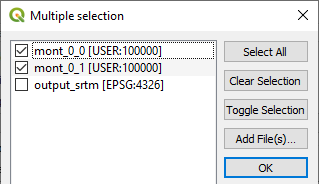
Select all your .map files as input layers
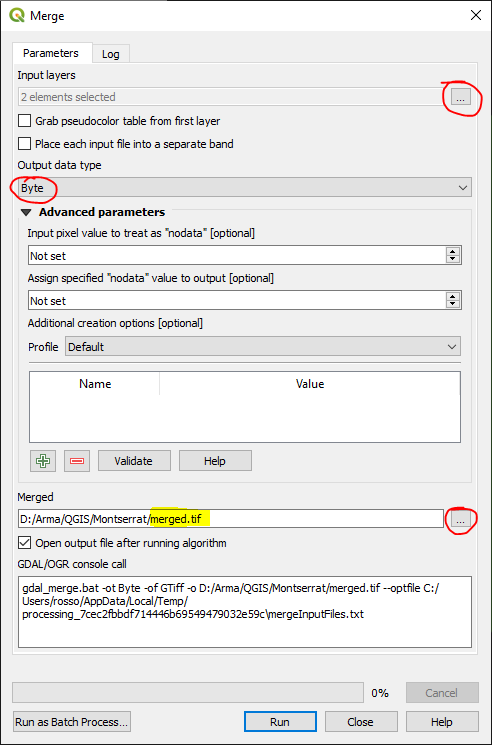
change Output data type to ‘Byte’ as the default is ‘Float32’.
Select ‘Save to File’ under Merged -- as the default is to a temporary file.
Obtain extents from square feature
You should already have this from working on heightmap above 576787.687480 1841104.815839 597267.687480 1861584.815839
Run GDAL command
import os
os.system(r'''gdalwarp -t_srs EPSG:32620 -wo SOURCE_EXTRA=1000 -tr 1.0 1.0 -r cubic -of BMP -te 576787.687480 1841104.815839 597267.687480 1861584.815839 D:/Arma/QGIS/Montserrat/merged.tif D:/Arma/QGIS/Montserrat/mont.bmp''')
Some explanation of the key parameters:
-t_srs EPSG:32620
Sets the CRS
-tr 1.0 1.0
Sets the resolution of your satellite image to 1mtr per pixel - which is recommended. Make sure it matches your settings within Terrain Builder.
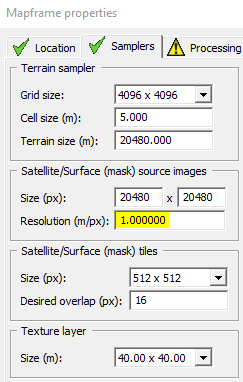
-te 576787.687480 1841104.815839 597267.687480 1861584.815839
Clips to shapefile square extents
For 4 tile export
Detailing additional steps required for a 4 tile export -- which would suit those terrains that are 40960px x 40960px and higher.
Load in just the .map files into QGIS
Merge rasters - same as above (single tile export)
Create grid -- 2 x 2 Feature
You will need to have created the square shapefile first -- see above steps
Top Menu -- View → Panels → Processing Toolbox
Processing Toolbox Menu -- Vector Creation > Create Grid
Set Grid type to ‘Rectangle (polygon)’ & the Horizontal & Vertical to half the distance of your main square
Set it to save new grid feature to .shp file

After clicking 'Use Layer Extent' Select the shapefile layer for your square

After clicking Run, your original square will then be Covered with a new grid of 4 tiles -- perfect quarters of your original square

Move each quarter to its own shapefile layer
Because you will need to export each quarter separately for use in Terrain Builder, we will move each quarter onto its own shapefile layer.
Click Select Features -

And select the first quarter:

Top Menu -- Edit > Copy Features
Then… Edit → **Paste Features As **→ New Vector Layer
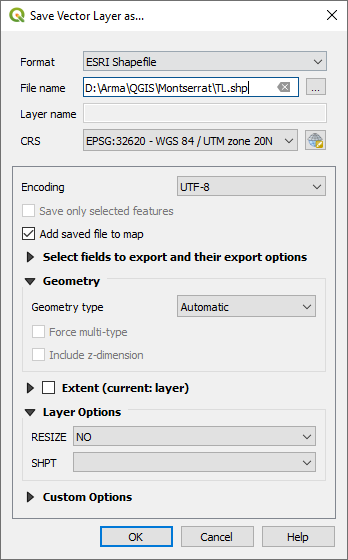
Save shapefile layer to something obvious
I’ve used ‘TL’ for top left.
Repeat for the remaining quarters and you’ll have something like below, ‘Grid’ can be deleted.

You will then have 4 tiles which we can use to gather each quarters extents

Obtain extents from each quarter feature
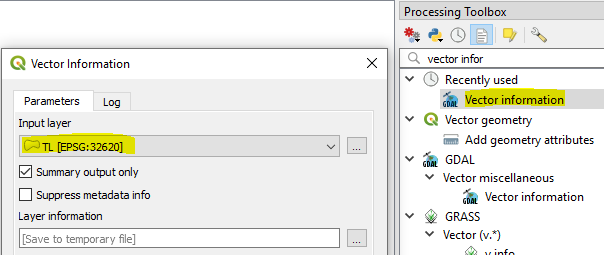
Copy extents to clipboard
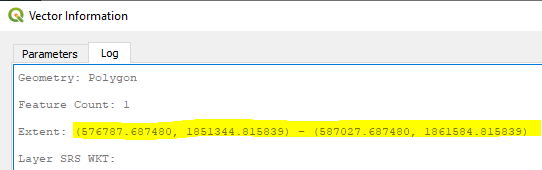
And list them out for safe keeping -
TL - Extent: (576787.687480, 1851344.815839) - (587027.687480, 1861584.815839)
TR - Extent: (587027.687480, 1851344.815839) - (597267.687480, 1861584.815839)
BL - Extent: (576787.687480, 1841104.815839) - (587027.687480, 1851344.815839)
BR - Extent: (587027.687480, 1841104.815839) - (597267.687480, 1851344.815839)
Run GDAL command for each quarter to set cell size and CRS and clip to shapefile square extents
import os
os.system(r'''gdalwarp -t_srs EPSG:32620 -wo SOURCE_EXTRA=1000 -tr 1.0 1.0 -r cubic -of BMP -te 576787.687480 1851344.815839 587027.687480 1861584.815839 D:/Arma/QGIS/Montserrat/merged.tif D:/Arma/QGIS/Montserrat/TL.bmp''')
import os
os.system(r'''gdalwarp -t_srs EPSG:32620 -wo SOURCE_EXTRA=1000 -tr 1.0 1.0 -r cubic -of BMP -te 587027.687480 1851344.815839 597267.687480 1861584.815839 D:/Arma/QGIS/Montserrat/merged.tif D:/Arma/QGIS/Montserrat/TR.bmp''')
import os
os.system(r'''gdalwarp -t_srs EPSG:32620 -wo SOURCE_EXTRA=1000 -tr 1.0 1.0 -r cubic -of BMP -te 576787.687480 1841104.815839 587027.687480 1851344.815839 D:/Arma/QGIS/Montserrat/merged.tif D:/Arma/QGIS/Montserrat/BL.bmp''')
import os
os.system(r'''gdalwarp -t_srs EPSG:32620 -wo SOURCE_EXTRA=1000 -tr 1.0 1.0 -r cubic -of BMP -te 587027.687480 1841104.815839 597267.687480 1851344.815839 D:/Arma/QGIS/Montserrat/merged.tif D:/Arma/QGIS/Montserrat/BR.bmp''')