1.Hyperledger Fabric 2.3.3 on ROCK Pi X - phoebeum/phoebeum.github.io GitHub Wiki
-
Prepare a USB flash disk or storage card with more than 16 GB memory.
-
Download the brush tool and Ubuntu image.
download brush tool Extraction code:if3q
download ubuntu 20.04 image Extraction code:gb03
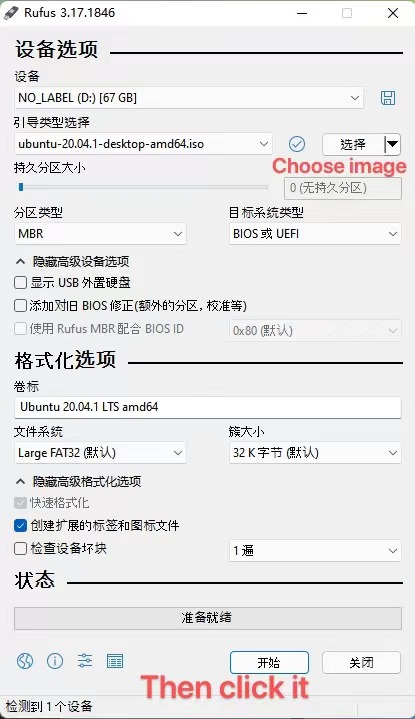
- Open the brush tool(Rufus) and write ubuntu image to a USB flash disk or storage card, as shown below.
- Initialize Rock Pi and Ubuntu image.
Plug the USB flash disk into the USB port on the ROCK Pi X (In particular, do not use the memory card slot directly)
Then plug in the mouse, network cable, keyboard and HDMI monitor.
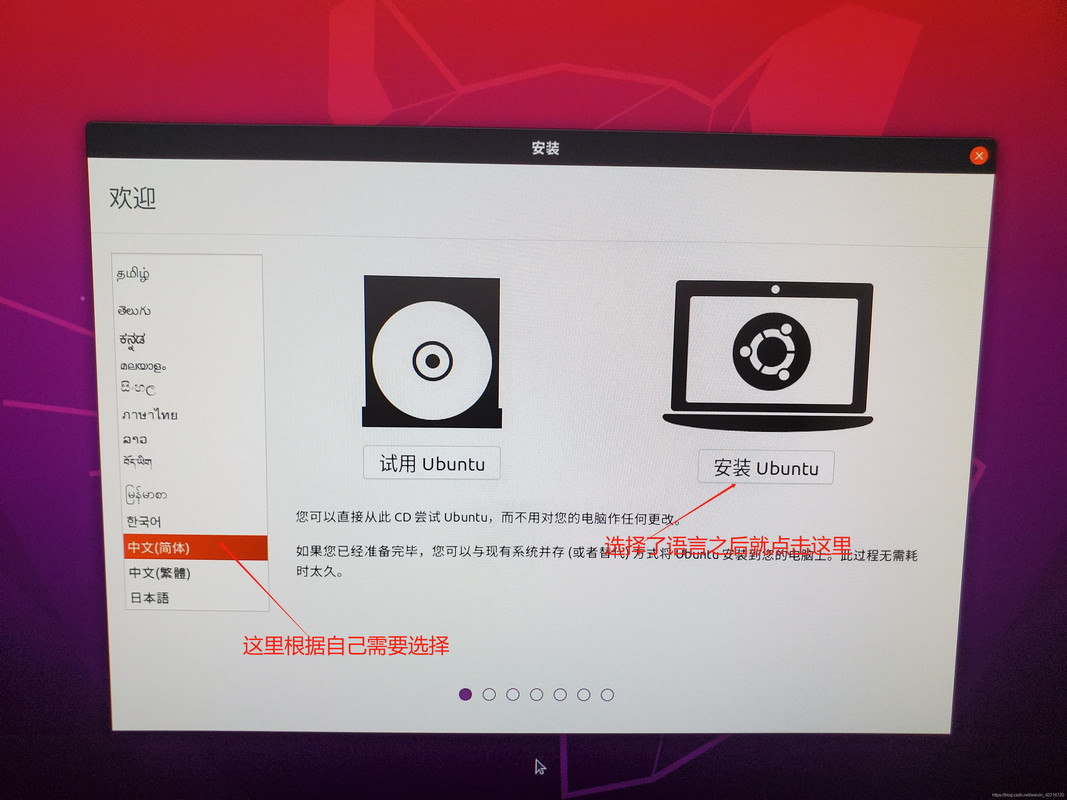
Power up the ROCK Pi X and monitor, choose English and install Ubuntu.
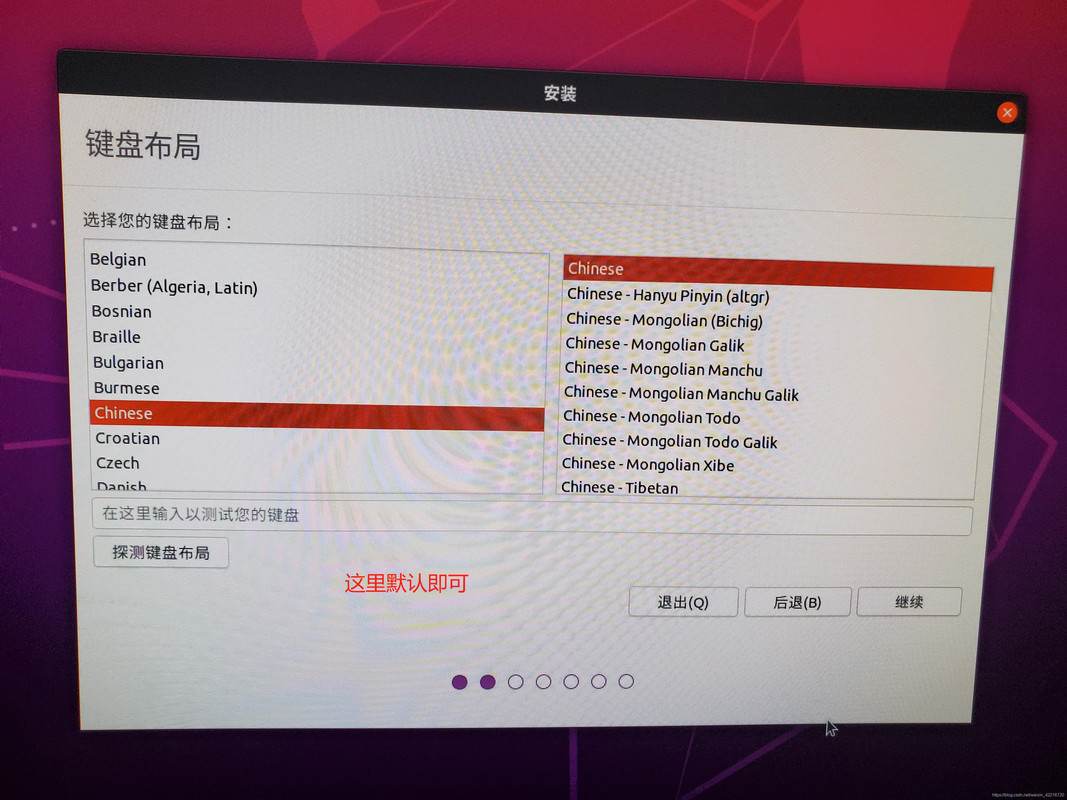
Then keyboard layout do not need to change, choose continue.
Then choose The minimum installation, and continue.
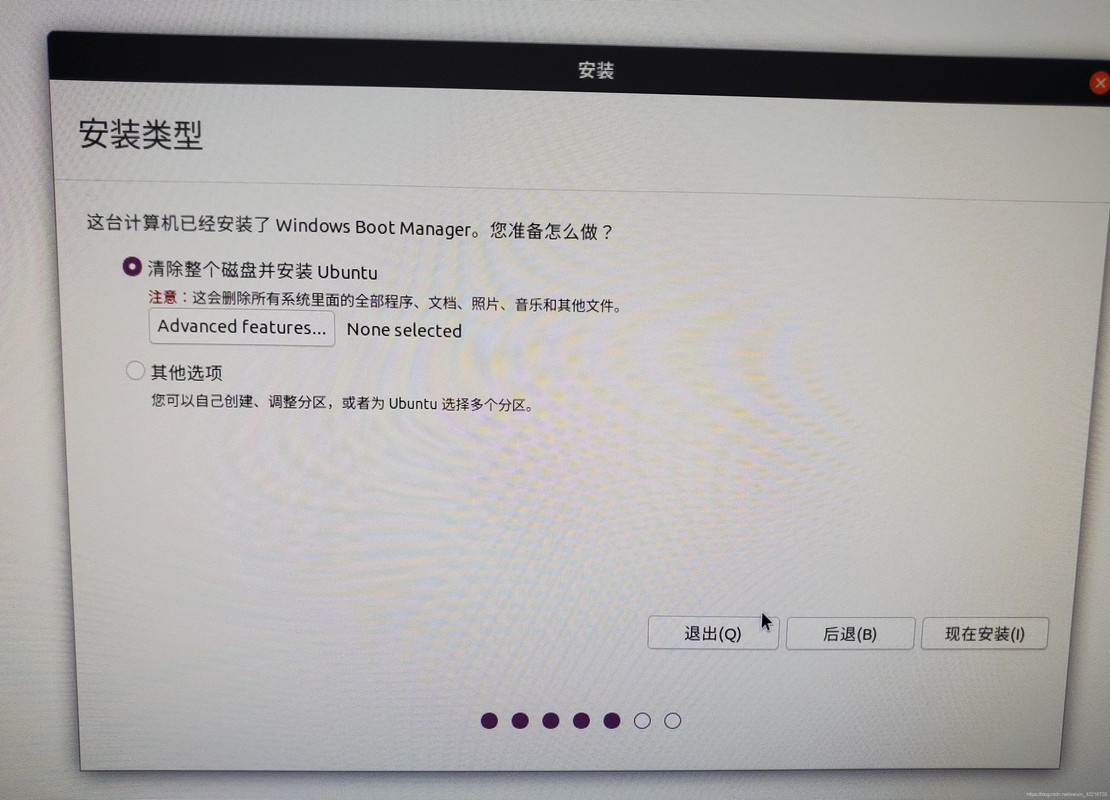
Then choose Clear the entire disk and install Ubuntu and continue.
Then choose Macau.
Then set the user name and password.
System installation successful!
WIFI Module
1.install needed tools
sudo apt-get install -y make gcc dpkg-dev git vim
If errors occur, change the address of the download library.
2.enable deb-src of kernel module
sudo gedit /etc/apt/sources.list
#change
#deb-src http://cn.archive.ubuntu.com/ubuntu/ focal-updates main restricted
#to
deb-src http://cn.archive.ubuntu.com/ubuntu/ focal-updates main restricted
3.download kernel source
sudo apt update && sudo apt-get source linux-image-unsigned-$(uname -r)
After the command is executed, a directory starting with linux-hwe- is generated at the command execution location.
If fail,
sudo chown -R _apt /var/lib/update-notifier/package-data-downloads/partial/
sudo apt update && sudo apt-get source linux-image-unsigned-$(uname -r)
cd linux-5.4.0/drivers/net/wireless/broadcom/brcm80211
sudo wget https://gist.githubusercontent.com/cx-sawyer/f4f0a6198f738a986acbb71632af446a/raw/ec64af77768d443a8d87954bf094ee6bb55d8d59/0001-brcmfmac-Add-BCM43454-6-support.patch
sudo git apply 0001-brcmfmac-Add-BCM43454-6-support.patch --reject
sudo gedit brcmfmac/sdio.c
enter/,search brcmf_sdio_fwnames,find this struct,
Behind,BRCMF_FW_ENTRY(BRCM_CC_4345_CHIP_ID, 0xFFFFFDC0, 43455),
Add,
BRCMF_FW_ENTRY(BRCM_CC_43454_CHIP_ID, 0x00000040, 43455),
5.make brcmfmac.ko
cd brcmfmac
sudo make -C /lib/modules/$(uname -r)/build M=$(pwd) brcmfmac_src=$(pwd) modules
6.backup existing brcmfmac.ko and override new one
sudo cp /lib/modules/$(uname -r)/kernel/drivers/net/wireless/broadcom/brcm80211/brcmfmac/brcmfmac.ko  /lib/modules/$(uname -r)/kernel/drivers/net/wireless/broadcom/brcm80211/brcmfmac/brcmfmac.ko.bak
sudo cp brcmfmac.ko /lib/modules/$(uname -r)/kernel/drivers/net/wireless/broadcom/brcm80211/brcmfmac/brcmfmac.ko
7.replace nv file and fw files
Move the files in the AP6254 folder to /lib/firmware/brcm
8.rmmod driver and insmod again
sudo rmmod brcmfmac
sudo insmod /lib/modules/$(uname -r)/kernel/drivers/net/wireless/broadcom/brcm80211/brcmfmac/brcmfmac.ko
Open the terminal and enter the command:
The commands above should install the wget utility and use it to download the tarball archive of the go compiler.
wget https://go.dev/dl/go1.17.6.linux-amd64.tar.gz
The next step is to extract the contents of the archive.
tar -xzvf go1.17.6.linux-amd64.tar.gz
For convenience, we can move the go directory to a more reasonable directory as:
sudo mv go /usr/local
The command above should move the go directory from the downloaded location to the /usr/local directory.
To set the path to the go binary, we can edit the .profile file in the home directory, as shown in the commands below:
nano ~/.profile
Add the following line to the file:
export PATH=$PATH:/usr/local/go/bin
Apply the changes:
source ~/.profile
Finally, verify that go is installed successfully by running the command:
go version
The command should return the installed go version as:
go version go1.17.6 linux/amd64
sudo apt-get install git
sudo apt-get install jq
1.Run this command to download the current stable release of Docker Compose:
sudo curl -L "https://github.com/docker/compose/releases/download/1.29.2/docker-compose-$(uname -s)-$(uname -m)" -o /usr/local/bin/docker-compose
2.Apply executable permissions to the binary:
sudo chmod +x /usr/local/bin/docker-compose
3.Test the installation.
docker-compose --version
docker
curl -fsSL https://get.docker.com -o get-docker.sh
sudo sh get-docker.sh
sudo systemctl start docker
sudo systemctl enable docker
sudo usermod -a -G docker <username>
sudo chmod 666 /var/run/docker.sock
Fabric v2.3.3 and Fabric CA v1.5.2
curl -sSL https://bit.ly/2ysbOFE | bash -s -- 2.3.3 1.5.2
#Into the CLI window
docker exec -it cli bash