Jenkins Guide - phnmnl/phenomenal-h2020 GitHub Wiki
This guide will show a PhenoMeNal developer how to add his/her tool container to our Jenkins CI. By PhenoMeNal developer in this context, we understand anyone who has credentials to create jobs in our Jenkins CI.
- Log in to [Jenkins (target site decommissioned)] using the two-factor authentication system.
- Create a new job copying the master template named
container-template-project:
- On the top left of the screen, below the Jenkins icon, press "New Item"
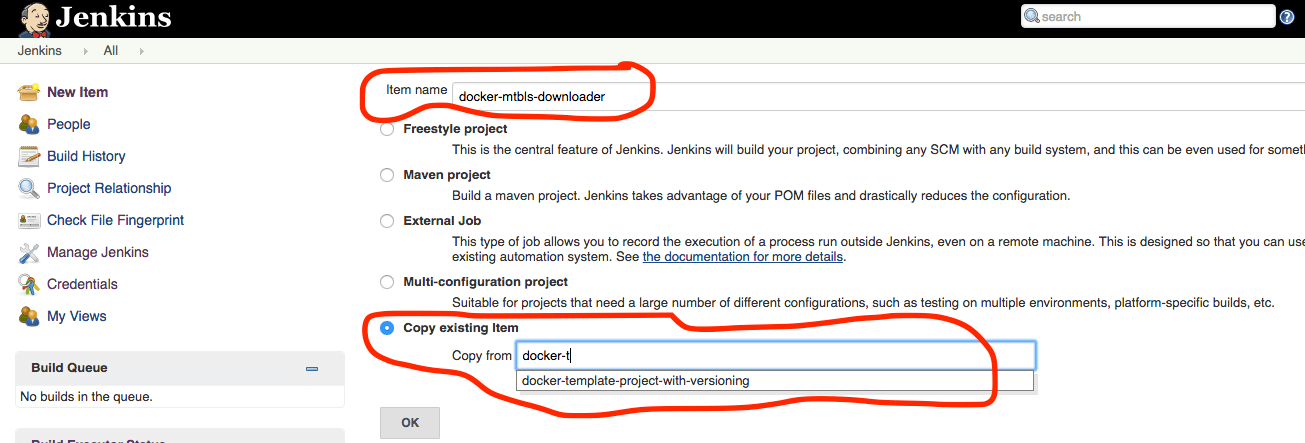
- Name your job
container-<your-tool>(without the<>characters) on the Item Name field. - Choose "Copy existing item" and start typing "container-template..." you should see an option named "container-template-project", select it.
- Press OK.
- Configure the build job (new screen that appeared after pressing Ok):
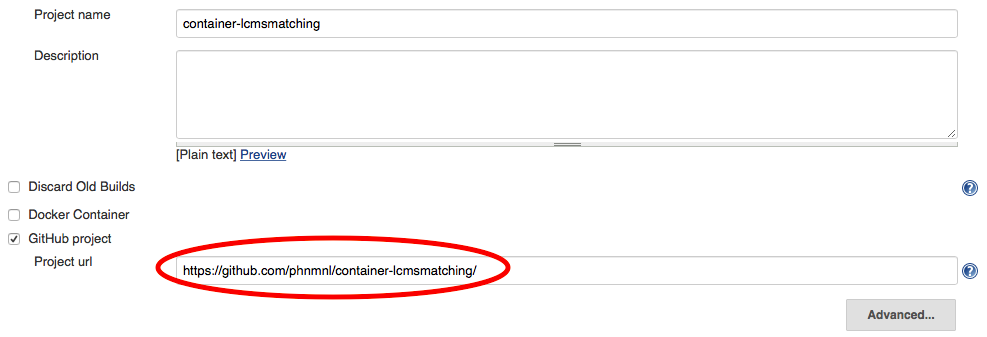
- Change project URL to your Git repo (of your dockerfile).
- Under the selected Git option:
- Change "Repository URL" to your Git repo (of your dockerfile).
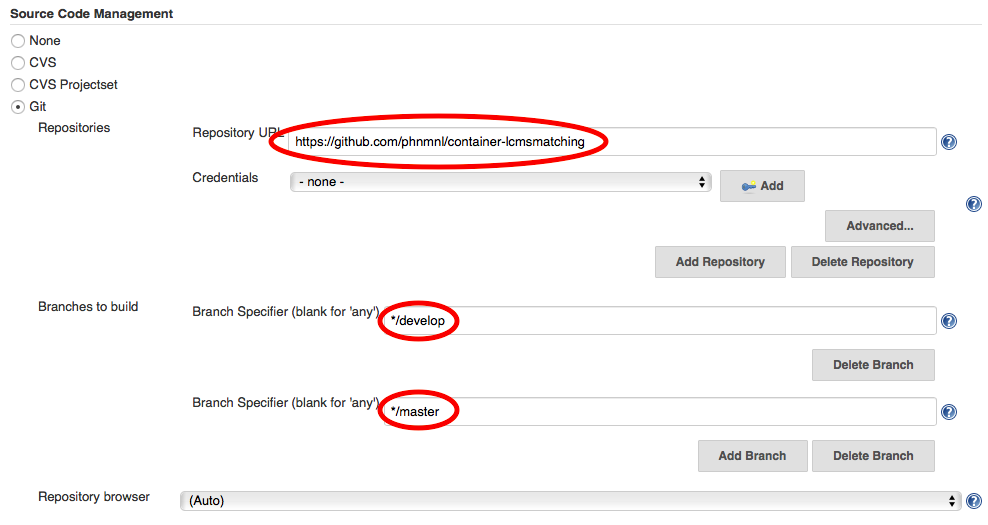
- Select the branches from where you want this container to be built on "Branches to build" (We recommend using git-flow branching scheme). Default is set to build both branch develop and branch master.
- Change "Repository URL" to your Git repo (of your dockerfile).
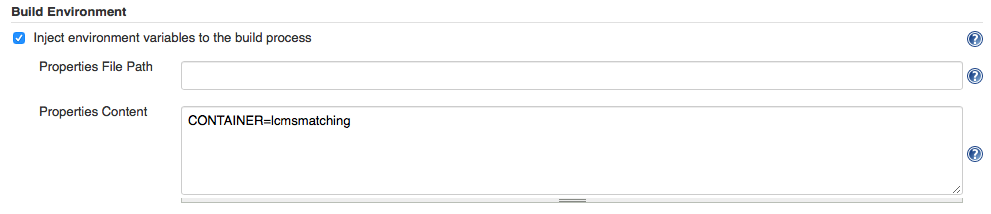
- Under the "Build Environment" section, set your container name. This name will be used to name your container images.
- The "Build" section should be let unchanged.
- Inside this section, a test will be run on your built container.
test-built-containeris the script responsible for this task. By default it will try to run your container using the default entry point that you've defined and passing the "-h" argument, which should trigger the printing of a help page. The application called inside the container should return the status code of zero, otherwisetest-built-containerwill fail. If for this test, you need to run a specific application or use a specific set of arguments, then create a filetest-cmds.txtat the root of your container repository, and write inside the commands you want to run:
- Inside this section, a test will be run on your built container.
/my/application/to/call --my-arg
/my/second/application/to/call --my-other-arg
/my/third/application/to/call/without/arg
Press "Save".
You can now trigger a build manually, in order to check that your build job is working correctly.