Version Control System (GIT) - parthibann/My_wiki GitHub Wiki
Version Control System:
Software development teams manage changes to source code using version control systems. Version control software keeps track of every modification to the code in a special kind of database. Software teams that do not use any form of version control often run into problems like not knowing which changes that have been made are available to users or the creation of incompatible changes between two unrelated pieces of work that must then be painstakingly untangled and reworked.
Advantages of VCS:
A complete long-term change history of every file. This means every change made by many individuals over the years.
Branching and merging. Having team members work concurrently is a no-brainer, but even individuals working on their own can benefit from the ability to work on independent streams of changes.
Traceability. Being able to trace each change made to the software and connect it to other project management software and bug tracking tools, and being able to annotate each change with a message describing the purpose and intent of the change can help not only with root cause analysis and other forensics.
GIT:
Git is a Distributed / De-Centralized Version Control System(DVCS). One of the biggest advantages of Git is its branching capabilities. Git branches are cheap and easy to merge. This facilitates the feature branch workflow popular with many Git users.
Feature branches provide an isolated environment for every change to your codebase. When a developer wants to start working on something—no matter how big or small—they create a new branch. This ensures that the master branch always contains production-quality code.
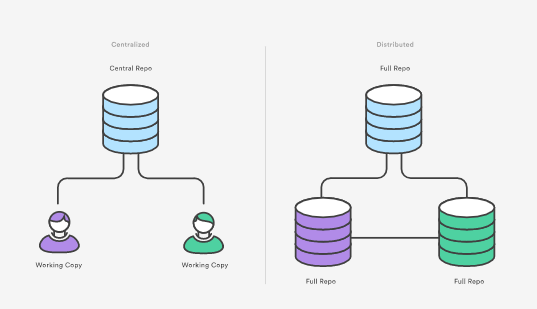
Centralized vs Distributed
Centralized(SVN)
Distributed(GIT)
each developer gets a working copy that points back to a single central repository
each developer gets their own local repository, complete with a full history of commits.
required network connection to create new commits.
new commits are created locally and hence network connection is not required.
require network connection to perform diffs between commits.
Having a full local history makes Git fast, and perform diffs between commits locally
If someone breaks the production branch then other developers can’t check in their changes until it’s fixed.
Everybody can continue going about their business in their own local repositories.
Git Cheat Sheet
Git Basics
Commands
Description
git init <directory>
Create empty Git repo in specified directory. Run with no arguments to initialize the current directory as a git repository
git clone <repo>
Clone repo located at onto local machine. Original repo can be located on the local filesystem or on a remote machine via HTTP or SSH
git config user.name<name>
Define author name to be used for all commits in current repo. Devs commonly use --global flag to set config options for current user
git add <directory>
Stage all changes in <directory> for the next commit. Replace <directory> with a <file> to change a specific file.
git commit -m "<message>"
Commit the staged snapshot, but instead of launching a text editor, use <message> as the commit message.
git status
List which files are staged, unstaged, and untracked.
git log
Display the entire commit history using the default format. For customization see additional options.
git diff
Show unstaged changes between your index and working directory.
Undoing Changes
Commands
Description
git revert <commit>
Create new commit that undoes all of the changes made in <commit>, then apply it to the current branch.
git reset <file>
Remove <file> from the staging area, but leave the working directory unchanged. This unstages a file without overwriting any changes.
git clean -n
Shows which files would be removed from working directory. Use the -f flag in place of the -n flag to execute the clean.
Rewriting Git History
Commands
Description
git commit --amend
Replace the last commit with the staged changes and last commit combined. Use with nothing staged to edit the last commit’s message.
git rebase <base>
Rebase the current branch onto <base>. <base> can be a commit ID, a branch name, a tag, or a relative reference to HEAD.
git reflog
Show a log of changes to the local repository’s HEAD. Add --relative-date flag to show date info or --all to show all refs.
Git Branches
Commands
Description
git branch
List all of the branches in your repo. Add a <branch> argument to create a new branch with the name <branch>.
git checkout -b <branch>
Create and check out a new branch named <branch>. Drop the -b flag to checkout an existing branch.
git merge <branch>
Merge <branch> into the current branch.
Remote Repositories
Commands
Description
git remote add <name><url>
Create a new connection to a remote repo. After adding a remote, you can use <name> as a shortcut for <url> in other commands.
git fetch <remote><branch>
Fetches a specific <branch>, from the repo. Leave off <branch> to fetch all remote refs.
git pull <remote>
Fetch the specified remote’s copy of current branch and immediately merge it into the local copy.
git push <remote><branch>
Push the branch to <remote>, along with necessary commits and objects. Creates named branch in the remote repo if it doesn’t exist.
Git Config
Commands
Description
git config --global user.name<name>
Define the author name to be used for all commits by the current user.
git config --global user.email<email>
Define the author email to be used for all commits by the current user.
git config --global alias. <alias-name>
Create shortcut for a Git command. E.g. alias.glog log --graph
--oneline will set git glog equivalent to git log --graph --oneline.
git config --system core.editor<editor>
Set text editor used by commands for all users on the machine. <editor> arg should be the command that launches the desired editor (e.g., vi).
git config --global --edit
Open the global configuration file in a text editor for manual editing.
Git Log
Commands
Description
git log -<limit>
Limit number of commits by . E.g. git log -5 will limit to 5 commits.
git log --oneline
Condense each commit to a single line.
git log -p
Display the full diff of each commit.
git log --stat
Include which files were altered and the relative number of lines that were added or deleted from each of them.
git log --author=”<pattern>”
Search for commits by a particular author.
git log --grep=”<pattern>”
Search for commits with a commit message that matches <pattern>.
git log <since>..<until>
Show commits that occur between <since> and <until>. Args can be a commit ID, branch name, HEAD, or any other kind of revision reference.
git log --<file>
Only display commits that have the specified file.
git log --graph --decorate
--graph flag draws a text based graph of commits on left side of commit msgs. --decorate adds names of branches or tags of commits shown.
Git Diff
Commands
Description
git diff HEAD
Show difference between working directory and last commit.
git diff --cached
Show difference between staged changes and last commit.
Git Reset
Commands
Description
git reset
Reset staging area to match most recent commit, but leave the working directory unchanged.
git reset --hard
Reset staging area and working directory to match most recent commit and overwrites all changes in the working directory.
git reset <commit>
Move the current branch tip backward to <commit>, reset the staging area to match, but leave the working directory alone.
git reset --hard <commit>
Same as previous, but resets both the staging area & working directory to match. Deletes uncommitted changes, and all commits after <commit>.
Git Rebase
Commands
Description
git rebase -i <base>
Interactively rebase current branch onto <base>. Launches editor to enter commands for how each commit will be transferred to the new base.
Git Pull
Commands
Description
git pull --rebase <remote>
Fetch the remote’s copy of current branch and rebases it into the local copy. Uses git rebase instead of merge to integrate the branches.
Git Push
Commands
Description
git push <remote> --force
Forces the git push even if it results in a non-fast-forward merge. Do not use the --force flag unless you’re absolutely sure you know what you’re doing.
git push <remote> --all
Push all of your local branches to the specified remote.
git push <remote> --tags
Tags aren’t automatically pushed when you push a branch or use the --all flag. The --tags flag sends all of your local tags to the remote repo.
Git Feature Branch Workflow:
The core idea behind the Feature Branch Workflow is that all feature development should take place in a dedicated branch instead of the master branch. This encapsulation makes it easy for multiple developers to work on a particular feature without disturbing the main codebase. It also means the master branch will never contain broken code, which is a huge advantage for continuous integration environments.
The Feature Branch Workflow assumes a central repository, and master represents the official project history. Instead of committing directly on their local master branch, developers create a new branch every time they start work on a new feature. Git makes no technical distinction between the master branch and feature branches, so developers can edit, stage, and commit changes to a feature branch.
In addition, feature branches can (and should) be pushed to the central repository. This makes it possible to share a feature with other developers without touching any official code. Since master is the only “special” branch, storing several feature branches on the central repository doesn’t pose any problems.