Getting Started - oculometric/IvyFactoryDocs GitHub Wiki
Installing the Addon
Once you've downloaded the ZIP file from BlenderMarket, to install the addon open blender and navigate to Edit > Preferences. In preferences switch to the Addon-ons view and click Install. Locate the ZIP file and click Install Add-on to confirm. Make sure to enable the addon in preferences as well by ticking the box next to the Add Mesh: IvyFactory entry.
Basic Usage
The ivy panel can be found in the 3D view under Tool > Ivy Generator.
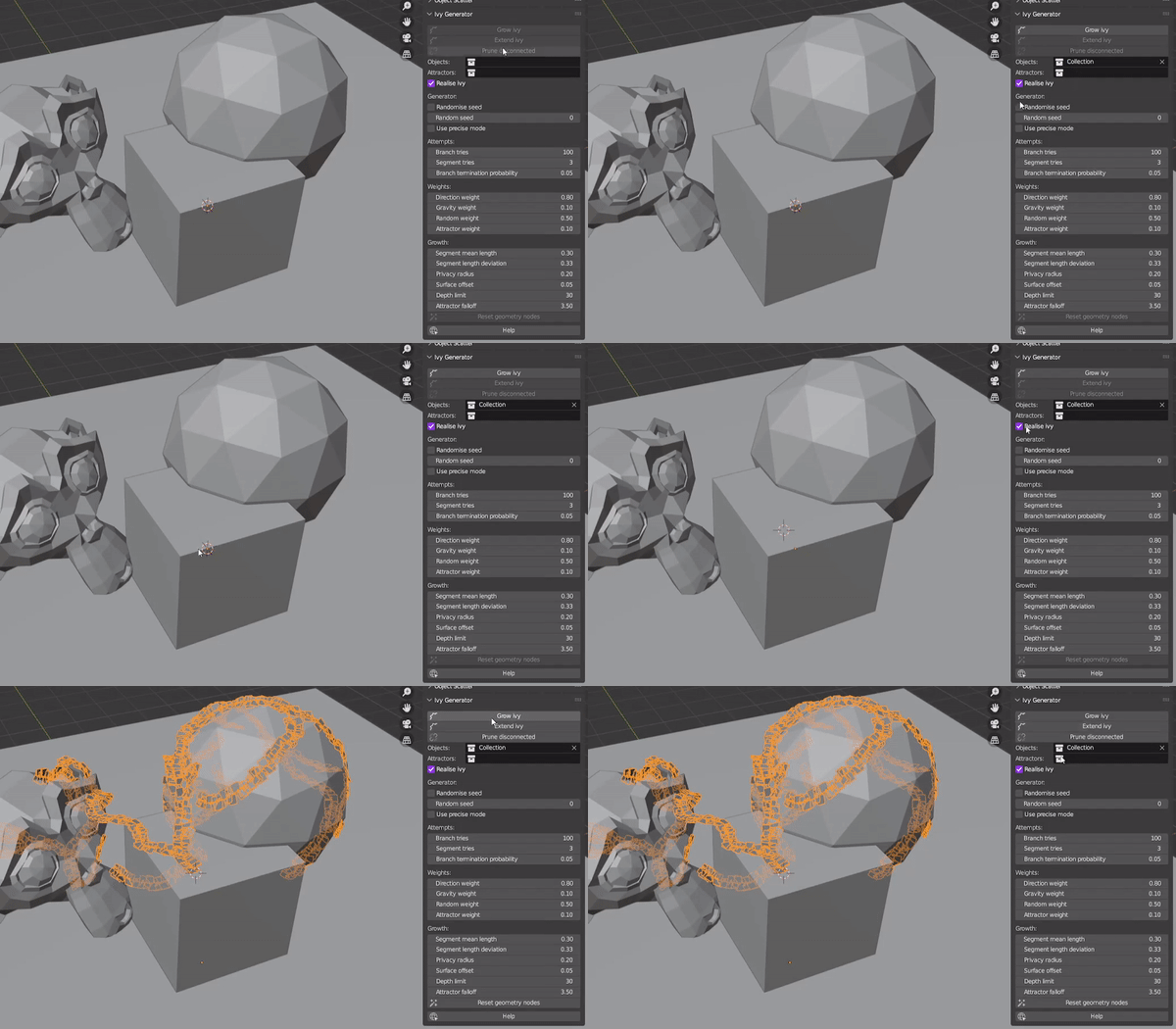
First you need to do is to set which objects you want the ivy to grow over. Make sure your desired target objects are inside or linked inside a collection. The field labelled Objects: needs to be set to this collection. All the objects in the collection you select can be used to grow ivy over.
Next you need to place the 3D cursor where you want your ivy to start growing. Make sure the 3D cursor is close enough to geometry from one of your target objects otherwise the ivy may not be able to get started.
From here you can click Grow ivy to start growing your first instance.
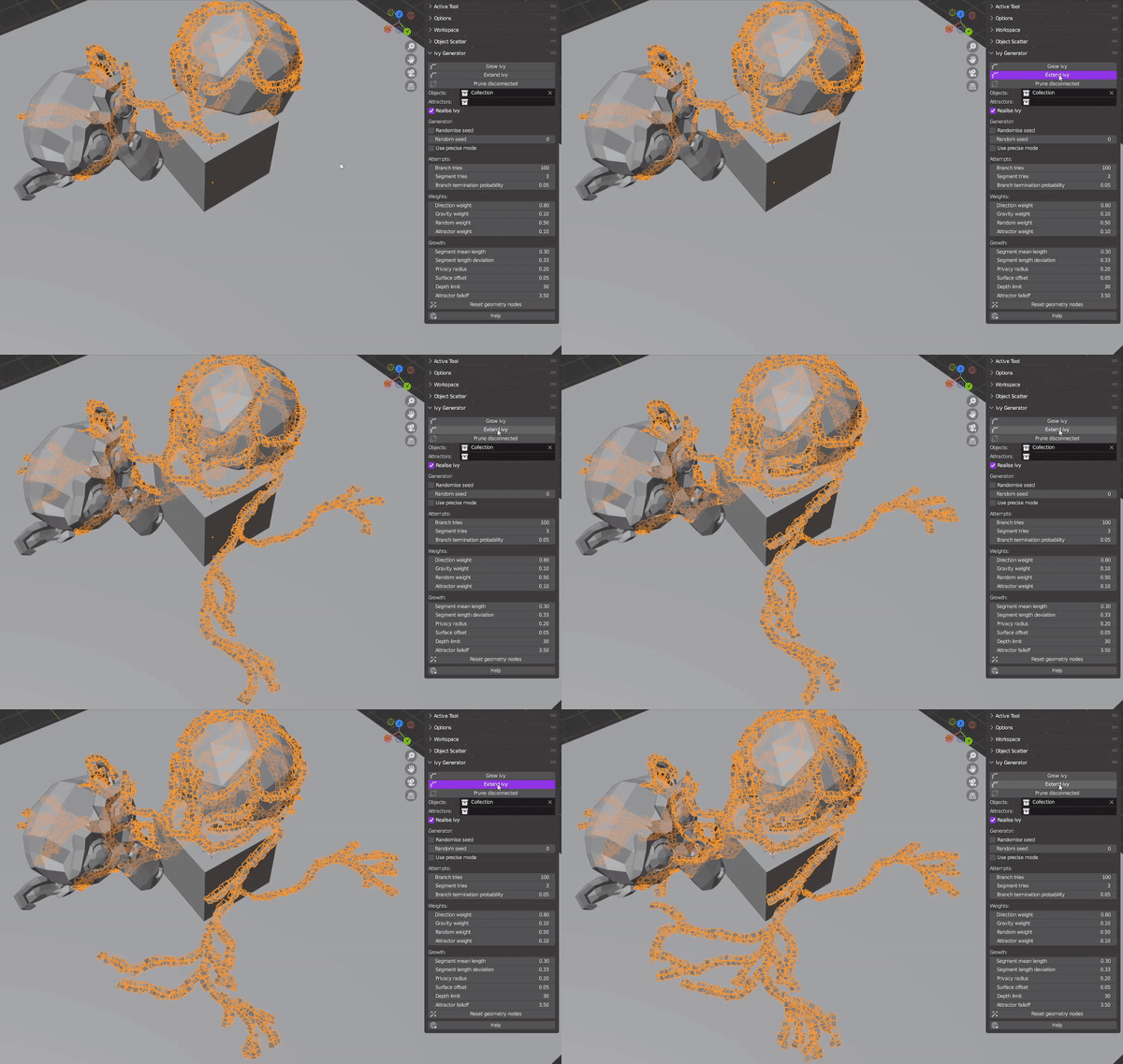
If you want to keep growing your ivy, you can select an ivy object and click Extend ivy. This will attempt to grow new branches on the existing ivy object.
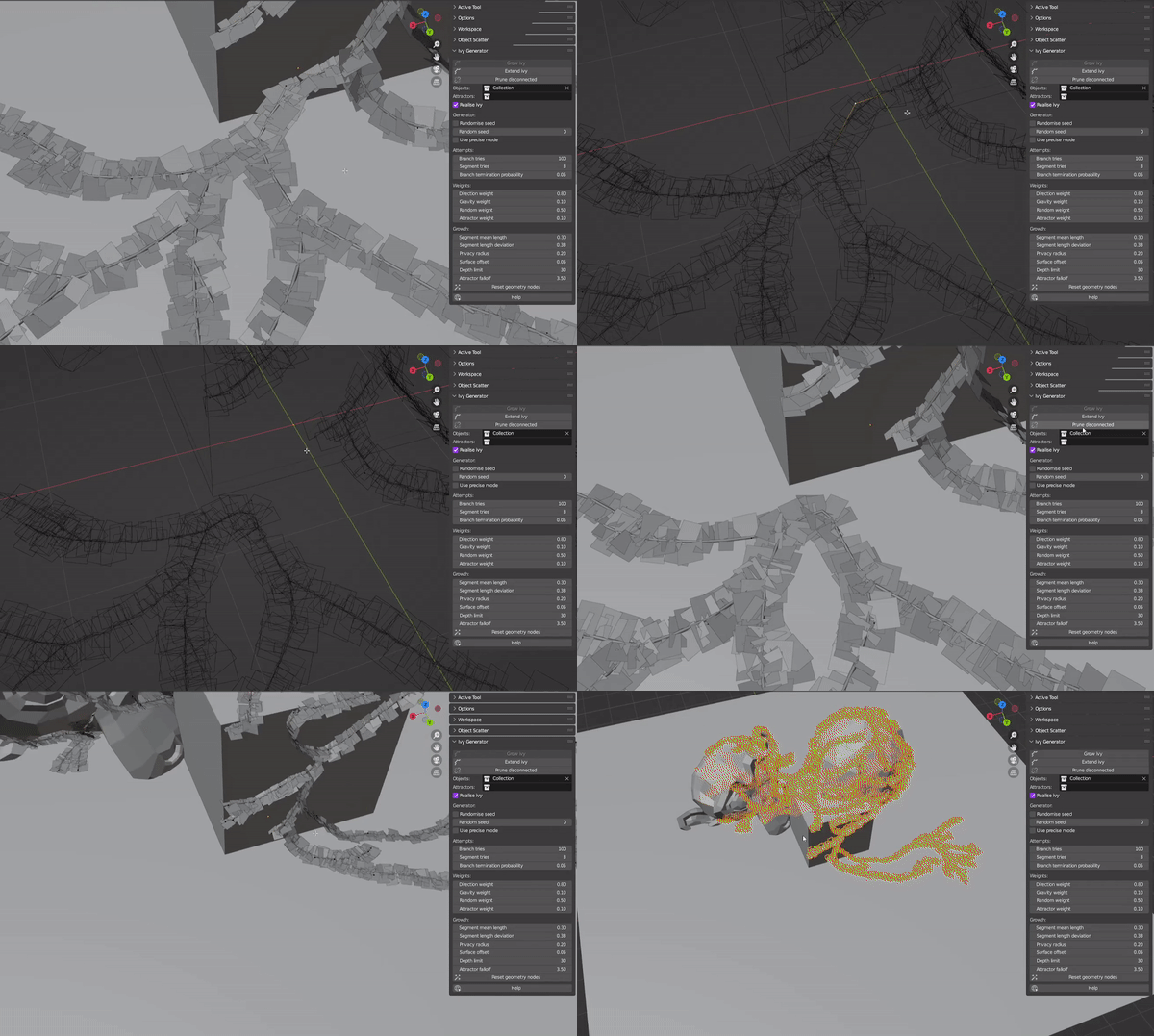
If you don't like part of your ivy, you can enter edit mode and delete the vertices that connect that particular bit to the rest of the ivy. To automatically remove the disconnected part, you can use the Prune disconnected operator, or it will be pruned automatically the next time you run the Extend ivy operator.
Be careful when editing ivy geometry by hand, you can move vertices around as much as you like but if you delete the root vertex, you'll lose your whole ivy next time it gets pruned. You cannot add your own ivy branches by extruding vertices in edit mode, since the ivy generator uses a tree structure to manage branches (invalid branch vertices will simply be pruned next time you run one of the two operators mentioned above). You also cannot dissolve vertices. Or at least you'll get very odd results.
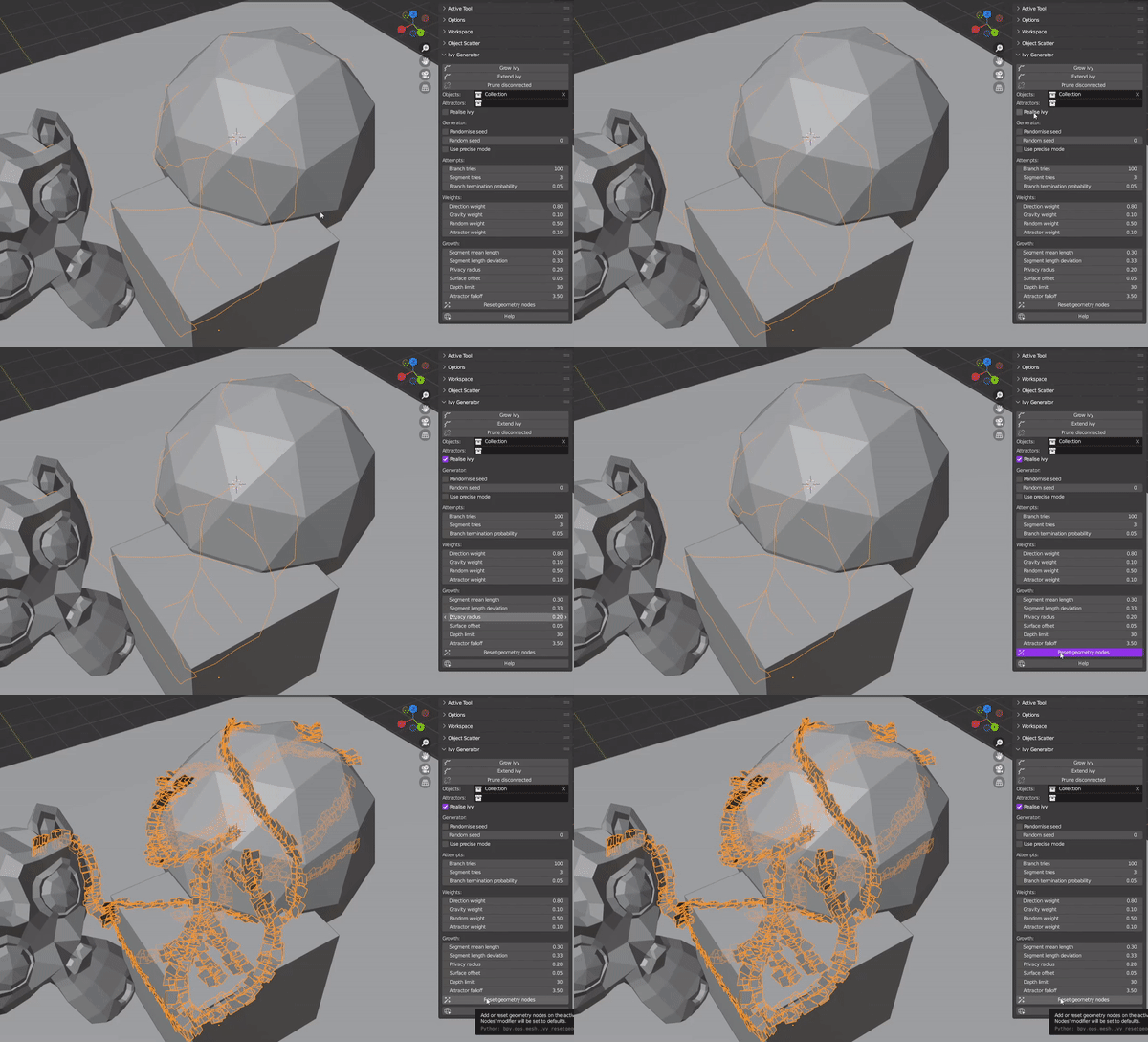
If you want your ivy to look nice when it's grown with branches and leaves, keep Realise ivy ticked (if you want to add it to an ivy after the fact, tick Realise ivy with the ivy selected and run Reset geometry nodes).
For a more detailed explanation of what each and every parameter does, see this page.