Lora communication with Shelly - nygma2004/km GitHub Wiki
01: Basics
This page contains the links and examples shown in my "How Lora works with Shelly" videos. The basics video offers and introduction into what Lora communication is, and how it can be used with Shelly devices.
As mentioned in video #06 you can use the event_handler and status_handler to test what event and/or status messages are sent by devices/components.
02: Setup
The second episodes details the setup of the Shelly Lora Add-on module and discusses the Loda radio configuration basics.
Basic text message sender example: lora_send_msg
And the receiver script example: lora_receive_msg
03: Virtual button: opening car gate
This example uses a virtual component (virtual button) defined on the sender Shelly, and it triggers the remote Shelly over Lora to turn on a relay. This can be used to operate open a car gate/garage from the phone.
Setup steps in summary:
- Create a virtual component (button type)
- Create a virtual group and add the component to the group.
- Expose the virtual group as a device, so it is easier to access it in the Shelly app
- Add the sender script to the sender device: lora_virtual_button_sender
- Add the receiver script to the remote device: lora_virtual_button_receiver
04: Virtual switch: turning remote lights on and off
In this example we create a remote output which is operated by a virtual switch. For example a garden light which is operated by Lora outside the wifi range.
Setup steps in summary:
- Create a virtual component (boolean type)
- Create a virtual group and add the component to the group.
- Add the sender script to the sender device: lora_virtual_switch_sender
- Add the receiver script to the remote device: lora_virtual_switch_receiver
05: Doorbell: sending data back from the remote device
In this example we set up the two devices so both can send and receive data. In the earlier examples we only sent data from the wifi (gateway) to the remote device, but this time information is also sent back. We use one of the input on the remote Shelly, and the button press is sent back via Lora.
Setup steps in summary:
- Create a virtual component (button type)
- Create a virtual group and add the component to the group.
- Create and action/scene for the new virtual component that will handle the received button press event.
- Set up the input as detached (since we used the output for a different scenario is video #04)
- Add the script to the gateway device: lora_doorbell_gateway
- Add the script to the remote device: lora_doorbell_remote
06: Send sensor data from BLU device
In this example we connect a BLU temperature and humidiy sensor and send it's values over to the gateway via Lora. This example shows you how you could do the same with other BLU devices or metrics from the remote device itself.
Setup steps in summary:
- Add the BLU device to the remote device
- Create a virtual components (number type)
- Create a virtual group and add the component to the group.
- Add the script to the gateway device: lora_btht_gateway
- Add the script to the remote device: lora_btht_remote
07: Range test
If you want to conduct the same range test, here are the scripts I used.
Setup steps in summary:
- Create a virtual components (two number type, and one boolean type)
- Create a virtual group and add the component to the group.
- Add the script to the gateway device: lora_range_test_base_station
- Add the script to the remote device: lora_range_test_remote
08: One-to-one mapping for Zigbee/Matter use
In this example I map an output of the gateway device to the output of the remote device, so the changes on the gateway is applied to the remote and vice versa. This would be especially useful if the gateway will be operated via Zigbee or Matter
Setup steps in summary:
- Add the script to the gateway and remote Shelly
- Add the script to the gateway device: lora_zigbee_gateway
- Add the script to the remote device: lora_zigbee_remote
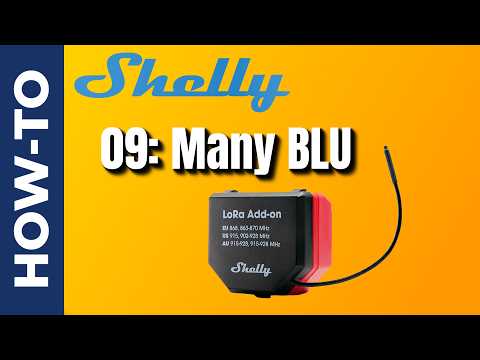
09: Many BT sensors
This time we connect more than the original BLU H&T seen in episode 06 and expand to multiple Bluetooth sensors.
Setup steps in summary:
- Create a virtual components (two number type, and one boolean type)
- Create a virtual group and add the component to the group.
- Pair the BT sensors to the remote Shelly
- Add the script to the gateway and remote Shelly
- Add the script to the gateway device: lora_btht_gateway.js
- Add the script to the remote device: lora_btht_remote.js
10: 2CH output mirroring
In this example both the gateway and the remote device is a 2 channel Shelly, and we map the outputs from the gateway device to the remote and vice versa.

Setup steps in summary:
- Add the script to the gateway and remote Shelly
- Add the script to the gateway device: lora_2ch_gateway.js
- Add the script to the remote device: lora_2ch_remote.js
Bugs and Input Type
Explain a coding error I made in episode 02 and explain the difference between the button and switch input type and how it changes the event types from single_push to toggle.