How to insert Events - noi-techpark/opendatahub-docs GitHub Wiki
The first thing to do is to go on the databrowser's Events page
This is the page for the Events. To be able to edit events and add records you will have to login first.
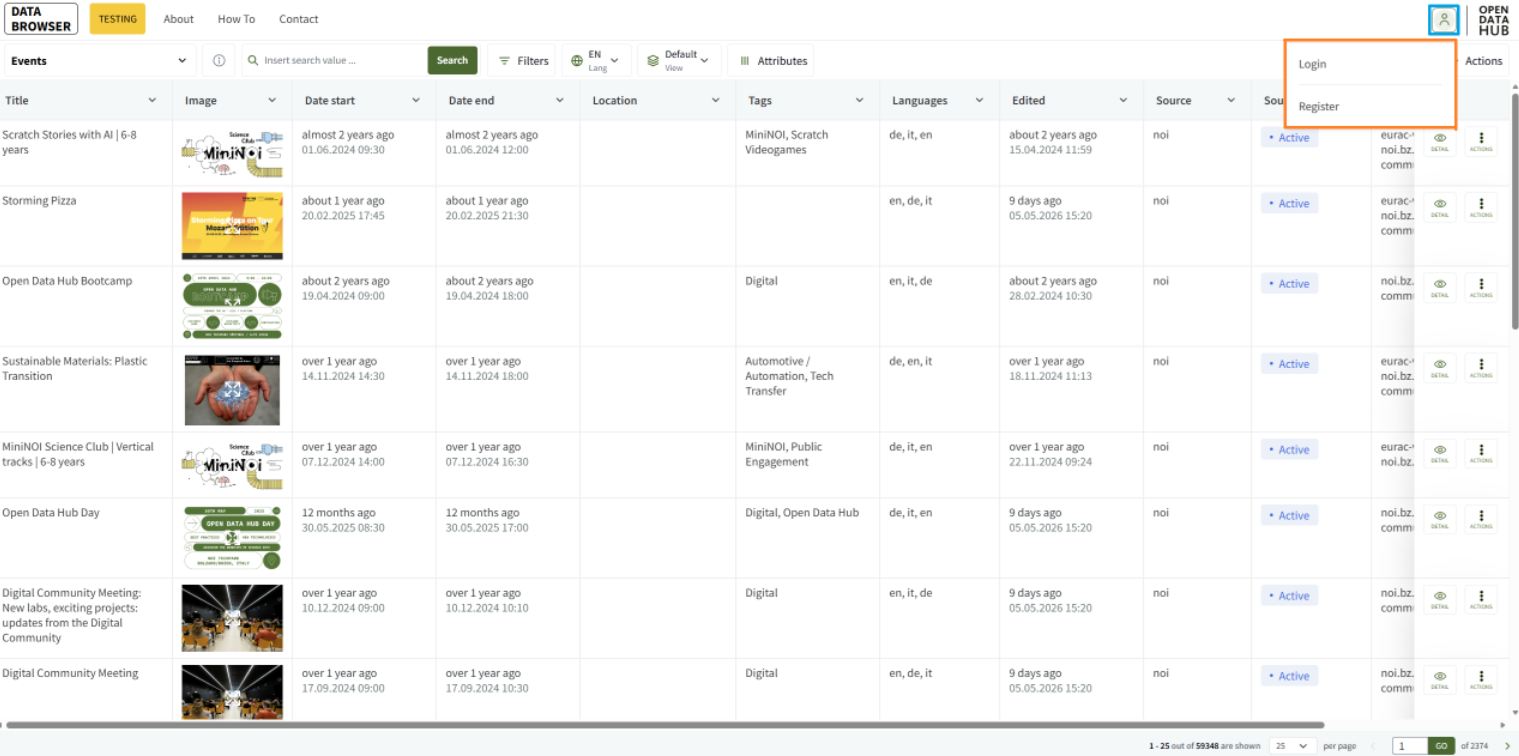
Then to add a record you can click the button on the top left, or to edit an already existing record you can click on the button with the pen.
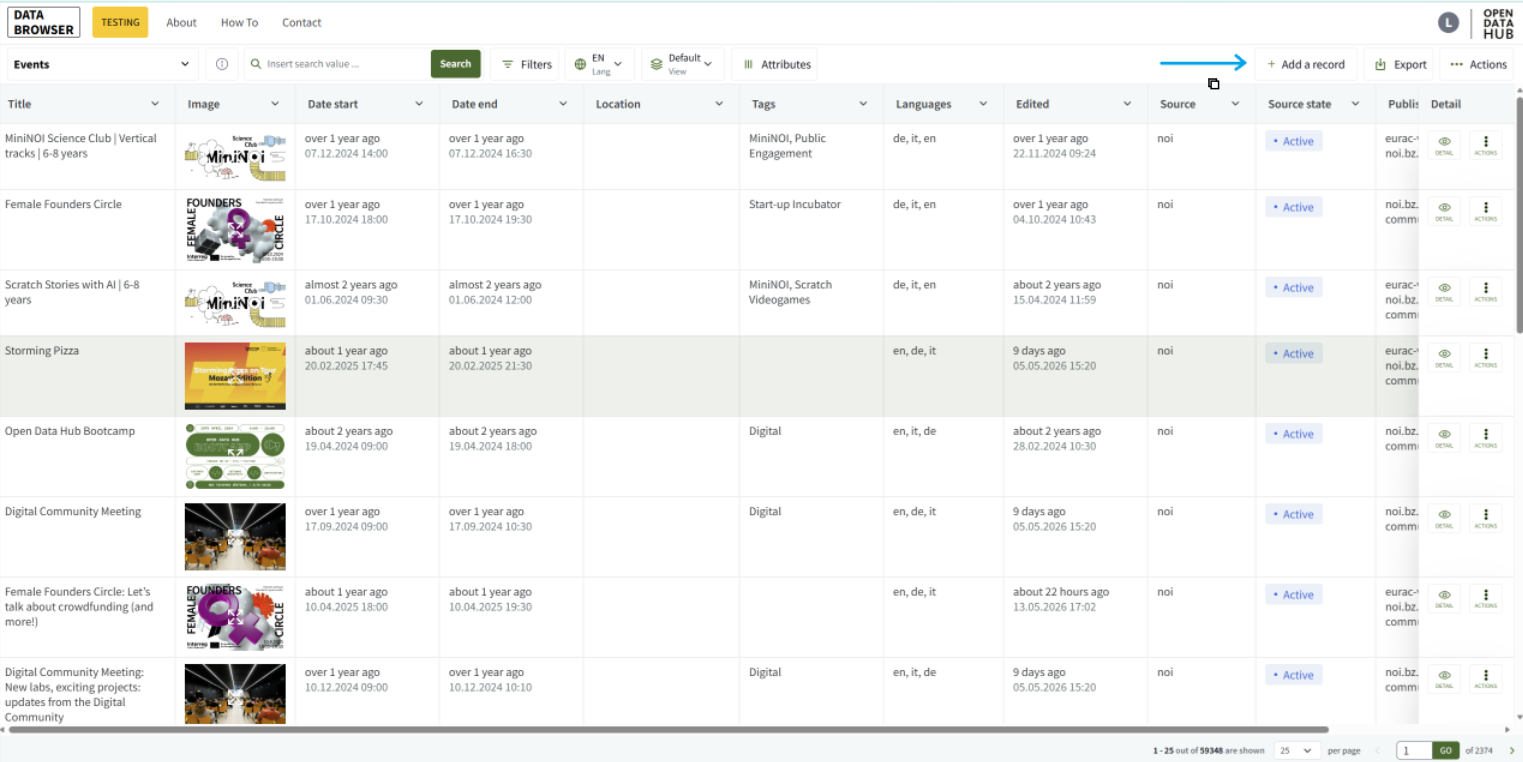
After clicking on the add records button this page will open.
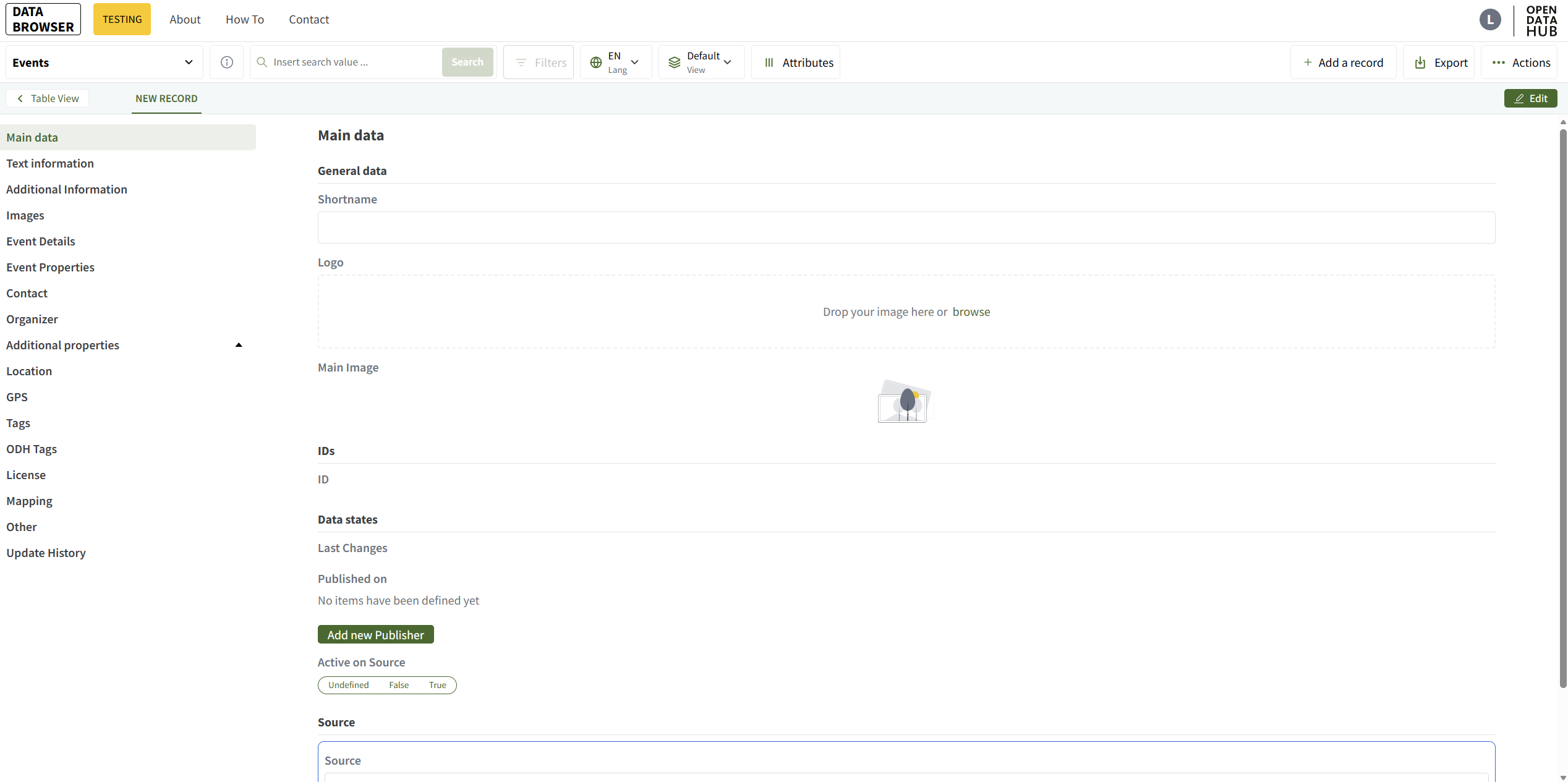
Here there is the space to insert every information about the event. Some information is mandatory.
- Shortname
- Same as the title of the event.
- Published on
- Specify where the event should be published.
- Active on Source
- Set to true for events that should be displayed on NOI platforms.
- Source
- Select the source from which the data is obtained.
- Title
- Title of the event.
- Base Text
- Description of the event.
The first uploaded image will be the main image displayed alongside the event. By default, the images should be uploaded as jpg or png in landscape format, with a max size of 4MB and in the format of 1170x780px. For NOI events, an image is mandatory.
- Date Begin, Date End
- To keep inserting data simple, Date Begin and Date End are calculated out of the min and max value present in Event Date. Read-only field.
- Event Venue
- Select the venue where the event takes place.
- If the Venue is not a NOI Venue, select the Other venue, which allows to add custom room entries for off-site locations.
-
Event Dates (at least one Event Date has to be inserted!)
- From
- In format dd.mm.yyyy
- To
- In format dd.mm.yyyy
- Begin
- In format hh.mm
- End
- In format hh.mm
- Active
- Active=false means that the room is booked internally in the system, but is not displayed as booked on the channels.
- Venue Room
- Select the room(s) where the event takes place.
- From
For events that require registration, the booking URL must be added under BookingUrl. For NOI events, the Event Urls must be provided.
Information about the contact person.
Information about the organizing company.
Space for special properties.
For events NOT taking place at NOI or Eurac, the following fields are mandatory:
- Region
- Tourism Association
- Municipality
- District
For events NOT taking place at NOI or Eurac, it is mandatory to set the GPS Point on the map where the event is taking place.
Tags can be added.
Details about the event license.
To add a room, first navigate to the Event Details section. Then click the Add new venue bottom.
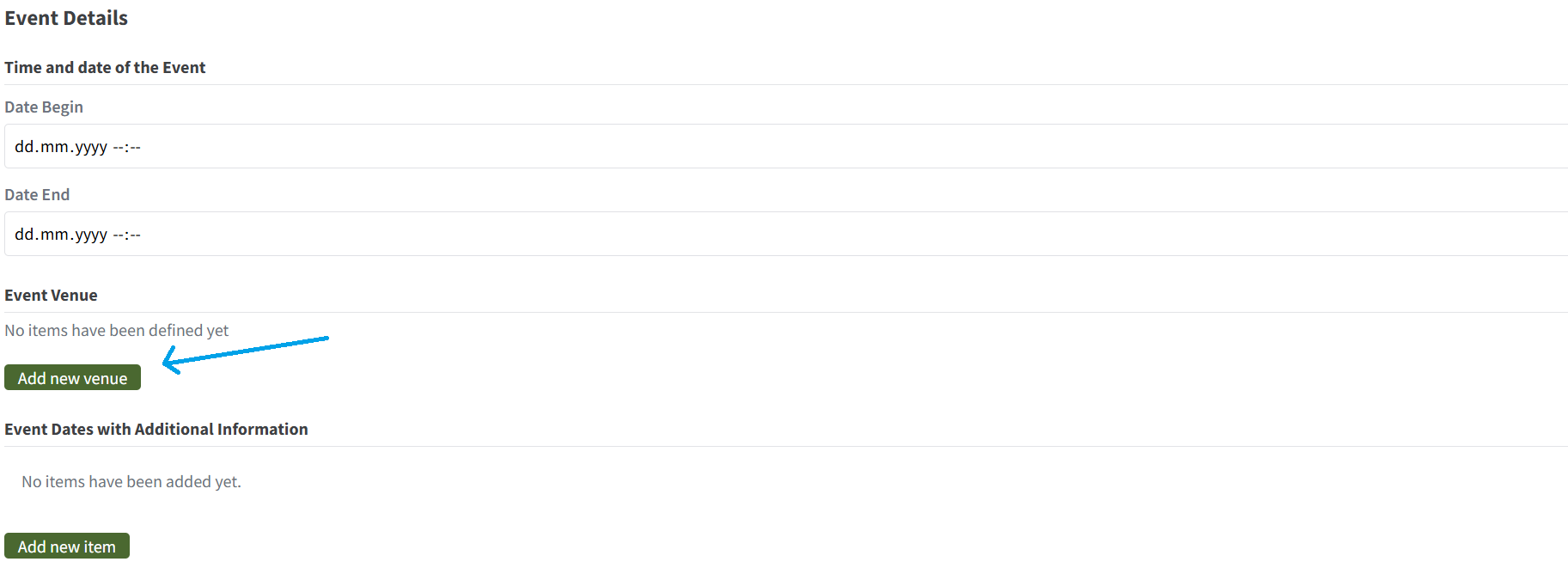
Here, you must choose one of the four available venues:
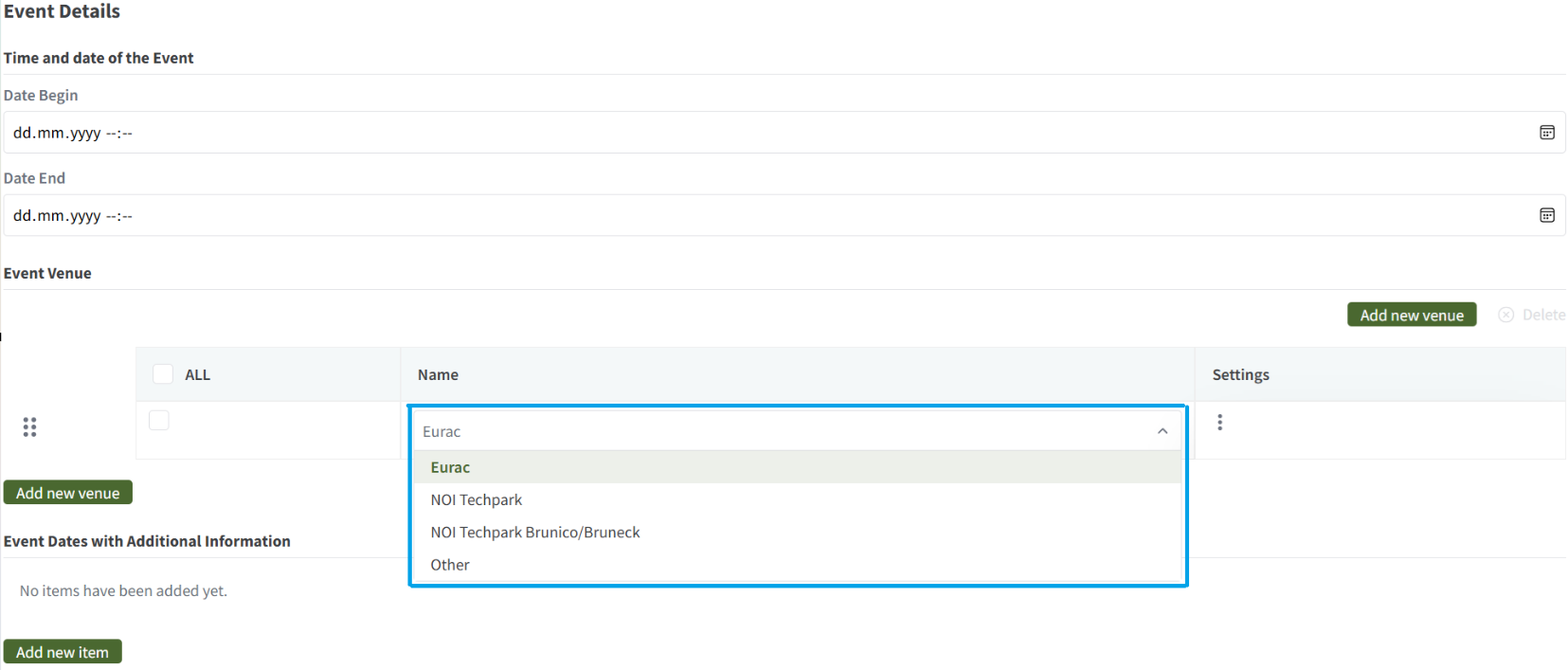
To add information and rooms, click the Add new item buttom.
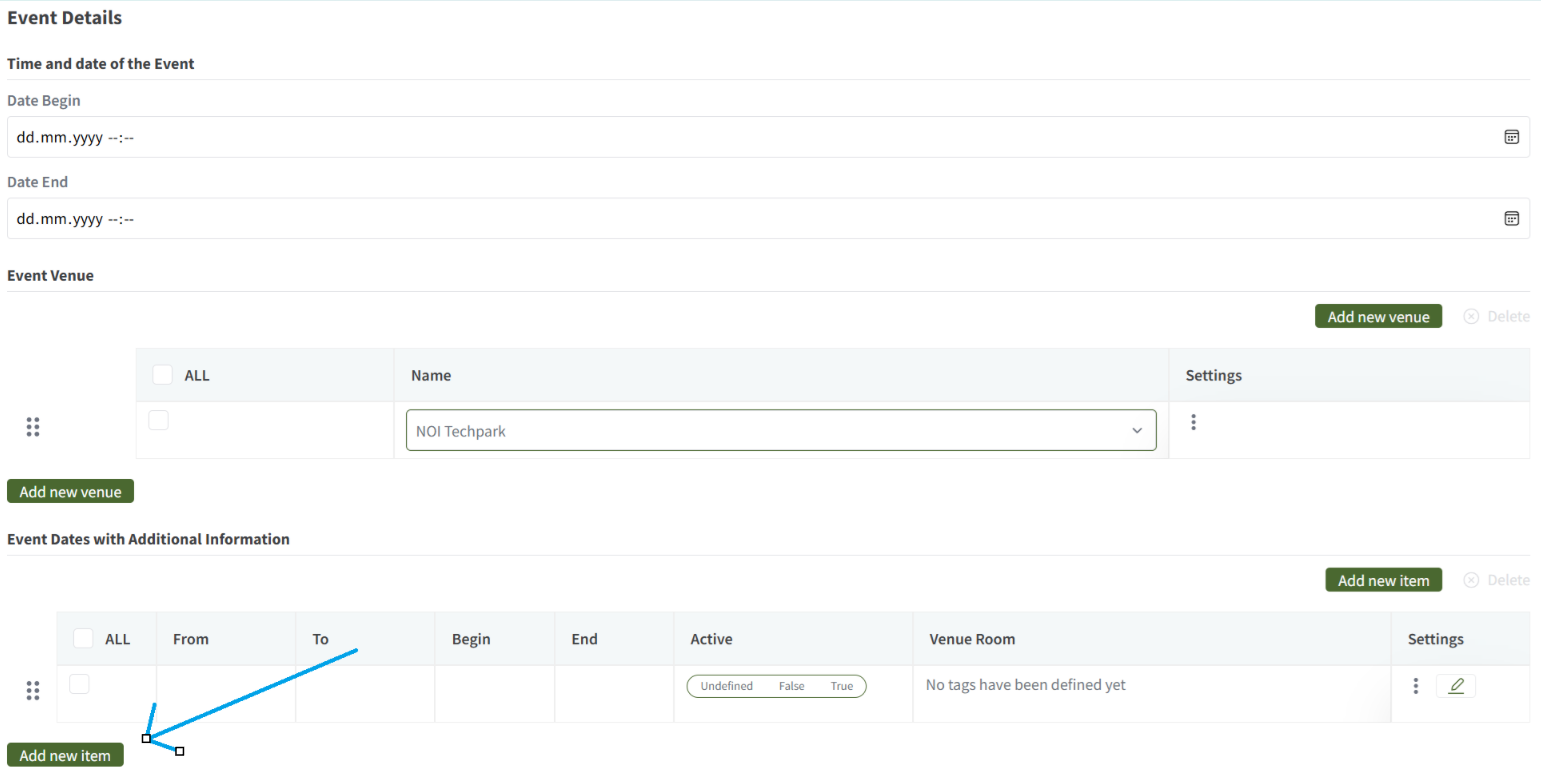
You can now enter the room details. All fields are mandatory.
Pay particular attention when entering the event time period: Begin < End.
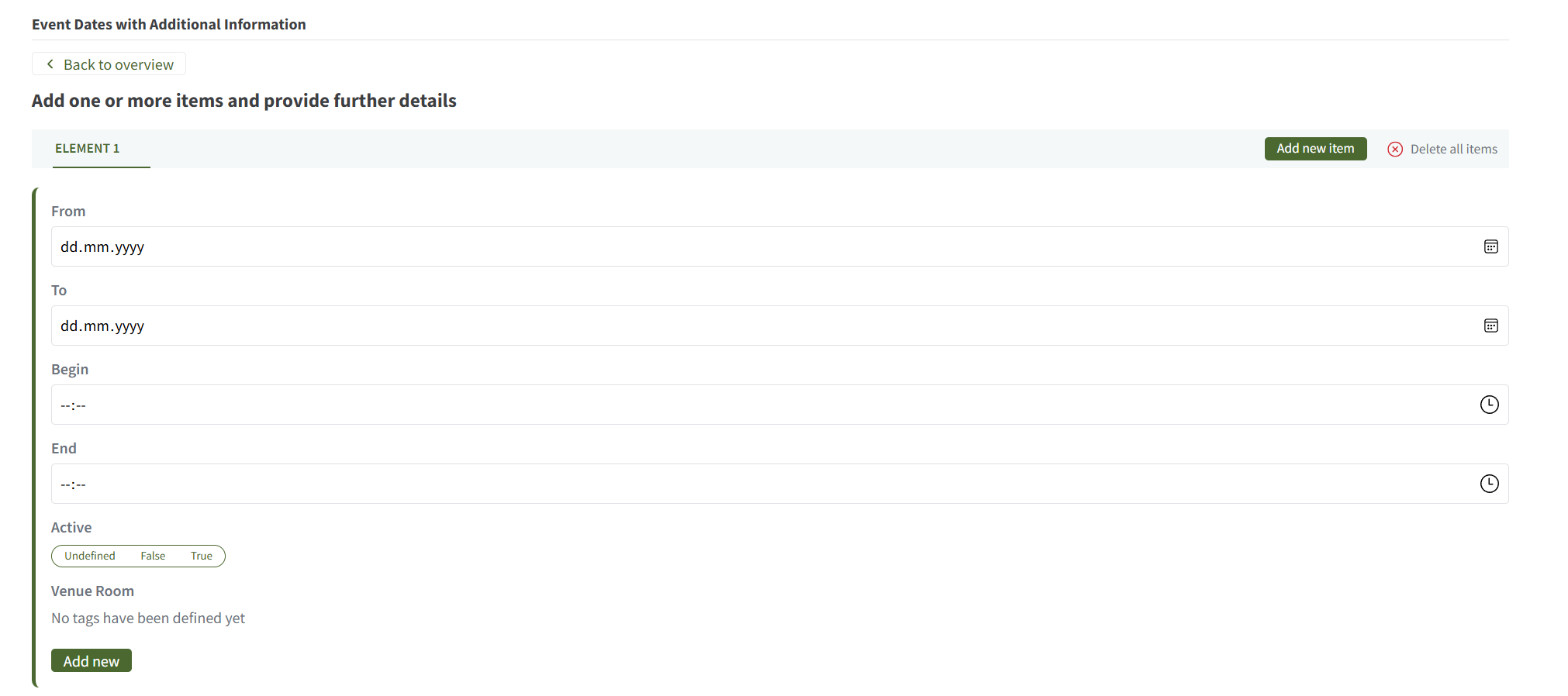
To add a new room click, click the Add new bottom.
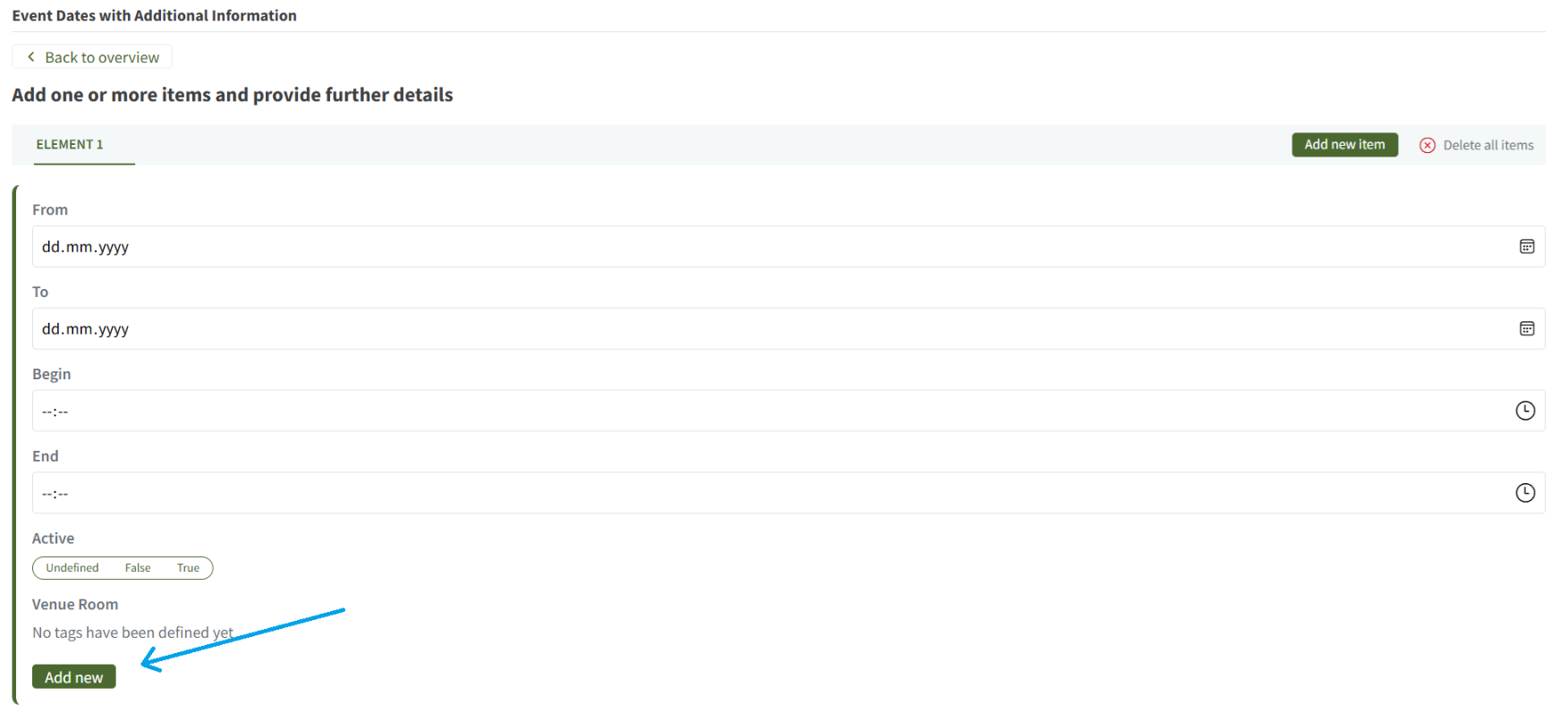
Here, you can choose from the available rooms for the selected venue.
Note: Changing the venue will remove any previously selected rooms.
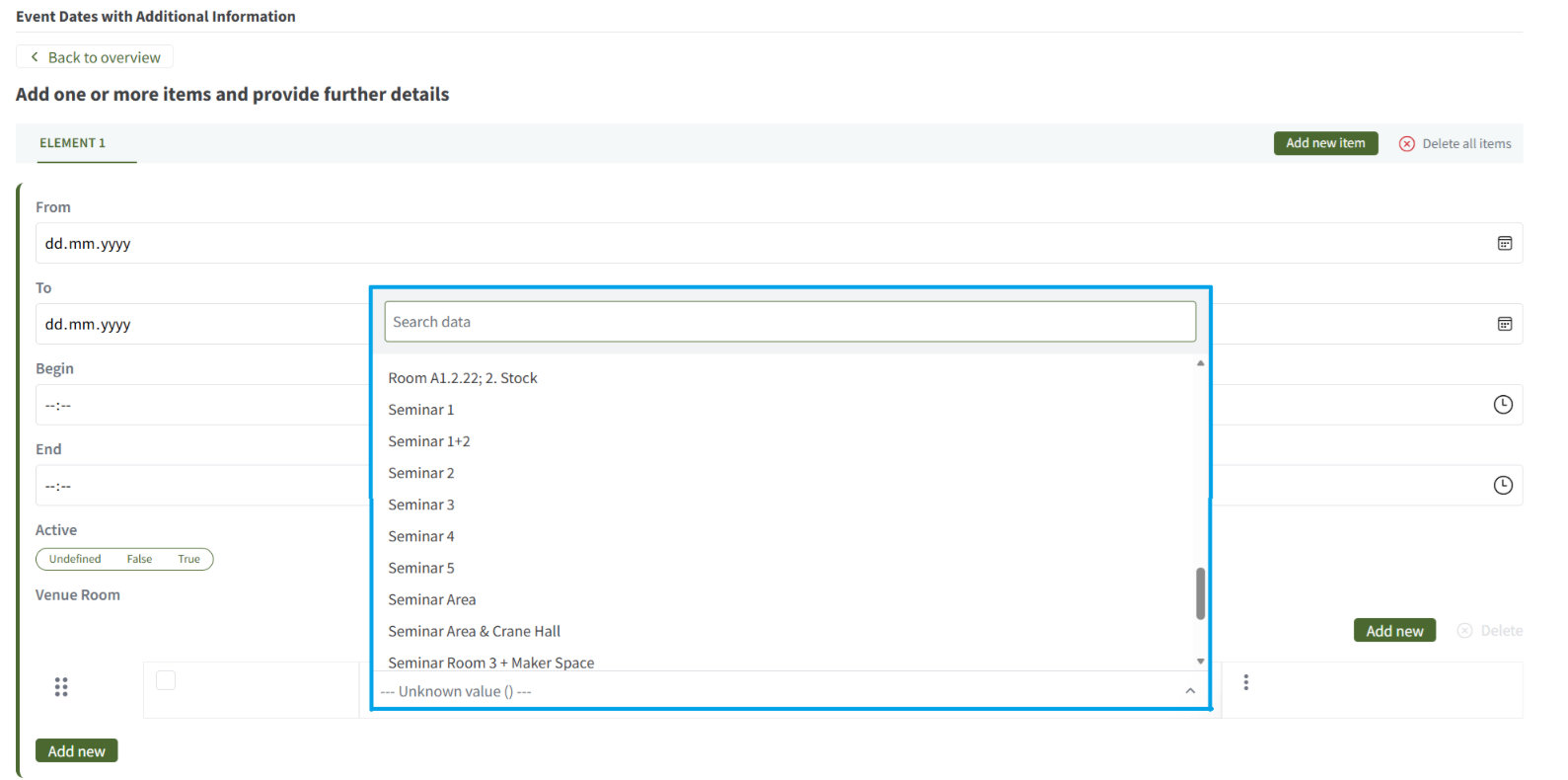
If some rooms are missing, for NOI and NOI Bruneck it is possible to add a new room using the following endpoints:
- [NOI](https://databrowser.opendatahub.testingmachine.eu/dataset/detail/tourism/v1/Venue/urn:venue:noi:6b3f0a14-3c5b-5d09-81f3-3ebe5b7885ea?searchfilter=NOI Techpark#room-management)
- [NOI Bruneck](https://databrowser.opendatahub.testingmachine.eu/dataset/detail/tourism/v1/Venue/urn:venue:noibruneck:aa571d89-36c1-50fa-9400-7f15b1ae814b?searchfilter=noi bruneck#room-management)
- Eurac
- Other
Events that extend over a maximum of one day are entered with start and end dates and thus visualized on all channels. If the total time of an event, including set-up and dismantling work, differs from the official times of the event, e.g. starts an hour earlier and ends half an hour later, then a separate room must be booked for this with the corresponding time and Active should be set as false. Active=false means that the room is booked internally in the system, but is not displayed as booked on the channels.
Events that extend over several days can be entered for several days, e.g. from 1.11.-3.11. from 9.00-16.00 hrs. In the details, however, a separate room must then be created for each day.
For example:
Day 1 - room booking 1.11. from 9.00-17.00;
Day 2 - room booking 2.11. from 9.00-17.00;
Day 3 - room booking 3.11. from 10.00-16.00.
This guarantees that participants will find the exact times for each day of the event.
The today.noi.bz.it channel displays events based on rooms, while the website and app display events based on events. If an event takes place over several days, only the date from to is displayed in the event tile on the website and app, while the detailed view lists the individual days including the respective start and end times (here, the times of the rooms are used for display, excluding those with Active=false, just as on today.noi.bz.it).