Paper2D PaperZD workflow - nkdtr/A2SSupport GitHub Wiki
Preparation
To enter the Paper2D / PaperZD workflow, check "Output Paper2D Assets" on the left bottom of the main Editor Utility Widget(named EUW_AnimSpriteCapture).
Then Paper2D sprites and flipbooks will be generated when the capture is performed.
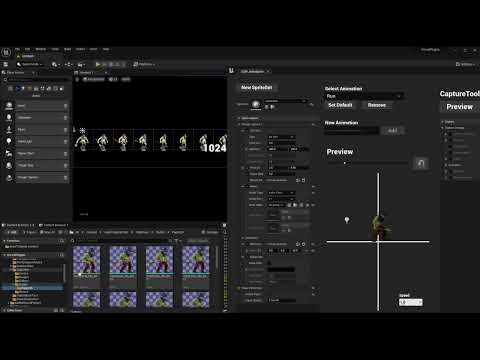
The capturing procedure can be seen in the video below.
Paper2D Sprites
Automatically clipped sprites are generated with properties filled and ready to use.
Pivot and pixel per unit
Automatically set.
Sprite character can be shown the same size and the same position as the original (captured) character.
Normal map
Automatically set.
This does not have an effect with the default material (unlit sprite material).
You need to use set a lit material on the Sprite or Flipbook component to show the character.
Sockets
If "SocketNames" are specified in CaptureSettings, captured socket transforms are automatically reflected into sprites.
Bone names are also valid here.
Paper2D Flipbooks
Flipbooks are also generated for each animation and direction (if set).
Framerate is set automatically and the animation is shown the same speed as the original skeletal animation (if its speed is not modified in the EUW).
PaperZD Multi-directional flipbooks
PaperZD in Code Plugins - UE Marketplace
PaperZD is a plugin that makes development of sprite based games significantly convenient.
Sprites and flipbooks made with AnimToSprite works well with it.
By setting multiple "Rotations" in the capture settings, flipbooks for each direction are created.
Set them in PaperZD AnimationSequence to define multi-directional animation.