Working with the TextView - nhtechip/android-bootstrap GitHub Wiki
Overview
Every Android device comes with a collection of standard fonts: Droid Sans, Droid Sans Mono and Droid Serif. They were designed to be optimal for mobile displays, so these are the three fonts you will be working with most of the time and they can be styled using a handful of XML attributes. You might, however, see the need to use custom fonts for special purposes.
This guide will take a look at the TextView and discuss common properties associated with this view as well as how to setup custom typefaces.
Text Attributes
Typeface
As stated in the overview, there are three different default typefaces which are known as the Droid family of fonts: sans, monospace and serif. You can specify any one of them as the value for the android:typeface attribute in the XML:
<TextView
    android:layout_width="fill_parent"
    android:layout_height="wrap_content"
    android:text="This is a 'sans' demo!"
    android:typeface="sans"
/>
Here's how they look:
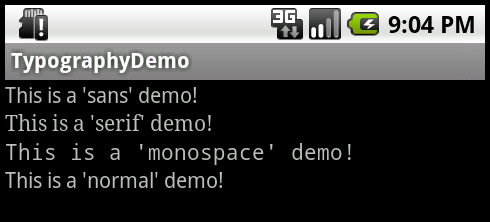
In addition to the above, there is another attribute value named "normal" which defaults to the sans typeface.
Text Style
The android:textStyle attribute can be used to put emphasis on text. The possible values are: normal, bold, italic. You can also specify bold|italic.
<TextView
    android:layout_width="fill_parent"
    android:layout_height="wrap_content"
    android:text="This is bold!"
    android:textStyle="bold"
/>
Text Size
android:textSize specifies the font size. Its value must consist of two parts: a floating-point number followed by a unit. It is generally a good practice to use the sp unit so the size can scale depending on user settings.
<TextView
    android:layout_width="fill_parent"
    android:layout_height="wrap_content"
    android:text="15sp is the 'normal' size."
    android:textSize="15sp"
/>
Text Color
The android:textColor attribute's value is a hexadecimal RGB value with an optional alpha channel, similar to what's found in CSS:
<TextView
    android:layout_width="fill_parent"
    android:layout_height="wrap_content"
    android:text="A light blue color."
    android:textColor="#00ccff"
/>
Text Shadow
You can use three different attributes to customize the appearance of your text shadow:
android:shadowColor- Shadow color in the same format as textColor.android:shadowRadius- Radius of the shadow specified as a floating point number.android:shadowDx- The shadow's horizontal offset specified as a floating point number.android:shadowDy- The shadow's vertical offset specified as a floating point number.
The floating point numbers don't have a specific unit - they are merely arbitrary factors.
<TextView
    android:layout_width="fill_parent"
    android:layout_height="wrap_content"
    android:text="A light blue shadow."
    android:shadowColor="#00ccff"
    android:shadowRadius="1.5"
    android:shadowDx="1"
    android:shadowDy="1"
/>
Using Custom Fonts
We can actually use any custom font that we'd like within our applications. Check out fontsquirrel for an easy source of free fonts. For example, we can download Chantelli Antiqua as an example. Download it and place the TTF file in the ./assets/fonts directory.
We're going to use a basic layout file with a TextView, marked with an id of "custom_font" so we can access it in our code.
<?xml version="1.0" encoding="utf-8"?>
<LinearLayout xmlns:android="http://schemas.android.com/apk/res/android"
              android:orientation="vertical"
              android:layout_width="fill_parent"
              android:layout_height="fill_parent">

    <TextView
            android:id="@+id/custom_font"
            android:layout_width="fill_parent"
            android:layout_height="wrap_content"
            android:text="This is the Chantelli Antiqua font."
    />
</LinearLayout>
Open your main activity file and insert this into the onCreate() method:
// Get access to our TextView
TextView txt = (TextView) findViewById(R.id.custom_font);
// Create the TypeFace from the TTF asset
Typeface font = Typeface.createFromAsset(getAssets(), "fonts/Chantelli_Antiqua.ttf");
// Assign the typeface to the view
txt.setTypeface(font);
And this will result in:

You'll also want to keep an eye on the total size of your custom fonts, as this can grow quite large if you're using a lot of different typefaces.
Displaying Images within a TextView
A TextView is actually surprisingly powerful and actually supports having images displayed as a part of it's content area. Any images stored in the "drawable" folders can actually be embedded within a TextView at several key locations in relation to the text using the android:drawableRight and the android:drawablePadding property. For example:
<TextView xmlns:android="http://schemas.android.com/apk/res/android"
    android:layout_width="wrap_content"
    android:layout_height="wrap_content"
    android:gravity="center"
    android:text="@string/my_contacts"
    android:drawableRight="@drawable/ic_action_add_group"
    android:drawablePadding="8dp"
/>
Which results in:

In Android, many views inherit from TextView such as Buttons, EditTexts, RadioButtons which means that all of these views support the same functionality. For example, we can also do:
<EditText
    android:layout_width="match_parent"
    android:layout_height="wrap_content"
    android:hint="@string/user_name"
    android:drawableLeft="@drawable/ic_action_person"
    android:drawablePadding="8dp"
/>
Which results in:

The relevant attributes here are drawableLeft, drawableRight, drawableTop and drawableBottom along with drawablePadding. Check out this TextView article for a more detailed look at how to use this functionality.
References
- http://code.tutsplus.com/tutorials/customize-android-fonts--mobile-1601
- http://www.androidhive.info/2012/02/android-using-external-fonts/
- http://stackoverflow.com/questions/3651086/android-using-custom-font
- http://www.tutorialspoint.com/android/android_custom_fonts.htm
- http://antonioleiva.com/textview_power_drawables/