Writing Excel: Other things - nambach/ExcelUtil GitHub Wiki
Since ExcelUtil is just merely a wrapper of Workbook, you can access the original POI object at any time you want.
Editor editor = new Editor();

...

Workbook wb = editor.getPoiWorkbook();
Sheet sheet = editor.getCurrentPoiSheet(); // nullable
Cell cell = editor.getCurrentPoiCell(); // nullable
In ReaderConfig<T>, you can retrieve the POI Cell as below.
ReaderConfig<Book> READER_CONFIG = ReaderConfig
    .fromClass(Book.class)
    ...
    .handler(set -> set.atColumn(2)
                       .handle((book, cell) -> {

                           Cell poiCell = cell.getPoiCell();
                           ...
}))ExcelUtil acts as a wrapper of Workbook. Therefore you can provide an SXSSFWorkbook for processing large data (read more at official page).
SXSSFWorkbook wb = new SXSSFWorkbook(100); // specify the "window size" of 100 rows
Editor editor = new Editor(wb);
To let SXSSFWorkbook works effectively, please remember not to set auto-size columns for the sheet, since the calculation process is expensive.
Here is the comparison when writing 10,000 rows.
- The first benchmark (
LargeSample.testLargeXlsx) usesEditorwith theSXSSFWorkbookhaving "window size" of 100. The average runtime is 0.32s. - The second benchmark uses normal
Editorwith the defaultXSSFWorkbook. The average runtime is 1.26s.
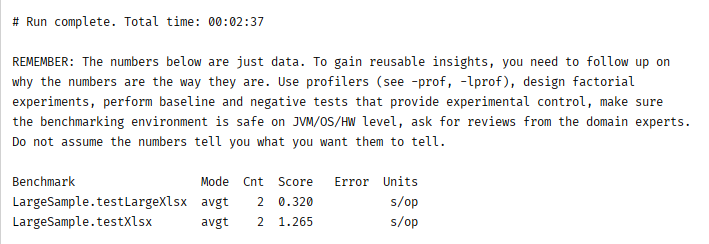
(Benchmarks are performed using Java Microbenchmark Harness)
To add comments to a cell, you can do as below. Notice that the size of the comment box will depend on the size of the cell.
editor.goToCell("C4")
      .writeComment(c -> c.content("Hello World")
                          .colSpan(2));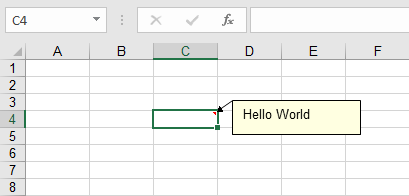
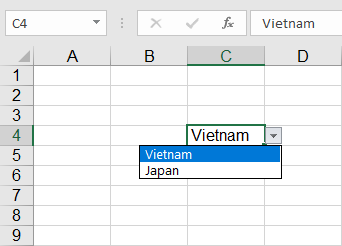
To define drop-down values for a cell, use Constraint as below.
Constraint countries = Constraint.builder()
    .dropdown("Vietnam", "Japan")
    .build();

...

editor.applyConstraint(countries, "C4");
Here is the result.