Compile Embree for 32bit - morallo/xwa_ddraw_d3d11 GitHub Wiki
Requirements
- Visual Studio (Community) 2022
- Including C++ "CMake tools for Windows"
- Intel® Implicit SPMD Program Compiler
Clone Embree repository
The easiest way is to do it directly from Visual Studio ("Clone a repository" under Get Started of the startup VS window).
Input the URL https://github.com/embree/embree.git
You can also do it manually using the git command line.
> git clone https://github.com/embree/embree.git
Configure CMake Settings
When opening the project with Visual Studio, it will automatically detect CMake settings and try to build the CMake cache, but it will most probably fail unless you have ISPC and TBB in your PATH. You can see this in the Output window:
1> CMake generation started for configuration: 'x64-Debug'.
1> Command line: "C:\WINDOWS\system32\cmd.exe" /c "%SYSTEMROOT%\System32\chcp.com 65001 >NUL && "C:\PROGRAM FILES\MICROSOFT VISUAL STUDIO\2022\COMMUNITY\COMMON7\IDE\COMMONEXTENSIONS\MICROSOFT\CMAKE\CMake\bin\cmake.exe"  -G "Ninja"  -DCMAKE_BUILD_TYPE:STRING="Debug" -DCMAKE_INSTALL_PREFIX:PATH="F:\gamedev\embree\out\install\x64-Debug" -DCMAKE_C_COMPILER:FILEPATH="C:/Program Files/Microsoft Visual Studio/2022/Community/VC/Tools/MSVC/14.33.31629/bin/Hostx64/x64/cl.exe" -DCMAKE_CXX_COMPILER:FILEPATH="C:/Program Files/Microsoft Visual Studio/2022/Community/VC/Tools/MSVC/14.33.31629/bin/Hostx64/x64/cl.exe"  -DCMAKE_MAKE_PROGRAM="C:\PROGRAM FILES\MICROSOFT VISUAL STUDIO\2022\COMMUNITY\COMMON7\IDE\COMMONEXTENSIONS\MICROSOFT\CMAKE\Ninja\ninja.exe" "F:\gamedev\embree" 2>&1"
1> Working directory: F:\gamedev\embree\out\build\x64-Debug
1> [CMake] -- MSVC detected
1> [CMake] -- Could NOT find TBB (missing: TBB_DIR)
1> [CMake] -- Looking for TBB components tbb; ()
1> [CMake] CMake Error at common/cmake/FindTBB.cmake:72 (message):
1> [CMake]   Unable to find root directory
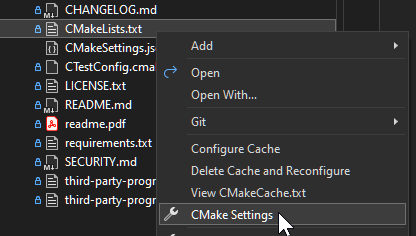
Right click over CMakeLists.txt file and choose "CMake Settings".
This will create and open a CMakeSettings.json file with a GUI to modify the different CMake variables. There will be an existing Configuration called x64-Debug. Clone it with third button on the right of the red cross.
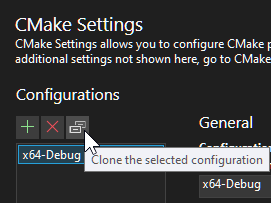
With the new cloned configuration selected, click on Save and generate CMake cache to load variables. It will fail again but it will trigger the re-loading of CMake variables for the newly created Configuration.

You may need to reload the configuration by selecting another one and re-selecting the new. For the cloned configuration, choose the following settings:
- Configuration name=x86-Release-AVX
- Configuration type=RelWithDebInfo
- Toolset=msvc_x86_x64 (target x86 with the x64 compiler, should be faster)
- In the section "Cmake variables and cache":
EMBREE_MAX_ISA=AVX (or SSE2, SSE4.2 if you want to maintain compatibility with older CPUs).Even if you compile Embree with EMBREE_MAX_ISA=AVX512, the library will choose the best ISA at runtime depending on the available features of the current CPU.- EMBREE_ISPC_EXECUTABLE=<path to your Intel compiler ispc.exe>
- EMBREE_TASKING_SYSTEM=PPL (unless you want to use TBB that requires a separate install and to redistribute the tbb DLLs)
- In the Advanced settings (you need to click on
Show advanced settings- CMake generator=Visual Studio 17 2022
Select the newly created configuration in the VS toolbar
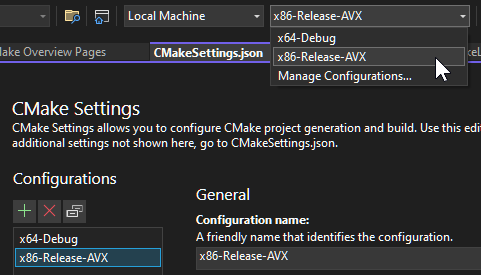
and then click on the good old Save floppy drive icon
 to run the
 CMake configure for the expected configuration.
If everything goes well (check the Output window for 1> CMake generation finished.), you should now have a Visual Studio solution generated in the out\build\x86-Release-AVX. However to see the files you need to enable the "Show All Files" option of the Solution Explorer.
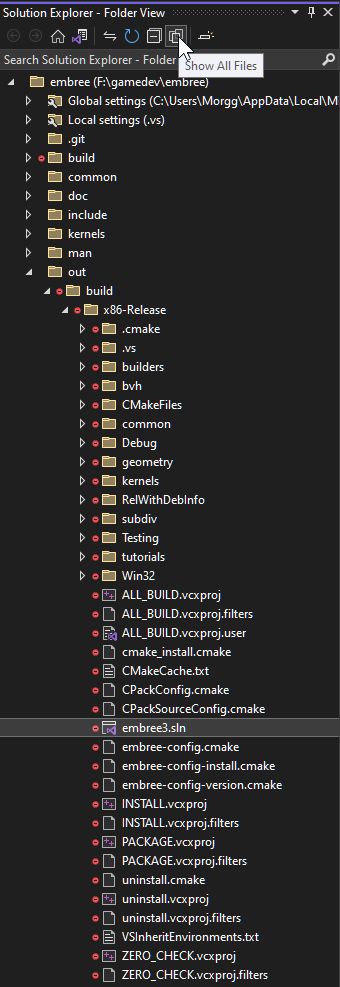
You can now open the embree3.sln by double clicking like a normal VS solution.
Compile embree
Just choose the embree project inside the kernels folder, right click and Build.
Go take a (very long) coffee, as the compilation may take a while.
The binaries will be generated in the out\build\x86-Release.
To use it in your Visual Studio project, you will need:
include\embree3\*.hheaders (copied or referenced in the project settings)embree3.libas external library.embree3.pdbif you want to have debug symbols.embree3.dllin your final application folder.