Show Manager - mjcmatrix/qlcplus GitHub Wiki
Show Manager
The Show Manager timeline editor: selection, editing gestures, playback control and view persistence.
Entries marked ✅ have been merged upstream; the rest are still only on the fork, mostly grouped into bundles rather than being queued as individual PRs.
Features and improvements
Show selector in the toolbar. (Fork #98) The toolbar's "Name" text box becomes a combined drop-down and name editor. The drop-down lists every Show in the workspace and opens the one picked, so switching between Shows no longer means going back to the Function Manager; typing in the same field still renames the Show being edited.
How to use it: click the arrow at the right of the Show box to drop down the list of Shows, sorted by name, with the one currently open highlighted — click any entry to open it. To rename the open Show, click into the text part of the box and type; the new name is applied when you press Return or click away, as a single undo step. With no Show open the box is empty but the drop-down still works, so it doubles as the quickest way to open one.

Zoom the timeline with the mouse wheel. (Fork #99) Ctrl+wheel, or the wheel with the middle mouse button held, zooms the timeline in and out around the mouse — until now the toolbar's +/− buttons were the only way to zoom at all. The zoom holds the time under the pointer still, so the part being looked at stays where it is while the timeline spreads out or contracts around it. A plain wheel and Shift+wheel still scroll the view as before.
How to use it: hold Ctrl and scroll anywhere over the timeline — the items area, the ruler along the top, or the tempo sections lane — to zoom in and out. Ctrl+wheel is the same binding Audacity uses, so it should already be in the fingers. When Ctrl isn't free, hold the middle mouse button down and scroll instead; nothing else in the Show Manager claims that button. Whichever you use, point at what you want to look at before scrolling rather than re-centring afterwards, because that point is the one that stays put. The +/− buttons are unchanged and still zoom around the playback cursor, which stays the quicker way when it's the cursor you want to keep in view.
Cut, copy and paste. (Fork #53) Ctrl+X/C/V cut, copy and paste Show items, with a Cut button next to Copy. Cut items stay in place, dimmed, until the next paste moves them (undoable). Paste is now all-or-nothing: if any item would overlap or run out of tracks, nothing pastes and a dialog explains why, rather than silently dropping the ones that don't fit.
How to use it: select one or more items, then Ctrl+C to copy or Ctrl+X (or the Cut button) to cut — cut items stay in place but dim until the next paste. Click the timeline where the paste should land (this also moves the playback cursor) and, optionally, click a destination track, then Ctrl+V. The earliest copied item lands at the cursor; the topmost source track lands on the clicked track, or stays on its own track if none was clicked, and every other item keeps its relative offset. If anything would overlap or run past the last track, nothing is pasted and a dialog says which item and why. Locked items can't be cut. The pasted (or moved) items become the new selection.
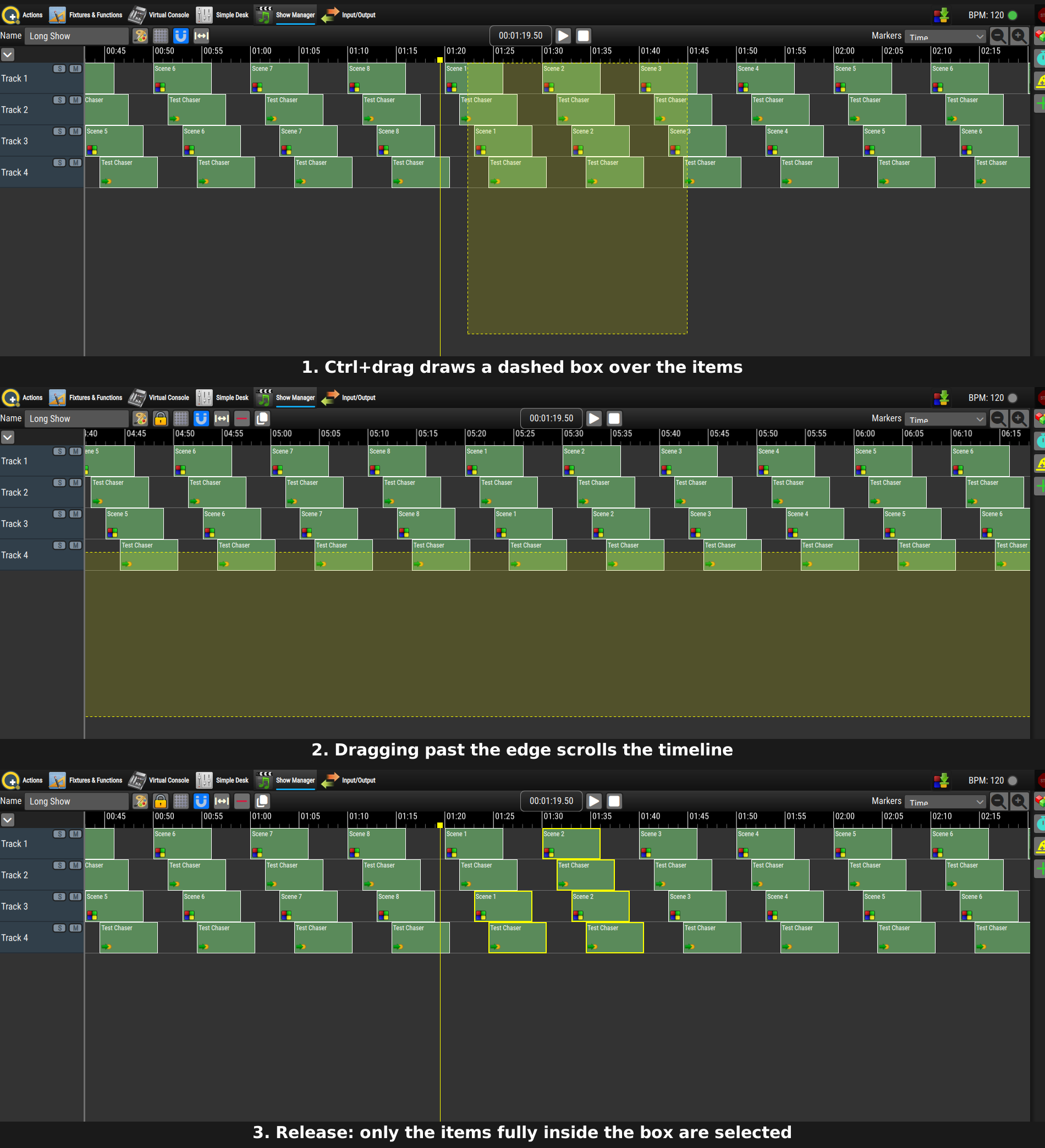
Box selection. (Fork #52) Ctrl+drag on empty timeline draws a dashed box and selects every item entirely inside it; Ctrl+Shift+drag adds to the current selection. A "Box select" button in the right panel does the same without holding Ctrl. Dragging near the timeline edges scrolls it, so a box can span more than one screen.
How to use it: hold Ctrl and drag from an empty part of the timeline to draw the box — only items lying entirely inside it are selected, not ones it merely crosses. Add Shift to add the box's items to the current selection instead of replacing it. Without a free hand for Ctrl, press the Box select button in the right panel first; it draws one box on the next drag (or pops back up on a click that doesn't drag) and needs no modifier key. Drag the mouse past the left or right edge of the timeline while drawing and it scrolls to follow, speeding up the further past the edge you go, so a box can cover more than one screen's worth of items.
Group moves with axis lock. (Fork #50) Dragging a selected item moves the whole selection (locked items excepted), snapping vertically to tracks. Holding Shift locks the drag to one axis — vertical changes track only, horizontal changes time only.
How to use it: select several items (Ctrl+click, box select or Ctrl+A), then drag any one of them — the whole selection follows, snapping onto whichever track row the pointer is over so the drop target is always visible; locked items in the selection stay where they are. Press and hold Shift partway through the drag to lock it to whichever axis it was already moving along: a vertical lock changes track only and keeps every start time exact, a horizontal lock changes time only and keeps every item on its own track. Releasing Shift frees the drag again.
Resize two adjacent items by their shared boundary. (Fork #96, #97) Dragging the resize handle on the boundary between two touching items moves that boundary, so one item grows by exactly what the other loses and they stay adjacent. The pair is engaged by grabbing the half of the handle nearest the neighbour, or by selecting both items. Both handles light up and the cursor changes to a split shape while the boundary is hovered, so the two kinds of resize are distinguishable before the drag starts. The pair is applied as a single undo step, is refused if it would leave a gap, and never pairs with a locked item.
How to use it: for an ordinary trim, grab the outer half of a handle — only that item resizes, and you can still pull two items apart. To move the shared boundary instead, grab the inner half (the side facing the neighbour) of either handle at the boundary, or select both items first and drag the boundary from anywhere on the handle. The neighbour stops at its minimum width, so nothing inverts and the combined span never changes. Grid snapping is skipped for a paired drag, because both edges have to land on the same value.
Insert/remove time range. (Fork #67, #78) A time range can be selected on the ruler (or from the tempo section editor), then removed from the whole Show or have empty space inserted into it. Items and tempo sections after the range move accordingly; items crossing the edges are cropped (removal) or split (insertion). Each action is a single undo step.
How to use it: drag on the ruler to select a range, then use the insert or remove button on the toolbar. Three shortcuts save re-dragging the range every time you want to adjust it:
- Insert with nothing selected. Press Insert with no range selected and a dialog asks how much empty space to add at the cursor. Enter a duration (anything from 1 ms up to 7 days) and everything after the cursor shifts forward by exactly that much, with the new gap left selected.
- Edge handles. A selected range grows small handles on each edge; drag one to move that edge, with the duration shown live as you go. Pull an edge past the other one and the range flips, the same as a reversed drag-select does.
- Shift-click. Shift-click anywhere on the ruler and whichever edge is nearer to the click jumps to it, leaving the other where it is. Repeated Shift-clicks on the same side keep moving that same edge.
Both insert and remove stay blocked while the Show is running or merely paused, since a paused Show's items still hold live runtime state.
Split and join Show items. (Fork #71) Split cuts every selected item in two at the cursor position, both halves referencing the original Function. Join merges two or more selected, adjacent items referencing the same Function back into one. Both validate the whole selection up front and abort with an explanation rather than partially applying.
Auto-page during playback. (Fork #66) The timeline now pages forward automatically as the playback cursor nears the right edge of the visible area, so a long Show stays in view without manual scrolling.
✅ Upstream: merged (mcallegari/qlcplus#2173)
Playback shortcuts. (Fork #46) Space plays/pauses/resumes the Show; Esc stops and rewinds it, matching the toolbar buttons — previously there was no keyboard equivalent at all.
Remember the open Show and each Show's zoom level. (Fork #36, #102) The project file stores which Show is open in the Show Manager and restores it on load. Each Show also keeps its own timeline zoom, both while the app runs and in the project file, so switching to another Show with the toolbar selector and back finds the first one as it was left. A Show that has never been zoomed opens at the default for its time division.
How to use it: nothing to set up. Zoom a Show however you like (the +/− buttons or the mouse wheel), switch to another Show, and its zoom is restored when you come back to it, including after saving and reopening the project. Changing a Show's time division between Time and BPM resets its zoom to the new division's default, because the zoom value means something different in each. Projects saved by older builds open with their saved zoom on the Show that was open and the default on the others, and older builds still read the open Show and its zoom from projects saved by this one.
🔧 Follow-up fix: quitting with a Show open crashed during app teardown, on a path the view persistence introduced. (Fork #42)
Item snapping toggle. (Fork #44) A toolbar button turns snapping to nearby items on and off (on by default, remembered locally). Holding Ctrl suspends snapping to items and the grid for one drag or resize.
Select all on a track. (Fork #50) Ctrl+A now selects every item on the selected track.
Run properties expanded by default. (Fork #63) The Chaser/Sequence editor's "Run properties" drawer now defaults to expanded instead of collapsed.
❌ Upstream: sent as mcallegari/qlcplus#2170, closed without merging — upstream prefers the drawer collapsed so it doesn't take space from the step list; fork-only
Bug fixes
-
Fixed the play and stop buttons turning grey after resuming a paused Show whose cursor had been moved, although the Show was playing; they stayed grey (but still worked) until the next pause or stop. (Fork #112)
-
Fixed a crash when the Show open in the Show Manager is deleted by any route other than the Functions panel delete button (e.g. undoing the Show's creation). (Fork #36)
-
Fixed a NaN timeline header position (and the GPU-hang risk it carried) when the visible timeline area collapses to zero width. (Fork #40)
✅ Upstream: merged (mcallegari/qlcplus#2171)
-
Fixed the zoom buttons working backwards on a beat based Show: zoom in squeezed the timeline and zoom out spread it out. On a time ruler the time scale divides the tick size, but on a beat ruler the tick size follows it, so the two need opposite steps. (Fork #99)
-
Zoom is now clamped to a usable range — it used to be able to reach zero or negative, collapsing the ruler and blowing up memory use (a single zoom click could jump resident memory by ~1 GB). (Fork #43)
-
Item preview Canvases are now bounded to the visible area instead of the whole item — on a long Show at close zoom this cut preview memory from ~1 GB to ~200 MB. (Fork #45)
✅ Upstream: merged (mcallegari/qlcplus#2172)
-
Fixed dragging an item until it snaps against its neighbour, then dropping it, being rejected as an overlap — items that only touch are now accepted. (Fork #38)
-
Fixed left-edge resize being refused whenever a following item sits directly after the resized one. (Fork #49)
-
Fixed snap edges being computed at the wrong position for items whose tempo type (time/beats) differs from the Show's timeline division. (Fork #38)
-
Fixed beat-tempo items dragged against a neighbour on a time ruler landing one unit short due to intermediate rounding. (Fork #39)
-
Items now snap to the edges of other items using the same Function (e.g. two placements of the same Scene); they never used to, leaving small gaps or overlaps when lining them up by hand. (Fork #55)
-
Fixed very thin items (narrower than their own resize handles) being unselectable. (Fork #50)
-
Fixed clicking the already-selected track (or double-clicking to rename it) leaving Delete and other shortcuts ignored until something else was clicked. (Fork #53)
-
The audio waveform no longer paints over the Function name and position/duration text on audio items; it's now drawn behind the labels. (Fork #48)

-
Fixed the horizontal scrollbar covering the bottom panel's Scene editor sliders, and added a scrollbar to the Scene editor's fixture consoles. (Fork #37)
-
Fixed the Function Manager autostart marker being hidden behind its own list's scrollbar. (Fork #47)
