External File Setup - memorial-ece/CI_ReportGen GitHub Wiki
The project generates reports automatically from files stored outside of it to avoid potential leaks of confidential data. To see the directory setup, review the brief overview file setup. This page will focus more on how to set up each file and where to put them in the Grades directory.
Table of Contents
The Grade Files
Naming Conventions
The grade files are Excel spreadsheets with specific naming conventions. The program will run a search for a .xlsx file name containing "{Course #} {Assessment Type}," where the course number and assessment type have to be next to each other and the rest is arbitrary. For example, you can add other things to the file name indicating any quirks about it such as "MATH 1001 Grades - ENCV.xlsx" to indicate that the file contains civil grades. The only file naming requirements are:
- They must start with the course number
- The assessment type must be directly after the course number
- They must be Excel files (have .xlsx file extension)
Examples
- ENGI 1030 Course Grade - ENCM.xlsx
- ENGI 1030 Course Grade - ENEL.xlsx
- MATH 2000 Final Exam.xlsx
Where to Put Them
The files should be saved in their respective program directories to ensure that the program finds them. For example, ENGI 8640 is a course only taken in Process Engineering, therefore any assessments belonging to this course should be stored in the ENPR folder. In cases where that is not possible (i.e. the data is not separated), they can be put in one of these other directories:
- Core: A directory for courses that multiple programs take, such as MATH 1001
- Co-op: A directory specifically for co-op data
- ECE: A directory specifically for non-separated ECE data
In general, the program file search follows this priority:
- Program (i.e. ENCV, ENCM, etc.)
- Core
- Co-op
- ECE
What to Put in Them
The column names in the files usually correspond to either academic year and semester (i.e. 201701), academic year (i.e. 2017) or cohort (i.e. 2022), depending on the data. A "cohort" is another way of saying a "graduating class." For example, when we talk about the 2022 cohort, we are talking about the graduating class of 2022. The semester in academic year and semester notation labelling is mostly there for organizational purposes, and the program doesn't really use it. Hence, it's not that important. The program does support custom column labelling (e.g. "Co2021-ECE") but this feature is generally only used in special circumstances.
The grades in the workbooks should be entered as values from 0 to 100, with -1 indicating entries where there is no data available, such as transfer credits or empty values in a prof's workbook. Make sure that the cells in the workbook are number entries as well. The generator will complain if it finds any character cells in the workbooks.
In some cases, the Unique Course Table may need to be updated. For more information, follow that link.
Example
Assume that you are collecting data for the ENGI 1020 Course Grade for Fall 2018. Assuming that your data is not separated (i.e. no program mapping for the students in the grades), you open the Core directory in Grades and look for an Excel file containing at least ENGI 1020 Course Grade. As this course can have grade separation, a more appropriate name for the full file would be something like ENGI 1020 Course Grade - Core, but don't worry about that too much. As long as there is only one file containing the assessment data, the program won't skip any. You can add some stuff to the end of the file name if you want.
- If your data was separated, check the corresponding program directory (i.e. if you are trying to save data for ENCM grades, check the
ENCMfolder)
When opening the file, you should be greeted with something that's organized like this if the columns are labelled by Academic Year and Semester Notation:
| 201701 | 201702 | 201703 | 201801 |
|---|---|---|---|
| 83 | 76 | 65 | 99 |
| 67 | 100 | 55 | 65 |
| 70 | -1 | 95 | 65 |
| ... | ... | ... | ... |
Or like this if the columns are labelled just using Academic Year:
| 2017 | 2018 | 2019 | 2020 |
|---|---|---|---|
| 83 | 76 | 65 | 99 |
| 67 | 100 | 55 | 65 |
| 70 | -1 | 95 | 65 |
| ... | ... | ... | ... |
Or like this if the columns are labelled by Cohort:
| 2019 | 2020 | 2021 | 2022 |
|---|---|---|---|
| 83 | 76 | 65 | 99 |
| 67 | 100 | 55 | 65 |
| 70 | -1 | 95 | 65 |
| ... | ... | ... | ... |
As there is not much difference between academic year labelling and cohort labelling, it helps to add what you are using to the file name if one of these conventions is used. The standard convention so far is to assume everything is based on academic year, but sometimes you just have to use judgement. You can also use the Unique Course Table to determine how the grades are organized.
Anyways, now that you have the grade file open, you can insert your grades as a new column or append them where appropriate. Be sure that you indicated no data entries as -1 and that the grades are from 0 to 100. The report generator complains when it encounters characters and will plot things strangely if the grades are not in the proper form.
Academic Year and Semester Notation Review
As a refresher on academic year and semester notation:
- The numbers are 6 digits (examples: 201701, 201602, 201803)
- The first 4 numbers correspond to the start of the academic year, which is always noted by when the Fall semester started up.
- The last 2 numbers correspond to the semester:
- 01 means Fall
- 02 means Winter
- 03 means Spring
The notation can get tricky when dealing with the Winter and Spring semesters, and is easiest to explain with examples.
- 201701 is Fall 2017
- 201702 is Winter 2018
- The year is one more than the academic year, which can be confusing, but that's because the academic year runs from a Fall semester to the next Fall semester
- 201702 is Spring 2018
- Same reasoning as above
- 201801 is Fall 2018
The Indicator Lookup Tables
The program uses the indicator data in its lookup tables to generate reports. In the folder called Indicators, these tables exist as Excel spreadsheets with naming conventions like {program} Indicators (example: ENCM Indicators). See the following screenshot:
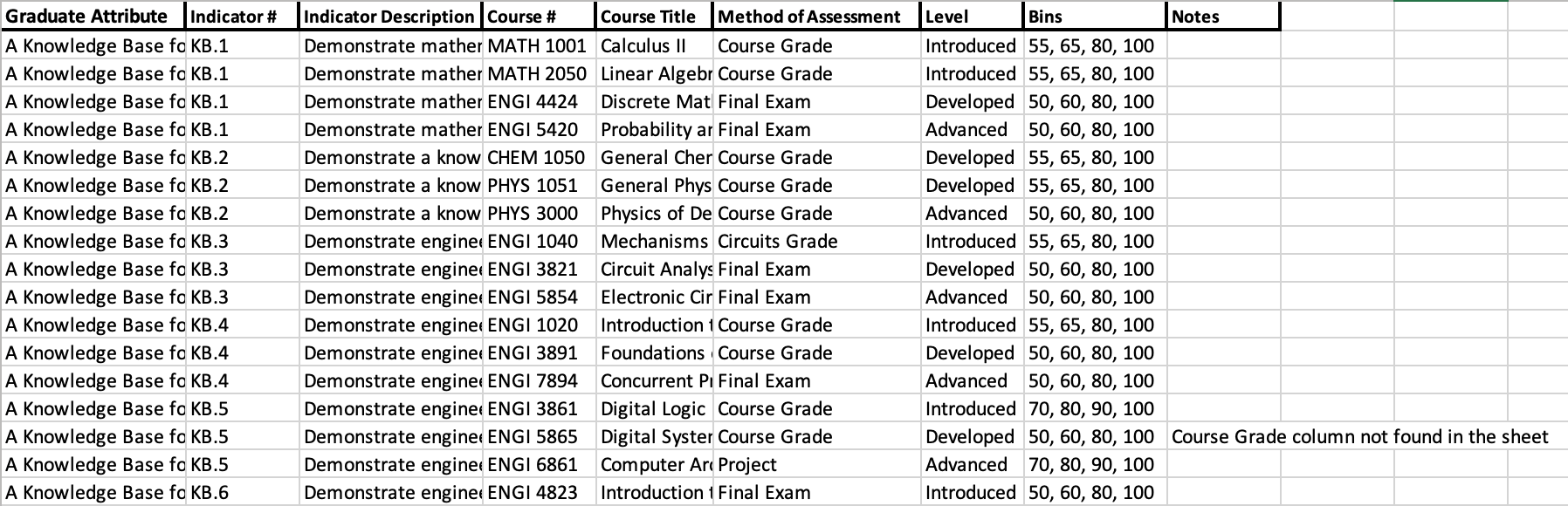
The spreadsheet should have the following columns at minimum, but others can be added:
| Column name | Description |
|---|---|
| Graduate Attribute | The Graduate Attribute (or GA) mapping to the indicator in its row |
| Indicator # | The shorthand notation for the indicator, such as KB.3 or LL.1 |
| Indicator Description | The description of the indicator |
| Course # | The course number, such as ENGI 3891 or ENGI 1010 |
| Course Title | The full title of the course |
| Method of Assessment | The name of the assessment tool being used to assess the indicator. Be as specific as possible to avoid any plotting errors |
| Level | The level of the indicator, being Introduced, Developed or Applied |
| Bins | The comma-separated tops of the bins. Make sure the bins are numbers as the program can't handle them otherwise |
| Notes | Any notes about the indicator. Meant for people - the program doesn't use it |
Keep the lookup tables up-to-date to ensure that it plots indicator data in the most accurate way possible.
The Unique Course Table
Some courses have unique term offerings that do not follow standard naming conventions. For example, ENGI 3424 is offered to students in term 3 of their program. That term can be determined from the first number in the course number (3). However, for courses such as CHEM 1051, the pattern doesn't work (this course is offered in term 3, but the first number is 1).
The Unique Course Table exists to handle these kinds of exceptions. It is the Excel spreadsheet called Unique Courses. It looks something like this:
| Course # | Term Offered |
|---|---|
| CHEM 1051 | 3 |
| MATH 2000 | 3 |
| ENGI 1020 | 0 |
| ... | ... |
In cases where columns in the grade files are labelled by cohort, set the Term Offered to 0. Otherwise, indicate the correct academic term.
The report generator will use this table when determining cohort for a histogram plot. In cases where the cohort shows up funny in the legend (e.g. indicates data for the class of 2027 in 2019), it usually means that the course was not added to this table.