Addon Development Prerequisites and Setup - meldavy/ipf-documentation GitHub Wiki
- Install an IDE. I recommend VSCode for lightweight IDE, or IntelliJ for full featured IDE.
- Check out the tos-ipf repository through git. Both of these IDEs have built in VCS integration. The tos-ipf repository contains a dump of kTest server lua and xml files, as well as tools to dump your own. This is where you will find code usages and examples of first-party code. Addon developers do not have good documentation to work with. Thus the best tool we have in our disposal is to search through IMC codebase, which is why I always recommend you to have a ipf dump checked out in your IDE.
- Install Addon Manager and then install the Developer Console addon through the manager.
- Install patched IPFSuite from Tos Dev Community discord.
- Create
addon_ddirectory under/Nexon/TreeOfSavior/data
Check out the following package and follow the instructions in the README for a quick addon development setup.
https://github.com/meldavy/tos-addons/tree/main/template
For those who want to be bit more hands on with the initial process, follow the following procedure instead of using the the template:
- Follow the HelloWorld wiki to create a xml and lua file.
- As good convention, replace the xml content with my recommended starting xml template.
- Make sure that
nameattribute of the<uiframe/>element is all lowercase, and matches the filename of the xml and lua file. (This is just basic convention) - Open IPFSuite and follow:
- Click on New
- New Container
- addon_d.ipf
- OK
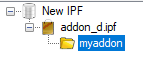
- Expand (+ button) New IPF in the tree explorer and select addon_d.ipf container
- Add Folder
- use same name as step 3
- select the folder in tree explorer (IMPORTANT!)
- Add
- Select lua file
- Add
- Select xml file
- Save
- Rename saved ipf file to match the following convention:
_<addonname>-📖-v2.0.1.ipfand place it in/Nexon/TreeOfSavior/data- obviously replace
<addonname>with actual lowercase addonname from step 3
- obviously replace
- Copy the lua file created in step 2 and put it in
/Nexon/TreeOfSavior/data/addon_d/<addonname>/directory- obviously replace
<addonname>with actual lowercase addonname from step 3
- obviously replace
- Launch game, type in
/devin chat to open developer console, and type indofile("../data/addon_d/<addonname>/<addonname>.lua");- obviously replace
<addonname>with actual lowercase addonname from step 3
- obviously replace

Firstly, for our addon to load, the game needs to load the xml file first. The game uses the xml file's name and name attribute of <uiframe/> to initialize addons that match the same name. Note that addons use UPPERCASENAME_ON_INIT() convention when declaring the initializer, which is how the game locates addons.
Thus for an addon to load, the xml needs to load as a prerequisite.
However, the only known way for the game to load an addon xml file is to load a fully packaged ipf. Thus by following the above steps, we packaged a very simple lua file and xml file into an encrypted ipf, and by putting it in the data directory, let the game load it.
And now that the game has loaded the xml file, we can use the DeveloperConsole addon's dofile() to re-load lua files on the fly.
- Open
/data/addon_d/<addonname>/<addonname>.luafile in your IDE - Modify
ON_INITto print a random string (such asprint("Hi")) - Run the
dofile()command above to reload the edited lua script - Move your character to a new map and type
/devto open Developer Console - Check to see new printed line in dev console
- All lua files are "re-initialized" on map transition. Basically every time you see a loading screen in the game, the lua file "ON_INIT" is called.
- When reinitialized,
localvariables that are declared outside of a function scope are not wiped. Behavior may vary but usually is persisted until the client is closed. -
printstatements onON_INITmay not be visible in developer console when going to Barrack (character select) and selecting a character. I think this has to do with loading order or other race condition. But this is not a bug and can be misleading when debugging initialization issues. Thus when you want to reload a new revision of your lua script, rundofile()and then move to an adjacent map to properly reload the code. - As a general rule of thumb, always change map (or go to character select and re-enter) after a
dofile()