Setup - mcneel/Rhino.Inside-Workshop GitHub Wiki
From this point forward we assume you've already installed all of the required software.
Visual Studio 2017 Setup
NOTE: This assumes you've already installed Visual Studio 2017
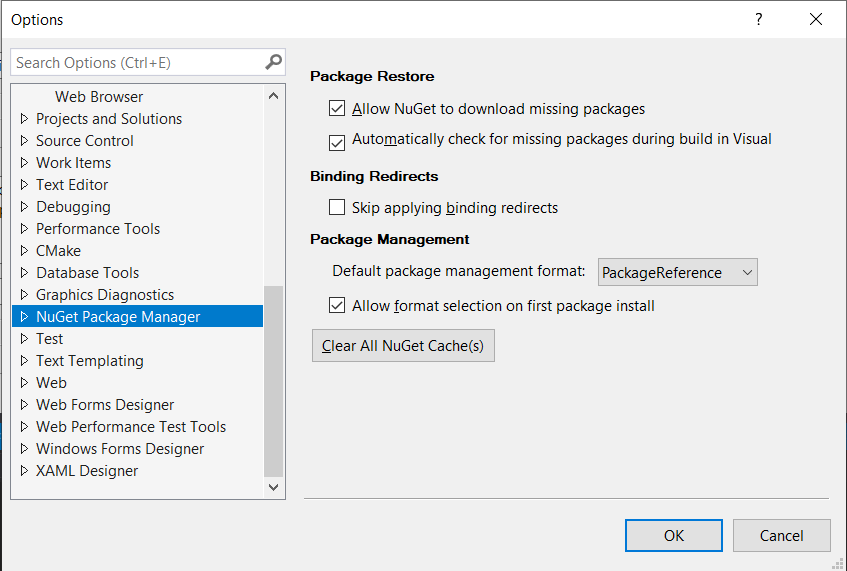
You should set Visual Studio 2017 to use Package Reference for referencing NuGet packages.
In Visual Studio 2017, go to Tools > Options > NuGet Package Manager. Under Package Management set Default package manager format to Package Reference. If you want an option, check Allow format selection on first package install. Click OK.
Unreal Engine 4.23 and USharp Setup
Since Rhino.Inside is based on .NET, the host application should have a .NET API. Unreal Engine has a C++ API. In order to facilitate working with Rhino.Inside, we can use the USharp project, which provides a .NET wrapper around some of UE's C++ API as well as some tools to properly format our assemblies. The USharp setup goes through some steps to compile the source code for some of these tools. We've had to change one variable in the source code to make Grasshopper work within Unreal. In order to skip the compilation steps, we've prepared a compiled version of USharp which you will need to install.
NOTE: This assumes you've already installed Unreal Engine 4.23
- Download this zip: USharp Build
- Unzip the contents to the
C:\Program Files\Epic Games\UE_4.23\Engine\Pluginsdirectory. The contents should unzip into a directory namedUSharp. - Create a folder
%APPDATA%\USharp. - Open the Unreal Engine Editor. When prompted to create a new project, you should now have four project types: C++, Blueprint, Unreal Studio, and C#.

- Test the installation by creating a new project based on the "2D Side Scroller". Enter a folder and project name, and click
Create Project. You will get a popup from USharp asking if you want to build the project with a prompt reading "C# game project isn't compiled. Compile it now?". ClickYes.

- Play the game! Press the
Playbutton or pressALT+P.
