Sample 2 - mcneel/Rhino.Inside-Workshop GitHub Wiki
Rhino.Inside Sample-2: A basic WinForms application with a Rhino Viewport
In this sample we will create a WinForms application with an embedded Rhino Viewport.
1. Create a 64-bit .NET Framework WinForms application.
1.1 Open Visual Studio 2017 and create a new .NET Framework WinForms Application.
1.2 In the Solution Explorer, Right-click on the project and select Properties. Select Build from the left hand side. Uncheck Prefer 32-bit.
2. Add the assembly references to the project.
Please follow step 2 of the first sample: https://github.com/mcneel/Rhino.Inside-Workshop/wiki/Sample-1#2-add-the-assembly-references-to-the-project
3. Write code to call Rhino.
3.1 Open the Program.cs file from the Visual Studio Solution Explorer. We will add all of our code to this file.
3.2 In the Program class, create a static constructor and add assembly resolving code from the Rhino.Inside library.
static Program()
{
  RhinoInside.Resolver.Initialize();
}
3.3 From the Visual Studio Solution Explorer, double click Form1.cs to bring up the Windows Forms Designer interface.
3.4 Open the Visual Studio Toolbox from the menu View > Toolbox.
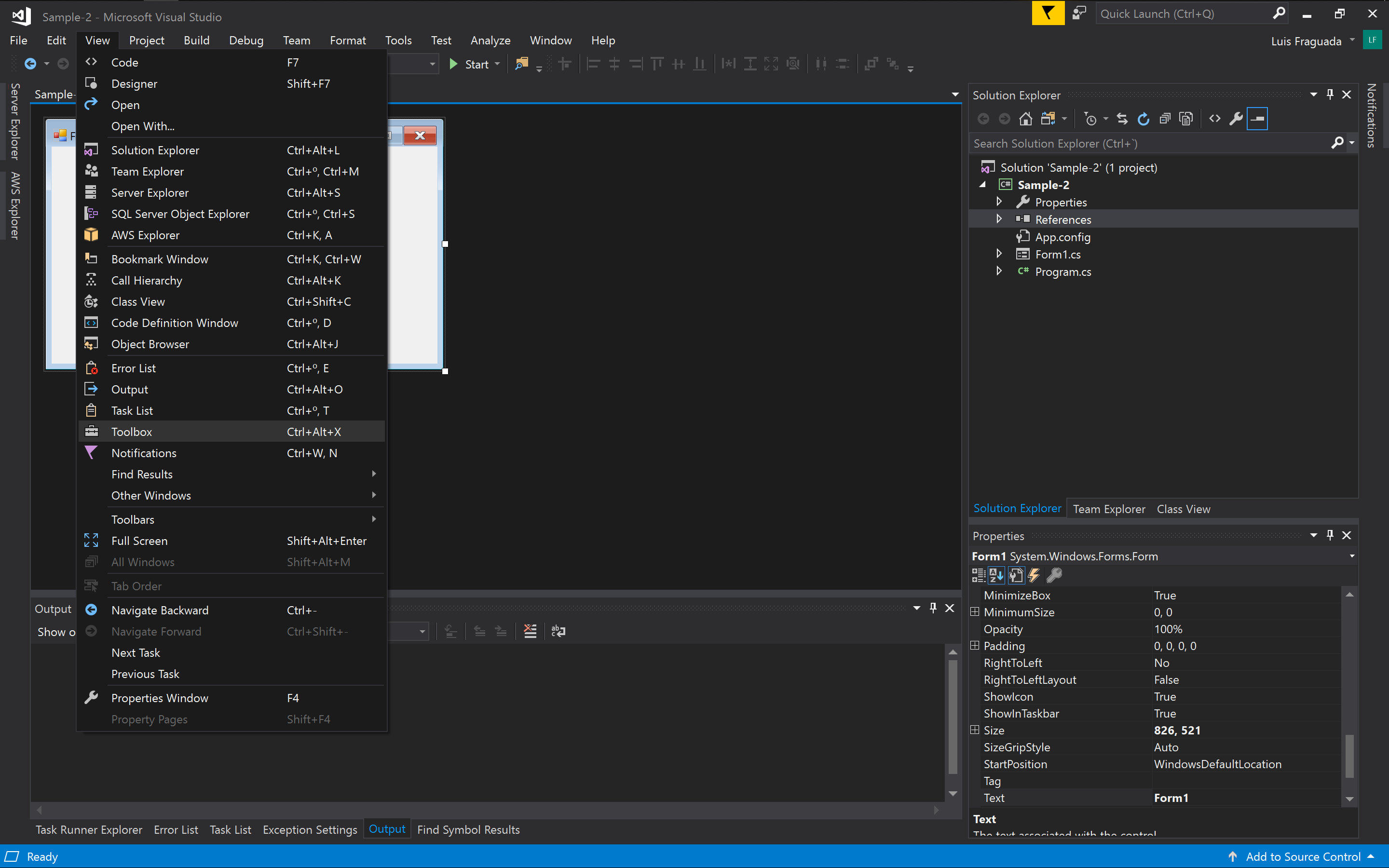
3.5 Add the Rhino Viewport Control by right-clicking in the toolbox and selecting Choose Items....
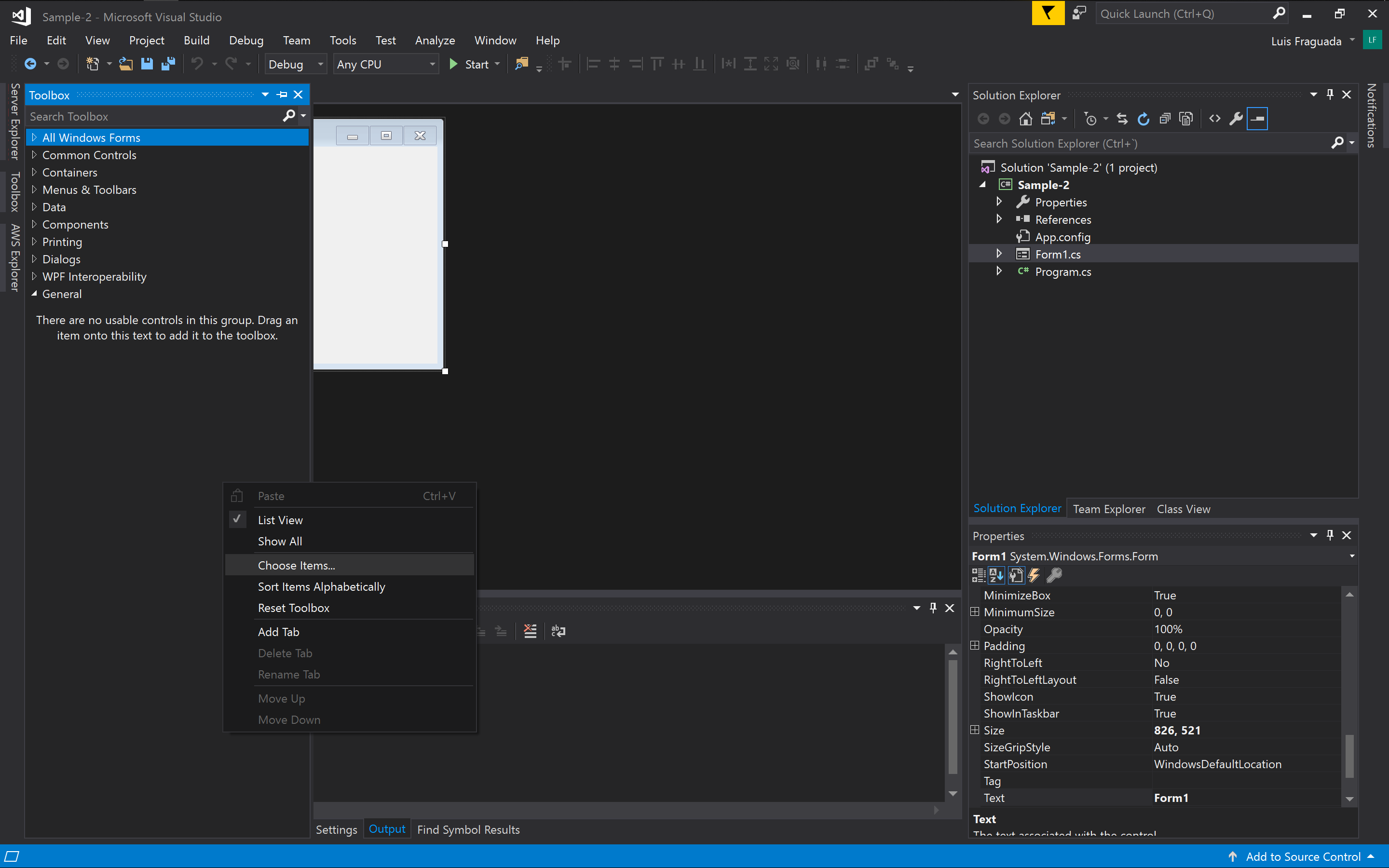
3.6 In the .NET Framework Components tab, click on Browse....
3.7 Find the RhinoWindows.dll library in C:\Users\USERNAME\.nuget\packages\rhinowindows\7.0.19274.12465-wip\lib\net45 and click Open. You should see RhinoWindows.Controls in the list of .NET Framework Components. Click OK.
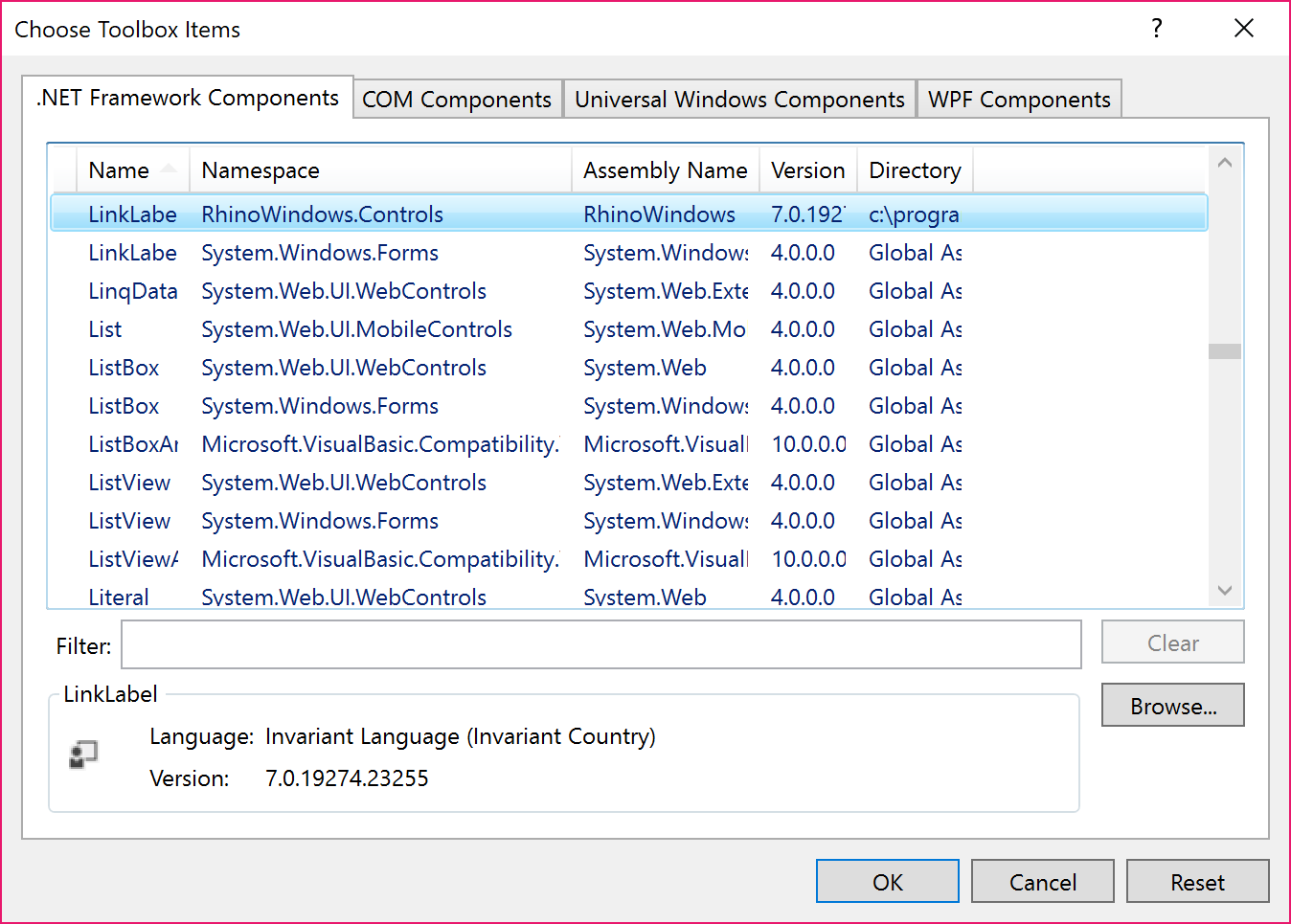
3.8 In the Visual Studio Toolbox, search for Viewport Control. Drag and drop the ViewportControl onto the Form1 design. Snap the edges of the control to the edges of the parent window.
3.9 In the Visual Studio Solution Explorer, richt-click on Form1.cs and select View Code. We'll be adding the rest of the code in this file.
3.10 Add a variable in which to store the RhinoCore object.
// ...
public partial class Form1 : Form
{
  Rhino.Runtime.InProcess.RhinoCore _rhinoCore;
// ...
3.11 Launch Rhino when the parent window opens. Override the OnHandleCreated event and create a new RhinoCore object.
protected override void OnHandleCreated(EventArgs e)
{
  rhinoCore = new Rhino.Runtime.InProcess.RhinoCore(new string[] {"/NOSPLASH"}, WindowStyle.Hidden, Handle);
  base.OnHandleCreated(e);
}
3.12 Handle the destruction of the RhinoCore object when the application closes. Operride the OnHandleDestroyed event and destroy the RhinoCore object.
protected override void OnHandleDestroyed(EventArgs e)
{
  rhinoCore.Dispose();
  rhinoCore = null;
  base.OnHandleDestroyed(e);
}
3.13 Do something with Rhino when the application loads. Override the OnLoad event and add code to add some objects to the Rhino document.
protected override void OnLoad(EventArgs e)
{
  base.OnLoad(e);
  Rhino.RhinoDoc.ActiveDoc.Objects.AddSphere(new Rhino.Geometry.Sphere(Rhino.Geometry.Point3d.Origin, 10));
}
The full Form1.cs code should look like this:
using Rhino.Runtime.InProcess;
using System;
using System.Windows.Forms;

namespace Sample_2
{
  public partial class Form1 : Form
  {
    Rhino.Runtime.InProcess.RhinoCore rhinoCore;

    public Form1()
    {
        InitializeComponent();
    }

    protected override void OnHandleCreated(EventArgs e)
    {
        rhinoCore = new Rhino.Runtime.InProcess.RhinoCore(new string[] {"/NOSPLASH"}, WindowStyle.Hidden, Handle);
        base.OnHandleCreated(e);
    }

    protected override void OnHandleDestroyed(EventArgs e)
    {
        rhinoCore.Dispose();
        rhinoCore = null;
        base.OnHandleDestroyed(e);
    }

    protected override void OnLoad(EventArgs e)
    {
        base.OnLoad(e);
        Rhino.RhinoDoc.ActiveDoc.Objects.AddSphere(new Rhino.Geometry.Sphere(Rhino.Geometry.Point3d.Origin, 10));
    }
  }
}
4. Debug the sample.
Press the Start button in Visual Studio. You should see a console appear and print some text related to the geometry created.
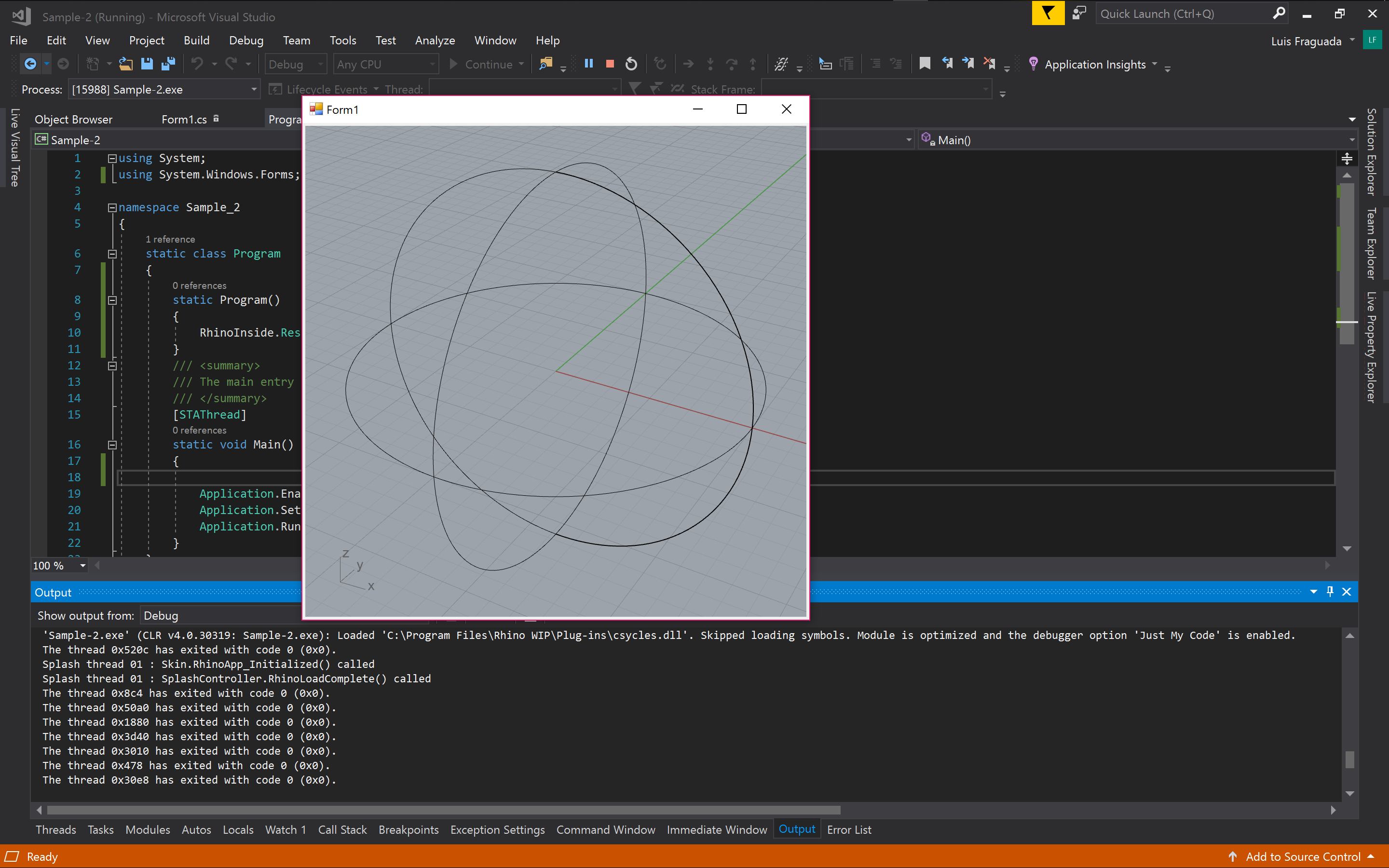
5. Extend the sample: Display Modes and loading Rhino files.
As you can see, the default Display Mode is Wireframe. We have access to all of the Rhino Display Modes, so lets set our Viewport's Display Mode to Rendered.
5.1 In OnLoad event, set the viewport display mode to Rendered.
protected override void OnLoad(EventArgs e)
{
    base.OnLoad(e);

    Rhino.RhinoDoc.ActiveDoc.Objects.AddSphere(new Rhino.Geometry.Sphere(Rhino.Geometry.Point3d.Origin, 10));

    viewportControl1.Viewport.DisplayMode = Rhino.Display.DisplayModeDescription.FindByName("Arctic");
    viewportControl1.Invalidate();
}
5.2 Open a Rhino file. In the OnLoad event, open a Rhino file.
NOTE: Ensure you add the path to the Rhino file on your hard drive.
protected override void OnLoad(EventArgs e)
{
    base.OnLoad(e);

    //Rhino.RhinoDoc.ActiveDoc.Objects.AddSphere(new Rhino.Geometry.Sphere(Rhino.Geometry.Point3d.Origin, 10));

    Rhino.RhinoDoc.Open(@"C:\data\Rhino Logo.3dm", out bool alreadyOpen);

    viewportControl1.Viewport.DisplayMode = Rhino.Display.DisplayModeDescription.FindByName("Arctic");
    viewportControl1.Invalidate();
}
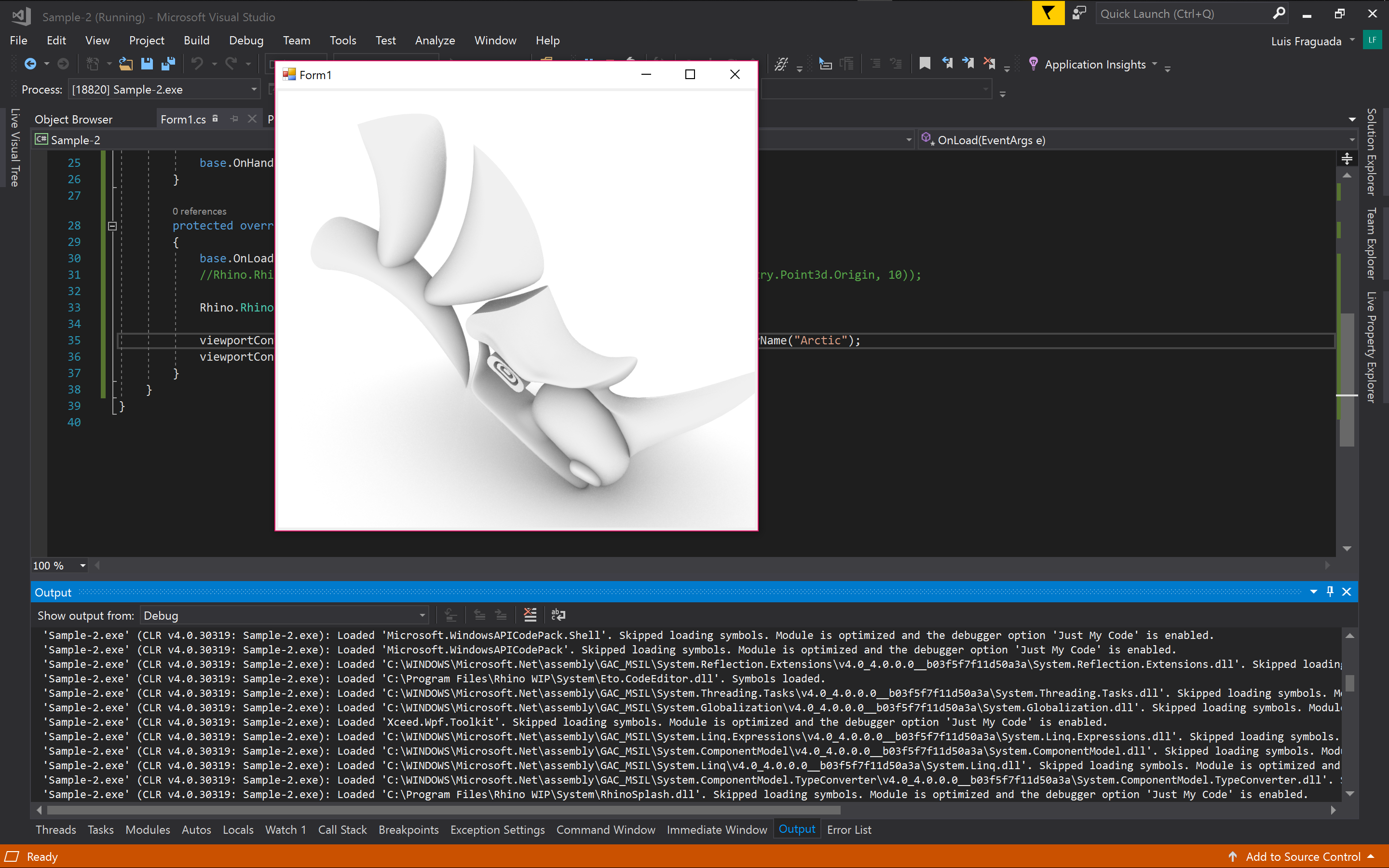
6. Finished Example
The example in the repository shows a finished example that includes a menu for opening Rhino files and changing the viewport display mode. Please take a look at this example for a version that uses Eto: https://github.com/mcneel/rhino.inside/tree/master/DotNet/EtoApp