Installing for Klipper - markniu/Bed_Distance_sensor GitHub Wiki
$\color[RGB]{55,27,200} Hardware Install $
1) Attach the sensor cable to the mainboard or the CAN bus toolhead board or the GPIOs on the RaspberryPi.
the wires CKL and SDA of BDsensor can be connected to any GPIO pins of your board. You can also connect the BDsensor cable into the Bltouch port directly (except all the boards from MKS), for example:
BLtouch    |    BDsensor
 GND      -->     GND
 5V       -->     5V
 S        -->     CLK/SCL    (Input)
 GND      -->     GND
 Zmin     -->     SDA    (Input/Output)
Since some of the pins in the connectors on the mainboard maybe not connected to the gpios of MCU directly (e.g. there maybe a filter capacitor on them or isolated by mosfet, diode or optocoupler, but it's OK if they are isolated by resistors or pullup/pulldown by resistors), they cannot work with BDsensor. and the firmware will report connection error. For example
- The connectors for FANs and Heaters are isolated by mosfet,
- The connectors for temperature thermistors and Endstops/Probe in some boards like MKS are normally connected to GND by filtered capacitors,
- Mount the BDsensor near to the hotend, as shown in the figure below. STL of mount, STL_mount_VzBot_Goliath short
https://raw.githubusercontent.com/markniu/Bed_Distance_sensor/new/doc/images/Connection1.jpg
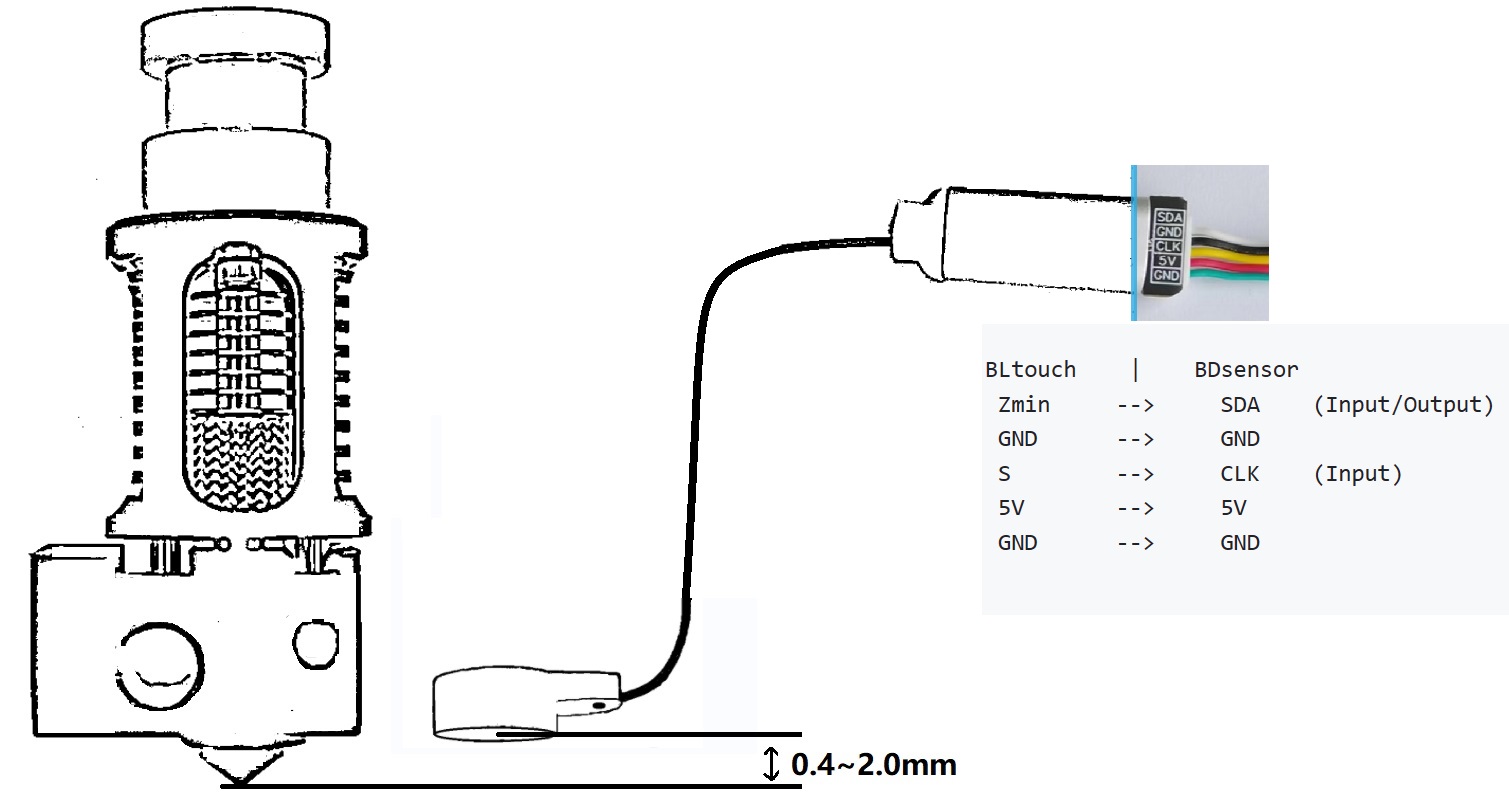
Note: The black cable is original designed for the IPEX wireless antenna, it is a little stiff, please don't bend it too much.
ssh into your Klipper device and execute the following commands:
- Download the software
cd  ~
git clone https://github.com/markniu/Bed_Distance_sensor.git
- Install the software
~/Bed_Distance_sensor/klipper/install_BDsensor.sh
cd ~/klipper/
sed -i '/BD_sensor/d' src/Makefile;echo "src-y += BD_sensor.c" >> src/Makefile
make menuconfig
- Compile the firmware
make
make sure there is Compiling out/src/BD_sensor.o on the SSH while run make,
if you don't want to see "dirty" on the mainsail, you can run ./make_with_bdsensor.sh instead of make
- Flash the firmware into the MCU or the CANbus toolhead board which the BDsensor connected.
make flash
Note
Different board has different configuration in the step make menuconfig and the step of flash firmware make flash, please read the document of the board from the factory, we didn't change any of that.
- BDsensor update (optional)
If you update the klipper later and don't forget to update BDsensor too.
you can update the code of BDsensor by command:
cd  ~/Bed_Distance_sensor/
git fetch --all &&  git reset --hard origin/new && git pull
or from Moonraker Update Manager:
$\color[RGB]{55,27,200} Configure Update Manager (optional)$
Add the following section to moonraker.conf if your printer is running Moonraker.and then you can update the BDsensor with 1 click via the web page or klipperscreen.
[update_manager BDsensor]
type: git_repo
primary_branch: new
channel: dev
path: ~/Bed_Distance_sensor
origin: https://github.com/markniu/Bed_Distance_sensor.git
install_script: ./klipper/install_BDsensor.sh
is_system_service: False
managed_services: klipper
info_tags:
  desc=Bed Distance Sensor
- Revert to the previous version(optional)
Please ignore this if you are installing for the first time.
git reset --hard HEAD~1 that can revert it to the previous version. HEAD~1 is the last commit. If you want to rollback 3 commits you could use HEAD~3. If you want to rollback to a specific revision number, you could also do that using its SHA hash.
- Paste the section
[BDsensor]into your printer.cfg and modify thesda_pinandscl_pinto yours, also do not forgot to disable other probe section like[bltouch]or[probe].
[BDsensor]
# Don't use aliases for the board pins
sda_pin: PB1 # example of connecting to main board Creality V4.2.7
scl_pin: PB0
#scl_pin:MKS_THR:gpio20 # example of connecting to CAN module like MKS THR42
#sda_pin:MKS_THR:gpio11
#scl_pin:host:gpio17 # example of connecting to GPIO on RaspberryPi
#sda_pin:host:gpio27
delay: 10 # you can set it 10 if the BDsensor version is >=1.2
z_offset:0 #  within -0.6 to 0.6mm
x_offset: -34
y_offset: 0
no_stop_probe: # fast probe that the toolhead will not stop at the probe point,disable it by commenting out.
position_endstop: 1.2 #the triggered position, recommend value is 1~2.8
collision_homing:0 #  set it 1 to enable homing with nozzle collision sensing.
collision_calibrate:0 # set it 1 to enable auto calibrate BDsensor with nozzle collision sensing.
#QGL_Tilt_Probe:0 # set 1 to enable probe up and down when do quad_gantry_level,default is 1
speed:3 # this speed only works for the z tilt and PROBE_ACCURACY command.
homing_cmd: G28 # needed by the auto calibration.the default is G28, please set it G990028 if there has [gcode_macro G28]
- Modify the endstop_pin in section
[stepper_z], and disable theposition_endstop, Slow down the speed of z homing, e.g.homing_speed: 5,second_homing_speed: 3homing_retract_speed: 2
[stepper_z]
endstop_pin: probe:z_virtual_endstop
#position_endstop: 0.5
homing_speed: 5
second_homing_speed: 3  #set this to 3 if homing with collision
homing_retract_speed: 2
homing_retract_dist:5
...
- Make sure there are
[safe_z_home],[bed_mesh],[force_move]in your printer.cfg .
Modify the horizontal_move_z to 1(0.7~1.0mm is recommended) in section [bed_mesh] and [quad_gantry_level].
[safe_z_home]
z_hop: 5
...

[bed_mesh]
horizontal_move_z:1 # 0.7~1.0mm is recommended
algorithm: bicubic  # this should be bicubic if the bed mesh points count is > 6*6
...

[quad_gantry_level]
horizontal_move_z:1 # 0.7~1.0mm is recommended
...

[force_move]
enable_force_move: true   # required by the command SET_KINEMATIC_POSITION in the calibration step below.
- It will do tilt/QGL with z axis moving like normal probe sensor,because the bed may be much uneven at first.
- then continue z tilt/QGL without z moving.
Here is a macro example for Z Tilt,just copy and paste them into your printer.cfg
[gcode_macro Z_TILT_ADJUST]
rename_existing: _Z_TILT_ADJUST
description:
gcode:
    #run z tilt with z move up and down at first
    BDSENSOR_SET QGL_TILT_PROBE=1 #set this 1 to enable z axis up and down
    BDSENSOR_SET COLLISION_HOMING=0
    _Z_TILT_ADJUST horizontal_move_z=6 retry_tolerance=1
    G28 Z0
    #run z tilt with no z move up and down
    BDSENSOR_SET QGL_TILT_PROBE=0 #set this 0 to disable z axis up and down while probe
    _Z_TILT_ADJUST horizontal_move_z=1 retry_tolerance=0.04
    #BDSENSOR_SET COLLISION_HOMING=1 #optional
    G28 Z0
for quad_gantry_level:
[gcode_macro QUAD_GANTRY_LEVEL]
rename_existing: _QUAD_GANTRY_LEVEL
description:
gcode:
    #run z tilt with z move up and down at first
    BDSENSOR_SET QGL_TILT_PROBE=1 #set this 1 to enable z axis up and down
    BDSENSOR_SET COLLISION_HOMING=0
    _QUAD_GANTRY_LEVEL  horizontal_move_z=6 retry_tolerance=1
    G28 Z0
    #run z tilt with no z move up and down
    BDSENSOR_SET QGL_TILT_PROBE=0 #set this 0 to disable z axis up and down while probe
    _QUAD_GANTRY_LEVEL horizontal_move_z=1 retry_tolerance=0.04
    #BDSENSOR_SET COLLISION_HOMING=1 #optional
    G28 Z0
Test video: https://www.youtube.com/watch?v=IZf-PunQ6v8
Tip
- Enable zero_reference_position
[bed_mesh]
horizontal_move_z:1 # 0.7~1.0mm is recommended
zero_reference_position: 150, 160 # Set this value to be the same as home_xy_position that is in the section safe_z_home
....
$\color[RGB]{55,27,200}For Delta Printer$
[printer]
kinematics: delta
max_velocity: 300
max_accel: 3000
max_z_velocity: 150

[BDsensor]
scl_pin:PB6
sda_pin:PB7
delay: 20
z_offset:0 # this `z_offset` must be set to 0.
x_offset: 0
y_offset: 0
samples:1
no_stop_probe: # enable this for fast probe, the toolhead will not stop at the probe point.
position_endstop: 0.5 # the Z axis will stop at this position (mm) while homing z, recommend value is 0.4~1.0

[bed_mesh]
speed: 200
horizontal_move_z: 1
mesh_radius: 80
mesh_origin: 0, 0
round_probe_count: 5

[delta_calibrate]
radius:100
horizontal_move_z: 20
speed:5

[force_move]
enable_force_move: true   # must true, required in the calibration step below.
Don't forget to run DELTA_CALIBRATE before running BED_MESH_CALIBRATE
M102 S-1     # gcode command to read sensor information
M102 S-2     # gcode command to get one distance value in millimeter
M102 S-7     # gcode command to get one distance value in raw (0~1015)
Please check the connection by M102 S-1. Here is an example of the return message
Send: M102 S-1
Recv: V1.0 pandapi3d.com
please check the connection and wire order if it return blank and check again if the pins can be used as GPIO that there must have no signal filter capacitor or diode.
- light off: No connection with 3D printer motherboard & no metal detected ;
- light on : No connection with 3D printer motherboard & metal detected;
- fast blinking : The sensor is connected to the 3D printer motherboard & metal detected;
- slow blinking : The sensor is connected to the 3D printer motherboard & no metal detected
Check the distance of bdsensor to the nozzle
- Send command
SET_KINEMATIC_POSITION Z=200 - Manual move the z axis down to the bed until the nozzle just touches the bed plate.
- Send command
M102 S-7, make sure the data returned is in the range(50~350), otherwise please adjust the distance by mounting the sensor again.
There are two ways:
$\color[RGB]{55,27,200} ManualCalibrate$
-
Make sure the
collision_homing:0andcollision_calibrate:0in the section [BDsensor] -
Clean the nozzle
-
Manual move the Z axis down in the menu until the nozzle just touches the bed plate or with paper, the BDsensor will use this position as the zero position.
-
Send calibration command
M102 S-6. -
After that you can check whether the BDsensor has been calibrated successful by
M102 S-5that will return the raw calibration data which stored in the BDsensor. If the first raw calibration data returned by the M102 S-5 is greater than 400, that means the sensor is mounted too high and needs to be remounted closer to the bed, the recommend value of first data is around 100. also make sure that the value of second data is greater than the first data by more than 10, else adjust the height of z and do calibarte again.
$\color[RGB]{55,27,200}AutoCalibrate $
-
Make sure the
collision_homing:1andcollision_calibrate:1in the section [BDsensor] -
Clean the nozzle
-
Send calibration command
M102 S-6. it will auto home the printer and then calibrate the sensor.
Tip
Make sure the line of the sensor and the nozzle is parallel with the bed, and recommend to calibrated it again after doing z tilt or QGL if your printer has multi z motors.
Please do not Homing Z until you have checked this step or else the nozzle maybe cashes the printer bed.
This is the return message after sending M119 command(Reporting endstop status).
Send: M119
Recv: x:open y:open z:open
Put a metal piece close enough to the sensor, send M119 again.
Send: M119
Recv: x:open y:open z:TRIGGERED
If all above steps are right, then you can homing z axis now.
- Move the z axis to 1mm after homing then read the distance value from BDsensor by M102 S-2, the returned value should be about 1mm too, e.g. 0.98~1.02mm.
G28
G1 Z1
waiting the toolhead stops then
M102 S-2
- Check if the zero position is as expected by
G1 Z0afterG28, if not please calibrate again.
Gcode Command for BDsensor:
BDSENSOR_VERSION                   # equals M102 S-1 , read the version of BDsensor
BDSENSOR_CALIBRATE                 # equals M102 S-6 , calibrate the BDsensor
BDSENSOR_READ_CALIBRATION          # equals M102 S-5 , read the raw calibrate data
BDSENSOR_DISTANCE                  # equals M102 S-2 , read the distance value measured by BDsensor
M102 S-7     # get one distance value in raw (0~1015)
Note
- If the first raw calibration data returned by the M102 S-5 is greater than 400, that means the sensor is mounted too high and needs to be remounted > > closer to the bed, the recommend value of first data is 100. also make sure that the value of second data is greater than the first data by more than 10
FAQ: if calibration data begins with 1 and second value is 9 and third 24 what that means?
that means the resolution between 0-0.1mm is only 9,and the 0.1-0.2mm is 15.so recommend to calibrate again let the first resolution 0-0.1mm > bigger than 10
- Be careful when using it for the first time, you can use an old PEI plate for testing.
you can find/search more troubleshooting from other users here https://github.com/markniu/Bed_Distance_sensor/issues