02. Basics: "Alpha" & Non DDS Image Formats Best Uses - linuxgurugamer/HumanStuff GitHub Wiki
NOTE: PICTURE HEAVY! THE REAL INFO IS BELOW THE PICTURES
FORMATS, COLOR DEPTH & ALPHA : A Paint.Net Perspective
Note : Article does NOT talk about "DDS" (Direct Draw Surface, THAT'S NEXT!). *
• * Its more like a "Compression Container", like zip or bz2., for RGB(A)image files
Other Than The Production Format PDN, Use RAW, TIFF & EXR For Production.
>DO NOT< COMPRESS MASTERS OR WORK IN PRODUCTION.
* USE JPEG/PNG = NEVER! RLE COMPRESSED TIFF & LOSSLESS WEBP IS BETTER IN EVERY WAY
Use WebP Only For Distribution. IF PNG IS MENTIONED, ASSUME WEBP THE BETTER OPTION
• PREFER IN ORDER: *.PDN > .*TIFF > *.WEBP > *.PNG!
ALL CAN USE ALPHA & TRANSPARENCY. ^ABOVE IN ORDER BEST TO WORST IMAGE QUALITY
Same Images BUT Different Results In Size & Quality

v^Female head: PDN (UN-FLATTENED, rest FLATTENED): 48mb, TIFF: 20.8mb, PNG: 321kb, WEBP (UNCOMPRESSED): 1.17mb

RAW IS THE TRUEST OR BEST QUALITY, COMPARED TO "REAL LIFE" (RAW IS DSLR/CAMERA ONLY)

WEBP, NOT SHOWN ABOVE, SEE BELOW, IS BETWEEN TIFF & PNG. 200% PNG's QUALITY & 60% ITS SIZE (WHEN LOSSLESS COMPRESSED)
#1 PNG (ALWAYS lossy with alpha) vs #2 WebP Lossless (With alpha) vs #3 WebP Lossy (With alpha)
 215.8KB
 149.1KB
 52.6KB

WHEN SAVING, "ANYTHING", ALWAYS "SAVE AS" TO "PDN"
DONT SAVE AS TIFF/WEBP/PNG, THEY FLATTEN! TIFF > WEBP IS OK FOR UN-LAYERED IMAGES
• PDN STORES LAYER INFORMATION & PROPERTIES (EDIT HISTORY) THAT SAVED IN MOST FORMATS, BUT PSD & XFC
• WEBP HAS A FORMAT LIMITATION OF MAX IMAGE SIZE OF 16383X16383
• USE JPEG = NEVER! HEIC (aka JPEG 4K-UHD) IS ITS REPLACEMENT
• * PNG is a "flat format", which means it's inherently layerless. This true of TGA, BMP, JPG, JPEG2000, and many others.
IF NOT SAVING TO "PDN", USE TIFF! AVOID PNG IF POSSIBLE! USE JPG = NEVER!
Image Format Chart 1: Common Formats
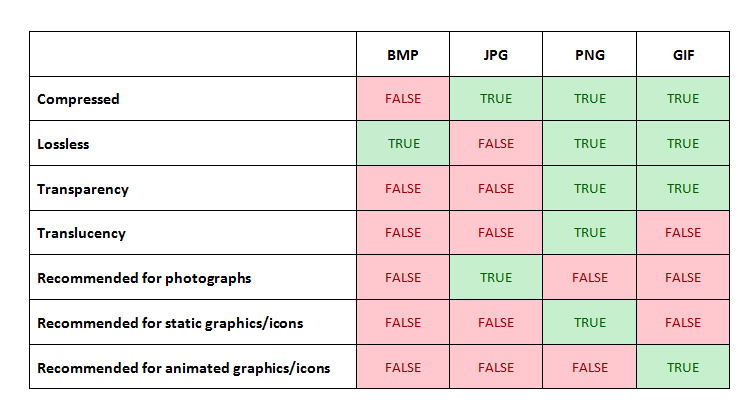
EASY: 8, 16, 24 & 32 "Bit Per Chanel": (24 is 32 minus "alpha")
Having a good understanding of when to use 8-bits, 16-bits, or 32-bits per channel can make or break some projects. It directly affects the number of colors available in an image. You’ll be able to avoid banding when necessary.
An 8-bit per channel image allows 256 steps in each channel, resulting in 16,777,216 possible colors. That sounds like a lot, but if you’re using a neutral gradient, it’s only 256 steps from white to black. Most gradients are not from black to white, but maybe mid grey to black. You might see how banding can start to occur.
A 16-bit per channel image allows for 65,536 steps in each channel, resulting in 281,474,976,710,656 possible colors. With a little noise added, you’ll be able to produce smooth gradients.
Like 24-bit color (thats "normal what you see: color), 32-bit color supports 16,777,215 colors but has an alpha channel it can create more convincing gradients, shadows, and transparencies. With the alpha channel 32-bit color supports 4,294,967,296 color combinations. As you increase the support for more colors, more memory is required.
* The main difference being 24bit = RGB, 32bit= RGB(A) <-- "A" is ALPHA
Color Format Chart 1: Color Formats
| Image Type | Bytes per pixel | **Possible color combinations ** | ** Compatible File Types** |
|---|---|---|---|
| 1 bit Line art | 1/8 byte per pixel | 2 colors, 1 bit per pixel. One ink on white paper | TIF, PNG, GIF |
| 8-bit Indexed Color | Up to 1 byte per pixel if 256 colors | 256 colors maximum. For graphics use today | TIF, PNG, GIF |
| 8-bit Grayscale | 1 byte per pixel | 256 shades of gray | Lossy: JPG Lossless: TIF, PNG |
| 16 bit Grayscale | 2 bytes per pixel | 65636 shades of gray | TIF, PNG |
| 24 bit RGB (8-bit mode) | 3 bytes per pixel (one byte each for R, G, B) | Computes 16.77 million colors max. 24 bits is the "Norm" for photo images, e.g., JPG | Lossy: JPG Lossless: TIF, PNG |
| 32 bit CMYK (Physically Prints) | 4 bytes per pixel, for Prepress | Cyan, Magneta, Yellow and Black ink, typically in halftones | TIF |
| 48-bit RGB (16-bit mode) | 6 bytes per pixel | 2.81 trillion colors max. Except we don't have 16-bit display devices | TIF, PNG |
Image Format Chart 2: Advanced Formats (Plus JPG to as Baseline)

What is an MBM file?
A format you may convert "FROM" rarely, but never "TOO". Its a "deformed", compressed, BMP file
MBM is shortened from MultiBitMap which, as the name suggests, is a container for a set of bitmap images. The contained bitmaps are not stored verbatim. Rather, each one is stored with a modified bitmap header with no data compression or with 8-, 12-, 16-, or 24-bit RLE compression.
• "SOME" (very few these days/version in KSP) 3D model textures used by Kerbal Space Program (KSP). It saves textures referenced by the .MU mesh file; used for providing the surface appearance of space craft, kerbals and most other objects.
Its a Bitmap image format that can store several bitmap (.BMP) images in a single file.
The BMP file format IS ANCIENT, in the computer file formats world, capable of storing two-dimensional digital images both monochrome and color, in various color depths, and optionally with data compression, alpha channels, and color profiles.
What is a raster image? Why "Resized" Images Lose Quality:
Raster images are made up of a set grid of dots called pixels where each pixel is assigned a color. Unlike a vector image, raster images are resolution dependent, meaning they exist at one size. When you transform a raster image, you stretch the pixels themselves, which can result in a “pixelated” or blurry image. When you enlarge an image, your software is essentially guessing at what image data is missing based on the surrounding pixels. More often than not, the results aren’t great!
ADVANCED formats, like PDN & Tiff, tend to be LOSSLESS, if compressed they typically use "RLE"
Run-length encoding (RLE) is a form of lossless data compression in which runs of data (sequences in which the same data value occurs in many consecutive data elements) are stored as a single data value and count, rather than as the original run. This is most useful on data that contains many such runs. Consider, for example, simple graphic images such as icons, line drawings, MANY PC video game textures, and animations

Whats The A In RGB(A), OK... It called an Alpha Channel? *
Ok Then, Alpha Channel, Whats that? TRANSPARENCY You Say?
* Using GIMP As Example; As It Has A "More Complex/Confusing" Menu.
1. What is the alpha channel
• The channels tab can be seen from the Layers view.
•There are 4 channels, Red, Green, Blue and Alpha.
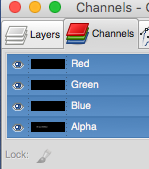
The alpha channel is used for TRANSPARENCY.
• Transparency means that when you export to .png, the transparent parts of your image will show whatever is underneath. This is very useful for apps icons or images for web design.
• When your layer does not have an alpha channel, its name should be bolded.

• When it has one it should not be bolded.

• Also when right click on the layer, Add alpha channel should be grayed out.
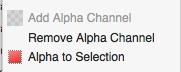
Having an alpha channel allows us to add transparency to our image.
• By deleting things on this layer the image, we will be able to see underneath it.
• Some elements already come with alpha channel, like Text. We will see next how we can use the alhpa channel from Text to outline our text.
2. Add outline to text
• First create some text using the Text tool.
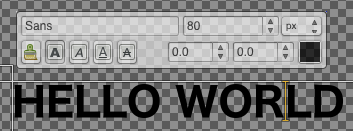
• Next click on the text layer and select Alpha to selection.
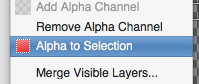
• It means that you will be selecting all colors that aren’t transparent in your current layer - which is just your text.
• Now go to Selection > Grow and grow the selection by few pixels.
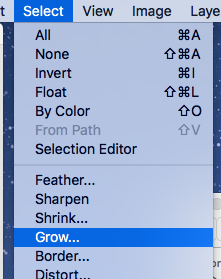
• This grows the text selection to the number of pixel requested.
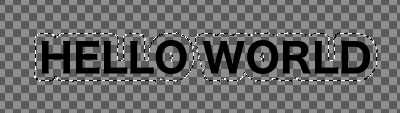
• Then create a new layer by clicking on the layer icon from the Layers view and paint the selection.

• You can now place the text layer on top of the outline layer and we’re done!

Conclusion:
• It took me some time to understand what was the alpha channel and what I could do with it. Today we saw how to add an alpha channel if our image doesn’t have one and we saw how to use the alpha channel of text to outline input.
Best file types for these general purposes:
Photographic Images
• Properties: Photos are continuous tones, 24-bit color or 8-bit Gray
Graphics, including Logos or Line art:
• Properties: Graphics are often solid colors, with few colors, limited to 256 colors, with text or lines and sharp edges
For Unquestionable Best Image Quality
• Photographic Images: TIF LZW or PNG (lossless compression, and no JPG artifacts)
• Graphics, including Logos or Line art: PNG or TIFF LZW (lossless compression, without JPG artifacts)
Smallest File Size:
• Photographic Images: JPG with a higher Quality factor can be both small and decent quality.
• Graphics, including Logos or Line art: TIFF LZW or PNG or GIF (graphics/logos without gradients normally permit indexed color of 2 to 16 colors for smallest file size)
Maximum OS Compatibility: Windows, Mac, Unix
• Photographic Images: TIFF or JPG
• Graphics, including Logos or Line art: TIFF or GIF
Worst Choice:
• Photographic Images: 256 color GIF is very limited color, and is a larger file than 24-bit JPG
• Graphics, including Logos or Line art: JPG compression adds artifacts, smears text and lines and edges
These are not the only choices, but they are good and reasonable choices.
Major considerations to choose the necessary file type include:
• Compression quality - Lossy type for smallest files (JPG), or Lossless type for best quality images (TIF, PNG). Compression varies with type of compression, but degree of compression also varies with the image content (bland areas with sparse detail, like walls or sky, compress very effectively, But high detail areas compress less effectively).
• 8-bit mode full 24-bit RGB color is normal for photos (TIF, PNG, JPG). Or Indexed Color is for graphics (PNG, GIF, TIF).
• 16-bit mode (48-bit RGB color data) is sometimes desired (TIF and PNG). Wide-range tonal shifts (gamma and white balance) in the initial editing processing can benefit from more than 8-bits. Scanners and cameras are at least 12-bits for this reason.
However our monitors and printers expect 8-bit data. And JPG is only 8-bits.
• Type PNG-24 is 24-bit RGB color for photos. PNG-8 is Indexed color for graphics, a maximum of 256 colors.
• GIF is indexed color only (for graphics today), but indexed is also an option in TIF and PNG.
• Transparency or Animation is used in graphics (GIF and PNG).
• Documents - images of graphics and text - line art, multi-page, fax, etc - this will be TIF files. Text commercially uses G3 or G4 compression, but LZW works too.
• Commercial prepress wants CMYK color (TIF files).
See Properties chart above. We select the file type that supports the properties we need.
The only reason for using lossy compression is for smaller file size, usually for internet transmission speed or storage space. Web pages require JPG or GIF or PNG image types, because some browsers do not show TIF files. On the web, JPG is the clear choice for photo images (smallest file, with image quality being less important than file size), and GIF is common for graphic images, but indexed color is not normally used for color photos (PNG can do either on the web).
Other than the web, TIF file format has been the undisputed leader when best quality is desired, largely because TIF is so important in commercial printing environments. High Quality JPG can be pretty good too, but don't ruin them by making the files too small. If the goal is high quality, you don't want small. Only consider making JPG large instead, and plan your work so you can only save them as JPG only one or two times. Adobe RGB color space may be OK for your home printer and profiles, but if you send your pictures out to be printed, the mass market printing labs normally only accept JPG files, and only process sRGB color space.
Paint.Net supports many popular file formats, Suggested Formats BOLDED
PREFER IN ORDER: *.PDN > .*TIFF > *.WEBP > _*.PNG ALWAYS
*These are the "DEFAULT" SUPPORTED formats, PLUG-INS can offer MANY MANY MORE!
| Format | Extension(s) | Note |
|---|---|---|
| paint.net | *.pdn | Bitmap image format used by paint.net, a free photo-editing program for Windows; supports multiple layers, transparency, image effects, and different bit-depths; can only be opened with paint.net, but can be exported by paint.net to a more standard format. |
| --- | --- | --- |
| PNG | *.png | Portable Network Graphics is a raster-graphics file format that supports lossless data compression. PNG was developed as an improved, non-patented replacement for Graphics Interchange Format. PNG supports palette-based images, grayscale images, and full-color non-palette-based RGB or RGBA images. |
| JPEG | *.jpg, *.jpeg, *.jpe, *.jfif, *.exif | JPG file is an image saved in a compressed image format standardized by the Joint Photographic Experts Group (JPEG). It is commonly used for storing digital photos and used by most digital cameras to save images. JPG files are among the most common image files along with. |
| JPEG XR | *.jxr, *.wdp, *.wmp | JPEG XR is a still-image compression standard and file format for continuous tone photographic images, based on technology originally developed and patented by Microsoft under the name HD Photo. Windows 8.1+ is required |
| Bitmap | *.bmp, *.dib, *.rle | The BMP file format, also known as bitmap image file, device independent bitmap (DIB) file format and bitmap, is a raster graphics image file format used to store bitmap digital images, independently of the display device (such as a graphics adapter), especially on Microsoft Windows and OS/2 operating systems. |
| GIF | *.gif | GIF, or Graphic Interchange Format, is a file extension for an often animated raster graphics file and is the second most common image format used on the World Wide Web after JPEG. GIF uses the LZW compression algorithm and is owned by Unisys. |
| TGA | *.tga | TGA or TARGA format is a format for describing bitmap images, it is capable of representing bitmaps ranging from black and white, indexed colour, and RGB colour, the format also supports various compression methods. This note describes the minimal requirements for creating a TGA file for a 24 bit RGB uncompressed colour image, this covers most applications where a developer might want to create an image for another package which reads TGA files. A more complete description of the format is given after this special case and the complete specification is supplied at the end. |
| Direct Draw Surface | *.dds | DDS (Direct Draw Surface) is an image file format that Microsoft established with DirectX 7.0. Microsoft conceived DDS as a container format for raster images with compressed and decompressed pixels. This file format is primarily for saving graphics textures and game maps. |
| TIFF | *.tif, *.tiff | Tagged Image File Format, abbreviated TIFF or TIF, is a computer file format for storing raster graphics images, popular among graphic artists, the publishing & video game industries, and photographers. |
| HEIC | *.heic | High Efficiency Image File Format (HEIF) is a container format for individual images and image sequences. It was developed by the Moving Picture Experts Group (MPEG) and is defined as Part 12 within the MPEG-H media suite (ISO/IEC 23008-12). Apple has said that an HEIF image using HEVC requires only about half the storage space as the equivalent quality JPEG. Windows 10 v1809+ required plus Microsoft's HEVC Codec. |
| WebP | *.webp | 99 QUALITY SETTING is "un-COMPRESSED". _100 is LOSSLESSLY COMPRESSED , "Drop-Down" SELECTED AS TEXT IS BEST. Essentially WebP offers the following benefits over PNG. WebP offers 26% smaller file sizes than PNG, while still providing transparency and the same quality. WebP loads faster (due to file size) than PNG images. Maximum image dimensions 16383 x 16383 pixels (format limitation unrelated to paint.net) |
| AV1 | *.avif | AOMedia Video 1 is an open, royalty-free video coding format designed for video transmissions over the Internet. Windows 10 v1809+ required plus Microsoft's AV1 Codec. Saving is not supported |
• The native paint.net image type (*.PDN) preserves the layer structure of a composite image and is lossless, meaning no data is lost when saving in this format. It is the default format for saving multi-layered images. If the image is a single layer, the format for saving defaults to *.PNG. ( SEE NEXT POINT ) • *.WebP is ALWAYS SUPERIOUR to *.PNG. If an Image has no layers and is 16383x16383 or smaller (That's 1 pixel in eath the H & V shy to hit 16384x16384 or "True 16
• Webp and DDS file support is via bundled plugins by paint.net. Both plugins continue to be developed in parallel with paint.net.
• Many third-party tools (FileType plugins) exist which add new file types to paint.net. These plugins are available for free download from the paint.net forum
Image Formats Described:
GIMP (.XCF) - The Elephant In The Room: NOT A TRUE IMAGE FORMAT!
Paint.Net's .PDN & Photoshop's .PSD ARE TRUE IMAGE FILE FORMATS, prefer them
Pros
• The Native GIMP image format. Everything is saved: layers, selections, channels, paths and more.
Cons
• Not a "display" format, even if you can find codecs to display thumbnails of XCF image in file explorers.
• Bulky.
• Color channels are coded in 8 bits (in GIMP 2.8).
Recommended uses
• NEVER, USE .PDN/.PSD INSTEAD, EVEN INSIDE GIMP, THEY ARE supported by all your FREE PROGRAMS. Attempt as FEW format conversions as possible.
Paint.Net (.PDN):
-
*HumanStuff RECOMMENDS PAINT.NET FOR ALL IMAGES BY DEFAULT!
99% OF MY TUTORIALS POSTED TO WIKI WILL USE IT
Pros
• The Native PAINT.NET image format. Everything is saved: layers, selections, channels, paths and more.
• A TRUE "display" format, EASY to display thumbnails, etc of .PDN image in file explorers/viewers.
Cons
• Bulky. LIKE ALL HIGH END UNCOMPRESSED FORMATS
Recommended uses
• ALWAYS, USE .PDN TO MAKE AN IMAGE UNTIL "END PRODUCT FORMAT", ITS supported by all your FREE PROGRAMS. Attempt as FEW format conversions as possible.
• Paint.Net's project file format.
• Vaguely similar to TIFF, but contains Paint.Net's specific working info like layer styles, undo history, and so-on.
TIFF
-
*_HumanStuff recommends TIFF for ALL NON-LAYERED detailed WORK IN PROGRESS, IF PDN FILES ARE NOT SUPPORTED!
TIFF is a lossless raster format that stands for Tagged Image File Format. Because of its extremely high quality, the format is primarily used in photography and desktop publishing. You’ll likely encounter TIFF files when you scan a document or take a photo with a professional digital camera. Do note that TIFF files can also be used as a “container” for JPEG images. These files will be much smaller than traditional TIFF files, which are typically very large.
Pros
• TIFF supports Layers and Alpha, has better metadata support and has more variants than TGA
• Lossless format, all pixels are kept.
• Color channels can be coded in 1-bit to 48-bits.
• Can store several images (layers).
• Supported by all image processing software.
Cons
• Many applications will attempt to dither or otherwise alter (FLATTEN) the image when saving, BE AWARE.
• Can be bulky on complex images.
Recommended uses
• Exchange of deep-pixel images (high quality) that are LAYERED, FOR EXCHANGE BETWEEN PROGRAMS IF PDN FILES ARE NOT SUPPORTED!
Photoshop (.PSD)
-
HumanStuff RECOMMENDS PSD FOR ALL IMAGES BY BEING EXPORTED TO APPLICATIONS NOT SUPPORTING "PDN"!*
Adobe Photoshop's project file format. PSD is a proprietary layered image format that stands for Photoshop Document. These are original design files created in Photoshop that are fully editable with multiple layers and image adjustments. PSDs are primarily used to create and edit raster images, but this unique format can also contain vector layers as well, making it extremely flexible for a number of different projects. A PSD can be exported into any number of image file formats, including all of the raster formats listed above.
Pros
• The Native Photoshop image format. Everything is saved: layers, selections, channels, paths and more.
• MANY COMMERCIAL ($$$) PRODUCTS HAVE PHOTOSHOP INTEGRATION.
• Vaguely similar to TIFF, but contains Photoshop's specific working info like layer styles, undo history, and so-on.
Cons
• IT COSTS "THE MONEY".
Recommended uses
• When you get rich its a great near "all in one" solution. EASILY worth its cost, but EASILY REPLACED WITH FOSS
TGA - Once the De Facto Standard In Graphics
Pros
• Lossless format, all pixels are kept.
• Color channels can be coded in 8-bit, 16-bit, 24-bit, and 32-bits.
• Supported by all image processing software.
Cons
• Can be bulky on complex images.
• Lacks layer support.
Recommended uses
• Storage and exchange of NON-PDN deep-pixel images, paint, and image manipulation programs (high quality) for layer-less images BY DEFAULT!
WebP
-
HumanStuff RECOMMENDS WebP FOR ALL "LAYERED" WORK IN PROGRESS, THAT DOES NOT SUPPORT ".PDN"!_*
-
*HumanStuff RECOMMENDS WebP Plugin, IF AVAIBLE, FOR ALL PROGRAMS YOU USE!
WebP is a modern image format that provides superior lossless and lossy compression for images on the web. Using WebP, webmasters and web developers can create smaller, richer images that make the web faster. It has many uses outside the web, as its easily superior to PNG for all uses.
Pros
• Lossless WebP supports transparency (also known as alpha channel) at a cost of just 22% additional bytes. For cases when lossy RGB compression is acceptable, lossy WebP also supports transparency, typically providing 3× smaller file sizes compared to PNG.
• WebP lossless images, all pixels are kept, are 26% smaller in size compared to PNGs. WebP lossy images are 25-34% smaller than comparable JPEG images at equivalent SSIM quality index.
• Produces small files with most computer graphics.
• Supports saving edit in process files as layered.
Recommended uses
• WebP should always be used in favor of PNG
PNG
-
*HumanStuff RECOMMENDS WebP OVER PNG 100% OF THE TIME!
PNG is a lossless raster format that stands for Portable Network Graphics. Think of PNGs as the next-generation GIF. This format has built-in transparency, but can also display higher color depths, which translates into millions of colors. PNGs are a web standard and are quickly becoming one of the most common image formats used online. PNG also offers many options of TIF too (indexed or RGB, 1 to 48-bits, etc). PNG offers an 8-bit mode to replace indexed 256 color GIF files, or a 24-bit mode for a possible 16.7 million colors for images.
Pros
• One additional feature of PNG is transparency for 24 bit RGB images.
• Lossless format, all pixels are kept.
• Supports partial transparency.
• Produces small files with most computer graphics.
• Supported by all browsers.
Cons
• Complex images (photos) are bulky.
• Color channels are coded in 8 bits.
Recommended uses
• Web page widgets: banners, buttons, frames, etc…
• Computer graphics. IF NOT USING A "BETTER" FORMAT USE THIS
• HIGH DETAIL Screenshots, minimal file size with alpha support.
OpenEXR (.exr)
• Similar to PNG in a lot of ways (lossless, transparency, etc),
• Uses bigger numbers to store color values (instead of 1-256, it uses 0.0-1.0 with either 16 or 32 digits), which gives it a bigger range of colors and contrast it can store.
• It can also store additional arbitrary channels, allowing it to carry things like the depth of objects in the image, or the separate components of a 3D rendering (reflections, highlights, contributions from different lights, etc).
• Originally designed by Industrial Light and Magic for movie visual effects work. Sometime used in place of Radiance HDR as well for photography.
Recommended uses
• HDR Images via an open source format
Radiance HDR (.hdr)
• A format for storing high-dynamic range photographs.
• Like OpenEXR it uses bigger numbers to represent the color ranges, allowing it to store more information
Recommended uses
• HDR Images
GIF
GIF is a lossless raster format that stands for Graphics Interchange Format. The big question: how is it pronounced? The creator of GIF says “JIFF” like the peanut butter. This writer (and lots of the world) says “GIFF” because graphics starts with a “guh.” Anyway, we’ll leave that up to you. GIF is also a widely used web image format, typically for animated graphics like banner ads, email images and social media memes. Though GIFs are lossless, they can be exported in a number of highly customizable settings that reduce the amount of colors and image information, which in turn reduces the file size. GIF always uses lossless LZW compression, but it is always an indexed color file (1 to 8-bits per pixel). GIF can have a palette of 24-bit colors, but only a maximum of 256 of them
Pros
• Supports transparency & Alpha
• Universally supported for animation.
Cons
• Only 256 colors per image, leads to blocky look. (a modern variant supports 256 colors per frame, but GIMP doesn't use it).
• Supports transparency but only as fully transparent/fully opaque.
Recommended uses
• Small animated images. (in all other still-image uses PNG is a better alternative, and for bigger animation modern HTML supports video)
JPG
You need a layered, editable image. JPEGs are a flat image format meaning that all edits are saved into one image layer and cannot be undone. Consider a PDN in Paint.Net. Frankly, JPG is used when small file size (for transfer or storage, web pages, email, memory cards, etc) is more important than _maximum image quality.
Pros
• Compresses the files quite efficiently.
• Universally supported for display.
Cons
• Compression is "lossy" and it slightly alters the image data. In case of global changes (color, contrast…) repeated file editing will slowly degrade the image quality.
• At good quality levels, compression is invisible in photography, but can be seen (so called "artifacts") in computer-generated graphics and text.
• Doesn't support transparency.
• Color channels are coded on 8 bits.
Recommended uses
• Display of photography & LOW DETAIL
• Storage of photography
Raw images formats (NEF (Nikon), CR2 (Canon)…)
A raw image format contains the unprocessed data captured by a digital camera or scanner’s sensor. Typically, images are processed (adjusted for color, white balance, exposure, etc.) and then converted and compressed into another format (e.g. JPEG or TIFF). Raw images store the unprocessed and processed data in two separate files, so you’re left with the highest quality image possible that you can edit non-destructively with a photo editing application like Photoshop. There are dozens and dozens of raw formats, but some of the typical formats are CRW (Canon), NEF (Nikon), and DNG (Adobe).
Pros
• No loss of information from the camera sensor (in theory).
• High-depth color channels (12 or 14-bit).
Cons
• Proprietary (except DNG).
• Content format can change without notice (new camera models), this can impact support by your favorite software.
• Bulky.
• Not suitable for display.
Recommended uses
• Storage of camera output, but a secondary copy in some universal format could be a good idea.
DPX/Cineon
• Image file formats common in scanning and printing film
Recommended uses
• Storage of cinema ("film" and "digital" video) camera output
• There are of course many other image formats, but the formats above cover most uses. Use them unless you know better, they can usually be converted easily to any other format should the need arise.
Lossless and Alpha Gallery
Contents of this Gallery
This gallery presents some sample images to showcase two new modes of WebP: WebP-lossless and WebP-lossy with alpha (transparency support).
Side-by-Side Comparison
The table below presents PNG images (compressed with pngcrush and pngout), WebP-lossless images and WebP-lossy images with Alpha for side-by-side comparison. The images are overlaid onto a checkered background as typically done in graphics software.
Note that we have used webp quality 90 for WebP-lossy images with alpha and default quality for WebP-lossless images.
Setting to Icon (or Text) and 99 QUALITY SETTING is "un-COMPRESSED". _100 is LOSSLESSLY COMPRESSED
The WebP images -- converted back to PNG -- for browsers not capable of rendering WebP. If you have a compatible browser, you can find the links to WebP files here. Also, the images on this page are scaled down for viewing convenience. Click on any image to view the full sized image.
#1 PNG (ALWAYS lossy with alpha) vs #2 WebP Lossless (With alpha) vs #4WebP Lossy (With alpha)
215.8KB149.1KB52.6KB