Maudbatch Tutorial - lanl/MILK GitHub Wiki
MAUD batchmode overview
MAUD allows for batch refinement using a cif style input file for specifying what datasets, operations, and outputs should be considered. In this tutorial we are going to follow the tutorial on the MAUD site (the site is currently under maintenance, see message on MAUD site homepage) to understand the text interface to MAUD. After you have completed the setup of the rietveld environment, setup the files used for this example using:
milk-examples -e 1
This will copy the maudbatch example folder to your current working directory. Note that due to the way MILK is installed, scripts inside the MILK/bin folder does not need ".py" in the call to be recognized. But in instances where a local python script is needed, we will see the use of the full command python script.py.
The fecu.ins file contains a header specifying the column arguments which in order are the input parameter file, the number of Rietveld iterations, the wizard index (#corresponding to the wizard menu in MAUD), the output parameter file, a dataset name to replace data in the input parameter file, and a file name to append the refinement results to.
The rows of entries will be processed sequentially. MAUD has +20 header arguments for handling a variety of data input and export tasks, so this is a simple example. The path is relative to the first input parameter file, but can be set another way in newer versions of MAUD (see the Maudbatch API). Additional information about the batch mode can be obtained by looking at the MAUD source code for batch processing.
The .ins file is just a text file, open it with any text editor or VS Code then change "/Users/testuser/Documents/GitHub/MILK/maudbatch/" to the path of the maudbatch example in your directory.
_maud_working_directory
 '/Users/testuser/Documents/GitHub/MILK/maudbatch/'

loop_
_riet_analysis_file
_riet_analysis_iteration_number
_riet_analysis_wizard_index
_riet_analysis_fileToSave
_riet_meas_datafile_name
_riet_append_simple_result_to
 'FeCustart.par' 7 13 'FECU1010.par' 'FECU1010.UDF' 'FECUresults.txt'
 'FeCustart.par' 7 13 'FECU1011.par' 'FECU1011.UDF' 'FECUresults.txt'
 'FeCustart.par' 7 13 'FECU1012.par' 'FECU1012.UDF' 'FECUresults.txt'
 'FeCustart.par' 7 13 'FECU1013.par' 'FECU1013.UDF' 'FECUresults.txt'
 'FeCustart.par' 7 13 'FECU1014.par' 'FECU1014.UDF' 'FECUresults.txt'
 'FeCustart.par' 7 13 'FECU1015.par' 'FECU1015.UDF' 'FECUresults.txt'
 'FeCustart.par' 7 13 'FECU1016.par' 'FECU1016.UDF' 'FECUresults.txt'
 'FeCustart.par' 7 13 'FECU1017.par' 'FECU1017.UDF' 'FECUresults.txt'
 'FeCustart.par' 7 13 'FECU1018.par' 'FECU1018.UDF' 'FECUresults.txt'
 'FeCustart.par' 7 13 'FECU1019.par' 'FECU1019.UDF' 'FECUresults.txt'
 'FeCustart.par' 7 13 'FECU1020.par' 'FECU1020.UDF' 'FECUresults.txt'
 'FeCustart.par' 7 13 'FECU1021.par' 'FECU1021.UDF' 'FECUresults.txt'
 'FeCustart.par' 7 13 'FECU1022.par' 'FECU1022.UDF' 'FECUresults.txt'
 'FeCustart.par' 7 13 'FECU1023.par' 'FECU1023.UDF' 'FECUresults.txt'
 'FeCustart.par' 7 13 'FECU1024.par' 'FECU1024.UDF' 'FECUresults.txt'
 'FeCustart.par' 7 13 'FECU1025.par' 'FECU1025.UDF' 'FECUresults.txt'
 'FeCustart.par' 7 13 'FECU1027.par' 'FECU1027.UDF' 'FECUresults.txt'
 'FeCustart.par' 7 13 'FECU1028.par' 'FECU1028.UDF' 'FECUresults.txt'
 'FeCustart.par' 7 13 'FECU1030.par' 'FECU1030.UDF' 'FECUresults.txt'
 'FeCustart.par' 7 13 'FECU1032.par' 'FECU1032.UDF' 'FECUresults.txt'
 'FeCustart.par' 7 13 'FECU1033.par' 'FECU1033.UDF' 'FECUresults.txt'
 'FeCustart.par' 7 13 'FECU1034.par' 'FECU1034.UDF' 'FECUresults.txt'
 'FeCustart.par' 7 13 'FECU1035.par' 'FECU1035.UDF' 'FECUresults.txt'
 'FeCustart.par' 7 13 'FECU1036.par' 'FECU1036.UDF' 'FECUresults.txt'
 'FeCustart.par' 7 13 'FECU1038.par' 'FECU1038.UDF' 'FECUresults.txt'
MAUD batchmode GUI
You can run the fecu.ins batch script from the GUI from the Special menu in the MAUD GUI. Turn on console to see outputs by going to "Interface" and click "Console visible".
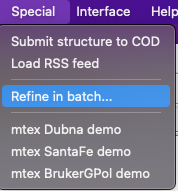
While it is running, you will see console outputs like:
And in the folder a file with .lst extension and a results.txt file will be generated, as well as .par files for each of the data .UDF files.
You don't have to wait for every job to finish. Close Maud to stop the process.
MAUD batchmode command line
The command line scripts hosted with the data are currently out of date with more recent MAUD versions, but gives an idea of how to write a script to run MAUD from the command line. For mac OS you can call MAUD from the command line, and similarly with Windows and Linux.
MAC
$MAUD_PATH/Contents/PlugIns/Home/bin/Java -mx8G --enable-preview -cp "$MAUD_PATH/Contents/Java/*" com.radiographema.MaudText -file fecu.ins
Linux
$MAUD_PATH/jdk/bin/java -mx8G --enable-preview -cp "$MAUD_PATH/lib/*" com.radiographema.MaudText -file fecu.ins
Windows
TODO
Alternatively, with MILK installed already, you can run a Maud ins file from the conda environment by simply executing the following command milk-maudText -f fecu.ins. Doing this should give the same output as running through the GUI.
You can open the .par files in Maud to view the results. Click the "Calculate spectra" button shown as a calculator:
MAUD Batch with python java
It is possible to directly interface with MAUD through Java classes when using python; however, one needs to understand the MAUD code base to some extent. The example below use jpype to define a modified main method that allows a persistent MaudText instance. This removes the over head of starting up the Java instance every time MaudText is called.
from jpype.types import *
import jpype
import jpype.imports
from pathlib import Path
import os

maud_path_global = os.getenv('MAUD_PATH')

classpath = [str(p) for p in Path(Path(maud_path_global) / "Contents/Java/").glob("*.jar")]
jvmpath = str(Path(maud_path_global) / "Contents/PlugIns/Home/lib/server/libjvm.dylib")

jpype.startJVM('--enable-preview',jvmpath=jvmpath,classpath=classpath)
@jpype.JImplementationFor("com.radiographema.MaudText")
class MyMaudText(object):
    @jpype.JOverride(sticky=True)
    def main(self,args,mode=0):
        preferences = jpype.JClass("it.unitn.ing.rista.util.MaudPreferences")
        preferences.loadPreferences()
        Constants = jpype.JClass("it.unitn.ing.rista.util.Constants")
        Constants.textonly = True
        Constants.stdoutput = Constants.CONSOLE_WINDOW
        self.execute(mode, args)

MaudText_cls = jpype.JClass("com.radiographema.MaudText")
MaudText = MaudText_cls()

MaudText.main(["-f","fecu.ins"])
jpype.shutdownJVM()
A final comment
MILK is essentially an integrated wrapper around the batch refinement options available in MAUD which adds helper functionality (such as parallel computing) and adds additional low level control of batch refinements which is not available through the text interface.