Search for a target by name - kiril-dragomirov/PHPStorm GitHub Wiki
You can find any item in the project or outside of it by its name. You can search for files, actions, classes, symbols, settings, and UI elements from a single entry point.
- Press Shift twice to open the search window. By default, PhpStorm displays the list of recent files. Pressing double Shift again or Alt+N for mnemonics will select the Include non-project items checkbox and the list of search results will extend to non-project related items.

- Start typing your query. PhpStorm lists the results dividing them into sections where your query is found. Press Ctrl+Up or Ctrl+Down (Cmd+Up / Cmd+Down on macOS) to jump between sections.

You can use the following shortcuts to open the search window with the needed scope right from the start:
-
Ctrl+N - finds a class by name.
-
Ctrl+Shift+N - finds any file or directory by name (supports CamelCase and snake_case).
-
If you have a directory or a file that you excluded from your project, PhpStorm will not include it in the search process.
-
Ctrl+Shift+Alt+N - finds a symbol.
-
Ctrl+Shift+A - finds an action by name. You can find any action even if it doesn't have a mapped shortcut or appear in the menu. For example, Emacs actions, such as kill rings, sticky selection, or hungry backspace.
-
To narrow your search, click the Filter icon and select the appropriate option.
For example, when you search for files, you can exclude some file types from your search.

- Type / to see the list of settings that you can quickly access. Select the one you need and press Enter

- You can search for abbreviations. Assign a short code for the action and use the All tab to search for such element and quickly access it. For example, assign an abbreviation for Color Picker.
-
In the Settings/Preferences dialog (Ctrl+Alt+S), go to Keymap. From the options on the right select Other | Show Color Picker.
-
From the context menu, select Add abbreviation.
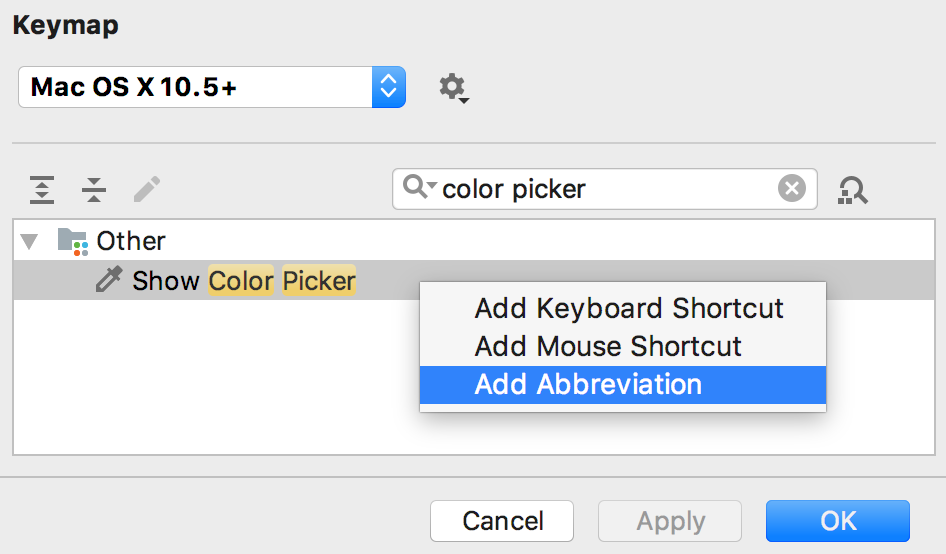
- In the dialog that opens, specify the abbreviation you are going to use, for example, cp and click OK.
Now, when you type cp in the search field, PhpStorm will display the item to which you've assigned your abbreviation. Press Enter to access the Color Picker dialog.
