Usage - kingabzpro/BetterTradingAgents GitHub Wiki
Screen-by-screen walkthrough of the app. New here? This is the whole first run:
- Add a ticker (or click a quick-add chip) and hit Analyze Stocks.
- Watch the researchers light up (which ones depends on the depth tier), then the bull/bear debate and the judge at the deeper tiers.
- Expand the ticker card and read why it said what it said.
- Ask the manager a follow-up question in the chat.
- Optional: add your Alpaca paper keys on the Settings page and the calls become simulated orders.
Need a key first? Providers has the sign-up links. Now the details: The README covers the pitch and the quick start; this page covers day-to-day use in detail.
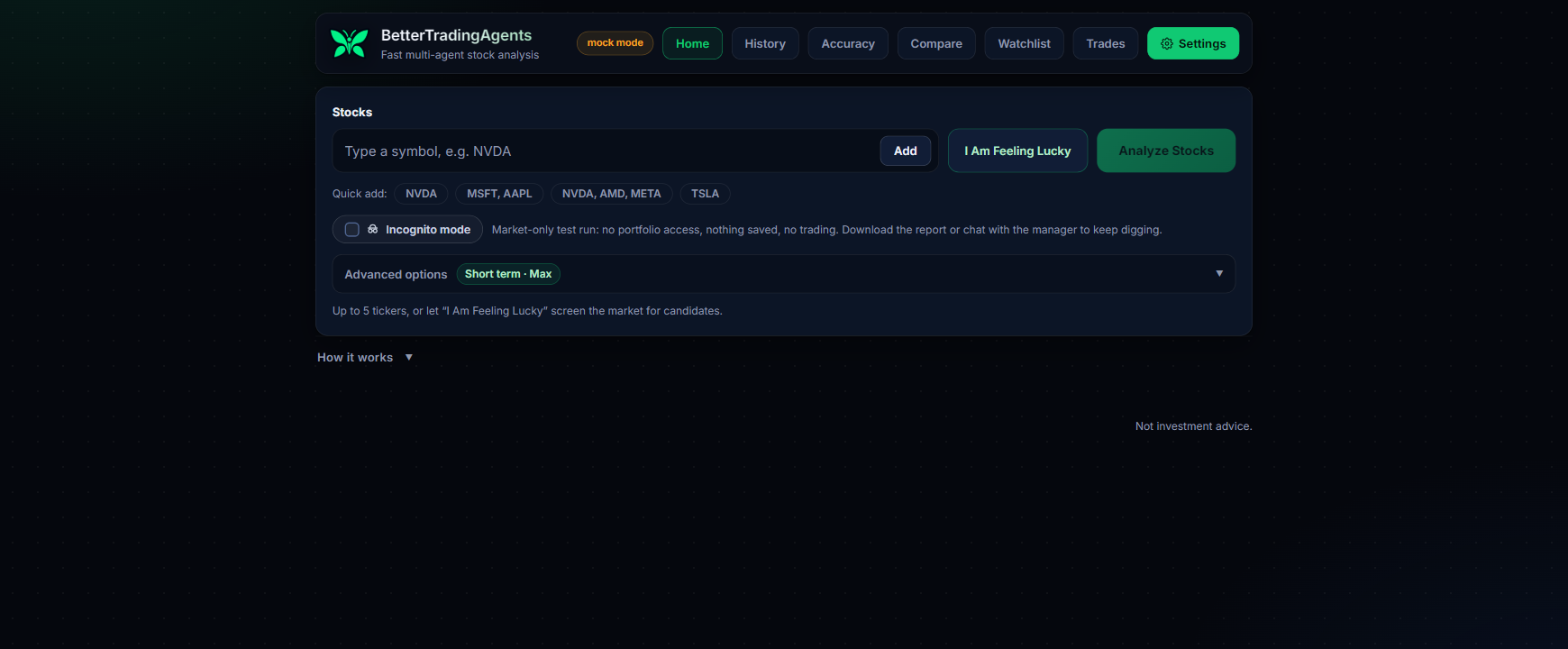
Run your first analysis
Open the app, add tickers such as NVDA, AMD, META (one at a time, paste several at once, or use the quick-add chips, up to 5), pick your outlook (Day trading, Short term, or Long term) and depth (Fast = 3 agents: technical + forecast + manager, no debate · Pro = 7 agents: market, technical, news and forecast researchers, then bull/bear and the manager · Max = 10 agents: all six researchers plus the debate judge), then select Analyze Stocks. The outlook is sent to every agent, so they all weigh evidence for the horizon you actually trade, and it sets that horizon end to end: the statistical forecast, the risk gate noise band, and the later grading window all follow it (the next session for day trading, five trading days for short term, about a month for long term). The depth trades thoroughness for speed.
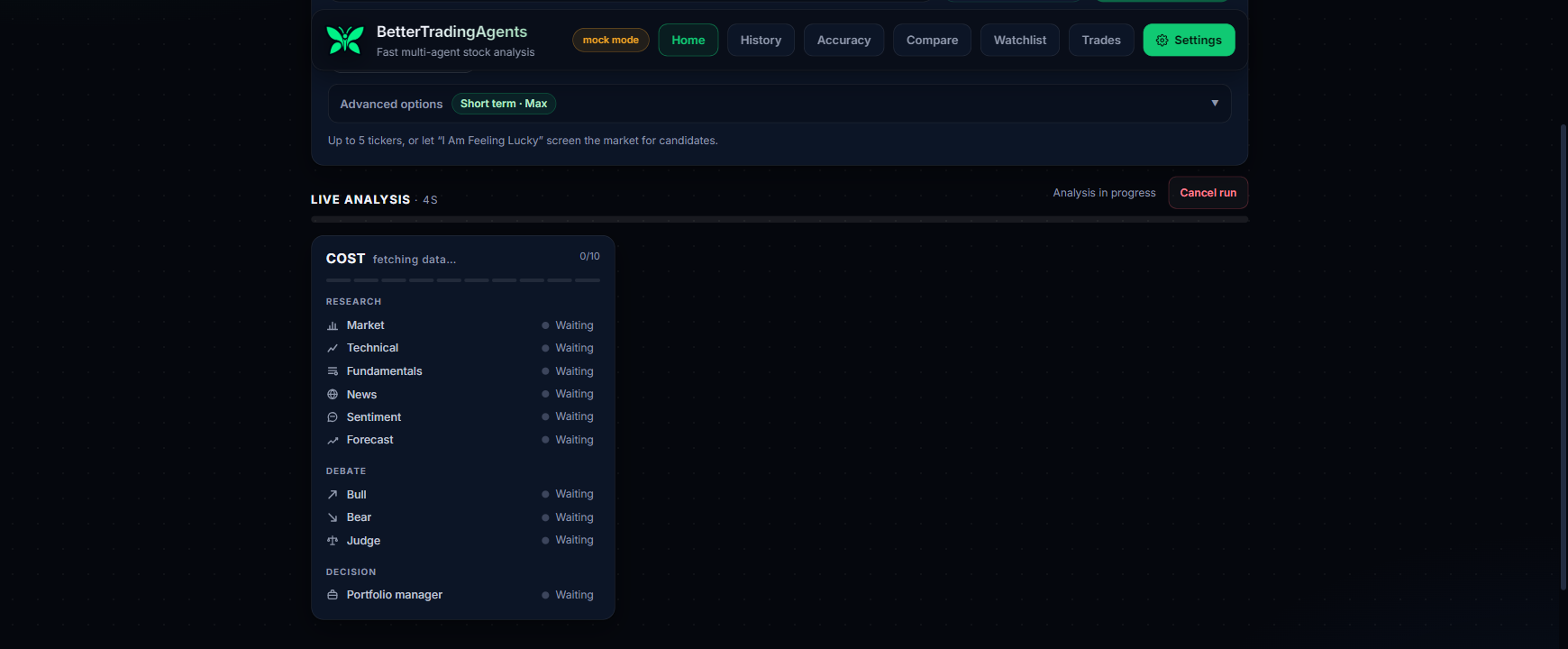
Watch each agent move from waiting to running to complete, grouped under Research, Debate, and Decision stage headers, with a progress bar per ticker. If an agent fails, its slot says so and the manager still makes a call on the inputs that survived.
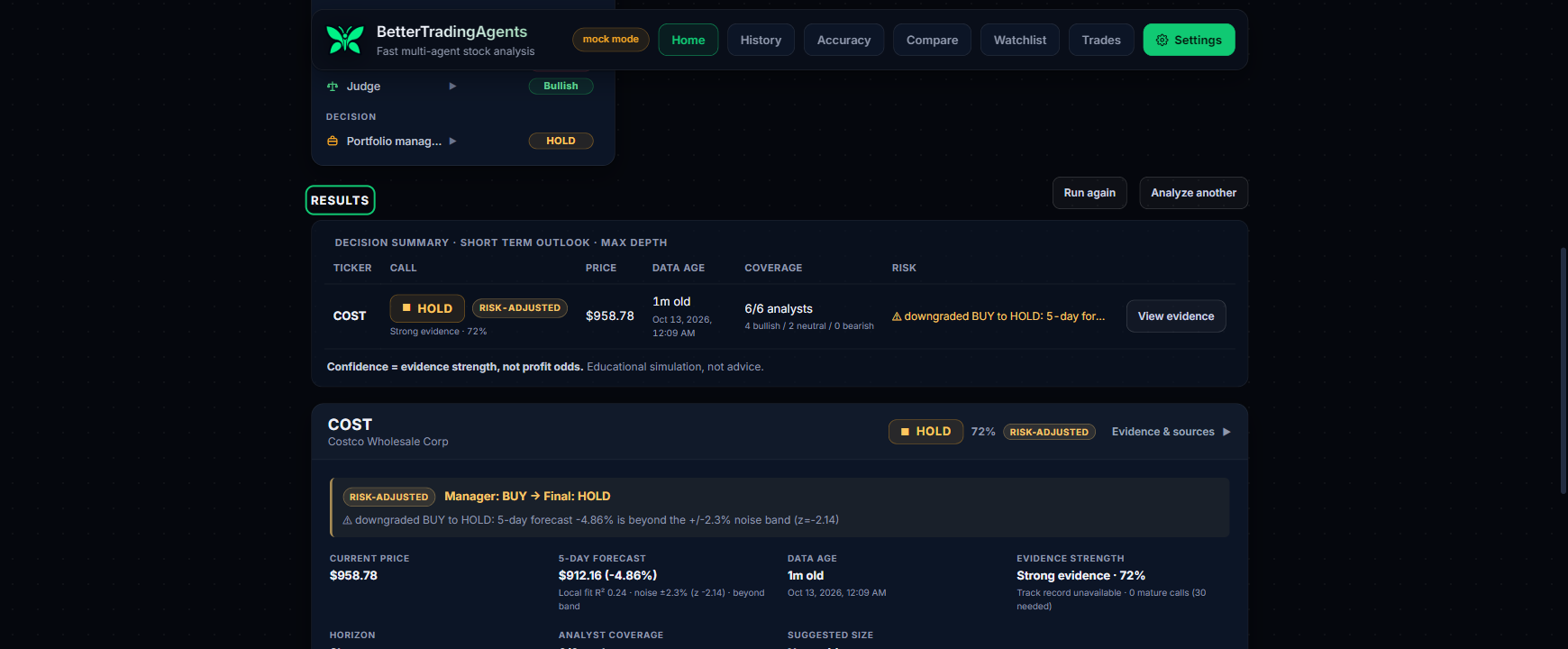
Read the results
The decision summary above the cards shows one row per ticker: the call with its evidence-strength label, current price, data age (stale and cached states included), analyst coverage with a compact signal split such as 3 bullish / 1 neutral / 1 bearish, and the risk summary; the caption names the run's outlook and depth. When the deterministic risk gate overrides the manager, the call carries a risk-adjusted chip and the card's banner spells out Manager: BUY -> Final: HOLD with the exact flag that caused it.
Expand any ticker to read the brief in one pass: the summary row leads with the call, its evidence strength in percent, and any risk-adjustment or flag chip, so a collapsed card still shows how strong and how adjusted the call was. Opening the card puts Why this call beside What would change this call (would_upgrade_if / would_downgrade_if, labeled as conditions, not alerts), then the fact grid, risk flags (real adjustments carry a warning mark; context notes stay muted), the bull-versus-bear debate including the judge's verdict (Max depth), analyst evidence, and a six-month price chart with a price axis, a shaded forecast noise band, and hover tooltips for exact closes. Sources with links and the track record of previous calls graded against SPY close the card. A repeat analysis of a ticker you researched before leads with a What changed summary: the deterministic differences against the previous call, newest last.
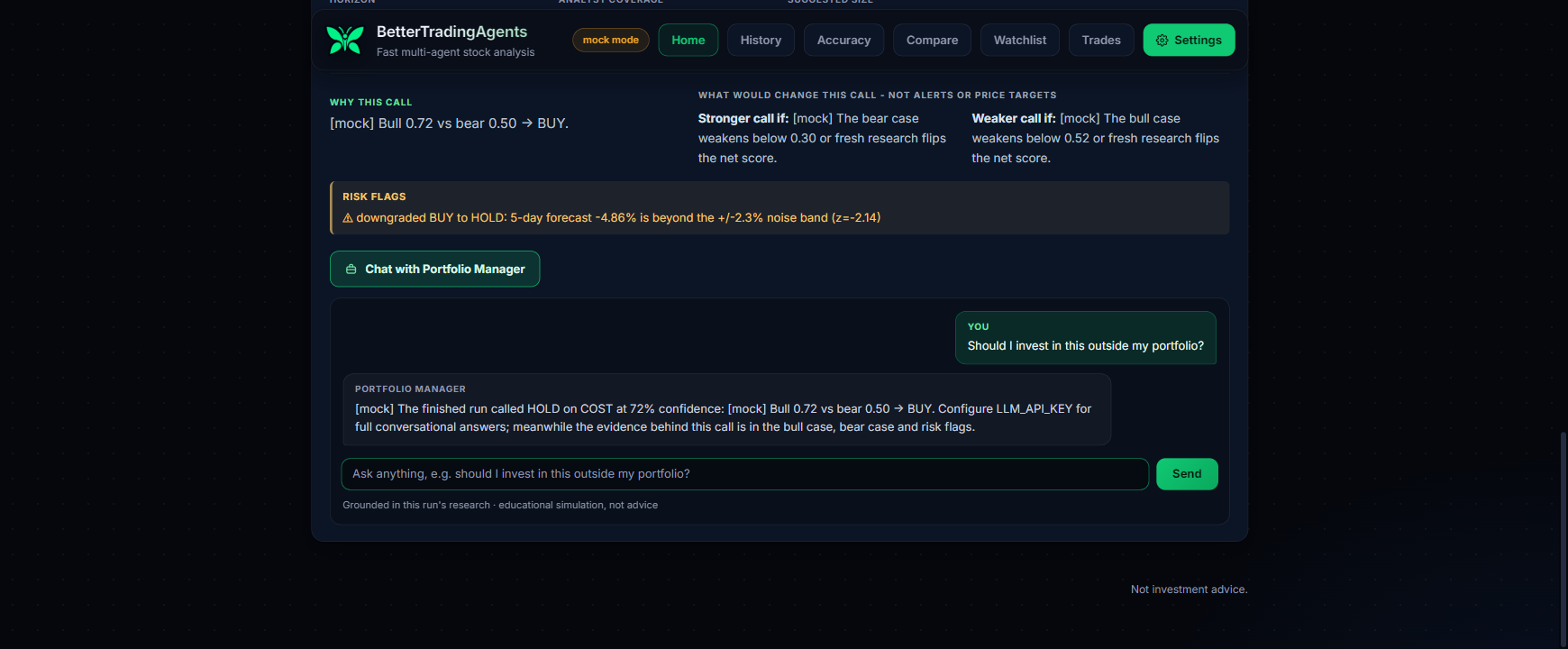
Chat with the Portfolio Manager
Once a ticker finishes, its result card gets a Chat with Portfolio Manager button that opens a per-ticker conversation grounded in that run's research, the debate, and your current holdings. Ask anything personalized, such as whether the stock fits goals beyond this portfolio, what would change the call, or which risk matters most. The manager answers in plain prose, quotes the numbers from the run, and says plainly when a question reaches beyond the research.
Type your follow-up question and select Send to continue the conversation about that ticker.
I Am Feeling Lucky discovery
Select I Am Feeling Lucky when you want the app to find research candidates automatically. The backend screens U.S.-listed companies (market cap between $1B and $50B, at least $100M trailing revenue with 10% growth, and over 500,000 average daily shares traded), then ranks them with a momentum score grounded in the published literature: 3-6 month formation momentum that skips the most recent month, path smoothness, 52-week-high proximity, and volatility scaling. Your chosen outlook adjusts the formation weights; the top five candidates go straight into the ticker input and through the normal workflow. The screen is cached for an hour, and the ranking is a research starting point, not a promise.
Incognito mode: try it without touching anything
Flip Incognito mode on (the switch next to the quick-add chips) when you want to test the app without involving anything of yours. The run is market-only: the paper account is never read, the manager sees no holdings and no track record of your past calls, trading and saving (paper orders, watchlist, compare, history) are switched off, and nothing is written to the database or attributed to your browser. Server logs stay anonymous too: they record that an incognito run happened, never which ticker or which call.
Everything else runs in full: live agent progress, the decision brief with evidence and sources, the risk gate's sizing and forecast check (only the portfolio-exposure caps are skipped, since there is no portfolio), and the per-ticker manager chat grounded in that run's research alone. Because the server keeps nothing, Download report (top of the Results section) exports the whole analysis as a self-contained HTML file built in your browser; closing the page tells the server to forget the run entirely, and old incognito runs are pruned automatically.
Portfolio: your Alpaca paper account
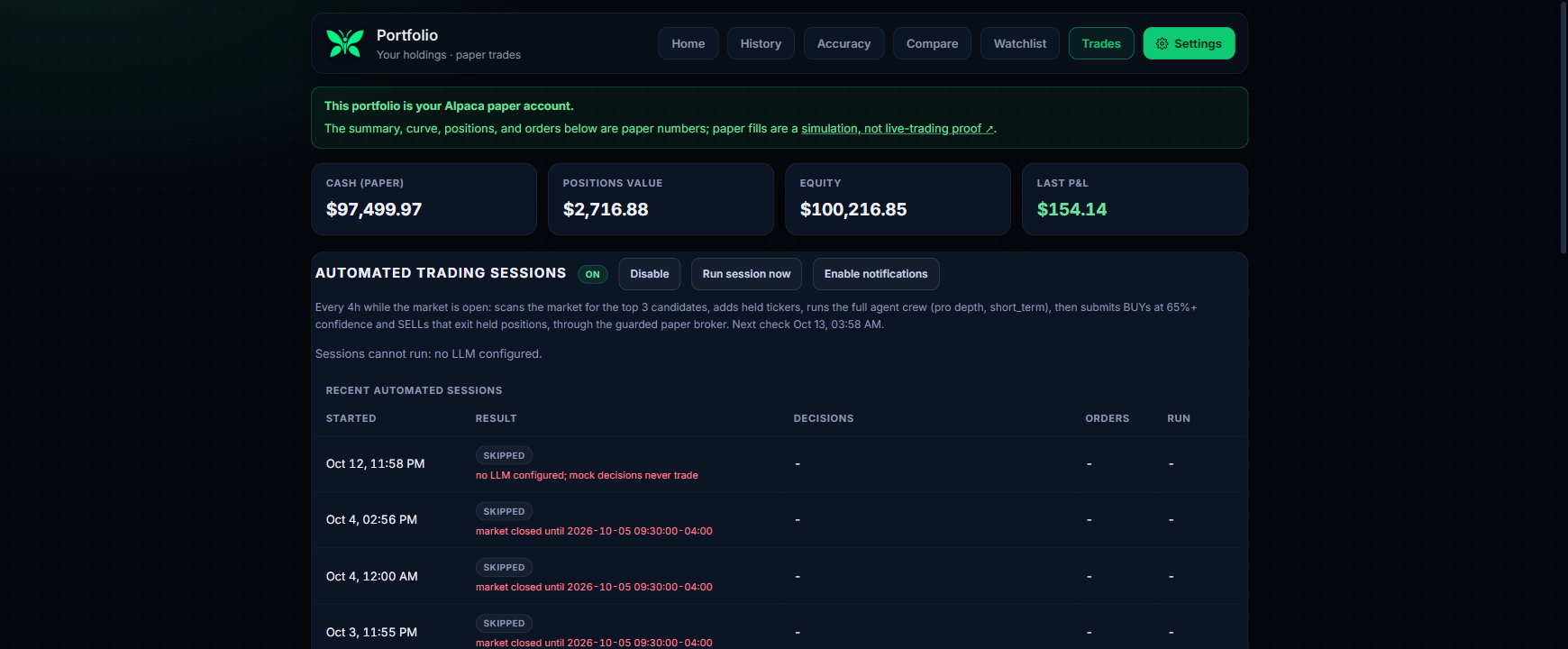
The paper account is the portfolio. Its cash, equity, open positions, and every order this app placed are fetched fresh from Alpaca whenever the page loads; nothing is tracked in a parallel local book. The manager sees the paper holdings when making its next call, and the risk gate's exposure caps use the paper equity. A Download CSV action exports the open positions.
Paper trading with Alpaca (optional)
Connect a free Alpaca paper account and it becomes the primary portfolio. Add the paper keys on the Settings page (or ALPACA_API_KEY_ID, ALPACA_API_SECRET_KEY, and ALPACA_TRADING_ENABLED=1 in .env). Three things change:
- Every non-error BUY result card offers a Paper order review step: symbol, side, notional prefilled from the risk gate's suggested size, buying power, and exposure after. Placement requires an explicit "I reviewed this order" checkbox; nothing ever auto-submits. A run only ever recommends (the call and the suggested size are on the card), and automatic buying is the autopilot's job below.
- The Trades page becomes the paper cockpit: equity, cash, buying power, an equity curve plotted against SPY over the same window (both normalized to 100, hover for exact values), open positions, the orders this app placed with cancel actions, and per-order return since fill with alpha vs SPY.
- Without keys the page shows exactly what to set; there is no separate demo book, the paper account is the single record of holdings.
The adapter is paper-only by construction: the client is built with paper=True hardcoded, so no configuration can reach the live broker. Server-side caps apply to every submission (ALPACA_MAX_ORDER_USD, ALPACA_MAX_ORDERS_PER_DAY, and stale research older than ALPACA_MAX_DECISION_AGE_HOURS hours is refused). Paper fills are a simulation, never live-trading proof; the disclosure is on the Trades page.
The page also watches broker sync: a reconciliation sweep at startup and every 15 minutes settles any order a crash left pending and refreshes partial fills; an open order at Alpaca that this app did not place raises an out-of-sync banner at the top of the page.
Automated trading sessions (autopilot, optional)
With paper trading configured, the Trades page offers an Automated trading sessions card: enable it and a background loop runs a full trading session on a schedule with no human click. Every session re-checks all held positions first (sell-or-hold), then scans the market for the strongest fresh candidates (the same research-backed screen behind "I Am Feeling Lucky"), runs the complete agent pipeline as one ordinary run, and submits the trades it agrees with:
- Candidates rotate: a name analyzed in the last
AUTOMATION_CANDIDATE_COOLDOWN_DAYSdays (default 3,0disables) rests, so sessions walk down the ranking and explore the rest of the screen instead of replaying the same shortlist for weeks. "I Am Feeling Lucky" still shows the deterministic top picks. - Held positions lead the session, so the session ticker cap can only ever drop a rotating candidate, never an open position that still needs its sell-or-hold decision.
- BUYs need at least
AUTOMATION_MIN_CONFIDENCEfinal (risk-gated) confidence, are sized by the risk gate's suggested size, and are skipped for tickers already held (autopilot never adds to a position). SELLs exit held positions when the manager says so. - Every order goes through the same guarded broker path as a manual click, so the kill switch, per-order and daily caps, and decision-freshness checks still apply. Sessions never trade mock decisions, and scheduled sessions only run while the market is open (a manual "Run session now" may trade a closed market; those orders queue for the next open).
- Sessions are recorded on the card with their decisions and orders, and each links to its analysis run. The toggle is persisted (it survives restarts) and seeded from
AUTOMATION_ENABLEDon first boot; interval, candidate count, candidate cooldown, confidence bar, outlook, depth, and sells are editable on the Settings page and in.env.example.
Desktop notifications
The Trades page autopilot card has an Enable notifications button. Once the browser permission is granted, every finished autopilot session raises a desktop notification with a short summary: the orders placed, the decisions, or the failure reason. Skipped sessions (for example "market closed") stay silent. The preference lives in the browser's localStorage and the last notified session is remembered, so reopening the page never replays old sessions. Notifications are per-browser: they fire while the Trades page is open.
In-app settings
The Settings page edits every configuration value in the app, grouped into Connections (LLM, role models, providers), Research (analysis, risk, memory), and Paper trading (Alpaca, autopilot). .env values are the default layer; a value saved in the app overrides it and applies immediately, no restart. Secrets go to the OS credential vault (Windows Credential Manager, macOS Keychain, Linux Secret Service), never into the database, and are never returned by the API: the page shows a "configured" chip with where the secret lives. Reset to .env defaults drops every override, and the dots on the left show which sections are ready. Details in Configuration and Architecture.
Run history
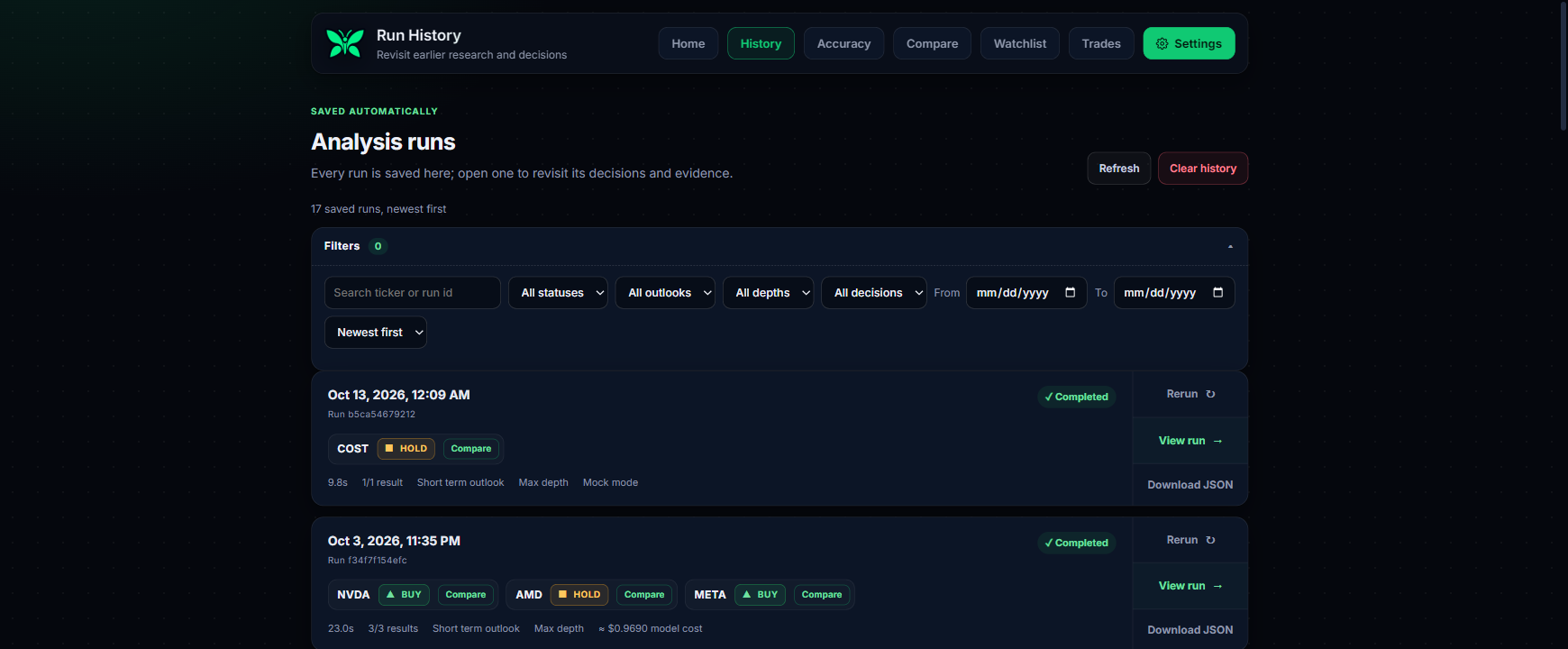
Every analysis is saved and listed newest-first on the History page, scoped to an anonymous ID in your browser. A direct ?run=<id> link reopens a specific result even after a server restart. A running analysis can be cancelled from the live view (finished tickers are kept), and the History page can rerun any finished run with its original tickers, outlook, and depth.
Each run card shows its status, ticker decisions, elapsed time, result count, outlook, depth, and model cost. Use View run to reopen the research, Rerun to repeat it, or Download JSON to export that run.
Experimental features
Retired UIs live behind an opt-in on the Settings page. In the Analysis section, turn on Enable experimentation and save: an Experimentation tab appears with one toggle each for the Accuracy page, Compare, and the Watchlist; a feature is served only when its own toggle is on too, its nav link appears on every page, and turning it off makes the page 404 again. The toggles apply live, no restart. The accuracy report also always exists as a script: uv run python scripts/accuracy.py.
Data honesty
Forecasts are supporting evidence, never targets: each one is assessed against the ±1σ move implied by the stock's own volatility over the run's outlook horizon (one day, five days, or about a month), and the forecast card says which model produced it and over what horizon. Social sentiment with fewer than three posts reads as neutral with low confidence, never as a signal. Cached results keep their original timestamp and are labeled as cached. Every result card shows an estimated model cost at provider list prices, with cost unknown when a model has no known price.