Images from content repository (trx. OAC0) not displaying Fiori SNOTE 712330 Accessing server content with HTTPS - kartikrajag/Fiori GitHub Wiki
Open Text VIM components
Archiving
VIM
OCR
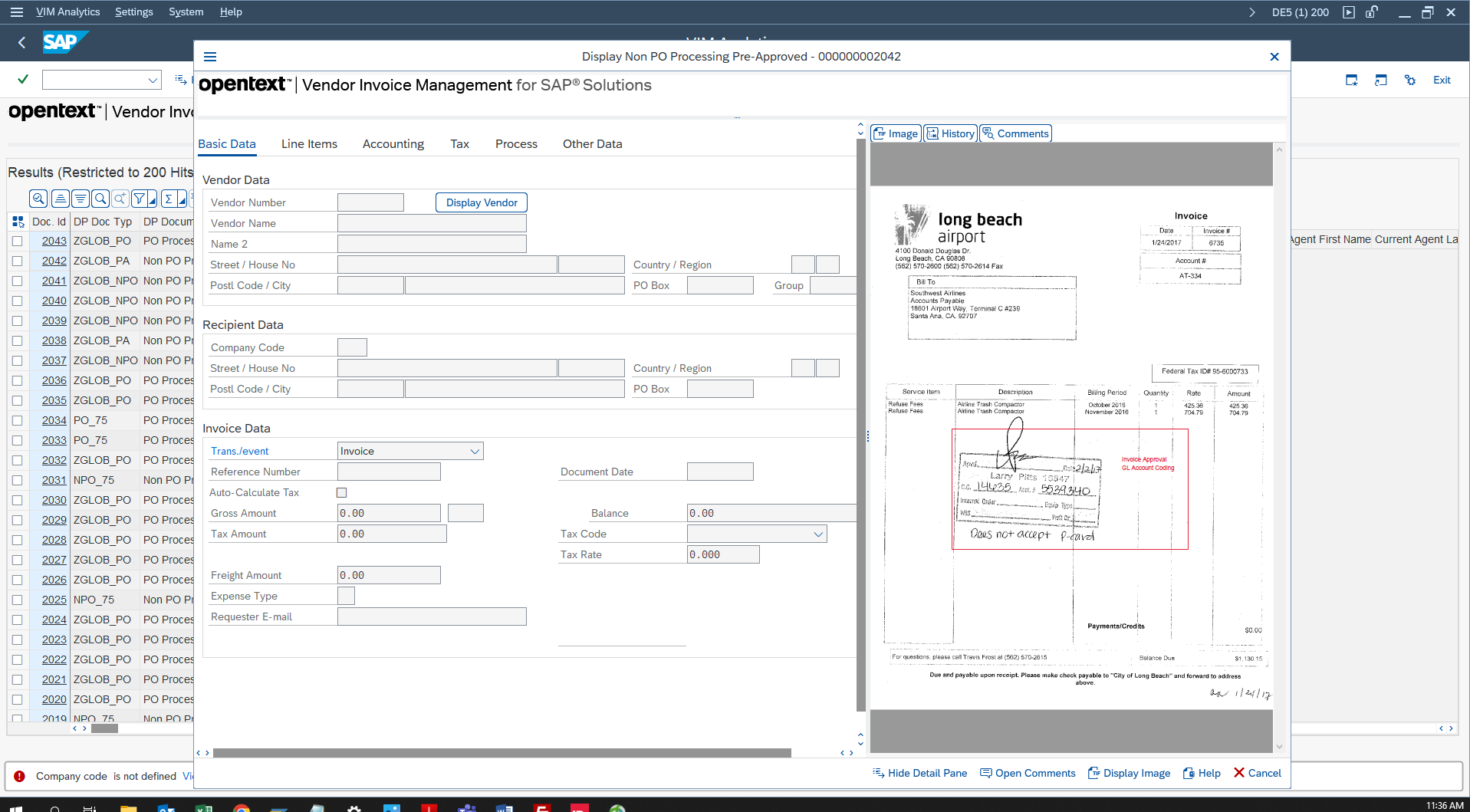
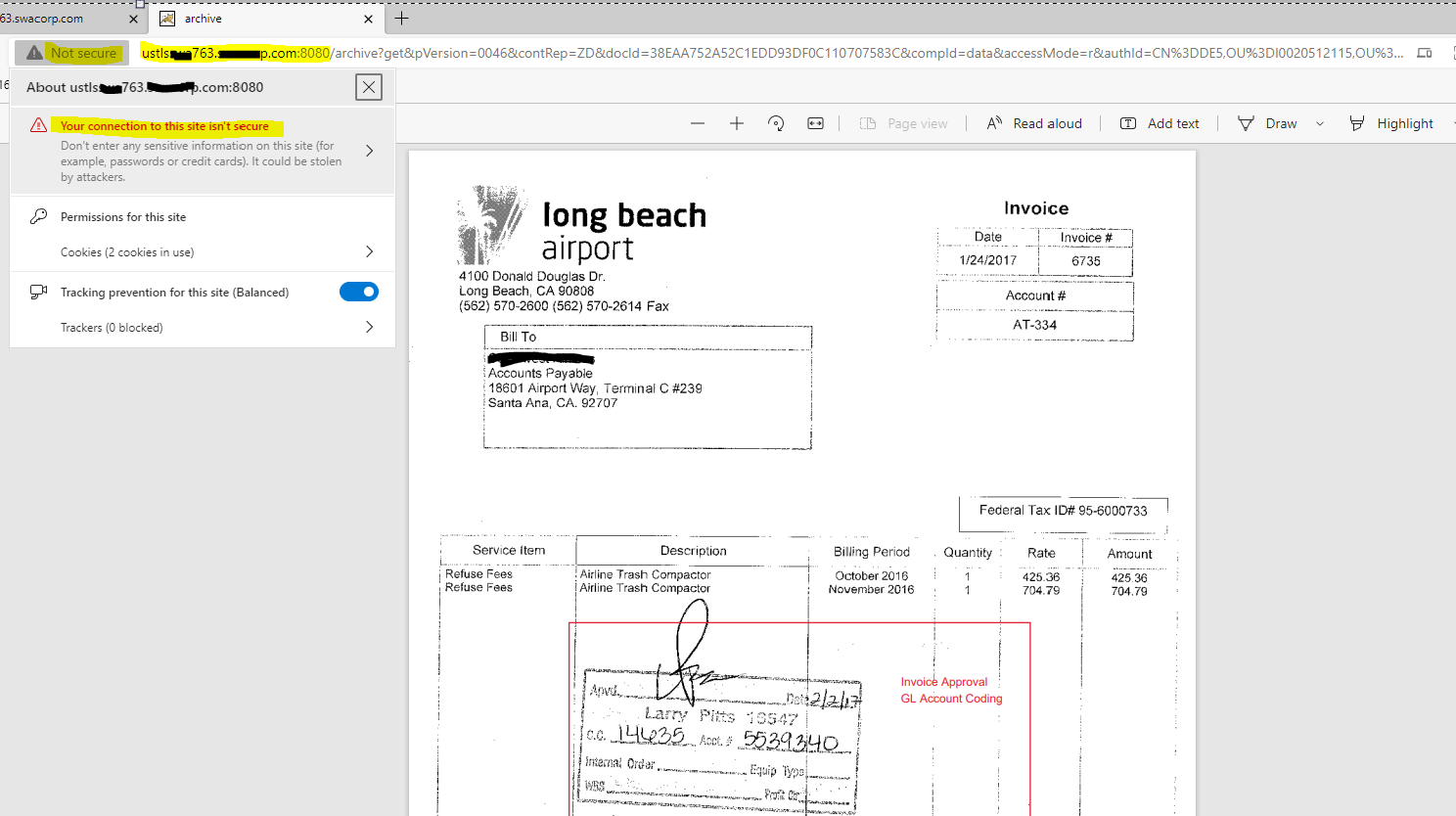
Invoice=> Archiving=> OCR ( server extraction, Optical CORRECTIVE RECOGNITION, IES) Arching is done, imaging should be Archiving was not working, http was changed to https, Archiving started On GUI and Fiori site not visible.
Trx. /n/opt/vim_va2
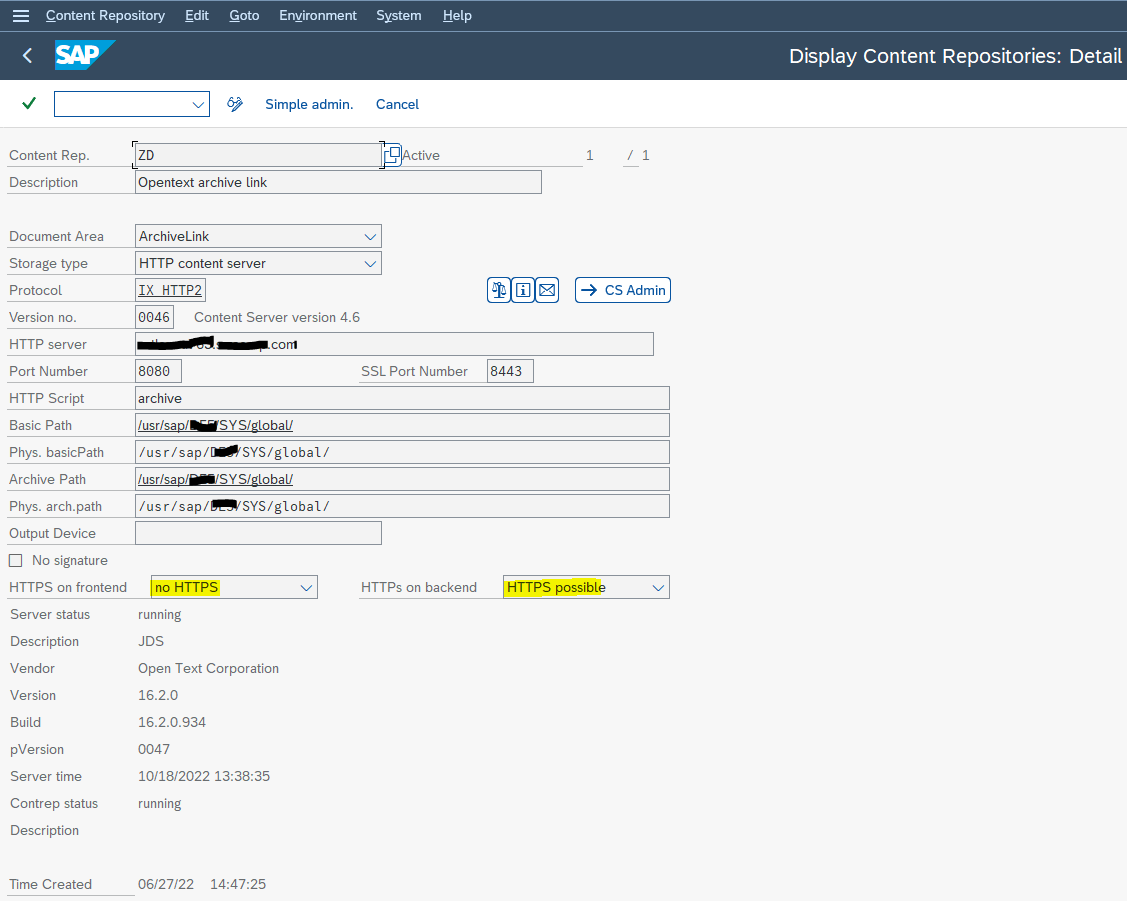
Trx. OAC0
712330 - Accessing server content with HTTPS
Symptom SAP has defined the SAP HTTP content server interface for the connection with external content servers. The interface defines how you can access an external content server with HTTP. To ensure that unauthorized access cannot happen, we are using signed URLs. The data is transferred in an unencrypted way. However, depending on where the interface is being used, it may be necessary to encrypt the data for transfer. This means that HTTPS is required instead of HTTP.
Other Terms SSL, Secure Socket Layer, secure connection
Reason and Prerequisites To be able to use HTTPS, the content server must be able to process HTTPS requests. Apart from the protocol that is being used, other changes to the content server interface are not required for the use of HTTPS. In general, it is sufficient that the web server is HTTPS-enabled.
Solution As of Release 4.6C, it is generally possible to use HTTPS for accessing external content servers. However, various actions are required.
Customizing HTTP access and HTTPS access is performed on different ports. Therefore, you can, as of Release 4.6D, maintain the HTTP port (port number) and the HTTPS port (SSL port number) separately in the Customizing. In Release 4.6C, the port was entered directly behind the HTTP server, separated by a colon (:). You cannot specify separate HTTP and HTTPS ports in Release 4.6C. If port numbers are not maintained, the system will use the default ports (80 for HTTP and 443 for HTTPS). If an HTTPS port is maintained in the Customizing, the application can, in principle, request an HTTPS URL. However, in general, applications do not specify whether HTTP or HTTPS is to be used. It is, therefore, necessary that you define in the Customizing whether HTTP or HTTPS is to be preferred. For this purpose, you must use the %HTTPS OK code in the detail screen of transaction OAC0. After you have entered the %HTTPS OK code, the system will display two additional options, "HTTPS on the front end" and "HTTPS on the back end". The original intention was to allow different access modes on the front end and the back end. However, when applied in a practical way, this differentiation is not important. In addition, it may not be known if the URL is to be used on the front end or the back end when it is created. Therefore, if you want to use HTTPS, we recommend that you set both options to "HTTPS required". Additional Customizing settings are not required. The Customizing for HTTPS may change in future releases. HTTP client In addition, you must ensure that all HTTP clients that are being used can handle HTTPS. The main HTTP clients in this context are: SAPHTTP Refer to note 506314 for more information. HTTP plugin of the Web Application Server You must activate HTTPS for the HTTP plugin in the Web Application Server. You can check the activation status with transaction SMICM. If you want to switch to the services, HTTPS must be active. Browser Documents are often displayed directly in the browser or in place in the HTML control. The relevant browser settings must allow HTTPS. You may have to distribute certificates for HTTPS access. External viewers If you are using external viewers that access the documents with a URL, they must also be HTTPS-enabled.
Check the Secure Communication Setup (HTTPS) To be able to successfully use HTTPS, the following components must be HTTPS enabled:
The ABAP system (see SAP Note 712330) The Web Dispatcher (see Configuring the SAP Web Dispatcher to Support SSL ) Your document repository To HTTPS-enable the communication to your repository, proceed as follows in the detail view of transaction OAC0:
Enter %HTTPS into the transaction field and press enter. The additional fields HTTPS on frontend and HTTP on backend are displayed. Set both fields to HTTPS possible and enter an SSL Port Number, if you use another port than the 443 standard.
Check the Logon Data Start transaction SICF. Double-click the service /sap/bc/contentserver. Change to the Logon Data tab page and check the data.