SRS List of Groups NEW - ita-social-projects/what-front GitHub Wiki
List of Groups (new) Feature
Process
- Admin, Secretary, and Mentor can use this Feature
- This feature shows a list of existing groups
- After clicking on the 'Groups' header's tab - the system will redirect the user to 'List of Groups' feature
- The system sends a request to the server and if the request is successfully loaded, it shows 'List of Groups'
- Until the groups are downloaded, instead of 'List of Groups' component the loader is being shown
- From this component Admin, Secretary, Mentor can reach the 'Group details' component
- From this component Admin, Secretary, Mentor can reach the 'Edit group' component
- If the system has more than nine groups, the user can see pagination at the bottom center of the screen
Functions
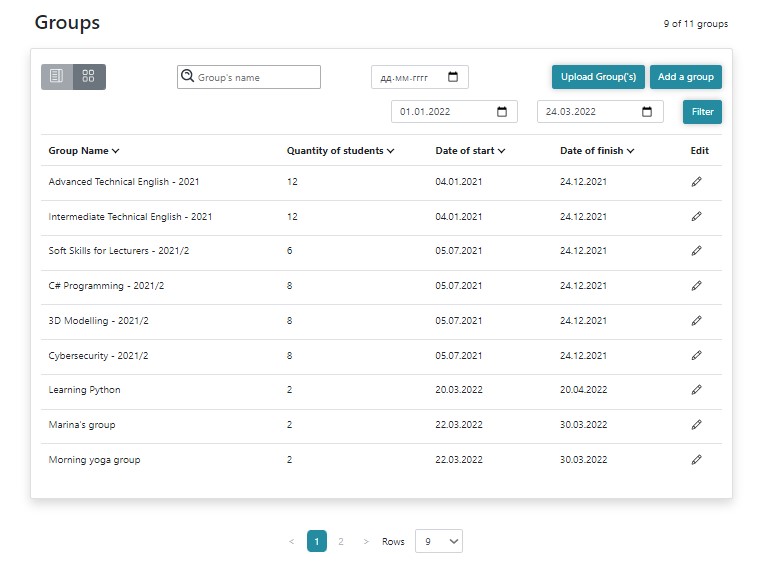
- The table includes 5 columns, which are headed with 5 heading names: 'Group Name', 'Quantity of students' (in this group), 'Date of Start', 'Date of finish', 'Edit`, that are designed with two types of arrow.
- The default sorting is next: groups with biggest index (serial number of the element) are displayed in the end of the list
- Every heading is clickable and provide separated sorting methods for each column:
- 'Group Name' provides sorting by alphabet.
- 'Quantity of Students' provides sorting by quantity of students in this group.
- 'Date of start' provides sorting by date.
- Date of finish provides sorting by date.
- When user clicks the first time on the heading of a particular column, sorting is made in ascending way. The arrow next to the heading is changed only when user clicks again to the same arrow which is rotated on 180 deg. When user clicks the second time on the heading of a particular column, sorting is made in descending way. When user clicks the third time on the heading of a particular column, sorting is made in ascending way.
- Sorting by numbers is set to default from the 1 to the last group, and when it changes immediately after the first clicking and provide sorting in ascending way. When user clicks the second time on the heading of a particular column, sorting is made in descending way. When user clicks the third time on the heading of a particular column, sorting is made in ascending way.
- Sorting is made by default after page refresh: groups with biggest index (serial number of the element) are displayed in the end of the list.
Requirements
- User must be logged as
Admin,SecretaryorMentor - 'Search' field is empty by default, only 'Group's name' placeholder value is set. There is an available search by group name, which works on onChange event (when user input date via search field or date picker).
- 'Add a group' in the future, the 'Add a group' button should redirect to the 'Add a group' component
[ADD] [“Upload Group(s)” button if it relevant and describe its functionality]
-
Search by 'groups start date' is in process now, so it will be available in the future. Now it's NOT working correctly.
-
'Edit' icon in every row redirects to the 'Group Tabs' component. Active-tab (color of the tab is yellow) and relevant content is 'Edit a group' [ADD] ['Edit' icon to the mockup ].
-
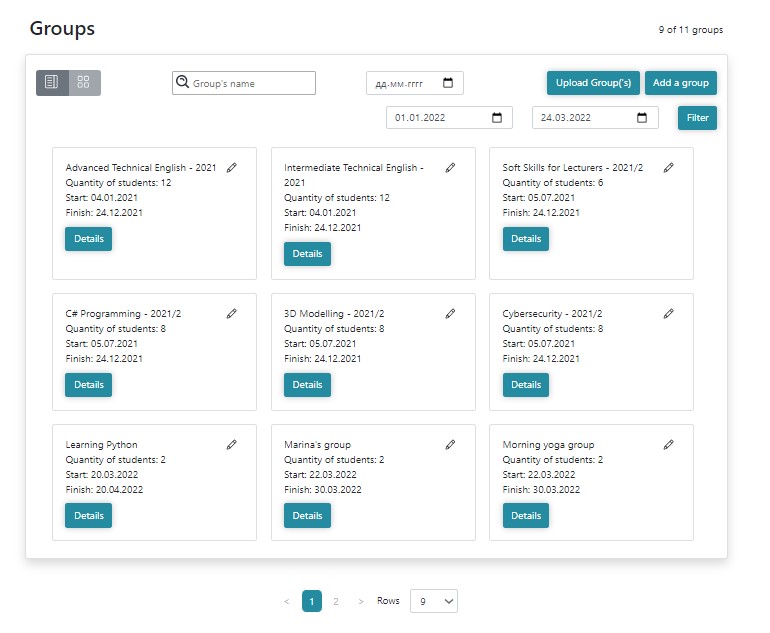
'Details' in every row is available by clicking on this row and redirects to the 'Group Tabs' component. Active-tab and relevant content is 'Group details'.
-
User can choose how many groups will be displayed on the page after clicking the 'Rows' drop-down menu (9, 27, 45, 72 or 99).
-
There are options to view the list of groups: by list or by cards.
List view of groups:
Block view of groups:
Errors
Errors
| Description | Result |
|---|---|
| The search field is filled with a Group name that doesn't exist | Group not found |
Back to content