SRS Edit student details - ita-social-projects/what-front GitHub Wiki
[WIP]
Edit student details
Process
- Admin, Secretaries, Mentors have access to this component from List of Students
- This feature allows us to edit details of a specific student, which we get by student ID
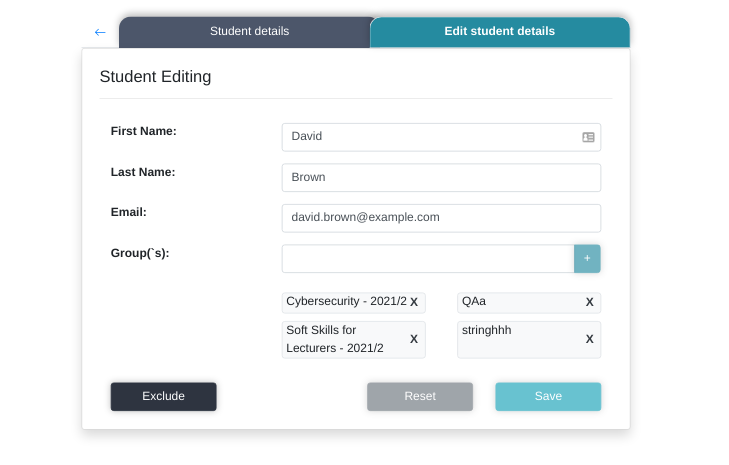
- After clicking on icon edit details - system will redirect the user to Student Tabs component with active Tab(tab color: yellow) Edit student details and relevant content
- The system sends a request to the server and if the request is successfully loaded, it will show us Student Tabs
- Not Found component will be rendered if a student with current ID doesn't exist
Requirements for the Form
- User is able to edit all fields in the Edit student details component
- There are 4 fields in the form with accordant validation in each of them:
- First name field allows to change and update the student's first name. This field requires to put in whether Latin letters, in upper or lower case
- Last name field allows to change and update the student's last name. This field requires to put in whether Latin letters, in upper or lower case
[EDIT] [it makes sense to add a hyphen to valid characters in this field, because there are double surnames, which are written with a hyphen]
- Email field allows to change and update the student's email
- This field requires to put in whether Latin letters, in upper or lower case, numbers or all of them
- This field requires to put in
**@**symbol in the end after typed expression - This field requires to add a post address in the end after
**@**symbol (For example: "[email protected]")
[EDIT] [Email address format should be described more accurately:
- A valid email address consists of an email prefix and an email domain, both in acceptable formats.
- The prefix appears to the left of the '@' symbol.
- The domain appears to the right of the '@' symbol. For example, in the address [email protected], "example" is the email prefix, and "mail.com" is the email domain.
Acceptable email prefix formats: Allowed characters: letters (a-z), numbers, underscores, periods, and dashes. An underscore, period, or dash must be followed by one or more letter or number.
Acceptable email domain formats: Allowed characters: letters, numbers, dashes. The last portion of the domain must be at least two characters, for example: .com, .org, .cc]
- Groups field allows us to add a group to the student's groups by filling in an accordant input or selecting from the list of existing groups
- This field requires to put in whether Latin letters, in upper or lower case, spaces between words, numbers or all of them
- This field allows to remove and update the student's groups name by clicking on a "X" button, which is located opposite to the group's name in every, defined some time ago, group's name
General Requirements
- User must be logged in as an Admin, Secretary, Mentor
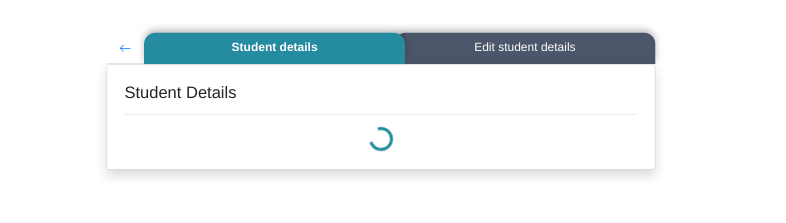
- Until the student by id is downloaded, inside "Edit student details" component the loader is being shown
- Until all groups are downloaded, inside "Edit student details" component the loader is being shown
- Until the groups by student id are downloaded, under the input for adding groups - the loader is being shown
- The Button arrow, to the left of the first tab, is enabled and redirects us to the previous component(List of Students)
- After clicking on the button "Save" or "Exclude", we send a request, and during this time, the buttons "Save" and "Exclude" are disabled. If the request is successful - the system will redirect the user to the List of Students. If the request is failed the user keeps staying in this component and the buttons become enabled
- By clicking on the button "Reset" we return all inputs values to their initial state
- By clicking on the button "Exclude" we will remove the current student and the system will redirect us to the updated List Of Students
- Clicking on the Student details Tab - this tab becomes active and shows us relevant content
- The Exclude button is activated if the form is loaded, valid and no changes have been made to the form. When the user makes changes in any field the Exclude button is disabled
- The Reset button is disabled if the form is loaded and no changes have been made to the form. When the user makes changes in any field the Reset button is active
- The Save button is disabled if no changes have been made to the form. When the user makes changes in any field and the form is valid the Save button is active
Errors
| Description | Result |
|---|---|
| Writing the wrong id in the URL address | redirect to Not Found component |
| The first name field | |
| The first name field is empty | This field is required |
| The first name field contains one letter | Too short |
| The first name field contains more than fifty letters | Too long |
| The first name starts or finished with whitespace or hyphen | Invalid first name |
| The first name field contains at least one symbol or number | Invalid first name |
| The last name field | |
| The last name field is empty | This field is required |
| The last name field contains one letter | Too short |
| The last name field contains more than fifty letters | Too long |
| [EDIT] The first [last] name starts or finished with whitespace or hyphen | Invalid last name |
| [EDIT] The first [last] name field contains at least one symbol (except for apostrophe) or number | Invalid last name |
| The email address field | |
| The Email address field is empty | This field is required |
| The email address field is filled by non-existent email | Invalid email address |
Back to content