SRS Edit Secretary - ita-social-projects/what-front GitHub Wiki
[WIP]
Edit Secretary's details
Process
- Admin have access to this component from List of Secretaries
[EDIT] [- Admin have access to this component from List of Secretaries (both from 'List of Secretaries' table and 'List of Secretaries' cards)]
- This feature allows to edit information details about Secretary by their ID
- After clicking on the Edit icon system will redirect the user to the Secretaries Tabs component with an active Tab of Edit Secretary and relevant content
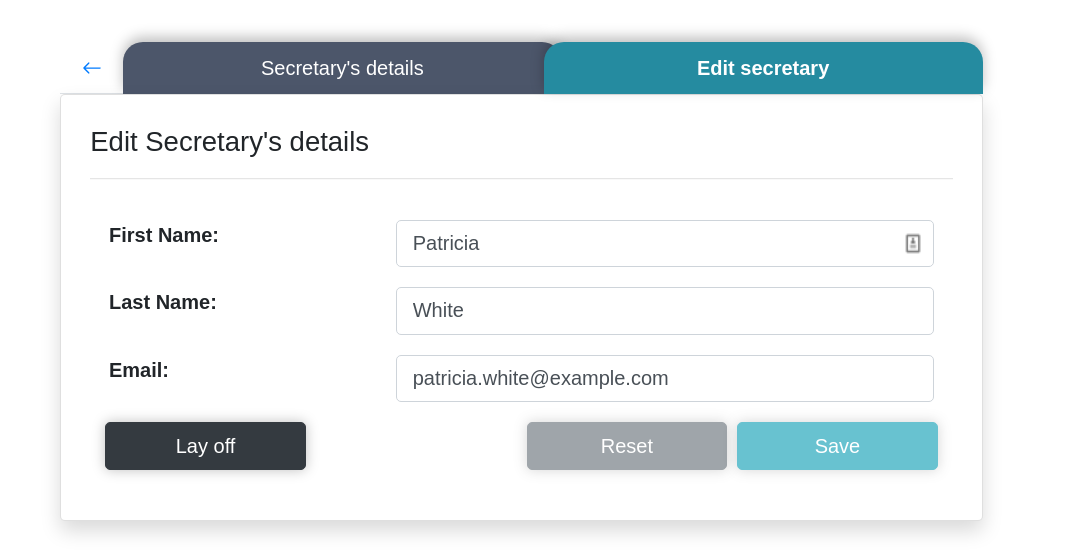
[EDIT] [- After clicking the 'Edit' icon (both from 'List of Secretaries' table and 'List of Secretaries' cards) system will redirect the user to the 'Secretaries Tabs' component with an active 'Edit Secretary' Tab and relevant content. The 'Secretary's details' Tab is inactive.]
[ADD] [Admin can also navigate to the 'Edit Secretary' Tab from the 'Secretary's details' Tab by clicking the 'Edit Secretary' Tab.]
- After clicking on the buttons the system sends a request to the server and if the request is successfully loaded will render the Edit Secretary form
[EDIT] [- After clicking the 'Edit' icon the system sends a request to the server and if the request is successfully loaded will render the Edit Secretary form]
- Not Found component will be rendered if secretary with current ID doesn't exist
Requirements
- User must be logged in as Admin
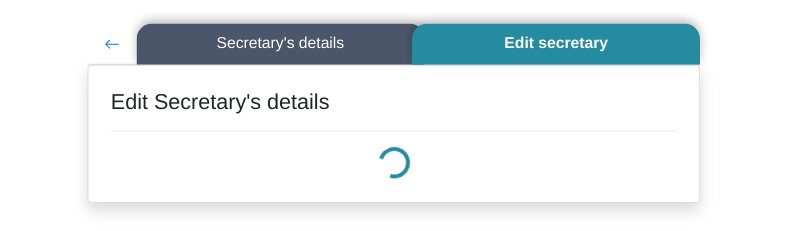
- While the system processes a request, the user can see the loader
- When the user presses the Secretary's details to tab the system shows features content and the tab becomes an active
[EDIT] [When the user is on the 'Edit Secretary' Tab 'and click the 'Secretary's details' Tab, the system shows relevant content of active 'Secretary's details' Tab and the 'Edit Secretary' Tab becomes an inactive.]
- When the user is on the Secretary's details tab and pressing the refresh button the system make an active tab of Edit Secretary
[EDIT] [When the user is on the 'Secretary's details' Tab and click the 'Edit Secretary' Tab, the 'Edit Secretary' Tab becomes an active.]
- The first name field contains the secretary's name with the current ID. Latin letters are available
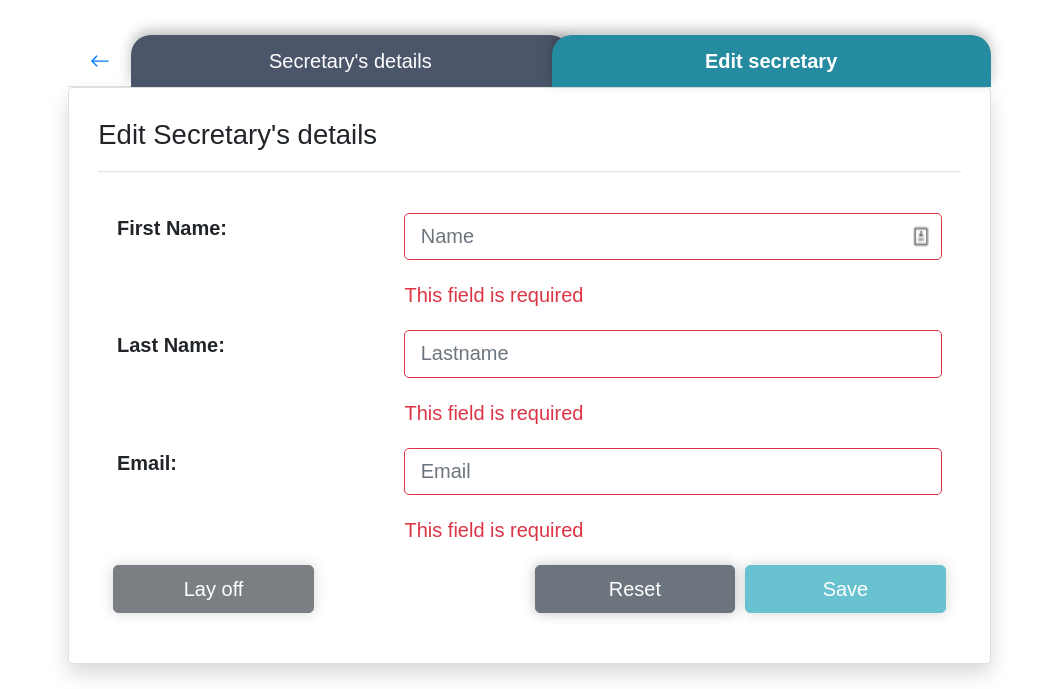
[EDIT] [The 'First name' field contains the secretary's name with the current ID. Available: lowercase and uppercase latin letters, special characters (only space and hyphen, not at the beginning and not at the end), from 2 to 50 characters. The 'First name' field with invalid data is highlighted in red and the corresponding error message occurs below the 'First name' field.]
- The last name field contains the secretary's last name with the current ID.
[EDIT] [The 'Last name' field contains the secretary's last name with the current ID. Available: lowercase and uppercase latin letters, special characters (only space and hyphen, not at the beginning and not at the end), from 2 to 50 characters. The 'Last name' field with invalid data is highlighted in red and the corresponding error message occurs below the 'Last name' field.]
- The Email address field contains the secretary's email with the current ID. Input only allowed in the mail address format
[EDIT] [The 'Email' field contains the secretary's email with the current ID. Input only allowed in the mail address format: the email address must have three elements (local part, @ and domain part - without whitespaces).]
[ADD] [Local part:
- Latin letters in upper and / or lower case (A-Z, a-z);
- numbers (from 0 to 9);
- special characters like #! % $ '& + * - / =? ^ _`. {| } ~. The dot (.) character can only be used in the local part of an address if it is not at the beginning or end of the address. In addition, you cannot use two points in a row.
Domain part consists of two parts separated by a dot (.). Each part must be no longer than 63 characters and can contain:
- Latin letters in upper and / or lower case (A-Z, a-z);
- numbers (from 0 to 9), but provided that the domain is not completely a set of numbers;
- hyphen (-), provided that it is not at the beginning or end of the domain part.
The 'Email' field with invalid data is highlighted in red and the corresponding error message occurs below the 'Email' field.]
- The 'Lay off' button is activated if the form is loaded, valid and no changes have been made to the form. When the user makes changes in any field the 'Lay off' button is disabled.
[EDIT] [The 'Lay off' button (for active secretary)/'Reinstate' button (for disabled secretary) is activated if the form is loaded, valid and no changes have been made to the form. When the user makes changes in any field the 'Lay off' (for active secretary)/'Reinstate' button (for disabled secretary) button is disabled.]
- After clicking on the 'Lay off' button the system shows a modal window - 'Confirm action' with two buttons: 'Cancel' and 'Lay off'.
- 'Cancel' button will close the modal window
- 'Lay off' button will send a request to the server and if the request was succeded redirects the user to the List of Secretaries feature.
[EDIT] [- After clicking on the 'Lay off' button (for active secretary)/'Reinstate' button (for disabled secretary) the system shows a modal window - 'Confirm action' with two buttons: 'Cancel' and 'Lay off'/'Reinstate'.
- 'Cancel' button will close the modal window
- 'Lay off'/'Reinstate' button will send a request to the server and if the request was succeded redirects the user to the 'List of Secretaries' feature. And the status of the corresponding secretary changes and that secretary moves to the list of disabled/active secretaries]
- The 'Reset' button is disabled if the form is loaded and no changes have been made to the form. When the user makes changes in any field the 'Reset' button is active.
[ADD] [After clicking the 'Reset' button all inputs values return to their initial state, before changing.]
- The 'Save' button is disabled if no changes have been made to the form. When the user makes changes in any field and the form is valid the 'Save' button is active.
- After clicking the 'Save' button the system sends requests to the server and if the request was succeded redirects the user to the 'List of Secretaries' feature
[EDIT] [After clicking the 'Save' button the system sends requests to the server and if the request was succeded redirects the user to the 'List of Secretaries' feature. The changes made are saved in the system and displayed in 'List of Secretaries' feature]
Errors
| Description | Result |
|---|---|
| Writing the wrong id in the URL address | redirect to Not Found component |
| The first name field | |
| The first name field is empty | This field is required |
| The first name field contains one letter | Too short |
| The first name field contains more than fifty letters | Too long |
| The first name starts or finished with whitespace or hyphen | Invalid first name |
| The first name field contains at least one symbol or number | Invalid first name |
| The last name field | |
| The last name field is empty | This field is required |
| The last name field contains one letter | Too short |
| The last name field contains more than fifty letters | Too long |
| The last name starts or finished with whitespace or hyphen | Invalid last name |
| The last name field contains at least one symbol (except for apostrophe) or number | Invalid last name |
| The email address field | |
| The Email address field is empty | This field is required |
| The email address field is filled by non-existent email [EDIT] [The email address field is filled with an email address that does not match the email address format | Invalid email address |
Back to content