Report Favorites - hmislk/hmis GitHub Wiki
Report Favorites — Pinning Your Most-Used Reports
The Reports page lists every report in the system, grouped into categories (Asset Reports, Financial Reports, HR Reports, Inpatient Reports, and so on). With dozens of categories and hundreds of individual reports, finding the handful you actually run every day means reopening the same category and scrolling to the same button, every single time.
Report Favorites lets you star any report so it also appears on a dedicated ⭐ Favorites tab — pinned as the very first tab on the page, ahead of every category. It is entirely self-service: no administrator setup is needed, and each user's favorites are private to that user.
This feature is being rolled out one report/analytics page at a time. Each page has its own, independent Favorites tab — starring a report on one page never shows it on another page's Favorites tab.
| Page | Navigation | Page path |
|---|---|---|
| Reports | Top menu bar → 📊 Reports (chart-bar icon) → Reports | /reports/index.xhtml |
| Analytics (Reports section) | Top menu bar → 📊 Reports (chart-bar icon) → Analytics | /analytics/index.xhtml |
More pages (Pharmacy Analytics, OPD Analytics, and others) are being added under the same rollout — this table will grow as each ships.
Where to find it
The screenshots below are from the main Reports page (/reports/index.xhtml, via Top menu bar → 📊 Reports → Reports) — the behavior is identical on every other page listed above, just with that page's own set of report categories.
This is the same Reports page that has always existed — favorites are added directly on top of it, so no new menu entry was introduced.
| The Reports page. ⭐ Favorites is now the first item in the list, ahead of every report category. | 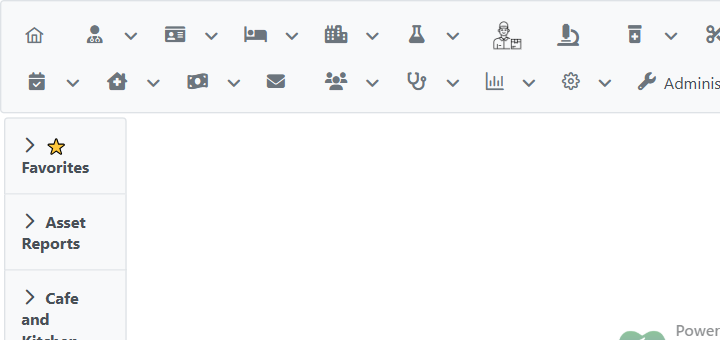 |
Starring a report
Open any category (e.g. Asset Reports). Every report button now has a small star button next to it.
| Each report button has its own star toggle beside it. | 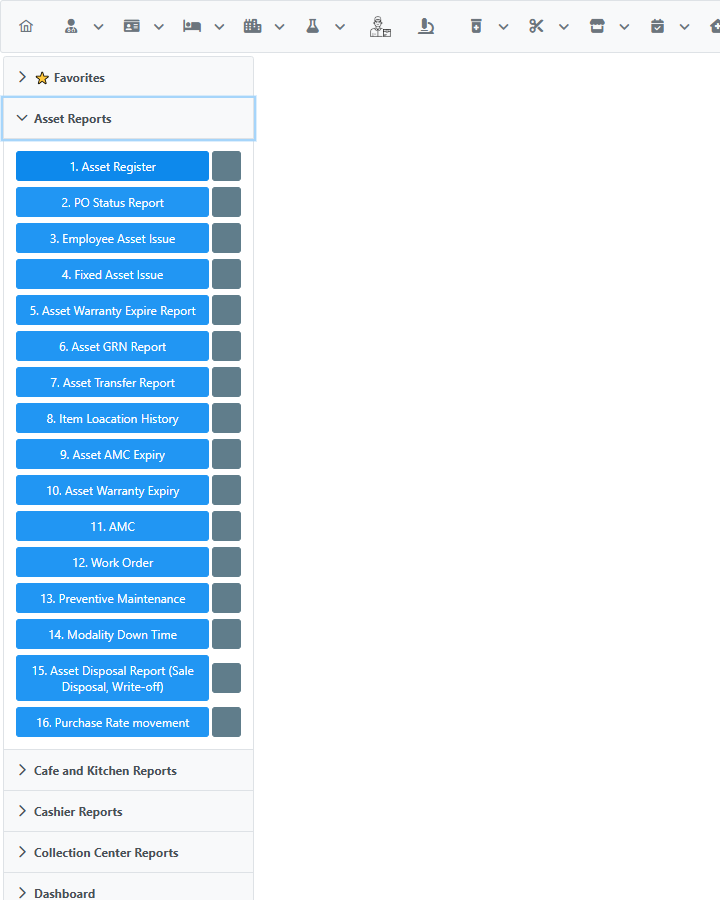 |
| Click the star to favorite a report — it fills in white/solid to confirm. | 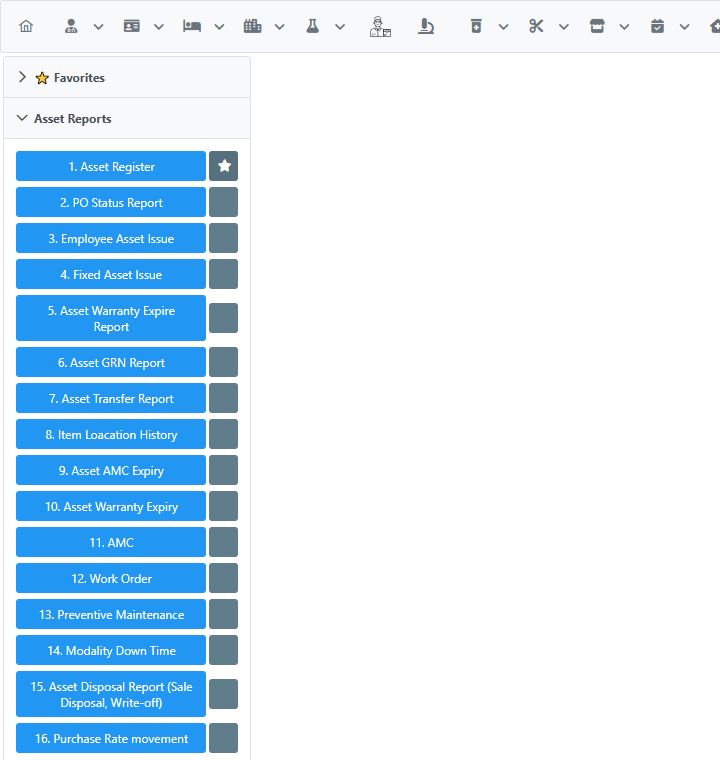 |
Favorites work the same way in every category — starring a report in Financial Reports behaves identically to starring one in Asset Reports:
| Starring "22. Profit Matrix" in Financial Reports. | 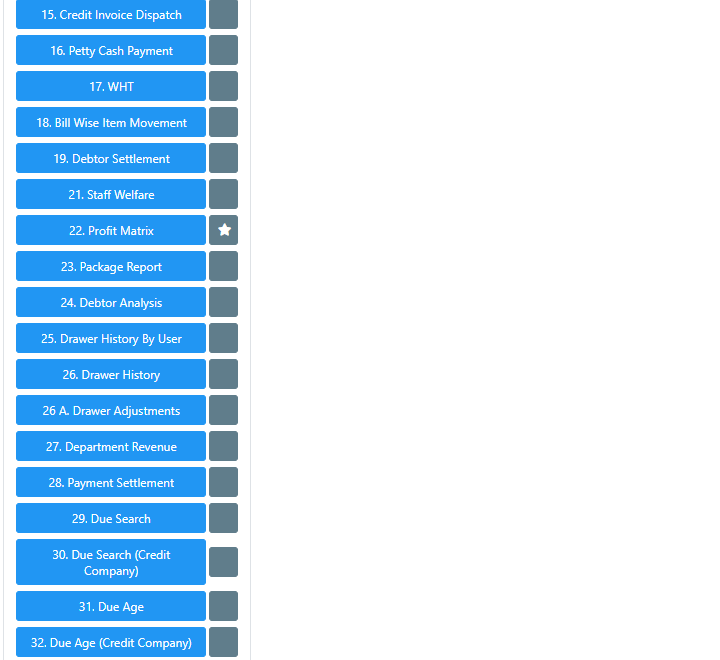 |
Using the Favorites tab
Open the ⭐ Favorites tab (first tab on the page) at any time to see everything you've starred, regardless of which category it originally belongs to.
| The Favorites tab showing several starred reports from different categories, stacked closely together regardless of how many reports exist across the rest of the page. | 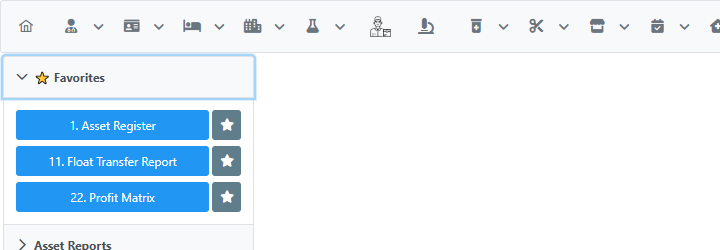 |
Clicking a report button inside the Favorites tab opens that report exactly as if you had clicked it from its original category — it is a real, working shortcut, not just a bookmark list.
| Clicking "1. Asset Register" from the Favorites tab opens the actual Asset Register report page. | 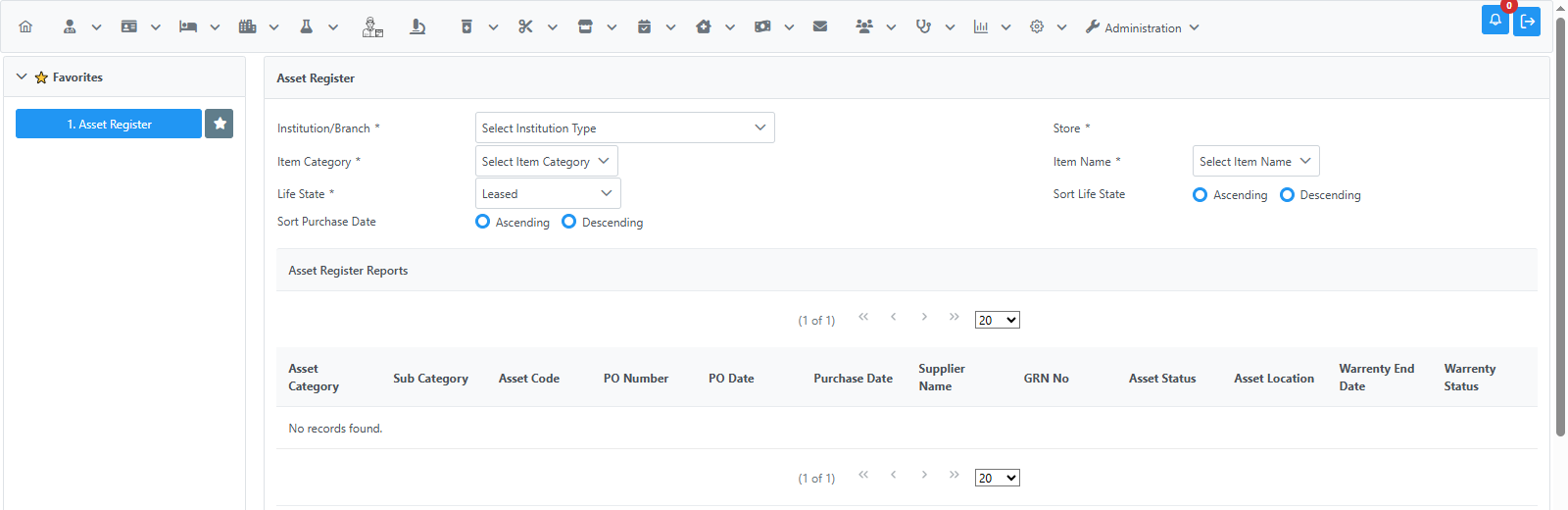 |
Removing a favorite
Click the star again — either from the Favorites tab or from the report's original category — to unfavorite it. The star state always stays in sync between the two locations.
| After removing "22. Profit Matrix", only "1. Asset Register" remains on the Favorites tab. | 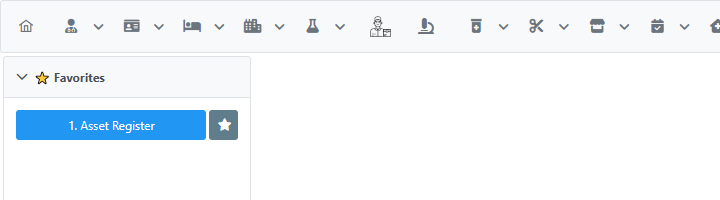 |
| With nothing starred, the Favorites tab shows a simple empty-state message. | 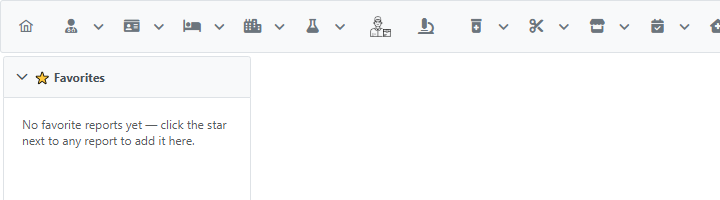 |
Notes
- Per-user. Favorites are personal — starring a report only changes what you see; it does not affect any other user's Reports page.
- Self-service. No administrator action is required to add or remove a favorite, unlike some other user-customization features in the system that need to be assigned by an admin.
- Privileges are still respected. If a report button is only visible to users with a specific privilege, its favorited copy on the Favorites tab respects that same privilege check — favoriting a report never grants access you didn't already have.
- Works across all report categories — Asset Reports, Cashier Reports, Financial Reports, HR Reports, Inpatient Reports, and every other category on the page.