Pharmacy Adjustment Approval Workflow - hmislk/hmis GitHub Wiki
Pharmacy Adjustment Approval Workflow
Stock quantity, purchase/cost/retail/wholesale rate, and expiry-date adjustments in the Pharmacy Adjustments module can optionally require a second person's approval before they take effect. This is off by default — hospitals that want it must switch it on per department.
Enabling it
Ask an administrator to set the config option "Pharmacy Stock & Price Adjustments - Require Approval" to true for the department(s) that should require approval. When this is off (the default), every adjustment page behaves exactly as before — one click applies the change immediately.
How it works when enabled
1. Submit for approval. On any of the adjustment pages (Menu → Pharmacy → Adjustments → Quantity/Staff Stock/Purchase Rate/Cost Rate/Sale Rate/Wholesale Rate/Expiry Date Adjustment), the usual "Adjust" button is replaced by "Send for Approval". Fill in the change and comment as normal and click it — nothing is applied to stock or price yet.

The "Send for Approval" button replaces "Adjust" once the config option is enabled — the requested new quantity and comment are captured, but stock is not changed yet.
2. Review the request. The request shows up in the normal request queue (Menu → Request Manager), badged by kind (e.g. "Pharmacy Stock Quantity Adjustment"), same as bill cancellations or drawer adjustments.
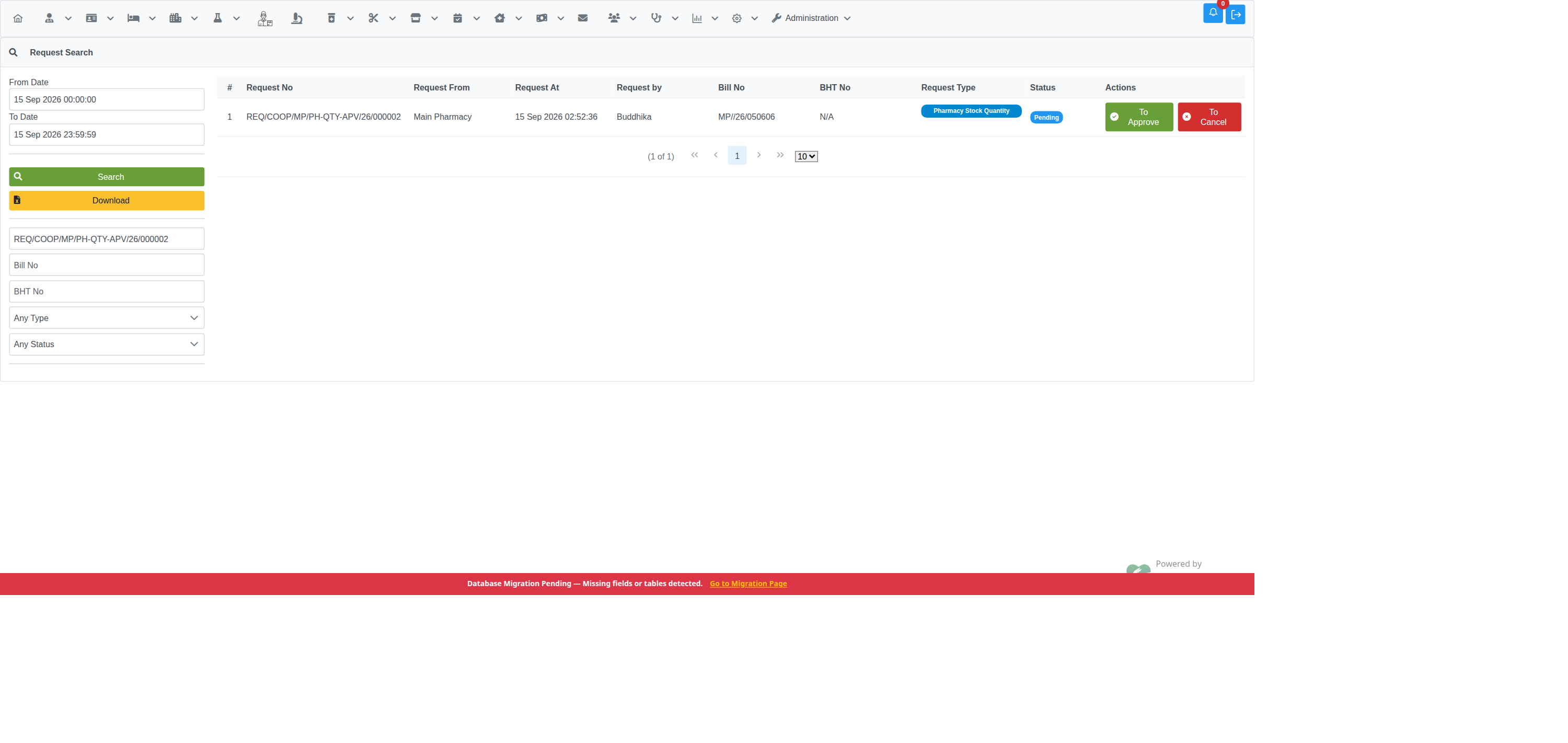
Filter or search by Request No to find a specific submission.
A user holding the matching approval privilege (Pharmacy Stock Adjustment Approval, Pharmacy Price Adjustment Approval, or Pharmacy Expiry Date Adjustment Approval) clicks To Approve to open the request detail, which shows exactly what is changing before/after, then Approve or Reject it (with a reason).

Approving only marks the request approved — it still does not touch stock or price. Rejecting (shown here) permanently discards the request; nothing was ever applied.
3. Apply the approved change. Once approved, it appears on a new Approved Requests tab (Menu → Pharmacy → Adjustments → Reports tab → Approved Requests) for anyone holding the original submit privilege in that department — not necessarily the original submitter.

Clicking Process takes you to the same adjustment page used in step 1, with the requested item, quantity/rate/date, and comment already filled in — but this time showing the normal "Adjust" button.

Clicking "Adjust" here runs exactly the same code path as a normal, un-approved adjustment — it creates the real adjustment bill and updates stock/price. Nothing is applied until this final click.
What this does not change
- With the config option off, every adjustment page works exactly as it always has.
- The approval step never itself changes stock, price, or expiry date — only the final "Adjust" click in step 3 does, using the same page and logic as a direct adjustment.
- Rejected requests never take effect and are simply discarded.