Manage Membership Discounts - hmislk/hmis GitHub Wiki
Manage Membership Discounts
Manage for Pharmacy
Manage for Channelling
Manage for Outpatients
Manage for Inpatients
Inpatient (inward) membership discounts require two independent settings to both be in place. If either one is missing, the computed discount is silently 0.00 — no error is shown to the billing clerk.
- The discount percentage matrix — configured per membership/payment scheme, admission type, and payment method.
- The "Discount Allowed" flag on the item's individual fee lines — configured per item, per fee line (Hospital Fee, Reagent Fee, Other Fee, etc).
1. Configure the discount percentage
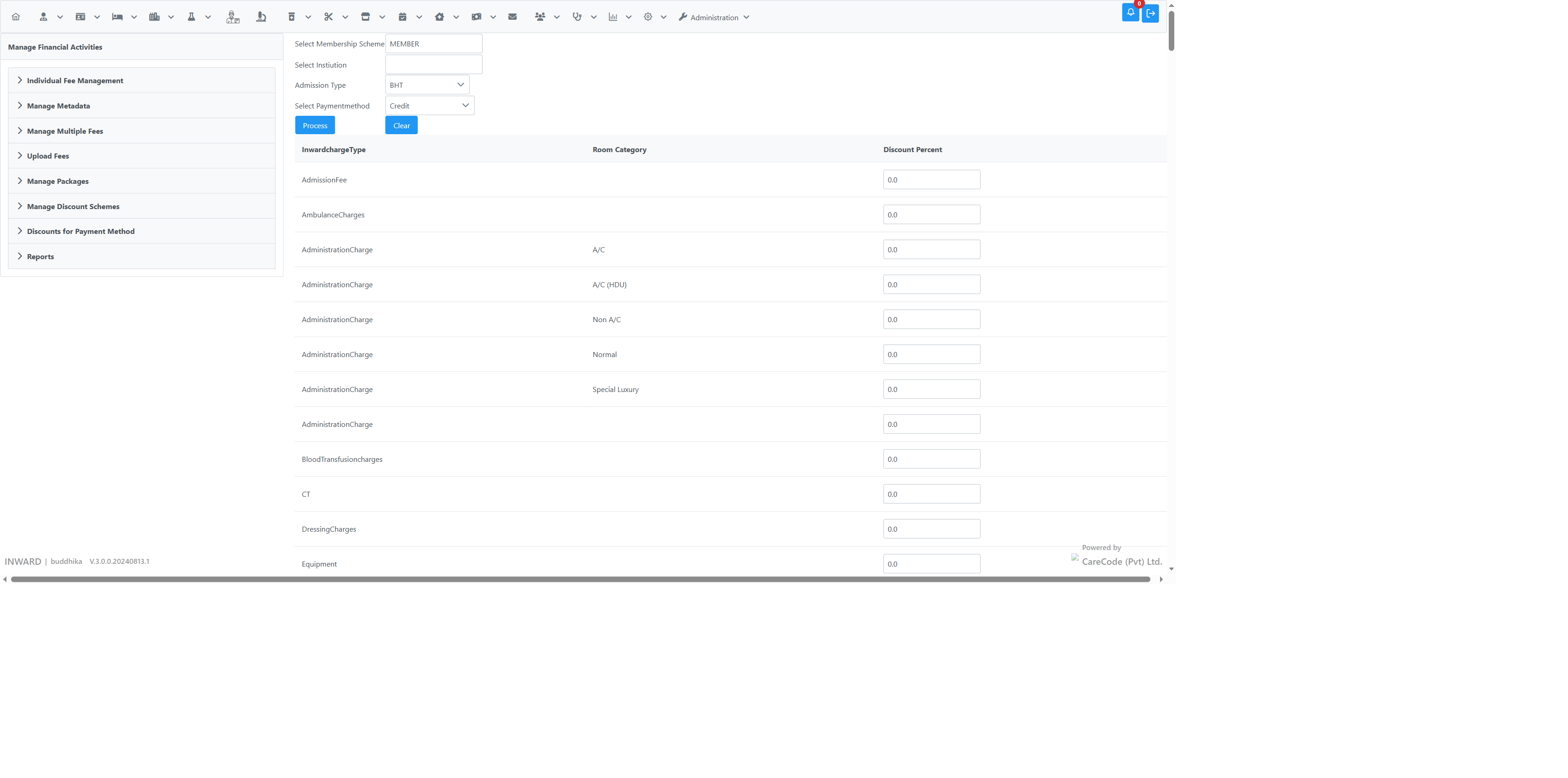
Navigate to Administration → Inward → Manage Discount Schemes (the "Discounts for Payment Method" page under Manage Financial Activities).
- Select the Membership Scheme (e.g. "Member", "VIP Member")
- Select Institution (optional — leave blank to apply to all institutions)
- Select Admission Type (e.g. BHT)
- Select Payment Method (e.g. Credit, Cash)
- Click Process to load the matrix, then enter the discount percentage against the relevant Inward Charge Type / Room Category row — or leave charge type/room category blank for a scheme-wide default that applies to all inward charges.
2. Allow discount on the item's fee lines
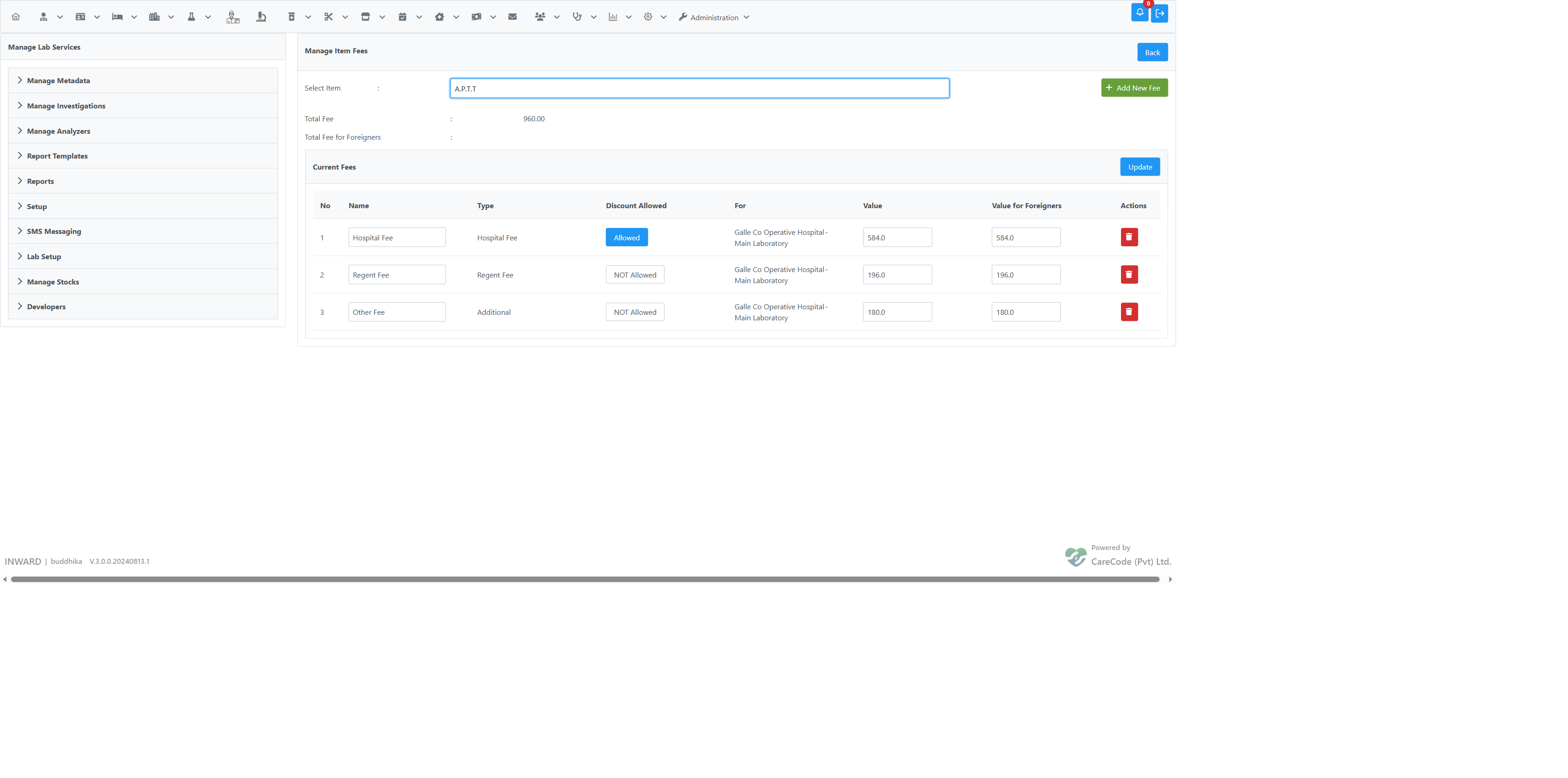
Even with a matrix percentage configured, an item will not discount unless both its own "Discount Allowed" flag and each individual fee line's "Discount Allowed" flag are switched on.
Navigate to the item's Manage Item Fees page (for lab investigations: Administration → Lab Setup → Manage Investigations → select the item → Manage Fees), search for the item, and toggle Discount Allowed to "Allowed" for each fee line that should receive the membership discount — typically the Hospital Fee.
Cost-recovery fee lines (Reagent Fee, Other Fee, Staff Fee) are often deliberately left "NOT Allowed" so the discount doesn't erode below cost. Confirm the intended scope per item with the pricing/finance team before enabling discount broadly.
Result
When both settings are correct, adding the item to an inpatient bill applies the discount immediately. The discount is computed when the line is added — an item already sitting in the bill will not retroactively pick up a configuration change; remove and re-add it after making a change.
Before (fee-level "Discount Allowed" not configured — 0.00 discount despite a matching scheme and matrix row):

After (Hospital Fee's "Discount Allowed" switched on):

See Membership-Discount-Troubleshooter for a step-by-step checklist covering all billing types.