Inward Ward Return to Pharmacy - hmislk/hmis GitHub Wiki
Inward Ward Return to Pharmacy
Overview
When medicines that were issued to a ward are no longer needed — for example, a patient was discharged or a treatment plan changed — ward staff can return the unused items to the pharmacy. The medicines are physically carried by a porter, and the return is tracked in the system.
Returns are made against the pharmacy receive bill that originally brought the medicines onto the ward for that patient. Instead of picking items freely from ward stock, you select one of the patient's received-medicine bills and return quantities line by line. For each line the system shows how much was received, how much has already been returned, and how much has already been administered to the patient, and it works out how much is still returnable. This keeps the return tied to what the patient actually received and prevents returning more than is genuinely left over.
If the return was submitted in error and the pharmacy has not yet accepted the items, ward staff can cancel the return, which automatically restores the stock back to the ward.
This page covers returns of medicines that arrived on the ward via a pharmacy request (porter-mediated, requiring pharmacy acceptance). For medicines issued directly to a BHT (not via a request), see Direct Issue Return to Pharmacy instead — that return settles immediately with no acceptance step.
When to Use
Use this feature when:
- Medicines received onto the ward for a patient are no longer required and need to go back to the pharmacy
- A patient is discharged or transferred with unused medicines still on the ward
- A ward return was submitted in error and needs to be cancelled before the pharmacy accepts the items
- You need to record the handover of medicines from the ward to a porter who will deliver them to the pharmacy
How to Use
Opening the Return Screen for a Patient
The return is always tied to a specific admitted patient (BHT), so you start from that patient's record:
- From the patient's Admission Profile (Inpatient Dashboard), click Return Medicines to Pharmacy, or
- From the Nursing Workbench, select the patient from the Rooms or BHT tab on the left, then click Return Medicines to Pharmacy in the Pharmaceuticals & Consumables panel — this button stays disabled until a patient is selected
The screen header shows the patient's BHT number and name so you can confirm you are on the correct admission.
Step 1 — Choose the Received Medicine Bill
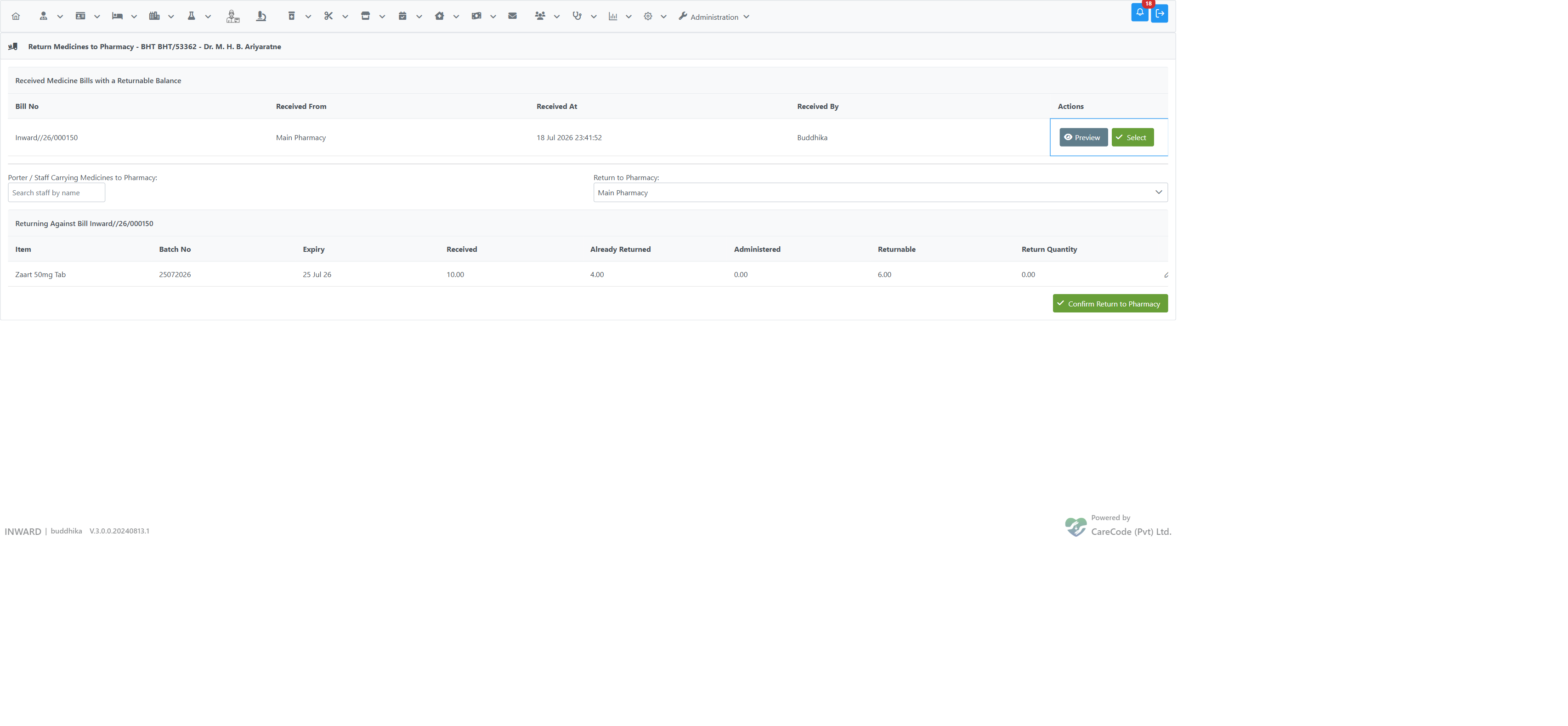
The top of the screen lists Received Medicine Bills with a Returnable Balance for this patient. Each row shows the bill number, the pharmacy the medicines were received from, when they were received, and who received them. Bills where nothing is left to return (everything already administered or already returned) are automatically hidden.
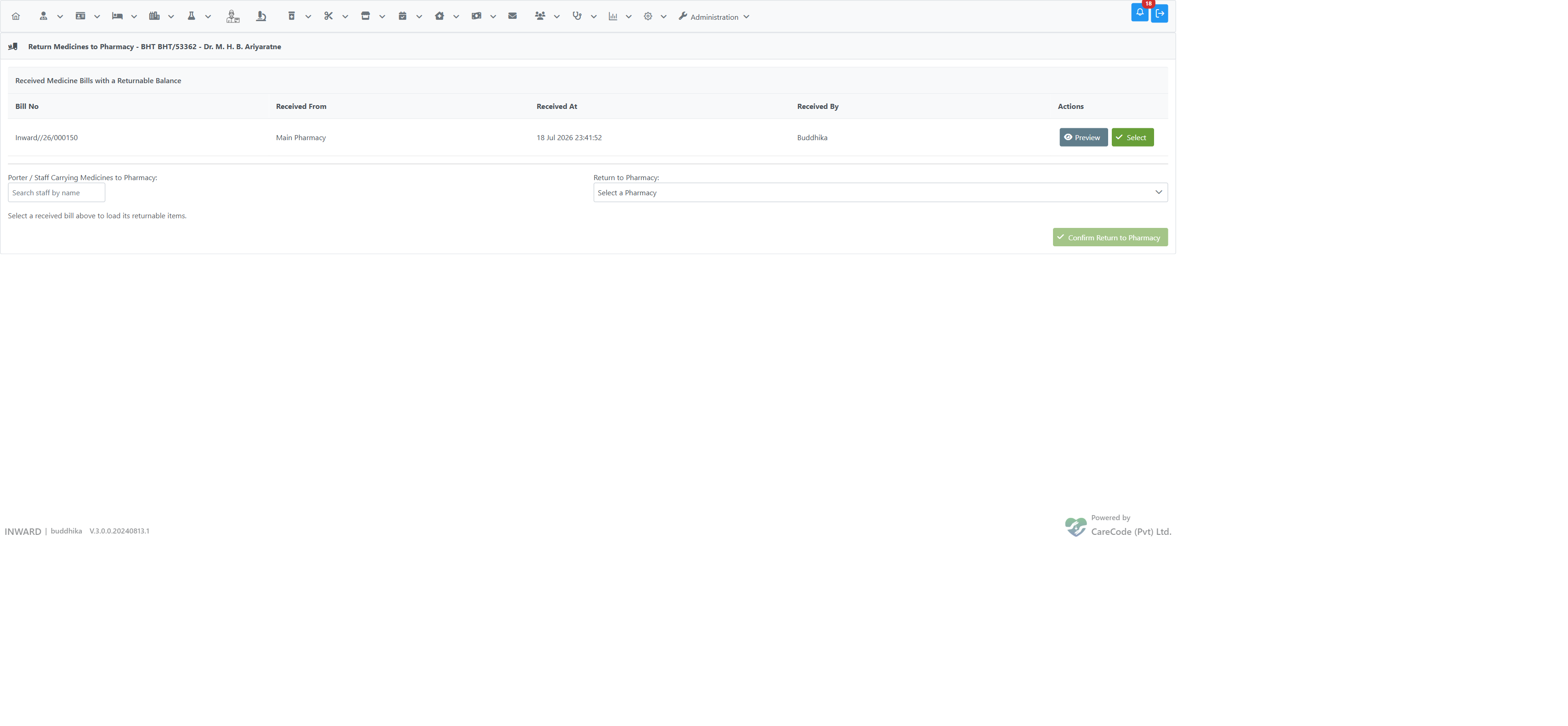
For any bill you can:
- Click Preview to see a read-only breakdown of every line — Received, Already Returned, Administered, and the resulting Returnable quantity — without selecting the bill.
- Click Select to load that bill's returnable lines into the editable table below.
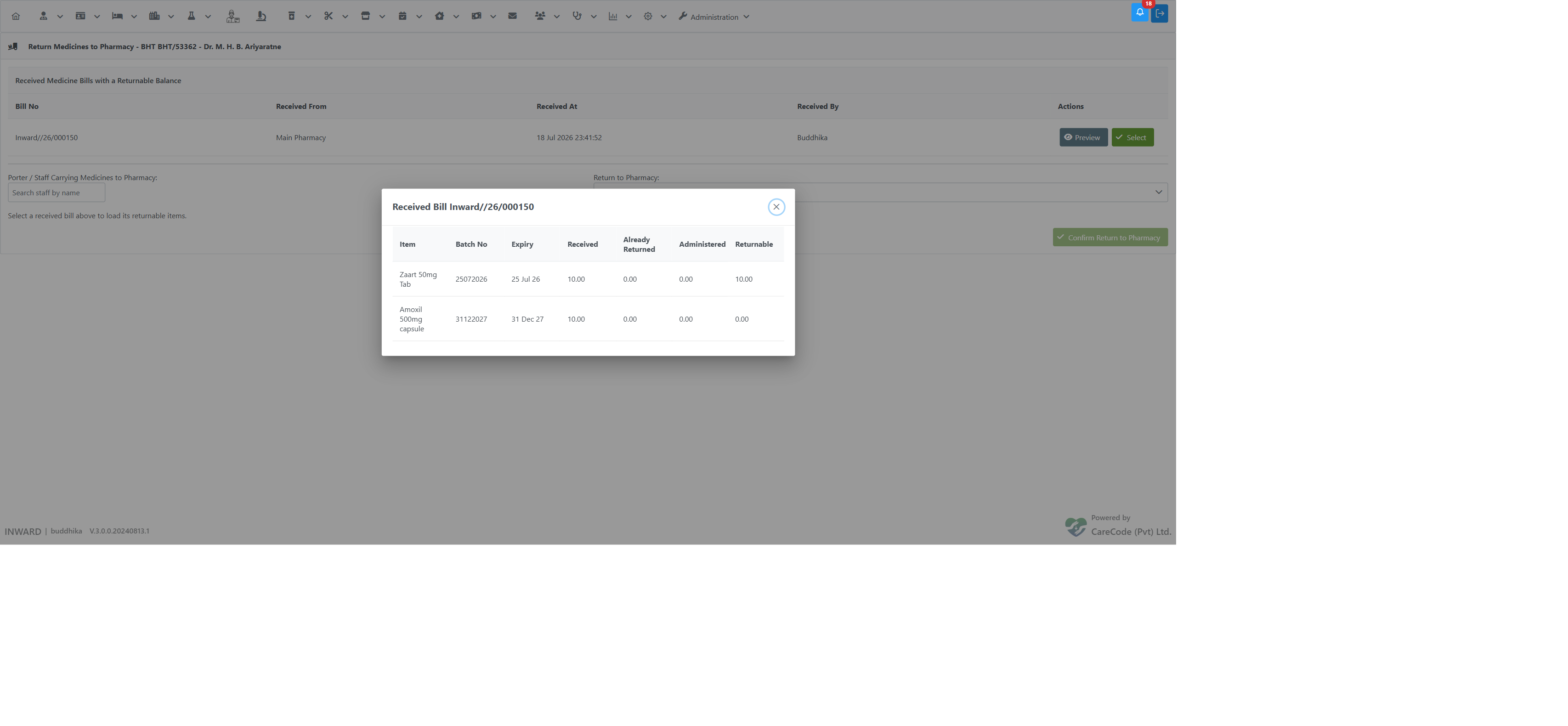
In the example above, one item is fully returnable (10 received, none administered, none returned) while another shows a returnable quantity of 0 — because there is no matching stock left on the ward, so there is nothing physically available to send back.
Step 2 — Enter Return Quantities
After clicking Select, the returnable lines for that bill appear in an editable table. The destination pharmacy is pre-filled with the pharmacy the medicines came from.
For each line you want to return:
- Click the edit (pencil) icon on the row
- Enter the Return Quantity
- Click the tick to confirm the row (or the cross to discard the change)
The quantity is automatically limited to what is returnable:
- Entering more than the returnable amount is capped at the returnable quantity, with a message explaining the limit
- Entering a negative number is reset to 0
Leave a line at 0 for anything you are not returning. Only lines with a quantity above 0 are included in the return.
Step 3 — Confirm the Return
- Select the Porter / Staff who will carry the medicines to the pharmacy
- Confirm the Return to Pharmacy destination (pre-filled from the received bill; change it if needed)
- Click Confirm Return to Pharmacy
- In the confirmation prompt, click OK
The system deducts the quantities from the ward's stock, credits them to the porter's stock record, and generates a return bill. Each return line is linked back to the exact received-bill line it came from.
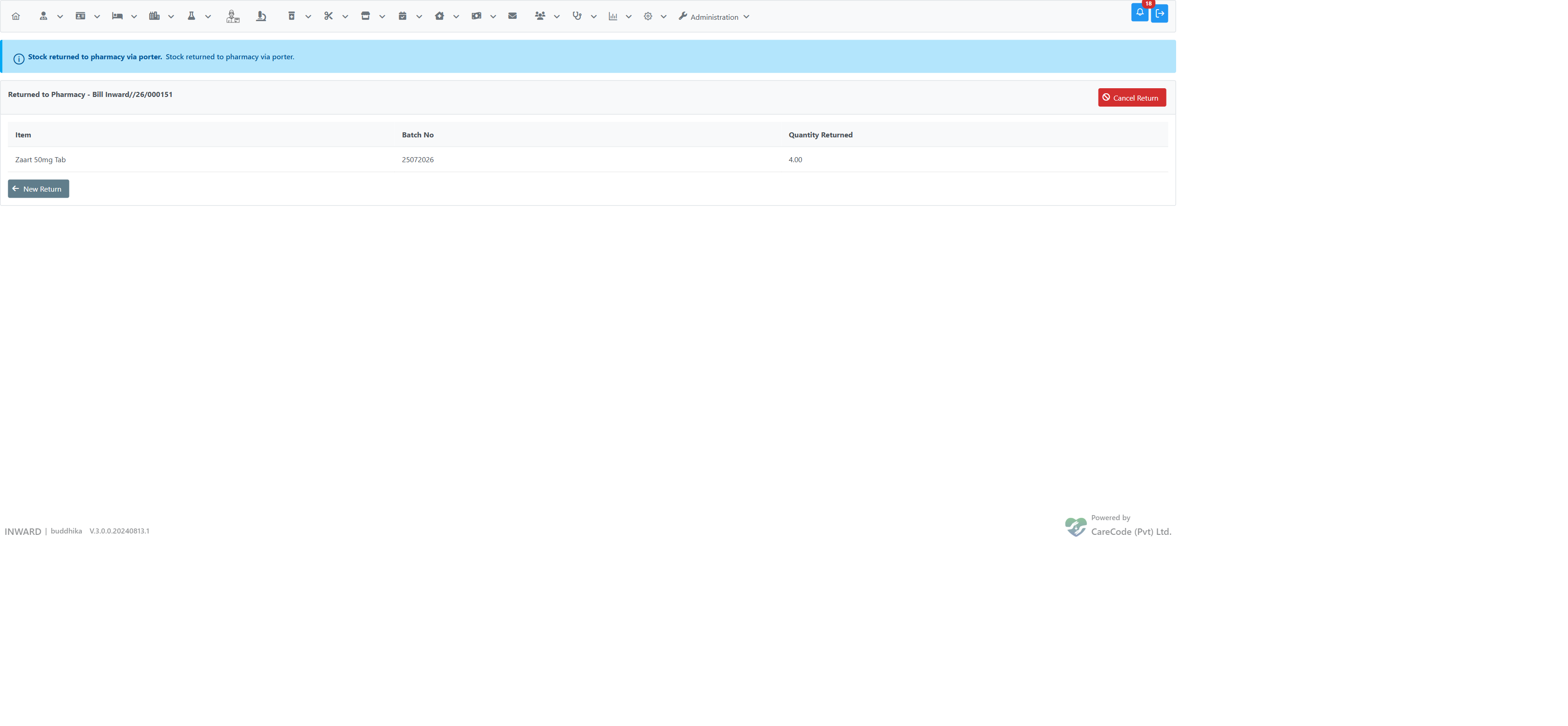
Pharmacy staff can now see this return in their pending acceptance list and receive the items from the porter. On the pharmacy side, this list is reached via Inward > Pharmacy > Accept Returns from Ward (also available at Pharmacy > Inpatient Medication Management > Accept Returns from Ward).
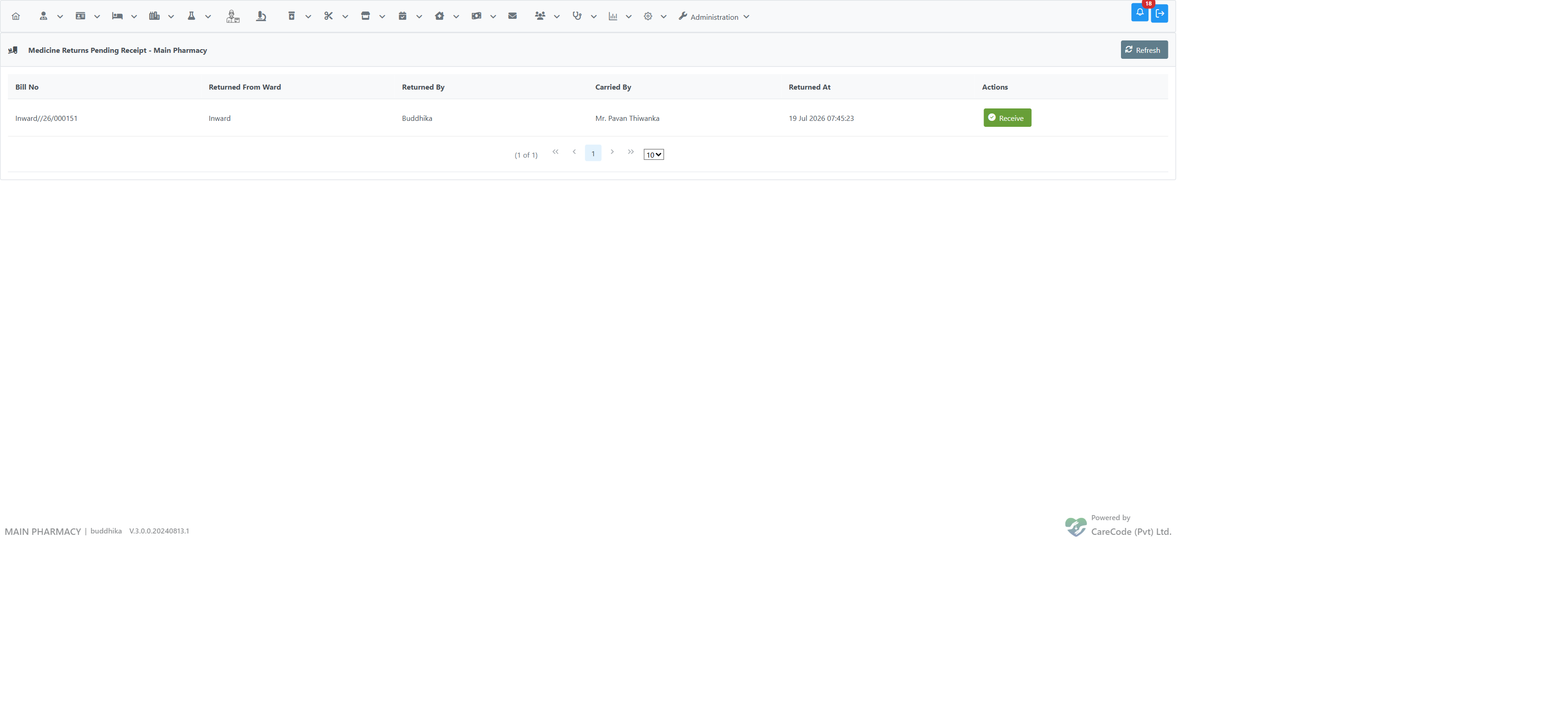
Important: Once you confirm the return, the ward's stock is immediately reduced. Ensure quantities are correct before confirming.
The return also deducts from the patient's Medicine charge total right away, and appears as its own negative row in the Interim Bill's Medicine and Consumable Charges tab — see Inpatient Interim Bills § Medicine and Consumable Charges.
Returning Part of a Bill and Coming Back Later
You do not have to return everything on a bill at once. If you return only part of a received quantity, the bill stays in the list with the remaining balance available. The next time you open the return screen, the Already Returned column reflects the earlier return, and the Returnable quantity is reduced accordingly.
Once a bill has nothing left to return, it drops off the list automatically.
Understanding Returnable Quantities
For each received line, the returnable quantity is worked out as:
Returnable = Received − Already Returned − Administered
...and then further limited by the stock actually held on the ward for that item and batch. In plain terms:
- Received — how many units the ward received on that bill
- Already Returned — units already sent back to the pharmacy against that line
- Administered — units already given to the patient (these can never be returned)
- Ward stock cap — even if the arithmetic allows more, you can only return what is physically on the ward right now
This is why a line can show a returnable quantity of 0 even though units were received — they may all have been administered, already returned, or no longer present in ward stock.
Cancelling a Ward Return
You can cancel a return only if the pharmacy has not yet accepted the items. Once the pharmacy marks the return as accepted, cancellation is no longer possible.
Cancelling reverses the stock movement: the quantities are deducted from the porter's stock and restored to the ward's stock automatically.
- After confirming the return, the Return to Pharmacy print-preview panel is displayed
- Click the Cancel Return button in the panel header
- If the button is greyed out (disabled), either the pharmacy has already accepted the return, or it has already been cancelled
- In the confirmation dialog, enter a reason for the cancellation in the comment box
- Click Yes to confirm
The return bill is marked as cancelled, the porter's stock is reduced by the returned quantities, and the ward's stock is restored. Pharmacy staff will no longer see this return in their pending acceptance list.
Note: The Cancel Return button is only visible immediately after settling the return, while you remain on the print-preview page. To cancel a return from a previous session, contact your pharmacy team.
Understanding Messages
Success Messages
- "Stock returned to pharmacy via porter.": The return was recorded successfully; ward stock was reduced and handed to the selected porter.
- "Return to pharmacy cancelled.": The return has been cancelled and stock has been restored to the ward.
Error Messages
- "Select an admission first.": Open the return screen from a patient's Nursing Work Bench or Admission Profile so the correct BHT is loaded.
- "Select a received bill to return against.": Click Select on one of the received medicine bills before confirming.
- "Nothing left to return on this received bill.": Every line on the chosen bill has a returnable quantity of 0 (fully administered, already returned, or no ward stock remaining).
- "Cannot return [X] units of [item]. Only [Y] units are returnable.": You entered more than the returnable amount; the quantity was capped at what is returnable.
- "Enter a return quantity for at least one item.": All lines are at 0 — enter a quantity on at least one line before confirming.
- "Select the porter who will carry the medicines to the pharmacy.": Choose a porter/staff member before confirming.
- "Select the destination pharmacy department.": Choose the pharmacy the medicines are going back to.
- "Item [item] no longer has a returnable balance — nothing returned for this line.": Between opening the screen and confirming, that line's returnable balance dropped to 0 (e.g. someone else returned or administered it). That line is skipped.
- "This return has already been accepted by the pharmacy and can no longer be cancelled.": The pharmacy team has already recorded acceptance of these items. The stock now belongs to the pharmacy and cannot be automatically reversed — contact the pharmacy to handle the correction manually.
- "Cannot cancel: porter no longer holds enough stock of [item] batch [batch no] to reverse this return (need X, available Y).": The porter has already delivered part of the stock and it is no longer in their possession. The system cannot safely reverse the movement. Contact the pharmacy team to arrange a manual correction.
- "Provide a comment to cancel the return.": You must enter a reason before confirming the cancellation.
- "No return bill found.": The return bill is no longer in the current session. Navigate back to the return screen to start again.
Best Practices
- Use Preview to check the returnable balance before selecting a bill, so you know what is genuinely available to send back
- Verify quantities carefully before confirming the return, since the ward stock is reduced at that point
- Cancel the return immediately on the same screen if you confirmed it by mistake — navigate away from the print-preview and the cancel option will no longer be accessible in this session
- If you need to cancel a return and can no longer access the cancel button, contact pharmacy staff before the porter reaches the pharmacy so they can reject the return on their end
Troubleshooting
A received bill I expected is not in the list
Cause: One of the following:
- Everything on that bill has already been administered or returned, so nothing is returnable
- No matching stock remains on the ward for those items, so the returnable quantity is 0
- The bill belongs to a different patient/admission than the one currently open
Solution: Open the correct patient's return screen, and use Preview on candidate bills to confirm the returnable balance.
A line shows a returnable quantity of 0
Cause: The received units have all been administered, already returned, or are no longer present in ward stock. Solution: This is expected — that quantity genuinely cannot be returned. Nothing further is needed.
The "Cancel Return" button is greyed out
Cause: One of the following:
- The pharmacy has already accepted the return (the most common cause)
- The return bill has already been cancelled
Solution: Check with pharmacy staff whether they have processed the acceptance. If they have, ask them whether a manual stock correction is appropriate.
I submitted a return but used the wrong quantities
Cause: Incorrect quantities were entered before confirming. Solution: Cancel the return immediately (while on the print-preview page), then create a new return with the correct quantities.
The porter has already left with the medicines and I need to cancel
Cause: The return was confirmed and the porter has departed. Solution: Contact the pharmacy to ask them to decline or cancel the acceptance on their end. Do not attempt to cancel in the system if the porter's stock has already been reduced.
Permissions
- Submitting a return requires the Inward Pharmacy Return Submit privilege.
- The Cancel Return button requires the Inward Pharmacy Return Cancel privilege.
Contact your system administrator if you need this access.
Related Features
- Direct Issue Return to Pharmacy — the separate, immediately-settled return flow for medicines issued directly to a BHT (not via a request)
- Inward BHT Medicine Request — Request medicines from pharmacy for a BHT patient
- Request Medicine from Pharmacy — Ward-side request workflow
- Inward Issue Cancellation — Cancel a pharmacy issue (pharmacy side)
- Pharmacy Inward Issue — Pharmacy-side workflows for inpatient medicines
- Pharmacy Pack Transactions and Ward Stock — How ward stock is managed
- Inpatient Interim Bills — where this return shows up in the patient's running bill