Inward Service and Item Requests - hmislk/hmis GitHub Wiki
Inward Service and Item Requests (Approval Queue)
Overview
External systems — such as a patient mobile app or a ward request terminal — can send service requests (for example Oxygen Charges, ward services) and stock item requests (for example Panadol, dressings, consumables) for an admitted patient's BHT. Each request arrives as a Pending entry in the receiving department's queue. Nothing is charged to the patient and no stock moves until a department user actually processes the request through the normal billing pages. This gives the department full control over what is actually supplied and billed, and lets a single request be fulfilled gradually across more than one visit.
When to Use
Use the Service/Item Requests queue when:
- Your department (ward, ward store, etc.) receives service or stock item requests from an external requesting system
- You need to charge a patient's BHT for the requested services and issue the requested stock items
- You need to reject lines that cannot be fulfilled, with a reason
- You want to check what requests are still waiting to be processed
How It Works
Every request line (each individual item or service on a request) is tracked separately:
- Pending — the line has been received. The patient has not been charged and no stock has been deducted for it.
- Fulfilled — a department user processed the line through the normal billing pages (Add Services & Investigations for services/investigations, Direct Issue to BHTs for stock items). The patient's BHT is now charged (and, for stock items, department stock has been deducted).
- Rejected — a department user rejected the line with a reason. No charge, no stock movement.
A request as a whole can be Pending, Partially Fulfilled, Fulfilled, Rejected, or Partially Fulfilled and Rejected, depending on the mix of its lines. A request can be fulfilled across multiple visits — for example, a service line can be billed today and a stock line issued tomorrow, once stock becomes available.
Important: Charging only happens when a line is actually processed through Add Services or Direct Issue and that page's own Settle button is clicked. A pending or rejected line never affects the patient's bill or your stock.
How to Use
Opening the Queue
- Log in and select the department that receives the requests (for example a ward). The queue only shows requests addressed to your current login department.
- Click Inward in the main menu.
- Click Service/Item Requests (clipboard-check icon).
- The Pending Item/Service Requests page opens, showing your department name in the header.
Note: The menu item only appears if you hold the processing or rejection privilege — see Permissions below.
Reading the Queue
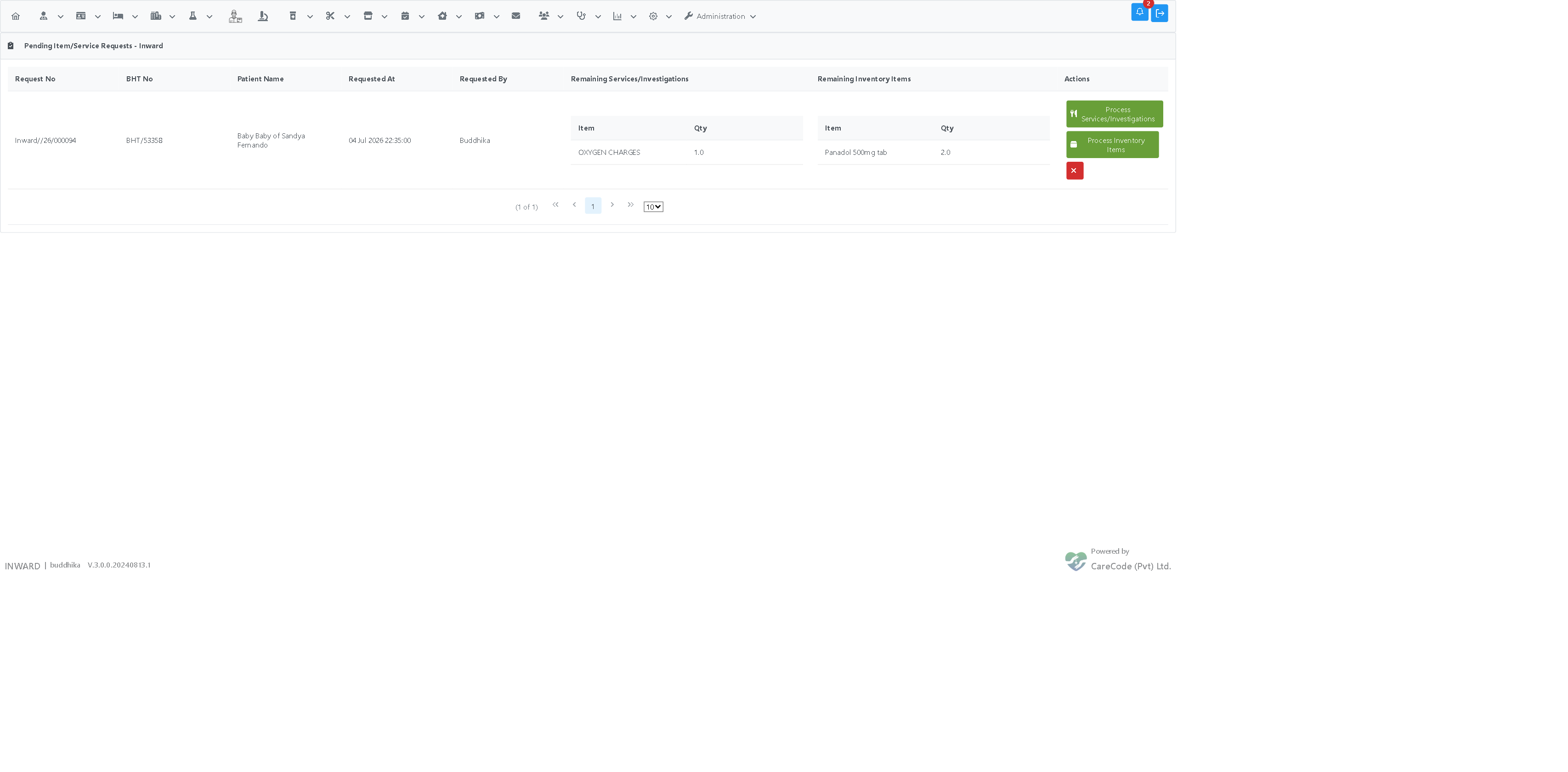
Each row shows one request that still has at least one unfulfilled line:
- Request No — the request's bill number
- BHT No and Patient Name — the admitted patient the request is for
- Requested At / Requested By — when the request arrived and which user (or API account) submitted it
- Remaining Services/Investigations — the still-unfulfilled service and investigation lines with quantities
- Remaining Inventory Items — the still-unfulfilled stock item lines with quantities
- Actions — up to three buttons, shown only when relevant (see below)
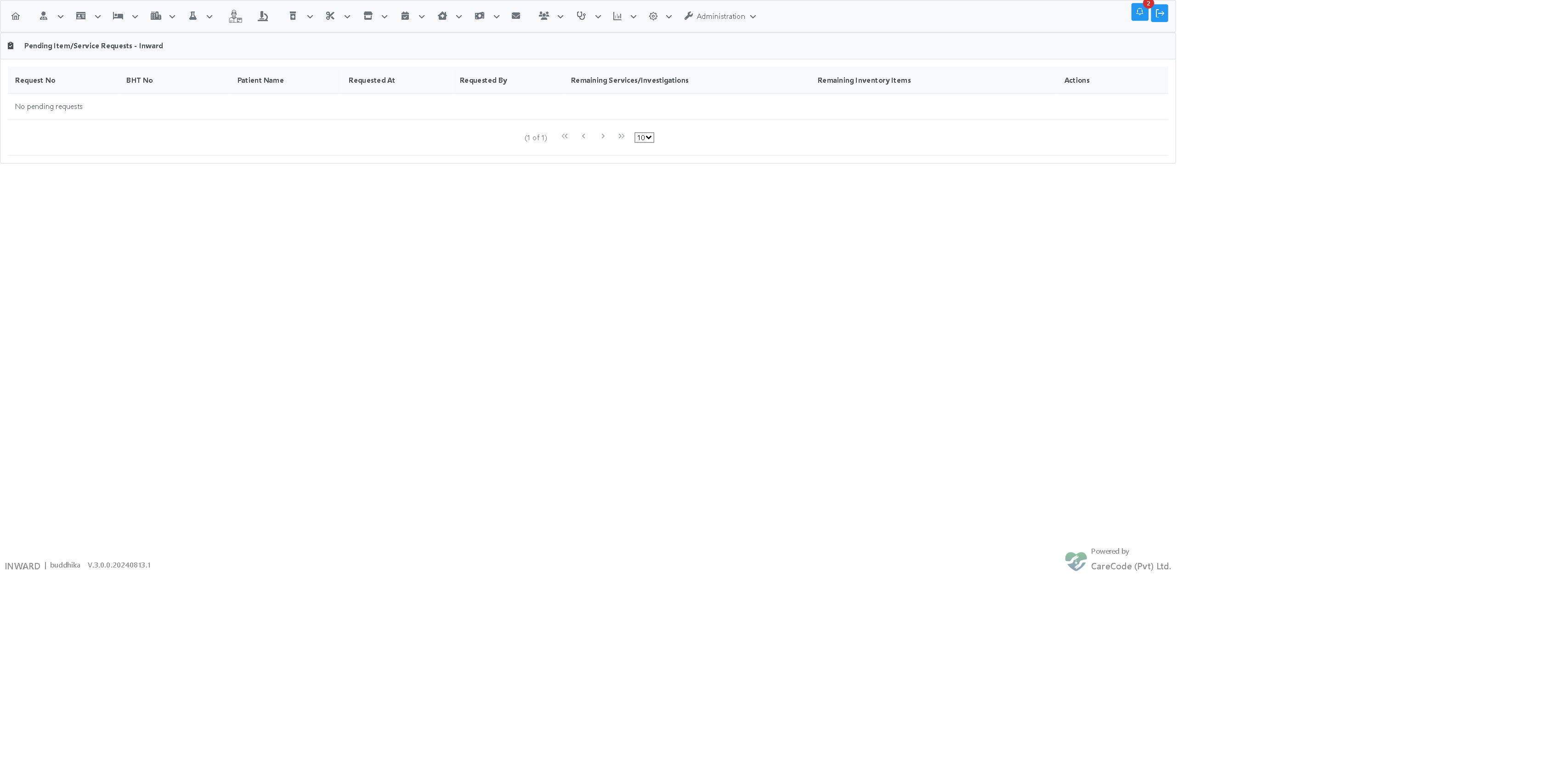
Once every line on a request is fulfilled or rejected, the request disappears from the queue entirely.
Processing Service/Investigation Lines
The Process Services/Investigations button appears only while the request still has unfulfilled service or investigation lines.
-
Click Process Services/Investigations on the row.
-
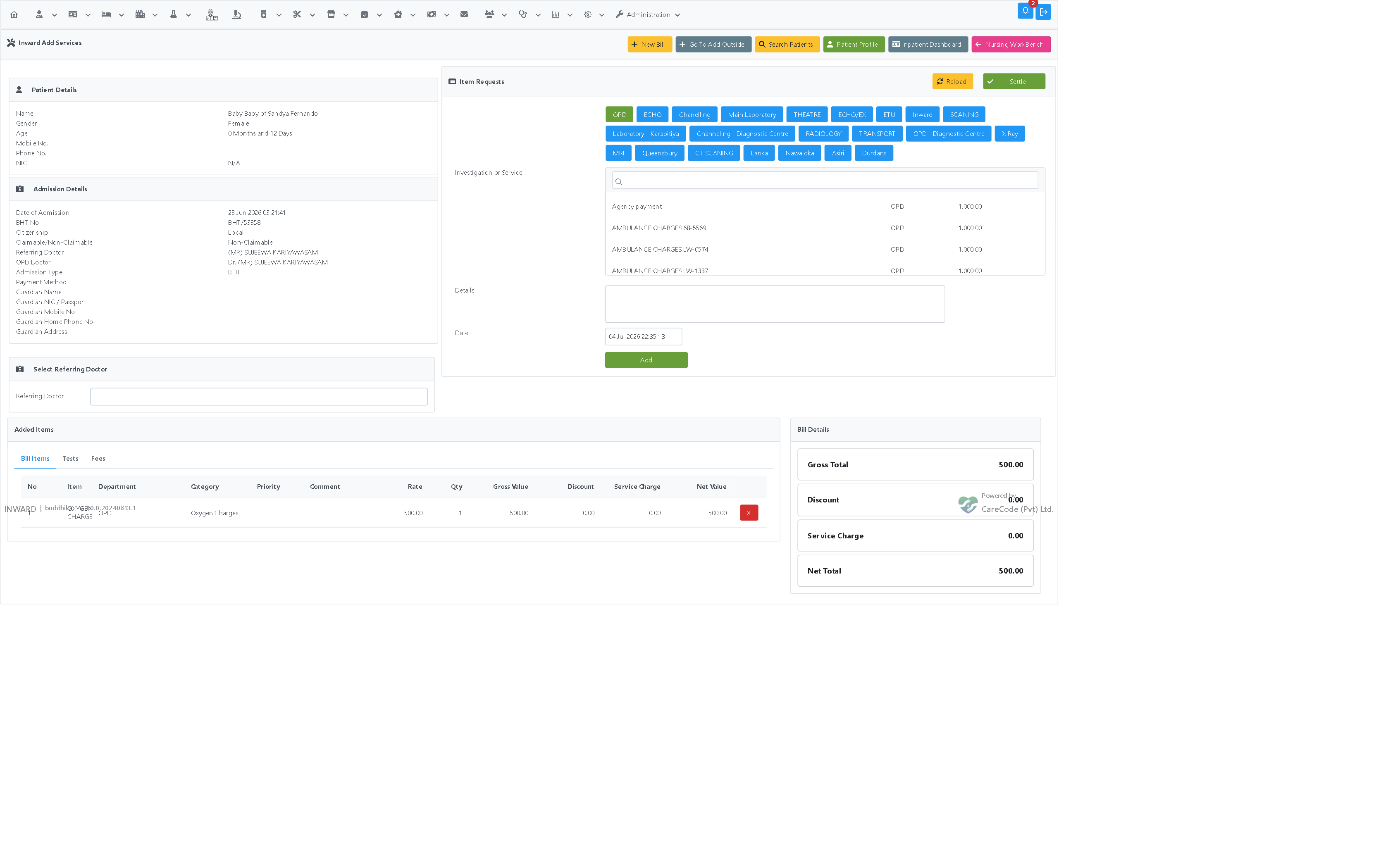
You are taken to the normal Add Services & Investigations page for that patient's BHT, with the requested service/investigation lines already added to the bill at the requested quantities.
-
Review the pre-loaded line(s). Add, remove, or adjust anything as you normally would on this page — it behaves exactly like adding services manually.
-
Click Settle as usual. The patient's BHT is charged and a normal bill is created.
-
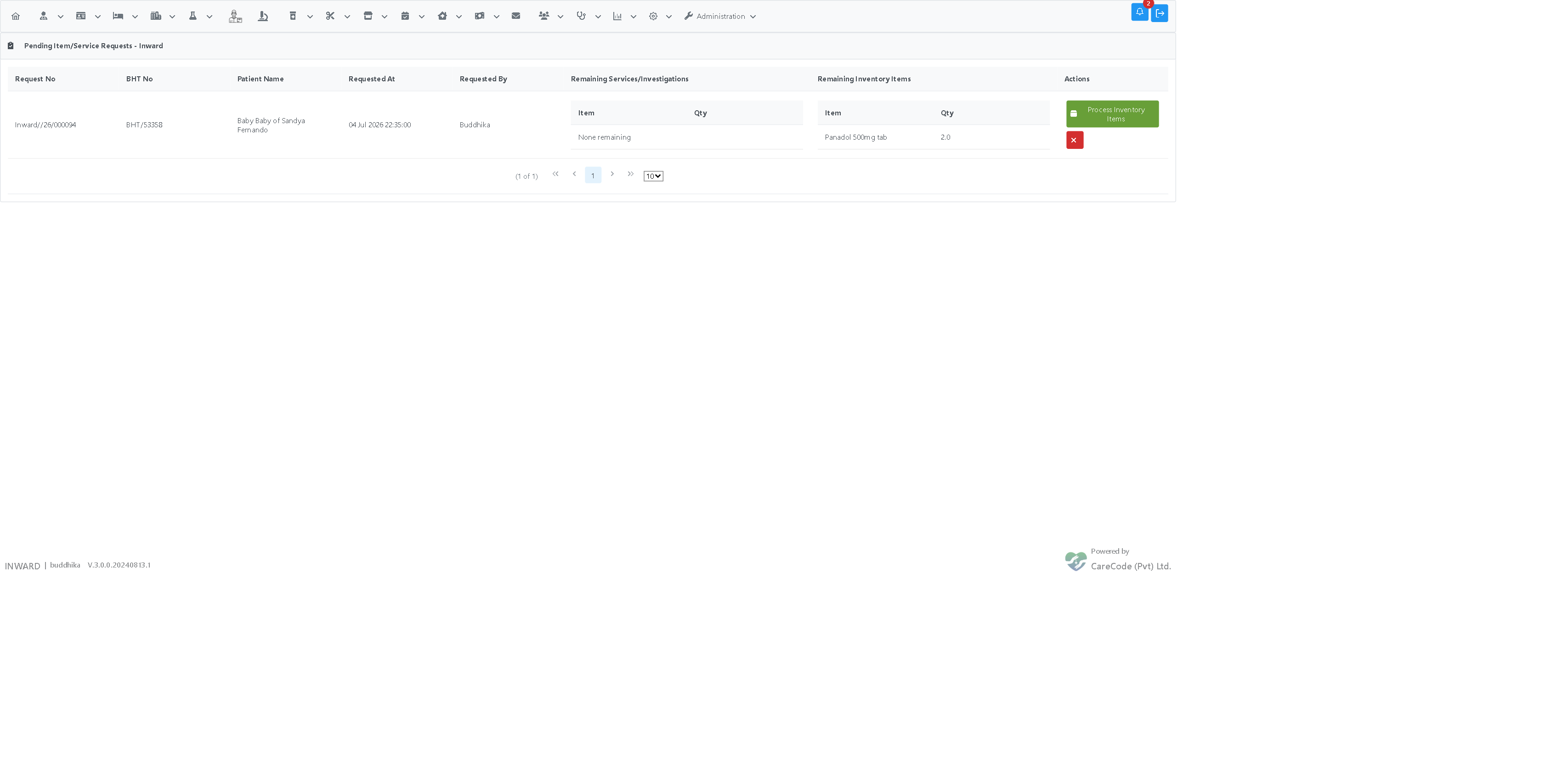
Return to the queue (Inward → Service/Item Requests). The processed line(s) now show under "None remaining" for that column.
Processing Inventory Item Lines
The Process Inventory Items button appears only while the request still has unfulfilled stock item lines.
-
Click Process Inventory Items on the row.
-
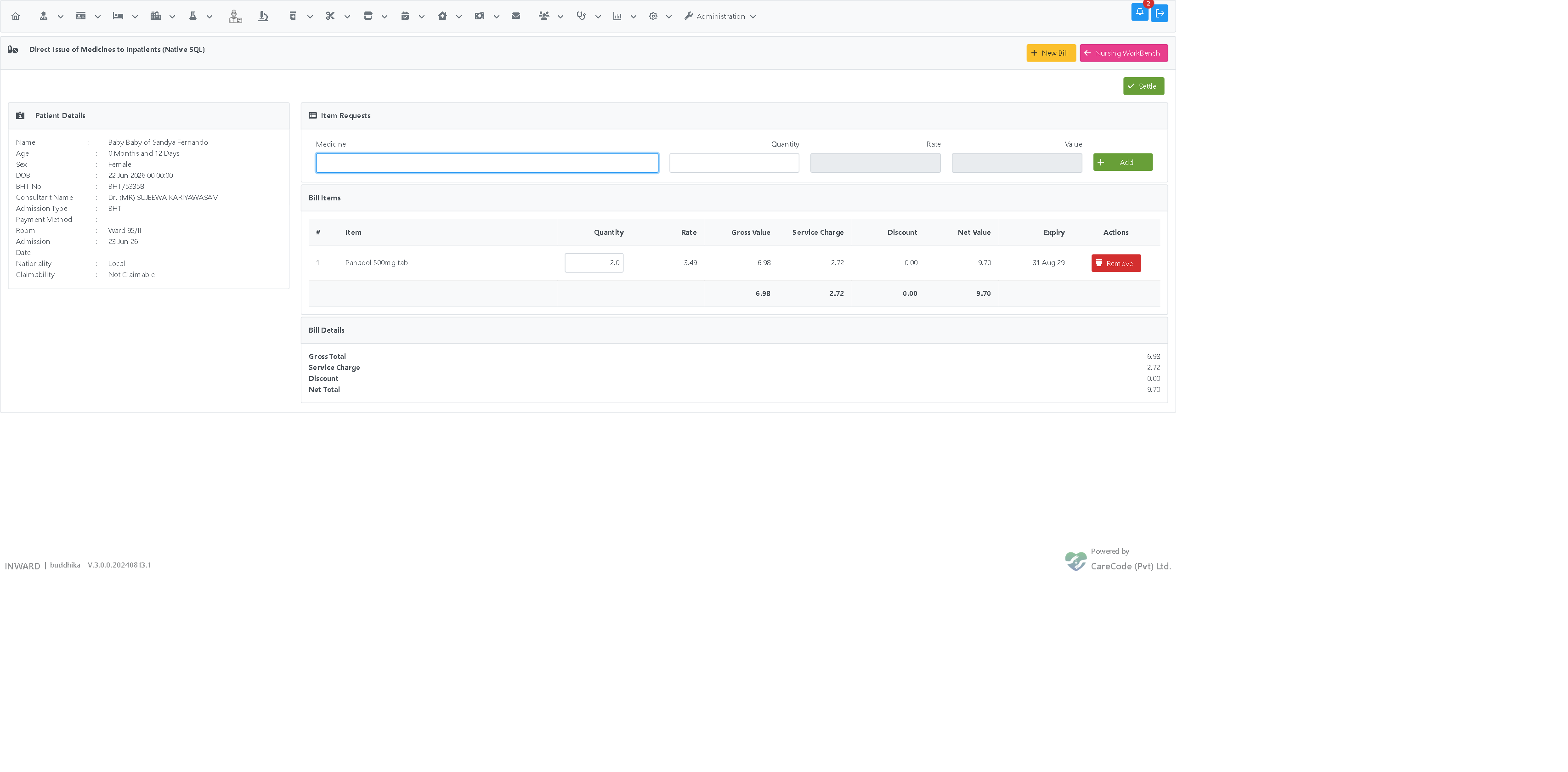
You are taken to the normal Direct Issue to BHTs (Native SQL) page for that patient's BHT, with a suggested (non-expired, earliest-expiry) stock batch already added for each requested item at the requested quantity.
-
Review the pre-loaded item(s) and quantities. If no suitable stock batch was available for a line, that line is simply left out of the cart — it stays in the queue as still remaining, so you can Reject it or wait until stock arrives.
-
Click Settle as usual. Stock is deducted and the patient's BHT is charged at the batch's retail sale rate.
Rejecting Remaining Lines
The Reject Remaining Lines button rejects only the lines that are still pending — any line already fulfilled by a real bill is left untouched.
-
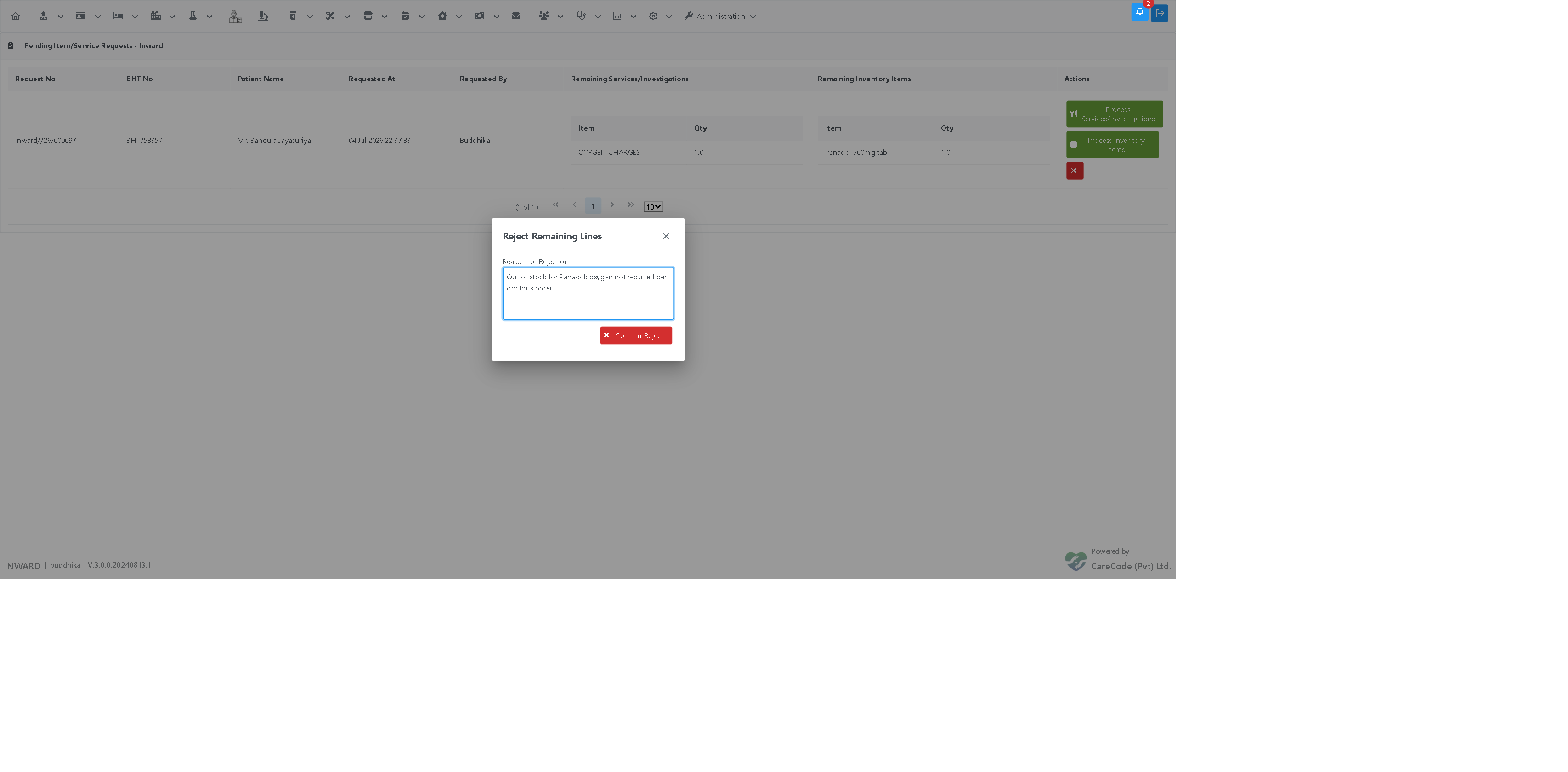
Click Reject Remaining Lines on the row.
-
The Reject Remaining Lines dialog opens.
-
Type the reason in Reason for Rejection — this is mandatory.
-
Click Confirm Reject, then confirm the browser prompt.
-
The message "Remaining lines rejected." appears. Once every line on the request is fulfilled or rejected, the request disappears from the queue.
Understanding Messages
Success Messages
- "Remaining lines rejected." — the still-pending lines were closed with your reason; any already-fulfilled lines and their bills are unaffected.
- "Bill Saved" (Add Services page) / "Bill settled successfully." (Direct Issue page) — the processed line(s) have been charged to the BHT (and stock deducted, for inventory lines).
Error Messages
- "You do not have privileges to process item/service requests." — ask your administrator to grant the processing privilege (see below).
- "You do not have privileges to reject item/service requests." — ask your administrator to grant the rejection privilege (see below).
- "This request belongs to another department's queue." — you are logged in to a different department than the one the request was sent to. Switch to the correct department and reopen the queue.
- "No remaining service/investigation lines on this request." / "No remaining inventory lines on this request." — every line of that type on the request has already been fulfilled or rejected; the queue refreshes automatically so the corresponding button disappears.
- "Rejection reason is required" — you clicked Confirm Reject (or the browser alert fired) without typing a reason in the dialog.
- "This request has no remaining lines to reject." — every line on the request has already been fulfilled or rejected before you clicked Reject.
Best Practices
- Decide promptly — patients may be waiting on a service or a stock item.
- Review the pre-loaded cart before settling — Add Services and Direct Issue behave exactly like manual entry, so you can add, remove, or adjust items before clicking Settle.
- If a stock item doesn't appear pre-loaded, it usually means no suitable batch was found in your department; receive stock first, or reject that line with a reason.
- Write meaningful rejection reasons — they explain to the requester (and to anyone reviewing the request later) why a line could not be supplied.
- Log in to the correct department — you only ever see requests addressed to your current login department.
- A request can be worked on in stages — it's fine to process the service line today and come back for the inventory line once stock is available.
Permissions (Admin)
Two privileges control this feature, granted per user per department in the usual privilege management screens:
- Inward Service/Item Request Approval — user can process (bill/issue) remaining service, investigation, and inventory lines
- Inward Service/Item Request Rejection — user can reject remaining lines
The Service/Item Requests menu item is visible only to users holding at least one of these privileges. See Assigning Privileges to a Role.
Setup (Admin)
Before requests can flow, the requestable items must exist:
- Service and investigation items — create them as inward services or investigations with fees configured, and make sure each has a category set (services without a category cannot be added on the Add Services page). A service without a configured fee simply bills at zero until a fee is set up.
- Stock items — create them as normal stock-tracked items and receive stock into the target department through the usual GRN flow. Processing an inventory line deducts from that department's stock and charges the batch retail sale rate.
- API key — issue an API key to the external requesting system (Admin → API Key Management). See the Inward Item Request API page for the integration details.
FAQ
Q: Can I process only some lines of a request? A: Yes — this is the normal way this feature works. Process whichever lines you can fulfill now (services and/or inventory), and reject or leave pending anything you can't handle yet.
Q: Can the requesting system process or reject its own requests? A: No. Processing and rejection only happen inside HMIS, by a privileged department user, through the normal Add Services and Direct Issue pages. The external system can only submit, view, and cancel its own pending requests.
Q: What if two users try to process the same line at the same time? A: Each real bill created from a line links back to that specific request line. Once a line is fulfilled by one bill, it no longer shows as remaining, so a second attempt at the same line will not double-charge the patient.
Q: When exactly is the patient charged? A: Only when a real bill is settled from the Add Services or Direct Issue page — the charge appears against the BHT like any other inward charge and is included in interim/final bills as usual.
Q: Can a rejected line be reconsidered? A: No. Rejection is final for that line. The requesting system (or the ward) would need to submit a new request for that item.
Q: Where can I see which real bill fulfilled a request line?
A: The external system can see this via GET /api/itemrequests/{id} — each fulfilled line reports the bill id and bill type that fulfilled it. There isn't a separate in-app screen for this; the bill itself is a normal Inward or Pharmacy bill, searchable as usual.
Related Features
- Inward Item Request API — how external systems submit and track requests
- Inpatient Module — module index
- Add Services and Investigations — the page used to process service/investigation lines