Inward Price Adjustment Matrix - hmislk/hmis GitHub Wiki
Inward Price Adjustment Matrix
Overview
Use the Inward Price Adjustment Matrix to apply price margins (also called the service charge) for inpatient services, investigations, and pharmacy items. You can apply a rule to all companies or limit it to one credit company when the hospital uses separate insurance-company pricing. You can also make the margin depend on the room facility category the patient occupies, so a private-room patient and a general-ward patient can carry different service charges for the same service.

When to Use
Use this page when you need to:
- Add a price adjustment for inpatient services, investigations, or pharmacy items.
- Apply a price margin only for a selected credit company.
- Apply a different price margin depending on the patient's room facility category.
- Keep a general rule that applies to all companies when no credit company is selected.
- Keep a general rule that applies to all room categories when no room category is selected.
- Review or update existing inpatient price adjustment rules.
How to Use
- Go to Administration > Manage Inpatient Services > Price Matrix.
- Open the required page, such as Inward Price Adjustment - Service.
- Select the Department.
- Select the Category/Subcategory.
- Select the BHT Type.
- Enter the From, To, and Margin values.
- Select a Credit Company when the rule should apply only to that company.
- Leave Credit Company blank when the rule should apply to all companies.
- Select a Room Category when the margin should apply only to patients in that room category.
- Leave Room Category as All Room Categories when the margin should apply regardless of the room.
- Click Add to save the new adjustment.
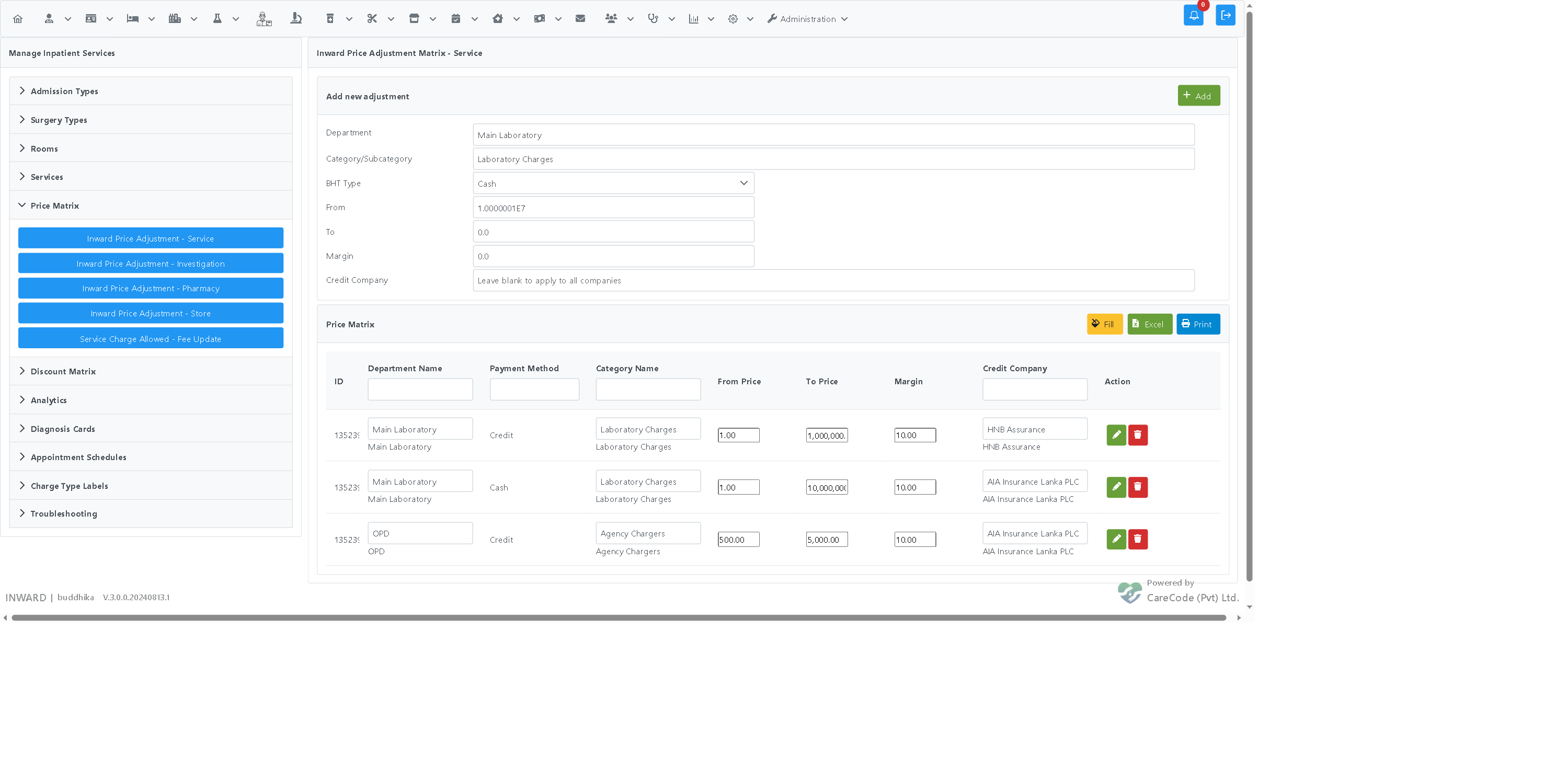
- Use Fill to load existing price matrix records.
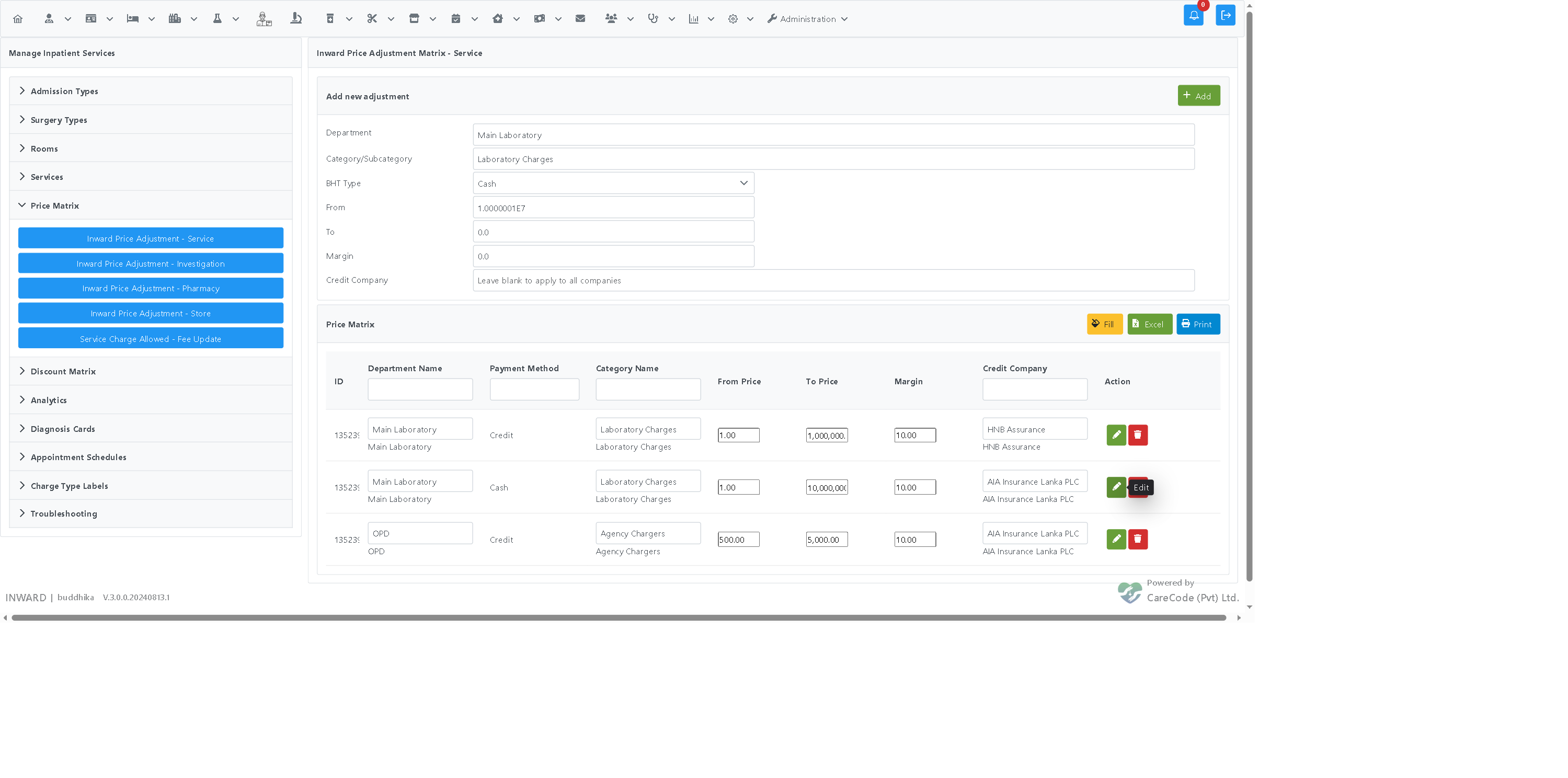
- Click the pencil button to update the selected row, including its Room Category, in the edit dialog.

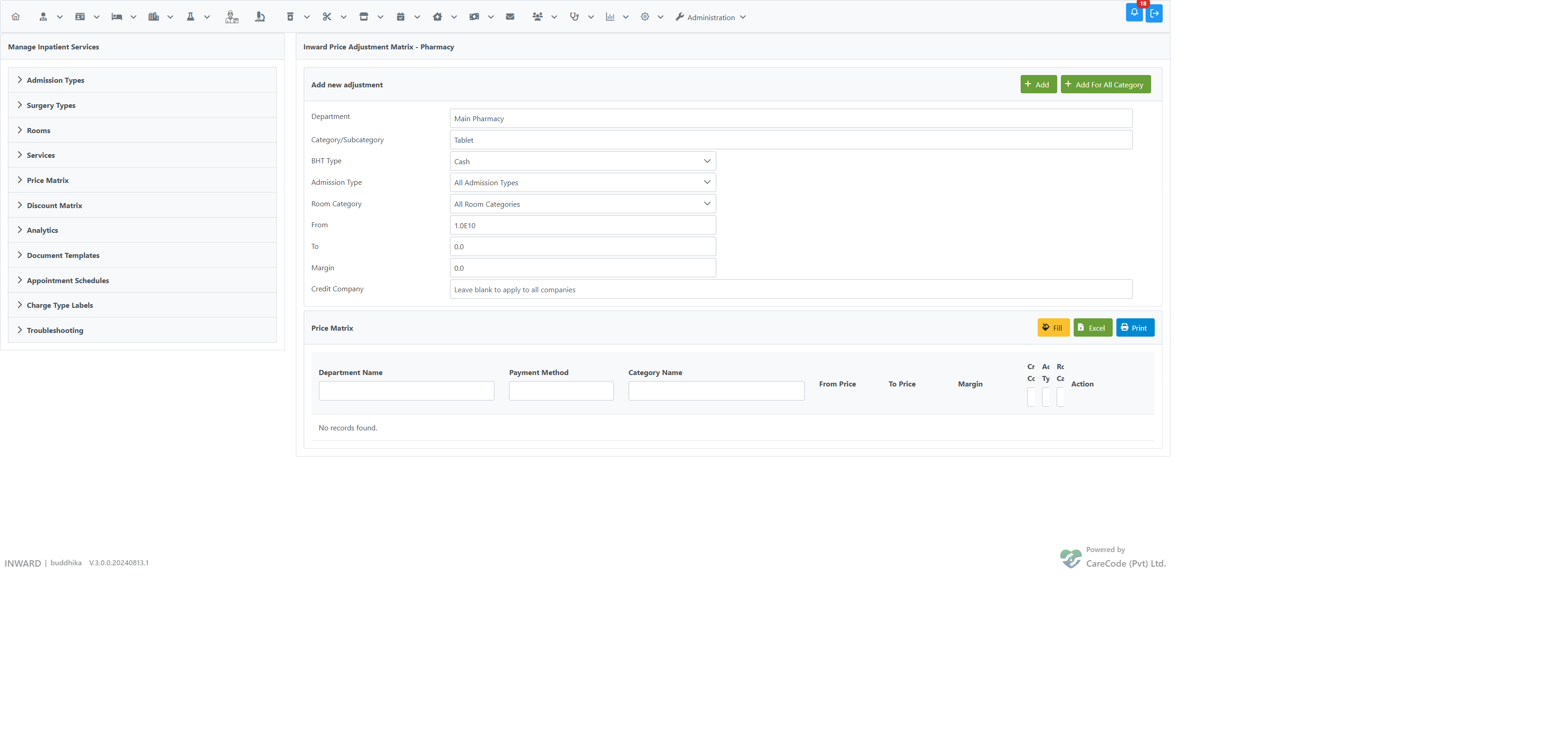
The Room Category field appears in the add form alongside Admission Type, and a Room Category column is shown in the matrix table (defaulting to All Room Categories).
The Pharmacy price adjustment page (Inward Price Adjustment Matrix - Pharmacy) supports the same Room Category dimension: the add form, the matrix table column, and the edit dialog all expose Room Category, mirroring the service page. Pharmacy issues to an inpatient (ward BHT issue, theatre surgery issue, and inpatient pharmacy direct issues) resolve the margin using the patient's current room category, so a private-room patient and a general-ward patient can carry different pharmacy margins for the same item.

After using Fill, the matrix shows existing rules with editable fields and action buttons.
The pencil button saves changes made to the row.
How the Price Band Is Chosen
Each rule covers a price band from From to To. Both ends of the band are included, so a band can be entered as closed ranges such as:
| From | To | Margin |
|---|---|---|
| 0.01 | 1 | 100% |
| 1.01 | 10 | 98% |
| 10.01 | 50 | 88% |
| 50.01 | 100 | 88% |
| 100.01 | 500 | 50% |
- An item priced exactly on an edge (for example 50.00 or 100.00) falls in the band that ends at that price, so it still gets its margin.
- If two bands share an edge (for example 0–50 and 50–100), a price of exactly 50.00 uses the higher band.
- For pharmacy items, the band is chosen by the item's retail rate for one unit. The quantity issued does not change the band: issuing 3 units of an item with a retail rate of 50.00 uses the 10.01–50 band (88%), not the band for the line value of 150.00. This is the same for direct issues and issues against a ward request.

Three units at 50.00 each: the band is chosen from the unit rate (50.00 → 88%), so the service charge is 132.00 and the net value 282.00.
How the Room Category Rule Is Chosen
When a service is added to an inpatient or a theatre case, the system looks up the margin using the patient's current room category (taken from the room the patient currently occupies):
- A rule with a room category applies only to patients in that room category.
- A rule without a room category (All Room Categories) applies to every patient — this is how all existing rules continue to work.
- When both a room-category-specific rule and an all-room-categories rule match the same department, category, and price range, the room-category-specific rule is used.
- If the patient is not yet in a room, only the All Room Categories rules apply.
This means adding room-category rules never changes billing for admissions that don't match them — the general rule is always the fallback.
Tie-break with Admission Type: a rule can be specific on both Admission Type and Room Category. When only one of those dimensions matches on competing rules, the deployment configuration option "Inward Matrix - Room Category takes priority over Admission Type" decides which dimension wins. By default (option off) Admission Type is the dominant dimension. A rule specific on both always outranks a rule specific on only one.
Understanding Messages
- No records found. No matching matrix rows are loaded for the current filters.
- A selected company name in Credit Company means the rule applies only to that company.
- All Companies means no specific credit company is assigned to the rule.
- A selected room category name means the rule applies only to patients in that room category.
- All Room Categories means the rule applies regardless of the patient's room.
Best Practices
- Select the credit company only after confirming the correct BHT type and category.
- Use company-specific rules only when pricing is different for that company.
- Keep one all-company rule for standard pricing where possible.
- Use the table filters to find existing rules before adding a new one.
Troubleshooting
- If the credit company list is empty, type part of the company name and wait for matching results.
- If the expected company is not listed, confirm that the institution is configured as a credit company.
- If a changed company is not saved, click the row update button after selecting the new company.
- If no rows appear after clicking Fill, clear table filters and try again.
Configuration (Admin)
Credit companies must be available in the institution setup before users can select them in the matrix. User access to the page depends on the administration and inward-service privileges assigned to the logged-in user.
FAQ
Can I create a rule for every credit company?
Yes. Add separate rows when each company needs a different margin.
What happens if I leave Credit Company blank?
The rule applies to all companies.
Can I change the credit company after saving a rule?
Yes. Load the matrix, select the company in the row, and click the update button.
Does this apply only to services?
No. The same credit-company selection is available for the related inward price adjustment matrices.
What happens if I leave Room Category as All Room Categories?
The margin applies to every patient regardless of the room they occupy — the same as before this option existed.
What if I add a room-category rule but the patient is not in a room yet?
Only the All Room Categories rules apply until the patient is assigned a room with that room category.
Which rule wins when I have both a room-category rule and an all-room-categories rule?
The room-category-specific rule wins for patients in that room category; everyone else uses the all-room-categories rule.