Step 5 - gunjandatta/sp-dashboard-vue GitHub Wiki
Let's create the basic files and run the webpack dev server, so we can see the application being built as we code it.
The webpack-dev-server will load this file by default. We will create an element to render the application to, and load the script file. The source location can be found in the webpack.config.js file.
<html>

<head>
    <title>VueJS Dashboard</title>
</head>

<body>
    <div id="sp-dashboard-vue"></div>
    <script src="dist/sp-dashboard-vue.js"></script>
</body>

</html>In order to import .vue files, we need to create this interface.
declare module "*.vue" {
    import Vue from "vue";
    export default Vue;
}The main entry point of the application. We will render a basic vue template, to the target element defined in the index.html file.
import Vue from "vue";
import App from "./app.vue";
import { Configuration } from "./cfg";
import Strings from "./strings";

// Create the global variable for this solution
window[Strings.GlobalVariable] = {
    Configuration
}

// Render the app
new Vue({
    el: "#" + Strings.AppElementId,
    render: h => h(App)
});The app template will display basic elements for now. We will update it in the next step. Notice that the class of the main element is 'bs', which is required for the gd-sprest-bs library. It applies the bootstrap styling to elements with a parent containing the 'bs' class.
<template>
    <div class="bs">
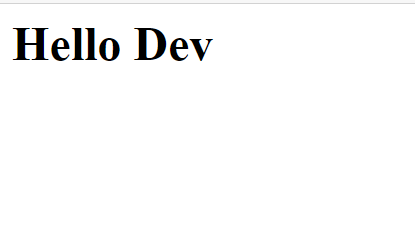
        <h1>Hello Dev</h1>
    </div>
</template>

<script>
export default {}
</script>
The bs class is required for any Bootstrap css class references. The gd-sprest-bs library will only affect elements under the bs class reference.
Before we can compile the solution, we must run npm link typescript to reference the version of TypeScript installed w/ NodeJS.
Run npm run build to compile the code.
Run the npm run serve command to start the dev server. A browser should open up and load the default page, displaying the header/main/footer text.