10. Library - gordtulloch/Galileo GitHub Wiki
10. Library
Overview. Every control on this screen has detailed built-in help: hover it, press F1, or click the ? beside the title. See Built-in Help.
The Library is Galileo's image catalog, built from the author's AstroFiler project. It stores, organises and manages your FITS files, linking lights to calibration frames, flagging duplicates, and optionally syncing to cloud storage.
Contents
Setting up the Library
Before using the Library, set it up under Options > Library (see Options). The two settings you need first are the Repository Path — the folder where the Library stores and organises your FITS files (sub-folders by object, date and filter) — and the Source Path, the incoming drop-folder that Load New imports from. The same page covers lossless FITS compression, your preferred FITS viewer, cloud backup, calibration and accounts for downloading from smart telescopes. Every setting has built-in help.
If you already use AstroFiler, you cannot open its database directly in Galileo. Use Library > Images > Regenerate to rebuild the catalog by reading all FITS headers from your Repository folder. Then use Regenerate Sessions to re-link lights and calibration frames.
Images
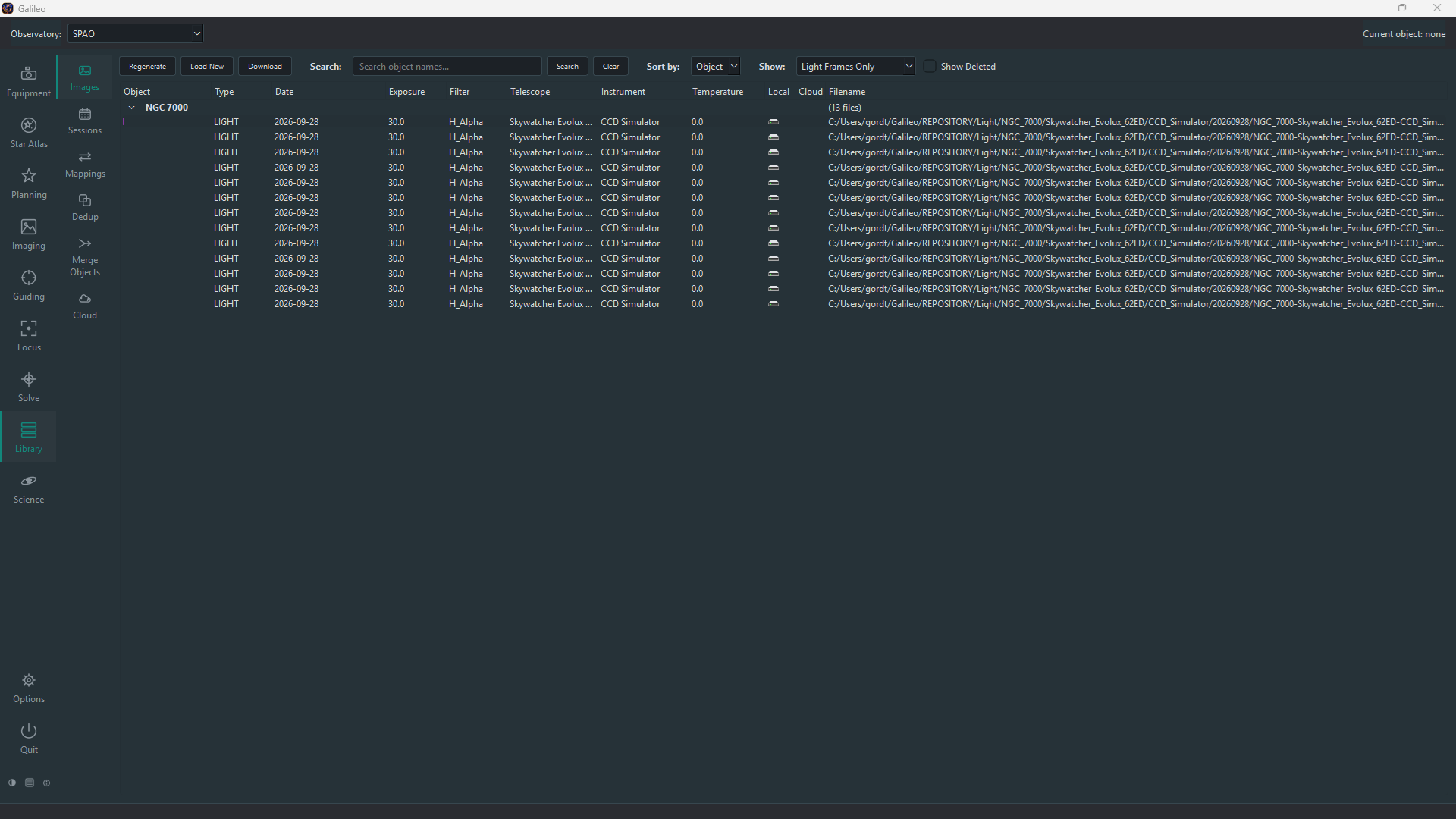
The Images view lists every file the Library knows about as a tree — by object, date or filter — showing each frame's type, date, exposure, filter, telescope, camera, sensor temperature, whether it is held locally and in the cloud, and its file name. Double-click a frame to open it in your FITS viewer.
Actions
| Button / action | What it does |
|---|---|
| Load New | Imports new FITS (and XISF) files from the Source folder: converts XISF, files and renames each by its metadata, and updates the catalog. |
| Regenerate | Rebuilds the catalog from the files already in the Repository, without moving any. Use it to adopt an existing folder of images or recover a damaged catalog. |
| Download | Fetches images from a smart telescope (for example a Seestar), iTelescope or an SFTP server, and imports them. |
| Search, Sort by, Show | Find an object by name, organise the tree by object, date or filter, and choose Light frames only, All frames or Calibration frames only. |
| Show Deleted | Reveals frames you have deleted. Deleting only hides a frame; the file stays on disk. |
| Right-click | View a frame, Delete it, or Add Variable Star to mark the object as a photometry target. |
Sessions
The Sessions view groups frames into sessions — one object, one night, one setup — and links each light session to the bias, dark and flat sessions that can calibrate it. A Resources column shows how much calibration data each session has. Sessions are updated automatically after you load or download images; Regenerate rebuilds them (all, or new only). Right-click a session to:
| Action | What it does |
|---|---|
| Check out | Make the session's files (and calibration) available in a folder you choose, by link or copy, for use in PixInsight, Siril and the like. |
| Calibrate | Calibrate the session's lights with the matching master bias, dark and flat frames. |
| Stack / Stack (photometric) | Stack the lights and open the result in your viewer; the photometric stack avoids sigma clipping so brightness measurements stay valid. |
| Regenerate Thumbnail | Recreate the session's picture from its latest stack. |
| View Master | Open a calibration session's master frame. |
| Copy Session ID | Copy the ID to the clipboard. |
Mappings
The Mappings screen lets you correct inconsistent FITS header values — telescope, instrument, observer, filter, object — so one thing is not catalogued as three. Each mapping says "wherever this card has this value, use that"; Save applies them to the database, optionally to the headers on disk and to the repository folder layout, and refreshes the Images and Sessions screens.
Dedup (Duplicates)
The Dedup screen finds duplicate files — files with identical content (the same hash), such as one frame imported twice. Refresh Duplicates lists each group; Delete Duplicate Files removes all but one copy of each after you confirm.
Merge Objects
The Merge Objects screen combines two names for the same target — M31, M 31, NGC 224. Enter the From and To names, Preview Changes, then Execute Merge; optionally the files on disk are renamed and moved and their headers updated too. The To name is created if it does not exist.
Cloud
The Cloud screen backs up the Library to Google Cloud Storage and keeps it in step with your local files. Set up the bucket, authentication file and Sync Profile under Options > Library (the Configure… button jumps there).
| Control | What it does |
|---|---|
| Analyze | Lists what is in the cloud bucket and matches it to the local catalog, recording each file's cloud address. Moves nothing. |
| Sync | Moves files to and from the cloud according to the profile: Complete Sync keeps everything in both places, Backup Only uploads without downloading, On Demand downloads files when needed. |
Frames already in the cloud show a small cloud icon in the Images view.