2015 07 07 sharing meteor login state between sub domains - giordanocardillo/kadira-server GitHub Wiki
layout: blog_post title: Sharing the Meteor Login State Between Subdomains category: meteor summery: In this blog we'll show you how we shared login state between our static web app and our Meteor app Kadira UI. authorName: Kasun Indi authorProfile: https://twitter.com/_thinkholic
Most developers and companies use two different apps for the marketing website and for the app itself. Thus, they can update each of the apps without affecting the other. Stripe, Digital Ocean and many other companies follow this technique. Most Meteor apps also do the same.
So, in a scenario like this, sometimes we need to show the login state of the app on the landing page too. For an example, see our Kadira home page (https://kadira.io). If you are logged into the Kadira app (https://ui.kadira.io), we show a button with "Open Kadira UI" on the home page, which replaces the login button.
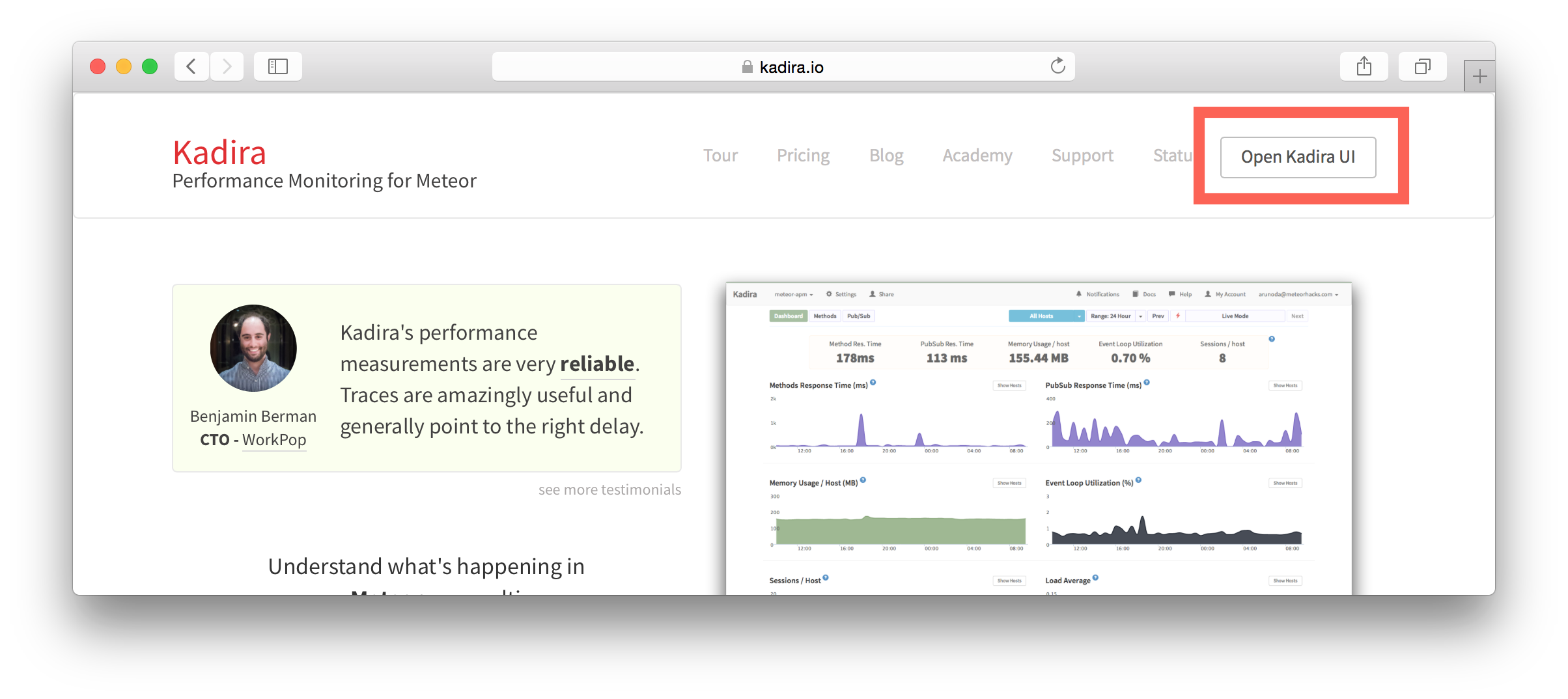
Meteor does not have a built-in way to share login states across multiple apps or subdomains. So, we have to find an alternative way to do so.
As a solution, we can use browser cookies to share the login state between multiple domains. That's exactly what we did. We wrapped this up into a Meteor package, which now you can also use.
In this guide, I'm going to explain how to share the login state between multiple domains using the kadira:login-state package.
First of all, install the kadira:login-state package in your Meteor app:
meteor add kadira:login-state
Then, you need to add a new entry in the public object as the loginState in the settings.json file for your app. (If you haven't created the settings.json yet, you need to create it first.)
{
  "public": {
    "loginState": {
      "domain": ".your-domain-name.com",
      "cookieName": "app-login-state-cookie-name"
    }
  }
}
The domain field must be your main domain name, starting with a dot. It allows you to share the login state, which can be accessed from any of its subdomains. You can use any appropriate identifier, such as cookieName.
Now, everything has been set up on the Meteor app.
Now we have to show the login state of the app on the landing page. For this, we need to add support for the login state for the static app (or landing page).
Actually, there are three different ways to do this. Here I will show you how to do so by pasting a few lines of JavaScript code.
You need to create a JavaScript file in your js folder. I create it as js/login_state.js. After that, copy and paste the following code snippet into it:
LoginState = {};

LoginState.get = function(cookieName) {
  var loginState = getCookie(cookieName);
  if(loginState) {
    return JSON.parse(decodeURIComponent(loginState));
  } else {
    return false;
  }
};

function getCookie(cname) {
  var name = cname + "=";
  var ca = document.cookie.split(';');
  for(var i=0; i < ca.length; i++) {
      var c = ca[i];
      while (c.charAt(0)==' ') c = c.substring(1);
      if (c.indexOf(name) != -1) return c.substring(name.length,c.length);
  }
  return;
}
Insert that file into the head section of your HTML document:
<script src="js/login-state.js"></script>
If you prefer, you can also use Browserify or Bower to load the above JS file. The package name for both Browserify and Bower is
meteor-login-state.
Then, use the following code to get the login state of your app. You need to provide the relevant cookieName to do so:
var loginState = LoginState.get("app-login-state-cookie-name");
if(loginState) {
  // the user has loggedIn to the meteor app
  // see the loginState Object for the addtional data
  // (append your code here!)
  console.log(loginState);
} else {
  // user has not loggedIn yet.
  // (append your code here!)
}
The loginState object will be something like this:
{
  timestamp: 1435835751489,
  username: "username",
  userId: "meteor-user-id",
  email: "[email protected]"
  url: "https://ui.kadira.io"
}
Now you can do whatever you need to do with the login state.
Give it a try and let me know what you think.