InstallingDevVersion - gama-platform/gama GitHub Wiki
Installing the development version
Important note: the current Git version contains 1 main branch:
main: that contains the current development version of GAMA (it works with JDK 25 and Eclipse 2026-03).
Changes made to other branches won't be added to the next GAMA release unless they go through the whole pull-request mechanism.
The following tutorial describes the installation for this version.
Install Eclipse 2026-03
Download the "Eclipse IDE for Java and DSL Developers 2026-03". You can also use the Eclipse launcher and choose to install the Eclipse IDE for Java and DSL Developers version. This is the latest version under which GAMA is certified to work.
Note: Regarding Java, Eclipse embeds the Adoptium Temurin 25, which is the recommended version for GAMA, you may be able to use another one, but we won't fix any related issue.
The GAMA code
There are several ways to obtain the GAMA source code via Git. There is no preferred method, but if you need help, one option is described in detail on this page: Download GAMA development code using the Eclipse plugin.
Import projects into workspace
You have now to import projects into the workspace (notice that the folders downloaded during the clone will neither be copied nor moved).
Note: contrarily to previous Eclipse versions, import projects from the Git perspective doesn't work properly for GAMA.
- In the Java perspective, choose:
File/Import...,
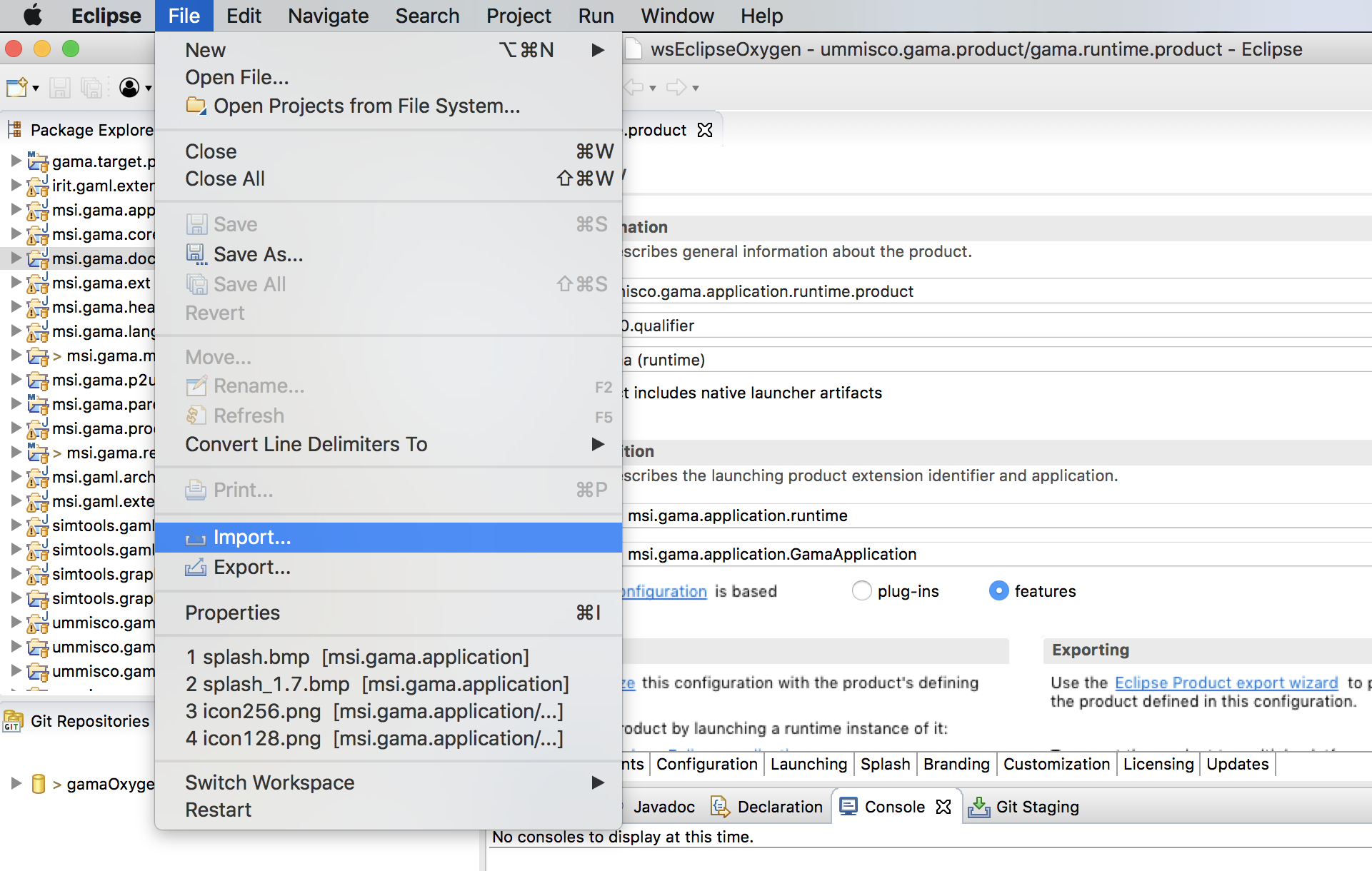
- In the install window, select
Git/Projects from Git, - Click on Next,
- In the
Project from Gitwindow, selectExisting local repository.,
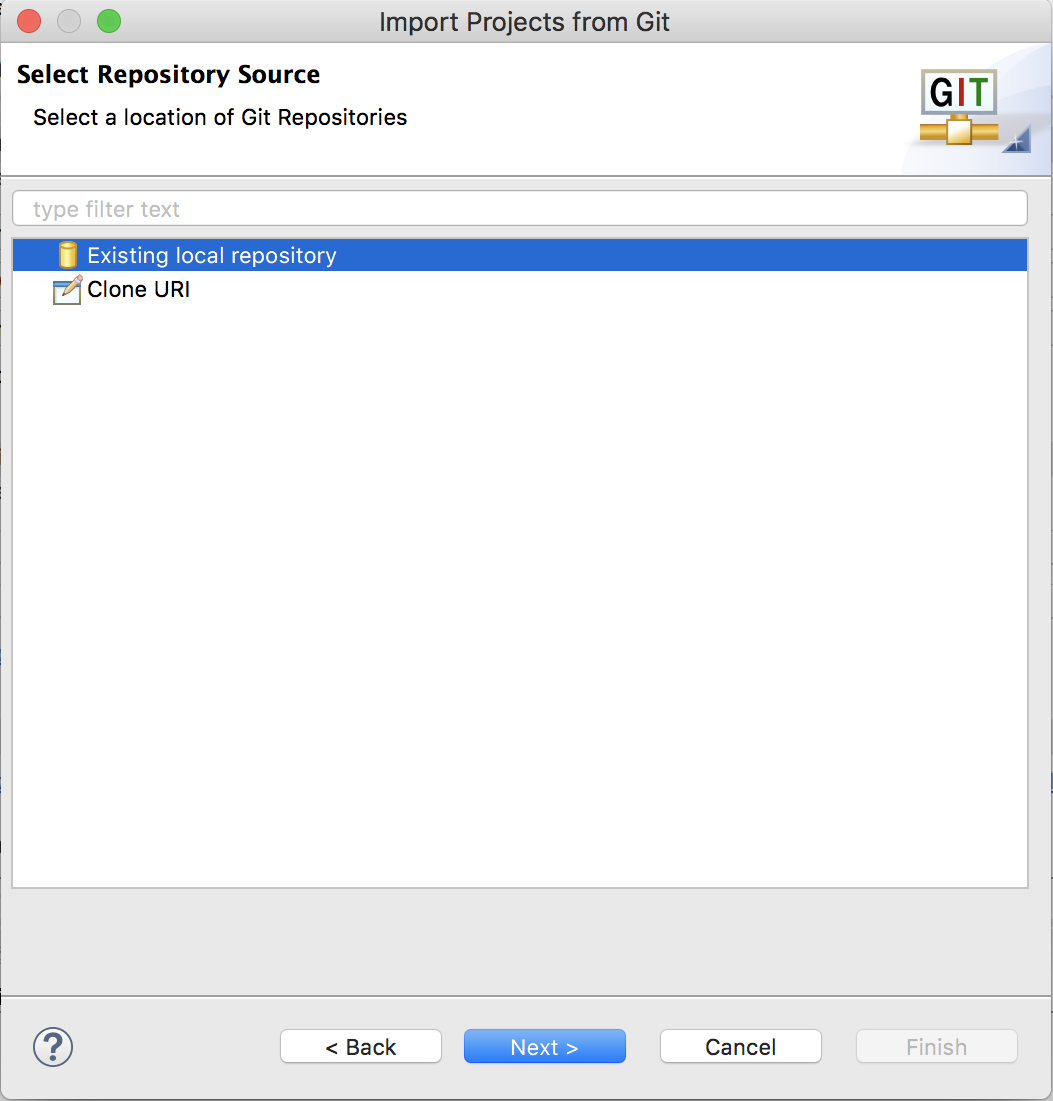
- Click on Next,
- In the new window, select your Git repository,
- Click on Next,
- In the Select a wizard to used to import projects, check that
- Import existing Eclipse projects is selected
- Working Tree is selected

-
Click on Next,
-
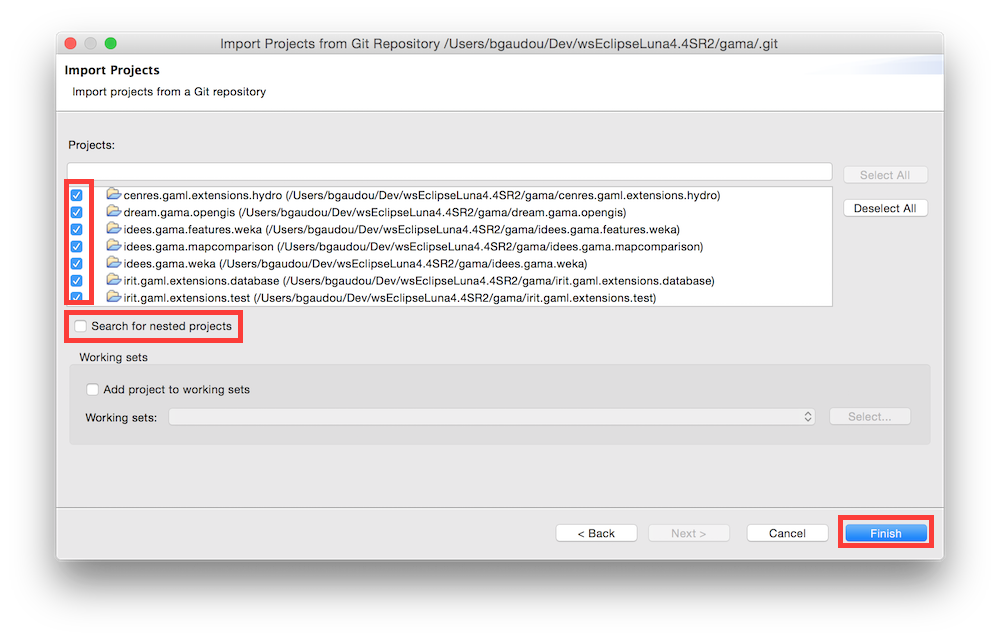
In the Import project window,
- Uncheck Search for nested projects
- Select all the projects
-
Finish
- Clean project (Project menu > Clean ...)
If you have errors...
If errors continue to show in the various projects, be sure to correctly set the JDK used in the Eclipse preferences. GAMA (version 2026-06) is targeting JDK 25, and Eclipse could produce errors if it did not find in your environment. So, either you set the compatibility to 25 by default (in Preferences > Java > Compiler > Compiler Compliance Level) or you change the error produced by Eclipse to a warning only (in Preferences > Java > Compiler > Building > "No strictly compatible JRE for execution environment available).
On Windows : if the project still do not compile, try to add the vm argument in eclipse.ini files (inside the directory where your eclipse is installed) before the -startup line Example :
-vm

C:\Program Files\Java\JDK25\bin

-startup

.....
Run GAMA
- Make sure you're in the Java Perspective (top right button)
- In the
gama.productplugin, open thegama.productfile (gama.headless.productis used to produce the headless). - Go to "Overview" tab and click on Synchronize
- Click on "Launch an Eclipse Application"