Git (tips) - ftc8380/coding-guide GitHub Wiki
Git Reset
The Git reset tool is helpful if you want to go backwards to change or reverse a commit, or if you've made a mess of things and want to go back to whatever is on the remote repo at GitHub.
You can find it by going up to the top: Git --> Reset HEAD...
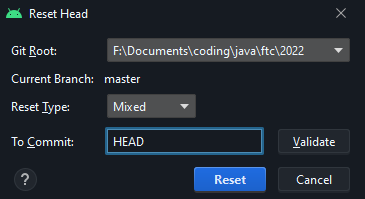
Getting back to the remote
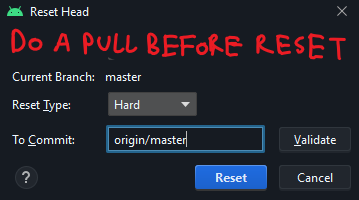
Let's say you've messed something up dearly and want to discard all of your local work and go back to whatever's on GitHub. You could just head back to the Android Studio part of this guide and get the project from VCS again, but that sounds like overkill.
If you'd like to get rid of your changes permanently, do a pull first (doesn't matter if it fails) and then reset with these settings:
Resetting a single file
Although this technically doesn't require the reset functionality, it's still good to have. If you can't CTRL+Z your file back to the latest commit, you can right click the tab showing its filename, go all the way down to Git, then find Rollback. You can also get there quicker with the CTRL+ALT+Z shortcut. This is like doing a hard reset, but for only one file.
This only goes as far as the previous commit, so if you've already committed some really bad changes (you really shouldn't have, what were you thinking), keep reading.
Undoing a commit
⚠ DO NOT DO THIS FOR COMMITS THAT EXIST ON THE REMOTE REPO ⚠
Note that what I am about to suggest ONLY APPLIES FOR UNPUSHED COMMITS. If the commit you want to reverse appears on GitHub at all, do not do this. This is only for if you've made a mistake in a commit but you haven't pushed it yet. If you've already pushed your erroneous commit, just make a new one on top of it fixing whatever you've done.
That said, if you want to undo a local commit just Select Reset Type as Mixed and instead of HEAD write HEAD~1 to undo the latest commit.
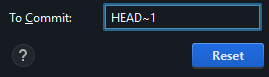
To reset the past 2 commits, do HEAD~2; to reset the past 3 do HEAD~3 etc etc.
Using Reset Type: Mixed will leave your code as the same as it was, but the original commit(s) are gone and you are free to commit as you'd like in their place.
Merge conflict resolution
Sometimes, when you try to pull, you may see an error like below:
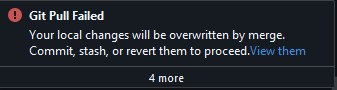
What it means is that your changes are somehow conflicting with the latest commits from the remote repo. Maybe you and another programmer are editing the same line(s) of the same file.
Forget my changes, just pull
If you're OK with losing your current work, you can go back up and do a Reset Type: Hard reset to HEAD. If you haven't committed anything, it should reset your changes and enable you to pull.
Keep my changes to one file
If your changes only exist in one file, you could always just copy them to your clipboard, hard reset to HEAD, do your pull, and then paste them back in.
Keep my changes to multiple files
If you run into conflicts with multiple files, things get trickier.
- Go up top: Git --> Uncommitted changes --> Stash changes...
- Don't worry about the message, just click Create Stash
- Pull as you normally would
- Git --> Uncommitted changes --> Unstash changes...
- Tick the checkbox that says "Pop stash"
- Click the blue Pop Stash button
A window should pop up titled Conflicts, and you can go through each file that has conflicts. What follows is somewhat counterintuitive:
- To keep your changes choose Accept Theirs
- To apply changes from the remote repo choose Accept Yours
It's not the other way around because now that you've pulled, the commits from the remote are "yours" and your stash from earlier is "theirs". Now you can choose which files you want to keep your changes to, and which ones you're OK with being overwritten.