Installing the module - flagbit/Magento-FACTFinder GitHub Wiki
This manual shows how the module can be installed using Magento's Connect-Manager. If you are familiar with git, modman or composer, please use such direct way to install the module into your Magento system.
Downloading the module from Magento Connect
The download process may easily be handled by the Magento Connection Manager[1], which may be found in the system tab of the backend menu[2]. In the form shown below, you can install new modules by entering their extension keys. Please enter the following FACT-Finder extension key:
http://connect20.magentocommerce.com/community/Flagbit_Factfinder
in Magento Connect and then click on "Install"[3].
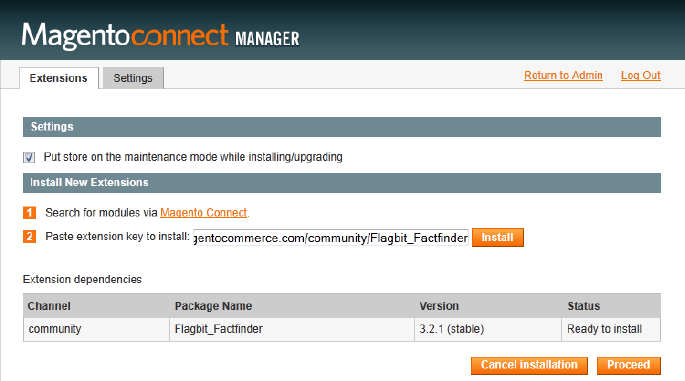
Magento will now connect to the Magento Connect server, and lists all modules necessary for the installation. Normally a display window as shown above will appear. The version numbers may differ with current changes. If you then select "Proceed", the Magento Connect Manager will start downloading the necessary files and subsequently will perform the installation.
To avoid problems in carrying out this step, the web server needs sufficient write permissions to the Magento folders. If the message "Warning: Your Magento folder does not have sufficient write permissions." is displayed at the top of the form, please verify your settings or contact your system administrator, if needed.
The Magento Connect Manager now proceeds to the bottom of the page and shows a protocol of the downloading or installation process. The following screenshot shows an example of a successful installation.
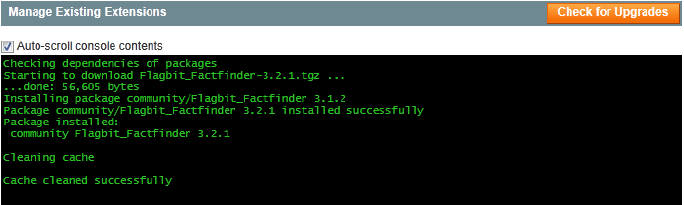
If the installation is displayed as having been successful, then the installation process via Magento Connect was successful, and you may return to Magento’s administration interface.
[1]: May be available only in the Magento Community Edition.
[2]: You may need to verify your user name and password to start the Magento Connect Manager.
[3]: In this manual, we assume that the Magento Connect Manager 2.0 is used, which was introduced in version 1.5.0.0 (Community Edition) or 1.10.0.0 (Enterprise Edition). For Magento Connect Manager 1.0, the extension key is the following: magento-community/Flagbit_Factfinder.
Install through composer
composer require flagbit/factfinder
Manual download and installing
If a installation is not possible with Magento Connect, it is also possible to download a version from https://github.com/Flagbit/Magento-FACTFinder/tags as a zip archive. This is not a PEAR package as the download-manager expects it. This is why its necessary to unpack it manually into your Magento system.
If you are familiar with modman, it is better to use this tool for installing the module so it is easy to update and remove it.
After such a manual installation you should refresh the configuration cache of Magento and log-out and -in again.
Upgrading from < 4.0
There is not much to do to upgrade to >= 4.0. Ensure that you delete all module related files on your webserver first. Then copy over the current version and clean your magento cache. Go to "System -> Configuration -> FACT-Finder", enable your features and finally the module for your store view. If you have customized some of the templates, you'd need to adapt them. Use the Customizing section for that.
Don't forget to remove the old module files under /app/code/community/Flagbit/Factfinder and related folders.