WKWebView 사용 방법 - ehrldyd15/Swift_Skills GitHub Wiki
-
webView초기화: 가끔 viewDidLoad()에서 view를 초기화하여 사용하지만, webView같은 경우 viewDidLoad에서 초기화하지 않고,
viewController 블록 내에서 바로 초기화하여 사용하는게 효율적이다.
import WebKit let webView = WKWebView() -
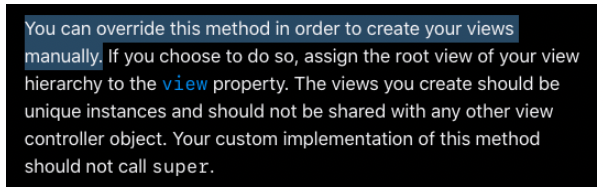
loadView()를 override하여 webView를 할당
-
loadView(): ViewController가 기본적으로 가지고 있는 view를 다른 view로 지정하고 싶은 경우 override하여 사용
-
    override func loadView() {
        self.view = webView
    }
-
remote content 로드 방법
if let url = URL(string: "https://www.apple.com" { let request = URLRequest(url: url) webView.load(request) } -
local content 로드 방법
-
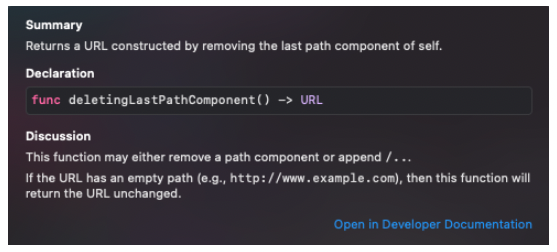
url.deletingLastPathComponent(): url의 last path 컴포넌트가 제거된 url로 반환if let url = Bundle.main.url(forResource: "help", withExtension: "html") { // allowingReadAccessTo: url.deletingLastPathComponent(): "help.html"이라는 파일 로드하는 코드 webView.loadFileURL(url, allowingReadAccessTo: url.deletingLastPathComponent()) }
-
-
웹뷰에 HTML 직접 코드로 정의: loadHTMLString(:baseURL:) 사용
-
단, image나 CSS와 같은 번들의 assets을 참조해야하는 경우는 baseURL을 Bundle.main.resourceURL로 사용
let html = """
<html>
<body>
<h1>Hello, Swift!</h1>
</body>
</html>
"""

webView.loadHTMLString(html, baseURL: nil)

/// image나 CSS와 같은 bundle의 assets에 접근하는 경우
webView.loadHTMLString(html, baseURL: Bundle.main.resourceURL)
-
WKNavigationDelegate를 이용하여 특정 사이트에 대해서 방문할 수 없도록 제한하는 방법
-
WKNavigationDelegate 프로토콜 conform
class ViewController: UIViewController, WKNavigationDelegate { ... webView.navigationDelegate = self -
webView(:decidePolicyFor:decisionHandler:) 메소드에서
decisionHandler에 허용하는 페이지면.allow, 허용하지 않으면.cancel로 전달func webView(_ webView: WKWebView, decidePolicyFor navigationAction: WKNavigationAction, decisionHandler: @escaping (WKNavigationActionPolicy) -> Void) { if let host = navigationAction.request.url?.host { if host == "www.apple.com" { decisionHandler(.allow) return } } decisionHandler(.cancel) } -
webVoew(:decidePolicyFor:decisionHandler:) 전화화면, 이메일 화면으로 이동되게끔 하는 코드
  func webView(_ webView: WKWebView, decidePolicyFor navigationAction: WKNavigationAction, decisionHandler: @escaping (WKNavigationActionPolicy) -> Void) {
      if let url = navigationAction.request.url {
          if url.scheme == "mailto" || url.scheme == "tel" {
              if UIApplication.shared.canOpenURL(url) {
                  UIApplication.shared.open(url, options: [:], completionHandler: nil)
              }

              decisionHandler(.cancel)

              return
          }
      }

      decisionHandler(.allow)

      return
  }
-
유저에게 웹이 HTML fetching중, CSS, image등을 다운받고 있어서 로딩중인걸 알리는 방법: estimatedProgress를 옵저빙
// 구독 webView.addObserver(self, forKeyPath: #keyPath(WKWebView.estimatedProgress), options: .new, context: nil) // 이벤트 수신은 observeValue 메소드를 오버라이딩 override func observeValue(forKeyPath keyPath: String?, of object: Any?, change: [NSKeyValueChangeKey : Any]?, context: UnsafeMutableRawPointer?) { if keyPath == "estimatedProgress" { print(Float(webView.estimatedProgress)) } } -
웹 페이지의 title이 변경되었을 때 알 수 있는 방법: title를 옵저빙
  // 구독
  webView.addObserver(self, forKeyPath: #keyPath(WKWebView.title), options: .new, context: nil)

  // 이벤트 수신은 observerValue 메소드를 오버라이딩
  override func observeValue(forKeyPath keyPath: String?, of object: Any?, change: [NSKeyValueChangeKey : Any]?, context: UnsafeMutableRawPointer?) {
      if keyPath == "estimatedProgress" {
          print(Float(webView.estimatedProgress))
      }
  }
-
backList
for page in webView.backForwardList.backList { print("User visited \(page.url.absoluteString)") } -
forwardList
  for page in webView.backForwardList.forwardList {
      print("User visited \(page.url.absoluteString)")
  }
-
evaluateJavaScript() 사용
  webView.evaluateJavaScript("document.getElementById('username').innerText") { (result, error) in
      if let result = result {
          print(result)
      }
  }
-
webView.configuration.websiteDataStore.httpCookieStore.getAllCookies로 쿠키 접근
  webView.configuration.websiteDataStore.httpCookieStore.getAllCookies { cookies in
      for cookie in cookies {
          if cookie.name == "authentication" {
              self.webView.configuration.websiteDataStore.httpCookieStore.delete(cookie)
          } else {
              print("\(cookie.name) is set to \(cookie.value)")
          }
      }
  }
-
customUserAgent 프로퍼티 사용
webView.customUserAgent = "My Awesome App"
-
WKUIDelegate를 conform
class ViewController: UIViewController, WKUIDelegate { ... webView.uiDelegate = self -
webView(:runJavaScriptAlertPanelWithMessage:initiatedByFrame:completionHandler:) 메소드 구현
  func webView(_ webView: WKWebView, runJavaScriptAlertPanelWithMessage message: String, initiatedByFrame frame: WKFrameInfo, completionHandler: @escaping () -> Void) {
      let ac = UIAlertController(title: "Hey, listen!", message: message, preferredStyle: .alert)

      ac.addAction(UIAlertAction(title: "OK", style: .default, handler: nil))

      present(ac, animated: true)

      completionHandler()
  }
-
webView.takeSnapshot(with:) 사용
  // 웹뷰의 왼쪽 상단 150*50 이미지 생성
  let config = WKSnapshotConfiguration()
  config.rect = CGRect(x: 0, y: 0, width: 150, height: 50)

  webView.takeSnapshot(with: config) { image, error in
      if let image = image {
          print(image.size)
      }
  }
-
WKWebView 생성 시 configuration정보 삽입
  let config = WKWebViewConfiguration()
  config.dataDetectorTypes = [.all]
  let webView = WKWebView(frame: .zero, configuration: config)