2. Feature Overview - eckig/graph-editor GitHub Wiki
An overview of some of the basic features of the graph editor.
2.1. The graph model
The graph state is stored in an EMF model. A model class exists for each visual element.
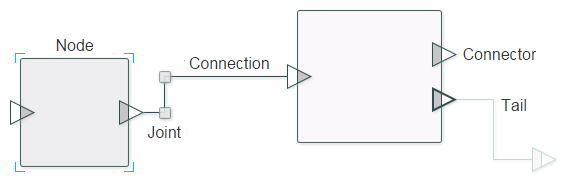
Graph model elements can be created as follows:
GModel model = GraphFactory.eINSTANCE.createGModel();
GNode node = GraphFactory.eINSTANCE.createGNode();
2.1.1. Adding elements to the model
EMF commands should generally be used to update the model. For example:
Commands.addNode(model, node);
Adding a node via EMF commands guarantees two things:
- The 'add node' step will be undoable.
- The new node will automatically be displayed in the graph editor.
Whenever the graph editor updates the model state (e.g. because a user dragged a node from one point to another), it will use an EMF command. All user actions should therefore be undoable.
Commands.undo(model);
Commands.redo(model);
If you are working with the graph editor it's worthwhile reading about EMF and EMF commands in some more detail. See for example this tutorial.
2.1.2. Editing domains
The utility methods in 'Commands' require that the given model already has an EMF EditingDomain attached to it, i.e.
AdapterFactoryEditingDomain.getEditingDomainFor(model) != null
This will be the case if
graphEditor.setModel(model)
has already been called. When a model is set the graph editor checks to see if an editing domain is attached to it, and creates one if necessary.
2.2. Alignment and snap-to-grid
Alignment properties can be set as follows:
graphEditor.getProperties().setGridVisible(true);
graphEditor.getProperties().setSnapToGrid(true);
graphEditor.getProperties().setGridSpacing(15);
If snap-to-grid is on, nodes and joints will snap to the nearest grid-line when dragged or resized.
2.3. Navigating around in large graphs
For large graphs, the graph editor can be set inside a container.
GraphEditor graphEditor = new DefaultGraphEditor();
GraphEditorContainer graphEditorContainer = new GraphEditorContainer();

GModel model = GraphFactory.eINSTANCE.createGModel();
model.setContentWidth(1600);
model.setContentHeight(1200);

graphEditor.setModel(model);
graphEditorContainer.setGraphEditor(graphEditor);
graphEditorContainer.getMinimap().setVisible(true);
The container should then be added to the scene graph. The view will be resized to the model's values (i.e. 1600x1200 in this case), and can be panned around by right-clicking and dragging.
The minimap displays a mini-representation of the graph and can also be used to navigate around. It shows the connections exactly as routed by their skins and updates them when the final routes change (not on every frame while dragging).

2.4. Selections
Nodes and joints can be selected by clicking on them. Multiple elements can be selected in the usual fashion by left-clicking and dragging a selection box.

The current selection can be examined or modified with the io.github.eckig.grapheditor.SelectionManager.
2.5. Localization
Strings used by the graph editor (currently only the ones read out by screen readers) come from a ResourceBundle and can be replaced per editor:
graphEditor.getProperties().setResourceBundle(ResourceBundle.getBundle("com.example.Messages"));
Keys that a custom bundle does not define fall back to the shipped English defaults, so upgrading never breaks an application with incomplete translations.
| Key | Default (English) |
|---|---|
graphEditor.accessibleRoleDescription |
graph editor canvas |
graphEditor.accessibleText |
nodes: {0,number,integer}, connections: {1,number,integer} ({0} = number of nodes, {1} = number of connections) |
graphEditor.accessibleTextEmpty |
empty graph |
Every message is a complete MessageFormat pattern, so the word order can be changed freely.
For more information about available features see the demo and its source code.