Getting Started - easyphp/DOCUMENTATION GitHub Wiki

- double-click on the downloaded executable
- select an installation folder and follow the instructions
- a shortcut to
Devserveris created on your desktop - use this shortcut to launch
Devserver(or go to the install folder and click on run-devserver.exe) - when
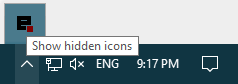
Devserveris launched, an icon appears in the Notification Area (next to the clock) - if you don't see the icon, click on Show hidden icons and move the icon next to the clock. - a right/left-click gives access to various menus


Two ways :
- right/left-click on the icon in the Notification Area, click on Open Dashboard and under HTTP SERVER click on start

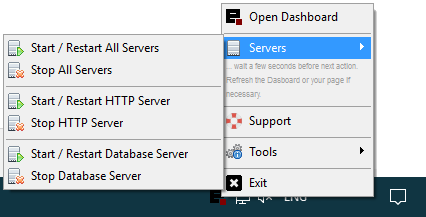
- if you don't need to open the Dashboard, click on Servers > Start / Restart HTTP Server or Start / Restart All Servers (with this option the database server will start as well).
Two ways :
- right/left-click on the icon in the Notification Area, click on Open Dashboard and under DATABASE SERVER click on start
- if you don't need to open the Dashboard, click on Servers > Start / Restart Database Server or Start / Restart All Servers (with this option the http server will start as well).
See the next article Setup your environment
[WSMETA] [Title:Getting Started] [Description:A quick tutorial about how to install EasyPHP Devserver and start / restart / stop the HTTP server and Database server] [Keywords:devserver,http server,database server] [/WSMETA]